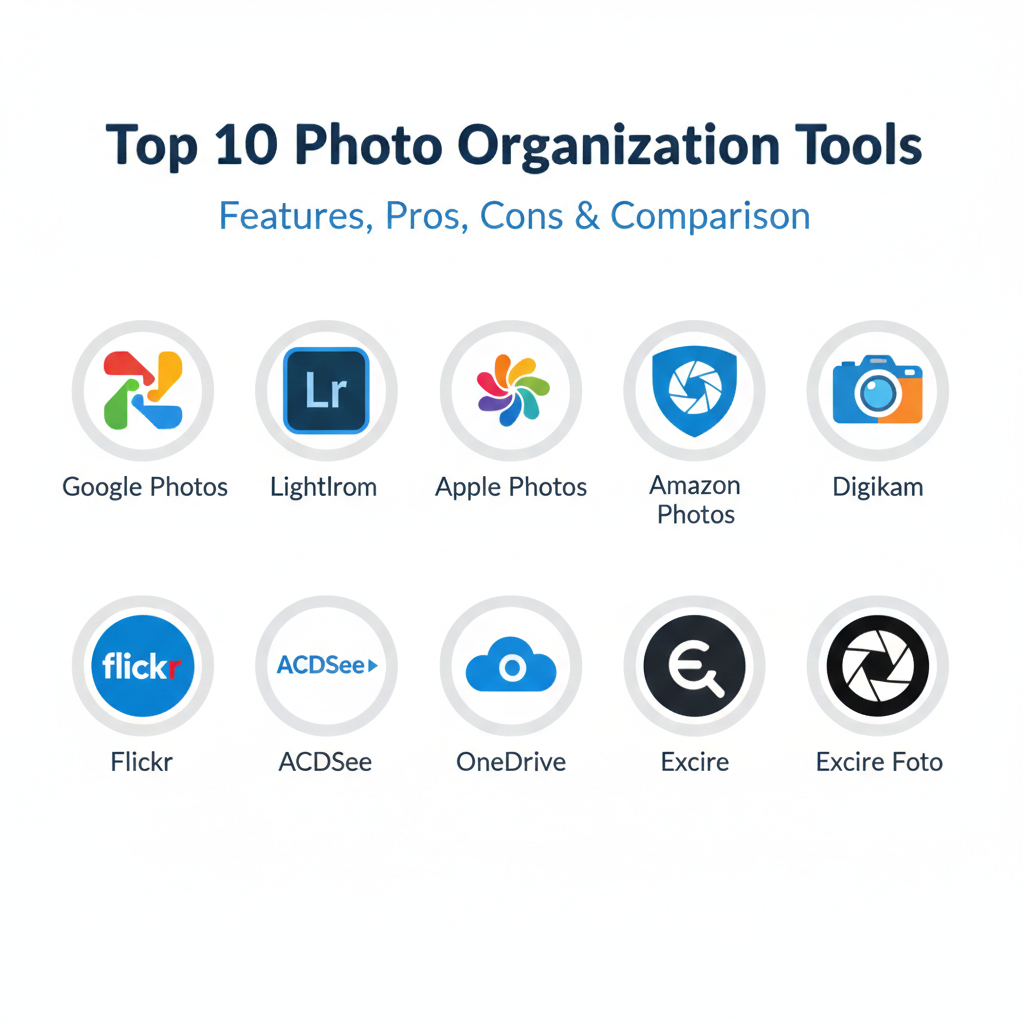
Introduction
Photo organization tools are computer programs and smartphone apps that help you manage your digital pictures so they don’t get lost or messy. In our daily lives, we take so many photos of our families, our food, and our travels that it can quickly become impossible to find the one picture we are looking for. These tools act like a smart filing cabinet that automatically sorts your photos by the date they were taken, the place you were standing, and even the people who are in the picture. By using these tools, you can keep your precious memories safe and organized without having to spend hours doing it yourself manually.
Having a good photo organizer is important because digital photos can be very fragile. If you just keep them on your phone and you lose that phone, your memories could be gone forever. These tools create backups in the cloud or on your computer to make sure that doesn’t happen. They are also vital for people who work with images every day, like social media managers or small business owners who need to find marketing photos quickly. In the real world, you might use a tool to find every photo of your dog in seconds or to share a private album of a wedding with your whole family at once.
When you are looking for the right tool, there are a few things you should check. First, look at how much storage it gives you, as high-quality photos take up a lot of space. Second, check if it has a good search feature that lets you find photos using simple words like “beach” or “birthday.” Third, make sure it is easy to use on both your phone and your computer so you can see your photos anywhere. Finally, check if it helps you find and delete blurry photos or duplicates, which can save you a lot of space and keep your gallery looking its best.
- Best for: These tools are perfect for parents who want to save every moment of their children growing up. They are also excellent for professional photographers and creative people who have thousands of high-quality images to track. Small businesses that use photos for their websites will find these tools save them a huge amount of time.
- Not ideal for: You might not need a special tool if you only take a few photos a month and you are happy just looking at them on your phone. They are also not a great fit for people who still prefer to print out every single photo and keep them in physical paper albums.
Top 10 Photo Organization Tools
Tool 1 — Google Photos
Google Photos is a very popular app that comes on many phones and is famous for being very smart. It automatically takes the photos you snap on your phone and saves them to a private space on the internet. It is designed for everyday people who want a tool that does all the hard work of sorting and searching for them without any extra effort.
- Key features:
- Automatically saves every photo you take to the cloud.
- Lets you search for photos by typing simple words like “cat.”
- Groups together all the photos of a specific person’s face.
- Creates fun movies and collages from your best memories.
- Allows you to share large albums with friends in one click.
- Includes a tool to hide private photos in a locked folder.
- Suggests photos to delete when your storage is getting full.
- Pros:
- The search tool is the smartest and easiest to use in the world.
- It is very easy to set up and works quietly in the background.
- Sharing photos with family members is fast and very simple.
- Cons:
- It no longer gives you unlimited free space for your photos.
- Some people might worry about a big company seeing their pictures.
- It can be a little difficult to organize things into specific folders.
- Security & compliance: GDPR compliant and uses standard internet encryption.
- Support & community: Large help center, user forums, and direct support for paying members.
Tool 2 — Adobe Lightroom
Adobe Lightroom is a professional-grade tool that is used by serious photographers who want to make their pictures look perfect. It is unique because it combines a very deep filing system with some of the best photo editing tools available. It is designed for people who have huge collections of high-resolution images and need to keep them in a very specific order for their work or hobbies.
- Key features:
- Powerful tools to fix the colors and lighting in your photos.
- Uses a system of tags to help you categorize different projects.
- Allows you to rate your photos with stars to find the best ones.
- Keeps your original photo safe even after you make many edits.
- Syncs your edits across your computer, tablet, and phone.
- Has a map view that shows where every single photo was taken.
- Can handle “RAW” files which are the highest quality camera files.
- Pros:
- The absolute best for people who want to edit and sort in one app.
- Handles hundreds of thousands of photos without slowing down.
- The mobile app is very powerful and lets you work on the go.
- Cons:
- You have to pay a monthly fee to keep using the software.
- It takes quite a long time to learn how to use all the buttons.
- It requires a very fast and expensive computer to run properly.
- Security & compliance: SOC 2 compliant and follows Adobe’s high security standards.
- Support & community: Professional video tutorials, 24/7 help, and a global community.
Tool 3 — Apple Photos
Apple Photos is the tool that is already built into iPhones, iPads, and Mac computers. It is designed to be very beautiful and simple, focusing on showing you your best moments in a way that feels like a digital scrap-book. It is perfect for people who use many Apple products and want their photos to appear on all their devices automatically without any setup.
- Key features:
- iCloud keeps your entire gallery synced on every Apple device.
- Creates a “For You” tab with memories from past anniversaries.
- Allows families to share one big library of photos together.
- Can identify the plants and animals in your photos automatically.
- Hides blurry or duplicate shots so your gallery looks clean.
- Allows you to lock sensitive photos with your fingerprint or face.
- Integrates perfectly with the regular folders on a Mac computer.
- Pros:
- If you have an iPhone, you already have it and it is very fast.
- It respects your privacy more than many other cloud companies.
- The design is very clean and makes your photos look great.
- Cons:
- It only works on Apple products and not on Android or Windows.
- The free storage space fills up very quickly and you must pay for more.
- It can be very hard to move your photos to a different app later.
- Security & compliance: High privacy standards and uses Apple’s secure iCloud storage.
- Support & community: Help available at Apple Stores and very deep online guides.
Tool 4 — Amazon Photos
Amazon Photos is a great option for people who already have a Prime membership for their shopping. It focuses on keeping your photos in their original, high-quality size and makes it very easy to print your favorite pictures onto paper or canvases. It is built for families who want to save money on storage while keeping their high-resolution memories safe and shareable.
- Key features:
- Provides unlimited space for photos for all Prime members.
- Allows up to six people to share one “Family Vault” together.
- Shows your photos on your Amazon smart screens or Fire TV.
- Automatically backs up your phone’s camera roll in full quality.
- Uses smart technology to sort photos by people or locations.
- Allows you to order physical prints directly through the app.
- Helps you find photos from a specific date very quickly.
- Pros:
- The best value if you are already paying for an Amazon Prime account.
- It doesn’t shrink your photos, so they stay looking sharp and clear.
- The shared family vault is a wonderful way to keep memories together.
- Cons:
- The app is not as easy to use or as pretty as the Apple app.
- Storing video files is not unlimited and can cost extra money.
- It doesn’t have as many smart editing features as Google Photos.
- Security & compliance: GDPR compliant and uses Amazon’s professional security.
- Support & community: Regular Amazon customer support and many online help pages.
Tool 5 — Mylio Photos
Mylio Photos is a unique tool that is made for people who are worried about their privacy. Instead of putting all your photos on a company’s server, it connects your own devices together to share photos privately. It is designed for users who want to be in total control of their files and don’t want to pay a monthly bill for cloud storage.
- Key features:
- Connects your phone, computer, and hard drives in a private net.
- Works even when you don’t have an internet connection.
- Finds and groups faces together without sending data to the web.
- Includes a “Life Calendar” that shows your history on a timeline.
- Helps you find and remove duplicate photos to save drive space.
- Allows you to fix old, faded photos with built-in repair tools.
- Keeps a small version of every photo on your phone to save space.
- Pros:
- The best choice if you don’t want a big company owning your data.
- It is extremely fast because it doesn’t need to download from the web.
- You don’t have to pay for a monthly storage subscription.
- Cons:
- You have to remember to back up your own hard drives yourself.
- Setting it up the first time can be a bit confusing for some people.
- Your devices only sync when they are turned on and connected.
- Security & compliance: Very private as no data is stored on Mylio’s servers.
- Support & community: Video lessons, an online forum, and email help.
Tool 6 — Digikam
Digikam is a professional tool that is completely free to use because it is made by a community of volunteers. It is designed for advanced computer users and photographers who want a very powerful filing system without having to pay a monthly fee. It is famous for being able to handle massive amounts of photos on your computer’s hard drive while providing professional-level tools to sort them.
- Key features:
- Can manage libraries with more than one hundred thousand pictures.
- Allows you to add very detailed notes and tags to every image.
- Supports the “RAW” files that professional cameras use.
- Includes a tool to find and group faces together automatically.
- Allows you to change the names of hundreds of photos at once.
- Works on Windows, Mac, and even Linux computers.
- Can create slideshows and calendars to share with others.
- Pros:
- It is 100% free and will never ask you for any money.
- It has more advanced features than almost any other free program.
- No company is looking at your photos or tracking your data.
- Cons:
- The screen looks very technical and is hard for beginners to learn.
- There is no app for your phone, so you can only use it on a PC.
- You are responsible for making sure your own photos are backed up.
- Security & compliance: N/A (It is local software that stays on your computer).
- Support & community: A very active group of users and a detailed online manual.
Tool 7 — Flickr
Flickr is a very old and respected website that is built for people who love the art of photography. It is part photo organizer and part social network, where you can show off your best work and see what other people are creating. It is designed for people who want to organize their photos into clean albums and share them with a community of millions of other photographers around the world.
- Key features:
- Organizes your photos into beautiful albums and groups.
- Shows the technical details of how each photo was taken.
- Gives you very strict controls to decide who can see your pictures.
- Lets you follow other photographers to see their new work.
- Includes a tool to order high-quality prints for your home.
- Provides stats to show you how many people have liked your work.
- Offers a “Pro” version with unlimited space for your images.
- Pros:
- Excellent if you want to be part of a community and get feedback.
- The photos look very high-quality and professional on the screen.
- It is a great place to store your “best” photos for others to see.
- Cons:
- The free version only lets you save one thousand photos.
- It is more of a gallery than a quick way to back up your phone.
- It has changed owners many times, which makes some people nervous.
- Security & compliance: GDPR compliant and uses standard web encryption.
- Support & community: Famous for having a very helpful and friendly user community.
Tool 8 — ACDSee Photo Studio
ACDSee is a classic piece of software that Windows users have used for many years to look at and sort their photos. It is designed for speed, allowing you to fly through thousands of pictures on your hard drive to find exactly what you need. It is perfect for people who don’t want to “import” their photos into a special app and just want a better way to look at the folders they already have on their computer.
- Key features:
- Browse through the photos on your hard drive very quickly.
- Uses smart AI to recognize and group the faces of your friends.
- Allows you to add keywords and categories to any picture.
- Includes powerful editing tools to fix or change your photos.
- A “Media Mode” that shows every photo on your PC in one view.
- Can connect to other cloud services like OneDrive or Dropbox.
- Allows you to buy it once so you don’t have to pay every month.
- Pros:
- It is much faster at opening large photos than most other apps.
- You can own it forever without a monthly subscription.
- It helps you organize your existing folders without moving them.
- Cons:
- The version for Mac computers is not as good as the Windows one.
- The menus can be a bit crowded with too many small buttons.
- It is not as easy to use with your phone as Google or Apple.
- Security & compliance: Standard software security and you keep your own data.
- Support & community: Video lessons, official tech support, and a user forum.
Tool 9 — Microsoft OneDrive
Microsoft OneDrive is a tool that many people use for their work files, but it has actually become very good at organizing photos too. It is designed to work perfectly with Windows computers and is a great choice for families who use Microsoft Office. It focuses on keeping your photos safe in the cloud and making it easy to see them on your computer as if they were just regular files on your hard drive.
- Key features:
- Automatically backs up your phone’s gallery to the internet.
- Shows you “memories” of what you were doing on this day in the past.
- Uses smart tech to tag photos by what is in them, like “mountain.”
- Includes a “Personal Vault” for your most secret and private photos.
- Syncs your photos across your computer, phone, and tablet.
- Allows you to share folders with others just like work files.
- Integrates directly with the built-in “Photos” app on Windows.
- Pros:
- If you use Word or Excel, you might already have a lot of space.
- It is a very stable and safe place for a long-term backup.
- The “Vault” feature is great for things like photos of your ID.
- Cons:
- It doesn’t feel as “fun” or as creative as the other photo apps.
- The face recognition is not as good as Google or Apple.
- Uploading many photos at once can sometimes be a bit slow.
- Security & compliance: Very high enterprise security and fully GDPR compliant.
- Support & community: Global support from Microsoft and many help articles.
Tool 10 — Excire Foto
Excire Foto is a specialized desktop app that is made for people who have massive libraries of photos but want to keep them all offline. It uses very powerful artificial intelligence to “look” at every photo on your computer and tag them with words so you can search them easily. It is designed for users who value their privacy but still want the smart features of a tool like Google Photos.
- Key features:
- Automatically tags your photos with words like “forest” or “beach.”
- Includes a “find similar photos” button to group like images.
- Can find people in your photos by their age or their expressions.
- Works entirely on your computer without needing the internet.
- Helps you find photos that are too dark, too bright, or blurry.
- Makes it easy to search through hundreds of thousands of shots.
- Allows you to move your tags to other programs like Lightroom.
- Pros:
- The best smart tool for people who do not want to use the cloud.
- You only have to pay once and you can use it forever.
- Saves you days of work because it tags your photos for you.
- Cons:
- It does not back up your photos to the web for you.
- There is no app for your phone, only for your computer.
- You need a fairly modern and powerful computer for it to work.
- Security & compliance: 100% private as no photos are ever sent to the web.
- Support & community: Official email support and many online video lessons.
Comparison Table
| Tool Name | Best For | Platform(s) Supported | Standout Feature | Rating |
| Google Photos | Mobile users | iOS, Android, Web | Best Smart Search | 4.8/5 |
| Lightroom | Professionals | Win, Mac, Mobile | Pro Editing + Filing | 4.7/5 |
| Apple Photos | Apple Users | iOS, Mac, Web | Deep System Sync | 4.5/5 |
| Amazon Photos | Prime Members | iOS, Android, Web | Unlimited Space | 4.6/5 |
| Mylio Photos | Privacy seekers | Win, Mac, Mobile | Private Syncing | 4.4/5 |
| Digikam | Advanced users | Win, Mac, Linux | Free and Powerful | N/A |
| Flickr | Social sharing | Web, iOS, Android | Photo Community | 4.3/5 |
| ACDSee | Windows users | Windows, Mac | Very Fast Browsing | 4.5/5 |
| OneDrive | Work/Business | Win, Mac, Mobile | Secret Vault Folder | 4.6/5 |
| Excire Foto | Local AI search | Win, Mac | Offline Smart Tags | N/A |
Evaluation & Scoring of Photo Organization Tools
| Category | Weight | Description |
| Core Features | 25% | How well it searches, tags, and recognizes faces. |
| Ease of Use | 15% | How easy it is for a beginner to get organized. |
| Integrations | 15% | Does it work with phones, cameras, and computers? |
| Security | 10% | How well it protects your privacy and your files. |
| Reliability | 10% | How fast it runs and how stable the syncing is. |
| Support | 10% | Is there help available if you have a question? |
| Price / Value | 15% | Is the cost fair for the storage and tools you get? |
Which Photo Organization Tools Tool Is Right for You?
Choosing the right tool depends mostly on what you want to do and what devices you already have in your house. If you are a solo user who just wants to make sure your family photos are safe, Google Photos or Apple Photos are usually the best choices. They are simple, they live on your phone, and they do almost all the work for you. If you are a professional or a small business, you will likely need the power of Adobe Lightroom or ACDSee because they let you sort thousands of photos for different clients very quickly.
For larger companies, tools like OneDrive or Adobe Creative Cloud are better because they have high security and allow many people to use the same account safely. If you are budget-conscious, remember that Digikam is completely free, and Amazon Photos is a great deal if you already pay for Prime. If you care deeply about privacy, look at Mylio or Excire Foto because they keep your photos on your own computer rather than in the cloud. Always think about if you want a tool that is easy (like Google) or a tool that gives you a lot of control (like Lightroom) before you make your final choice.
Frequently Asked Questions (FAQs)
1. Is a photo organizer the same as a backup? No, an organizer helps you find and sort your photos, while a backup is a second copy that stays safe if your phone breaks. Most good tools on this list do both things at the same time to keep you safe.
2. Can I use more than one tool at once? Yes, you can! Many people use Google Photos to see their pictures on their phones and then use a tool like Lightroom on their computers to do their serious editing and project filing.
3. Will these tools delete photos from my phone storage? Some apps have a “free up space” button. This will delete the photos from your phone only after they are safely saved to the cloud. This is a great way to make more room for new pictures.
4. What happens if I stop paying for my subscription? Usually, you can still see your photos, but the app won’t let you add any new ones until you pay again. It is always a good idea to keep a second copy on a hard drive just in case.
5. How does face recognition work? The app uses smart computer technology to look at the shapes and features of people’s faces. It groups similar faces together so you can just click on a person’s name to see every photo of them.
6. Can these tools find blurry photos? Yes, several tools like Apple Photos and Excire Foto can scan your gallery to find photos that are out of focus or too dark, helping you clean up your collection and save space.
7. Is my data safe in the cloud? Most big companies use very high security to protect your photos. However, if you are very worried about hackers, using a local tool like Mylio or Digikam is the safest way to keep your photos private.
8. Can I organize old photos that I scanned? Yes, you can add them to these apps just like phone photos. You can even manually change the date on them so they show up in the right year in your digital timeline.
9. Do I need a fast computer to use these? For cloud apps like Google or Apple, you just need a good internet connection. For professional apps like Lightroom or Excire, you will need a modern computer with a good processor to handle the work.
10. How do I move my photos from one tool to another? Most tools have an “export” button that lets you download your gallery. You can then upload those photos to a new tool. It can take some time if you have thousands of pictures, but it is possible.
Conclusion
Finding the right photo organization tool is a great way to make sure your most important memories are never forgotten or lost in a mess of digital files. Whether you decide to use the smart automation of Google Photos, the professional power of Adobe Lightroom, or the total privacy of Mylio, the best tool is the one that makes you feel happy and organized. There is no single “winner” for everyone, as the right choice really depends on what devices you own and how much you care about things like editing or privacy.
We recommend starting by picking one tool that sounds good to you and trying it out with your most recent photos. Don’t feel like you have to organize your whole life in one day; just start slowly and let the tool help you. Once you have a system in place, you will find that you look at your old photos much more often because they are so easy to find. Good organization isn’t just about cleaning up; it is about making your favorite moments part of your daily life again. By choosing the right partner to help you, you can keep your digital history safe and beautiful for many years to come.