Introduction
Web design software is essential because it bridges the gap between creative intent and technical execution. These tools provide the canvas and the building blocks necessary to organize information effectively and attractively. Key real-world use cases include creating e-commerce storefronts, developing corporate landing pages, designing mobile app interfaces, and prototyping complex user dashboards. Without these tools, businesses would struggle to maintain a consistent brand identity or provide an intuitive “User Experience” (UX) that keeps visitors engaged.
When evaluating web design software, users should look for several critical criteria: collaborative capabilities, responsiveness, extensibility through plugins, and the learning curve. The right tool should allow for rapid iteration while ensuring the final design can be accurately translated into code by developers. Whether you are looking for a visual-only prototyping tool or a “no-code” builder that publishes directly to the web, understanding these evaluation factors is the first step toward digital success.
Best for: Professional UI/UX designers, freelance web developers, digital marketing agencies, and in-house design teams across tech, retail, and media industries. It is ideal for those who need to create high-quality, scalable digital products with a focus on user journey and visual aesthetics.
Not ideal for: Individuals looking for basic word processing, offline print media designers who don’t intend to publish online, or businesses that only need a text-based directory listing. In those cases, standard office suites or simple social media profiles are often sufficient.
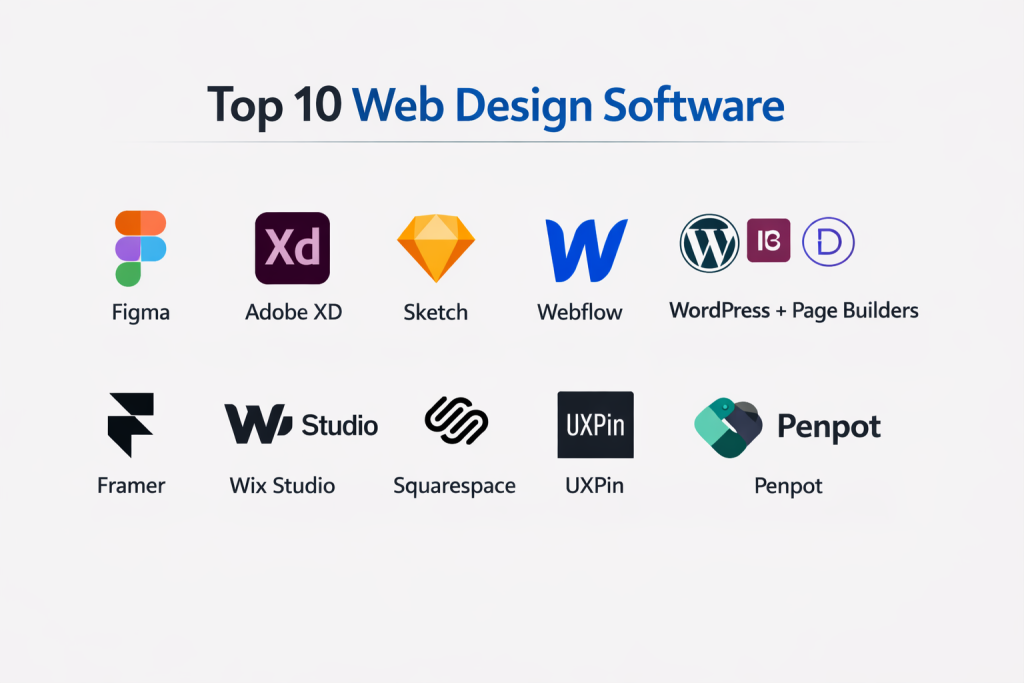
Top 10 Web Design Software Tools
1 — Figma
Figma is a cloud-based design and prototyping tool that has revolutionized the industry through its real-time collaboration features. It is the primary choice for product teams building complex web interfaces.
- Key features:
- Real-time Collaboration: Multiple users can edit a single design file simultaneously.
- Auto Layout: Responsive components that stretch or shrink as content changes.
- Prototyping: Create interactive flows that mimic a real website experience.
- Dev Mode: A dedicated space for developers to inspect designs and grab CSS code.
- Variables: Store reusable values like colors, spacing, and numbers for consistency.
- Plugin Ecosystem: Thousands of community-made tools to automate repetitive tasks.
- FigJam: An integrated whiteboarding tool for initial brainstorming and wireframing.
- Pros:
- Works in any web browser, making it accessible on Windows, Mac, and Linux.
- Version history is handled automatically, so you never lose previous work.
- Cons:
- Requires a consistent internet connection to access the full suite of collaborative features.
- Can become resource-intensive on computers with low RAM when handling very large files.
- Security & compliance: SOC 2 Type II, ISO 27001, GDPR compliant, and supports SAML-based SSO.
- Support & community: Massive global community, extensive “Figma Learn” documentation, and robust enterprise-level support plans.
2 — Adobe XD
Adobe XD is a dedicated vector-based tool for designing and prototyping user experiences. It is deeply integrated with the Adobe Creative Cloud, making it a natural choice for designers already using Photoshop or Illustrator.
- Key features:
- Repeat Grid: Quickly replicate lists, galleries, and grids with consistent spacing.
- Auto-Animate: Create smooth transitions between artboards for realistic prototypes.
- Voice Prototyping: Design and test experiences using voice commands and playback.
- Component States: Create variations of a single component for different interactions (e.g., hover or clicked).
- Responsive Resize: Automatically scales elements for different screen sizes.
- Creative Cloud Libraries: Seamlessly import assets from other Adobe applications.
- Pros:
- Extremely fast performance even with hundreds of artboards.
- Native app availability for both macOS and Windows allows for offline work.
- Cons:
- Development has slowed significantly following industry shifts, leading to fewer new features.
- Some advanced collaborative features feel less fluid compared to Figma.
- Security & compliance: GDPR compliant, uses Adobe’s standard encryption, and offers Enterprise ID management.
- Support & community: Extensive tutorials via Adobe Creative Cloud and a large professional user base.
3 — Webflow
Webflow sits in a unique category as a “visual CMS.” It allows designers to build high-end, responsive websites visually while the platform generates clean, production-ready code in the background.
- Key features:
- Designer Interface: A visual canvas that follows the rules of HTML and CSS.
- CMS: A powerful database for managing blogs, portfolios, and dynamic content.
- Interactions: Build complex scroll-based animations without writing JavaScript.
- E-commerce: Fully customizable store design and checkout experiences.
- Localization: Tools to create multi-language versions of a single site.
- Hosting: Tier 1 hosting powered by AWS and Fastly for top-tier speed.
- Pros:
- Bridges the gap between design and development; what you design is the actual website.
- No-code animations are arguably the most powerful in the industry.
- Cons:
- A very steep learning curve for those who do not understand basic CSS/HTML concepts.
- Pricing can become expensive as you scale with more items or high traffic.
- Security & compliance: SOC 2 Type II compliant, GDPR compliant, and SSL certificates included by default.
- Support & community: “Webflow University” offers world-class video education, and the “Made in Webflow” showcase provides endless inspiration.
4 — Sketch
Sketch is the original pioneer of modern UI design software. While it remains exclusive to macOS, it is beloved for its simplicity, speed, and powerful vector editing capabilities.
- Key features:
- Symbol System: Create reusable design components with advanced overrides.
- Workspace Collaboration: A web-based app for stakeholders to inspect and comment on designs.
- Smart Layout: Components that automatically resize based on their content.
- Native Mac App: Optimized specifically for Apple hardware, ensuring smooth performance.
- Prototyping: Simple, effective tools for linking artboards.
- Extensions: Long-standing support for third-party plugins like Abstract or Zeplin.
- Pros:
- One-time “pay-to-own” or subscription models offer more flexibility than many competitors.
- The interface is clean and intuitive, focusing purely on the design task.
- Cons:
- Mac-only availability excludes Windows-based teams and developers.
- Browser-based handoff is available, but the core design tool is not cross-platform.
- Security & compliance: GDPR compliant and offers secure cloud storage with encryption.
- Support & community: Dedicated support team and a veteran community of professional designers.
5 — Framer
Framer started as a prototyping tool for developers but has evolved into a high-end web design and publishing platform. It is best known for its “Freeform” canvas that publishes directly to the web.
- Key features:
- Direct Publishing: Design on a canvas and click “Publish” to go live instantly.
- High-Fidelity Prototyping: Add logic and real data to your designs.
- SEO & Performance: Automatically optimizes sites for search engines and fast loading.
- Figma Import: Seamlessly bring Figma designs into Framer to make them live websites.
- CMS: Simple but effective management for articles and projects.
- AI Tools: Generate layouts and content ideas using built-in AI prompts.
- Pros:
- The most “design-centric” way to build a live website without a developer.
- Excellent for creating modern, high-motion sites that look like custom code.
- Cons:
- Less suitable for “data-heavy” web applications compared to traditional coding.
- The pricing structure per site can add up for agencies managing many clients.
- Security & compliance: GDPR compliant, uses SSL encryption, and hosted on secure global infrastructure.
- Support & community: Rapidly growing community on Discord and Twitter, with excellent video documentation.
6 — Adobe Photoshop
While primarily a photo editor, Photoshop remains a staple in web design for creating high-quality imagery, textures, and complex layouts that vector tools cannot replicate.
- Key features:
- Advanced Image Editing: Unrivaled tools for retouching and compositing web assets.
- Artboards: Organize multiple screen designs within a single document.
- Layer Styles: Non-destructive editing for shadows, glows, and gradients.
- Export for Web: Specialized tools for optimizing images for fast loading.
- Generative AI: Fill or expand images for banners and backgrounds using Firefly.
- Cloud Documents: Sync your work across different devices and Adobe apps.
- Pros:
- The ultimate tool for “Visual Design” and high-concept creative web graphics.
- Deeply established industry standard with an endless library of assets and brushes.
- Cons:
- Not built for UI/UX prototyping or handoff to developers.
- Files can become massive, making it slow for designing 50+ screen websites.
- Security & compliance: GDPR compliant, enterprise-level ID management, and SOC 2 support.
- Support & community: The largest creative community in the world with decades of tutorials.
7 — Canva
Canva has expanded from social media graphics into a surprisingly capable “Website Builder” for beginners and small businesses who need a simple, attractive online presence.
- Key features:
- Drag-and-Drop Editor: The most user-friendly interface for non-designers.
- Template Library: Thousands of pre-designed website layouts.
- Magic Resize: Change a social post into a website layout with one click.
- Collaboration: Share designs with team members for instant feedback.
- Free Domain Hosting: Publish your site on a Canva-branded URL for free.
- Brand Kit: Store your colors, fonts, and logos for easy access.
- Pros:
- No design or technical skill required to get a site live in minutes.
- Huge library of free stock photos, videos, and graphics.
- Cons:
- Extremely limited for SEO and complex site structures.
- Only supports single-page “scrolling” websites; not suitable for blogs or stores.
- Security & compliance: ISO 27001 certified, GDPR compliant, and supports SSO for Pro users.
- Support & community: Extensive help center, design school, and 24/7 customer support for Pro users.
8 — Adobe Dreamweaver
Dreamweaver is a veteran “WYSIWYG” (What You See Is What You Get) editor that allows for a hybrid approach of visual design and direct code editing.
- Key features:
- Split View: Edit code and see the visual changes in real-time.
- Bootstrap Integration: Built-in support for the world’s most popular responsive framework.
- Multi-monitor Support: Expand your workspace across multiple screens.
- Git Support: Manage your source code and collaborate using Git within the app.
- CSS Designer: Visual tools to apply CSS properties without typing code.
- Device Preview: Test how your site looks on actual mobile devices.
- Pros:
- Excellent for developers who want a visual aid while they write code.
- Provides total control over the underlying file structure and server uploading.
- Cons:
- The interface can feel cluttered and “old-school” compared to modern tools like Webflow.
- Not suitable for high-fidelity UI/UX prototyping.
- Security & compliance: Standard Adobe security protocols; GDPR compliant.
- Support & community: Legacy community and extensive Adobe documentation.
9 — InVision (Studio & Cloud)
InVision is a powerhouse for “Product Design” workflows. While it has shifted its focus toward the “Freehand” whiteboarding tool, its prototyping and handoff features remain vital for many teams.
- Key features:
- Craft Plugin: Connects Photoshop and Sketch to InVision for instant syncing.
- Handoff: Provides developers with code snippets, assets, and measurements.
- Freehand: A collaborative digital whiteboard for planning and wireframing.
- Inspect: Automatically translates designs into specifications for developers.
- Prototypes: Create “hotspots” to link static images into a clickable flow.
- Design System Manager (DSM): Store and manage your brand’s design language.
- Pros:
- Best-in-class tool for managing the feedback loop with clients and stakeholders.
- Works seamlessly with almost any other design tool.
- Cons:
- Many of its features are now being built directly into Figma and XD, reducing its necessity.
- The “Studio” design app never quite reached the popularity of its competitors.
- Security & compliance: SOC 2 Type II, GDPR compliant, and SSO for Enterprise.
- Support & community: Strong educational blog (Inside Design) and solid customer support.
10 — Affinity Designer
Affinity Designer is a high-performance vector design tool that serves as a direct, non-subscription alternative to Adobe Illustrator and Photoshop.
- Key features:
- Hybrid Engine: Switch between vector and raster (pixel) modes instantly.
- 1,000,000% Zoom: Incredible precision for detailed UI work.
- Unlimited Artboards: Organize complex web layouts without performance lag.
- Live Preview: See how your design looks in different formats (Retina, Standard) instantly.
- Advanced Typography: Full control over fonts, kerning, and tracking.
- One-time Purchase: No monthly subscription required.
- Pros:
- Exceptional performance; it is arguably the fastest vector tool on the market.
- Very cost-effective for freelancers and small studios.
- Cons:
- Lacks built-in prototyping and developer handoff tools.
- The community and plugin ecosystem are smaller than Adobe or Figma.
- Security & compliance: GDPR compliant; standard local file security.
- Support & community: Very active community forums and high-quality video tutorials.
Comparison Table
| Tool Name | Best For | Platform(s) Supported | Standout Feature | Rating (G2/Capterra) |
| Figma | Team Collaboration | Web, Mac, Windows | Real-time Multiplayer | 4.7 / 5 |
| Adobe XD | Adobe Ecosystem | Mac, Windows | Auto-Animate | 4.3 / 5 |
| Webflow | No-Code Publishing | Web | Visual CSS/HTML Engine | 4.4 / 5 |
| Sketch | MacOS Designers | Mac | Clean UI/UX Focus | 4.5 / 5 |
| Framer | High-Motion Sites | Web | Direct Canvas Publishing | 4.5 / 5 |
| Photoshop | High-End Graphics | Mac, Windows | Generative AI Firefly | 4.6 / 5 |
| Canva | Beginners / Social | Web, iOS, Android | Magic Resize & Templates | 4.7 / 5 |
| Dreamweaver | Hybrid Coding | Mac, Windows | Bootstrap Integration | 4.1 / 5 |
| InVision | Design Handoff | Web | Inspect & DSM | 4.4 / 5 |
| Affinity | Budget Professionals | Mac, Windows, iPad | One-time Purchase | 4.6 / 5 |
Evaluation & Scoring of Web Design Software
Choosing the right software requires balancing diverse needs. Our scoring system is weighted toward the factors that most impact a project’s timeline and quality.
| Category | Weight | Evaluation Criteria |
| Core Features | 25% | Prototyping, vector editing, artboard management, and auto-layout. |
| Ease of Use | 15% | Intuitiveness of the UI and availability of learning resources. |
| Integrations | 15% | Connection to developer tools, Slack, and asset libraries. |
| Security & Compliance | 10% | SSO, GDPR, SOC 2, and data encryption standards. |
| Performance | 10% | Loading speeds, lag with large files, and offline capability. |
| Support & Community | 10% | Documentation, user forums, and customer service response. |
| Price / Value | 15% | Cost relative to the ROI and features provided. |
Which Web Design Software Tool Is Right for You?
The “best” tool depends entirely on your role, your team structure, and your project’s final output.
Solo Users vs. SMB vs. Mid-Market vs. Enterprise
If you are a solo freelancer, you might prefer the one-time cost of Affinity Designer or the publishing power of Framer. SMBs and Mid-market teams often find the most value in Figma because it scales easily as the team grows. Enterprises with strict security requirements usually lean toward Figma or Adobe XD because of their robust SSO and compliance features.
Budget-Conscious vs. Premium Solutions
For those on a strict budget, Canva (Free) and Figma (Free tier) are excellent starting points. If you want to avoid monthly bills, Affinity Designer is a one-time investment. If you are a premium user willing to pay for the best, Webflow and the Adobe Creative Cloud provide professional-grade ecosystems that justify their higher monthly costs.
Feature Depth vs. Ease of Use
If you prioritize Ease of Use, Canva is the clear winner. However, you sacrifice the ability to create custom, complex web apps. If you need Feature Depth, Webflow and Figma offer nearly infinite possibilities but will require a few weeks of dedicated learning to master.
Integration and Scalability Needs
If your design team needs to work closely with developers, Figma’s Dev Mode is the industry standard. For those who want a design tool that doubles as a hosting platform, Framer and Webflow are the most scalable options for high-traffic websites.
Frequently Asked Questions (FAQs)
1. What is the difference between Web Design and Web Development?
Web design is the visual and structural part—how it looks and feels. Web development is the coding part—making those visuals function using languages like HTML, CSS, and JavaScript.
2. Can I design a website for free?
Yes. Tools like Figma and Canva offer very generous free versions that allow you to design and even publish simple sites without paying a cent.
3. Do I need a powerful computer for web design?
For browser-based tools like Figma or Webflow, a standard modern laptop is usually enough. For heavy software like Photoshop, you will need more RAM (at least 16GB) and a good processor.
4. Is Figma better than Adobe XD?
Currently, Figma is considered the industry leader due to its superior collaboration and more frequent updates. Adobe has actually transitioned much of its focus away from XD in recent years.
5. Do I need to know how to code to use Webflow?
You don’t need to write code, but you do need to understand how code works (like margins, padding, and flexbox) to use it effectively.
6. Can I use these tools on an iPad?
Affinity Designer and Canva have excellent iPad apps. Figma has a “Mirror” app to view designs, but the actual designing is best done on a desktop or laptop.
7. How do I send my designs to a developer?
Most modern tools have a “Share” button. In Figma, you can give the developer “View” access, and they can click on any element to see its size, color, and CSS code.
8. Is Photoshop still relevant for web design?
Yes, but mostly for “Asset Creation.” You use Photoshop to edit the photos and graphics, then you move them into Figma or Webflow to build the layout.
9. What is a “Prototype”?
A prototype is a clickable version of your design. It isn’t a real website yet, but it allows you to click buttons and navigate pages to see if the design works well.
10. What is the best tool for an absolute beginner?
Canva is the easiest to pick up in ten minutes. If you want to become a professional designer, Figma is the best one to start learning because it is the industry standard.
Conclusion
The “best” web design software is a moving target that shifts as technology evolves. However, the current consensus is clear: collaboration and speed are the most important factors. Tools like Figma have dominated because they allow teams to work together in real-time, while platforms like Webflow and Framer are gaining ground by allowing designers to bypass the developer entirely and go live.
When choosing your tool, focus on your end goal. If you want to build a simple personal page, don’t overcomplicate things—use Canva. If you want a career in UX design, master Figma. And if you want to build high-performance, custom websites as a freelancer, Webflow is your best friend. The most successful designers are often those who can use a combination of these tools to create a seamless digital journey.