Introduction
UX prototyping tools are specialized software applications that allow designers to create interactive simulations of a final product, such as a website or a mobile app. Think of a prototype as a “mockup” that actually works. Instead of just looking at a flat picture of a screen, a user can click buttons, open menus, and move from one page to another. These tools are vital because they allow businesses to test their ideas with real people before spending thousands of dollars on actual software development. By building a prototype, you can find out if a navigation menu is confusing or if a button is too small to click long before a single line of code is written. It is essentially a way to “fail fast and learn fast,” ensuring that the final product is both useful and easy to use.
prototyping tools are used for several critical tasks. A startup might use one to create a high-fidelity demo of their app to show to potential investors. A large e-commerce company might use a prototype to test two different checkout designs to see which one is faster for customers to complete. It is also a key communication tool; designers use prototypes to show developers exactly how an animation should move or how a pop-up should appear. When choosing a tool, you should look for the “fidelity” it offers (how realistic it looks), the ease of sharing with stakeholders, and the ability to add “logic,” such as making a login screen actually respond when a password is typed in.
Best for: UX/UI designers, product managers, and software engineers at companies ranging from small startups to global enterprises. These tools are especially beneficial for industries like fintech, healthcare, and SaaS, where user experience is the primary competitive advantage.
Not ideal for: Graphic designers who only need to create static images for print, or very small businesses that are using a simple website builder (like Wix or Squarespace) where the layout is already pre-determined.
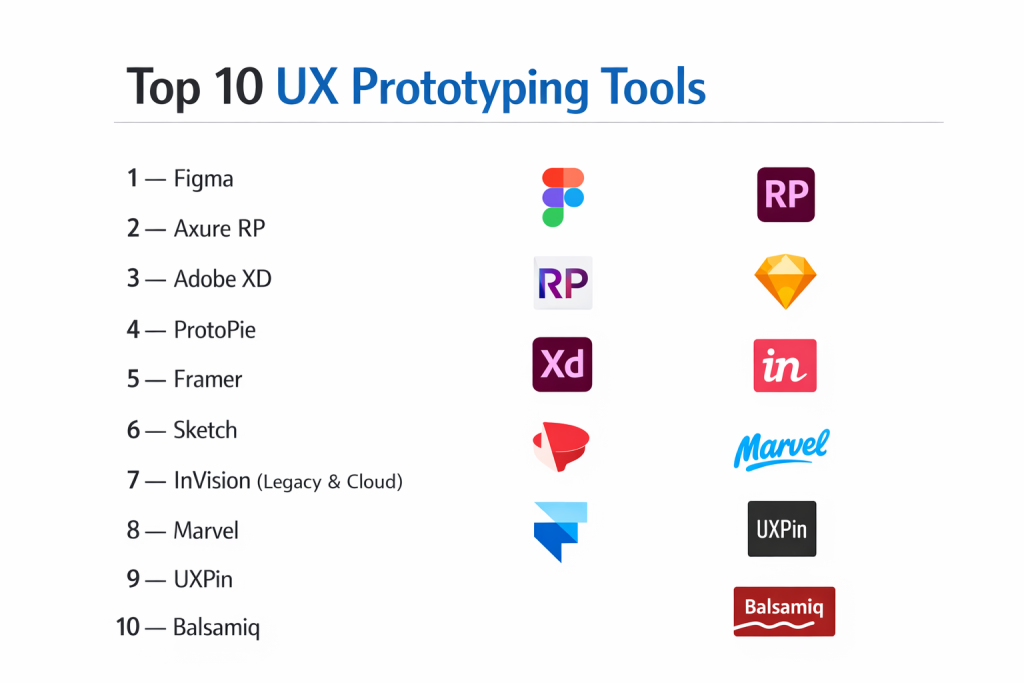
Top 10 UX Prototyping Tools
1 — Figma
Figma is currently the world’s most popular design and prototyping tool. It is entirely web-based and allows multiple people to work on the same design at exactly the same time. It is designed for teams that need a seamless flow from initial brainstorming to high-fidelity, interactive prototypes that look exactly like the real thing.
- Key features
- Multi-player collaboration for real-time design and feedback.
- Advanced “Prototyping” mode with transitions, overlays, and smart-animation.
- Variables and multiple modes for creating complex, data-driven interactions.
- Dev Mode, which helps developers inspect the prototype for CSS and assets.
- An extensive library of community-made plugins and templates.
- Integrated “FigJam” whiteboard for early-stage user flow mapping.
- Mobile app for viewing and testing prototypes on real devices.
- Pros
- No installation required; it runs perfectly in any modern web browser.
- The “Smart Animate” feature makes complex transitions incredibly easy to create.
- Cons
- Requires a constant internet connection to use the collaborative features.
- Can become slow and laggy if a single file contains hundreds of complex screens.
- Security & compliance: SOC 2 Type II, ISO 27001, GDPR compliant, and supports SAML SSO.
- Support & community: Massive community forum, extensive video tutorials, and dedicated enterprise support teams.
2 — Axure RP
Axure RP is the “heavyweight” tool for professional UX designers who need to build high-fidelity prototypes with complex logic. It is designed for experts who want to create prototypes that behave exactly like a real application, including working forms, database-like functions, and conditional logic.
- Key features
- Conditional logic that allows the prototype to react differently based on user input.
- Dynamic panels for creating carousels, pop-ups, and scrollable areas.
- Ability to create and use variables to pass data between different pages.
- Adaptive views for building prototypes that work on mobile, tablet, and desktop.
- Detailed documentation generation that turns your prototype into a spec sheet.
- Mathematical functions for creating working calculators or shopping carts.
- Widget libraries that can be customized and shared across a whole team.
- Pros
- Unmatched power for creating prototypes with real “functionality” (logic).
- Excellent for complex enterprise software where user flows are very long.
- Cons
- It has a very steep learning curve and can be intimidating for beginners.
- The interface feels a bit dated compared to modern tools like Figma.
- Security & compliance: SOC 2 Type II, GDPR compliant, and offers private cloud hosting options.
- Support & community: Strong professional training, active user forums, and responsive email support.
3 — Adobe XD
Adobe XD is a fast and powerful prototyping tool that is part of the Adobe Creative Cloud. It is designed for designers who want a clean, simple interface that works perfectly with other Adobe apps like Photoshop and Illustrator. It focuses on speed and simplicity for both web and mobile design.
- Key features
- “Repeat Grid” for quickly creating lists of items like cards or galleries.
- Voice prototyping allows you to design interactions using voice commands.
- Auto-animate feature that automatically creates transitions between screens.
- Creative Cloud Libraries for sharing colors and fonts across Adobe apps.
- Co-editing for real-time collaboration on design files.
- Responsive Resize to automatically adjust designs for different screen sizes.
- Integration with After Effects for high-end motion design work.
- Pros
- Extremely fast performance, even with very large and complex files.
- If you already pay for Adobe Creative Cloud, it is included in your plan.
- Cons
- Adobe has slowed down development on XD after the attempt to buy Figma.
- It lacks some of the advanced “logic” features found in tools like Axure.
- Security & compliance: SOC 2, ISO 27001, HIPAA, and GDPR compliant through Adobe Cloud.
- Support & community: Backed by Adobe’s massive help center and global user community.
4 — ProtoPie
ProtoPie is a specialized tool that focuses on creating high-fidelity mobile prototypes that use a phone’s actual sensors. It is designed for mobile designers who want their prototypes to use the device’s camera, tilt sensor, microphone, or even haptic feedback (vibrations).
- Key features
- Sensors integration for using a phone’s accelerometer, GPS, and compass.
- Logic and variables for creating realistic “if this, then that” scenarios.
- Multi-device interaction where one prototype can “talk” to another.
- Voice-to-text and text-to-voice capabilities for testing smart assistants.
- Easy import from Figma, Sketch, and Adobe XD.
- Formula-based interactions for creating complex animations and behaviors.
- Bridge feature to test interactions between mobile apps and computer screens.
- Pros
- The best tool for making a prototype feel like a finished, native mobile app.
- Very easy to test on real physical hardware with the ProtoPie Player app.
- Cons
- It is not a “drawing” tool; you usually have to design elsewhere and import.
- The pricing can be high for teams that need many different licenses.
- Security & compliance: SOC 2 compliant, GDPR ready, and provides SSO for enterprise.
- Support & community: Highly active YouTube channel and a dedicated Slack community for users.
5 — Sketch
Sketch is the original specialized UI design tool that started the modern design revolution. While it is only available for Mac, it remains a favorite for many designers due to its focus on simplicity, powerful symbols (reusable components), and its very high-quality output.
- Key features
- Symbols and Overrides for building scalable design systems.
- Smart Layout that automatically resizes components when text changes.
- Simple, link-based prototyping that is easy for clients to view.
- Workspace feature for cloud-based collaboration and developer handoff.
- Hundreds of third-party extensions to add new features and workflows.
- Native Mac app performance, which is very smooth and stable.
- Color variables and shared styles for maintaining brand consistency.
- Pros
- The most “focused” interface, making it very fast to get work done.
- One of the best systems for managing a library of reusable design parts.
- Cons
- It is only available for macOS; Windows users cannot use the desktop app.
- Its prototyping features are simpler and less powerful than Figma or Axure.
- Security & compliance: GDPR compliant; offers secure cloud storage and user permissions.
- Support & community: Very mature community with a huge library of free resources and plugins.
6 — Framer
Framer is a unique prototyping tool that is built on the same technology as real websites (React). It is designed for designers who want to create high-end web prototypes that are fully responsive and look identical to a live site. It is increasingly being used to build real websites directly.
- Key features
- Real-time site building; the prototype you build can be published as a website.
- Advanced animation engine that uses “physics” for natural-feeling movement.
- CMS (Content Management System) integration for building data-heavy prototypes.
- Ability to use real React code components inside your design.
- Built-in SEO and performance optimization for published sites.
- High-quality interactive components like forms, maps, and sliders.
- Collaborative canvas for teams to work together in the browser.
- Pros
- The prototypes are “production quality”—they aren’t just pictures, they are code.
- Best-in-class motion and animation tools for web design.
- Cons
- It can be very complex if you decide to dive into the code features.
- The focus has shifted more toward “website building” than just “prototyping.”
- Security & compliance: SOC 2 Type II, ISO 27001, and GDPR compliant.
- Support & community: Excellent academy/tutorials and a very active Discord community.
7 — InVision (Legacy & Cloud)
InVision was one of the first platforms to allow designers to turn static images into clickable prototypes. While it has faced heavy competition, it is still used by many large companies for its “Craft” plugin and its simple, stakeholder-friendly feedback system.
- Key features
- Craft plugin for syncing designs directly from Photoshop or Sketch.
- Hotspot-based prototyping that is very fast to set up.
- Inspect tool for helping developers get measurements and code.
- Freehand digital whiteboard for team brainstorming and wireframing.
- Board feature for creating mood boards and brand galleries.
- Cloud-based sharing with “tour” features to guide stakeholders through a flow.
- Commenting system that allows users to leave feedback on specific spots.
- Pros
- Extremely easy for non-designers (clients) to use and understand.
- Great for companies that just need a simple way to show a “click-through.”
- Cons
- Its core prototyping features haven’t kept up with the “smart” features of rivals.
- The platform can sometimes feel fragmented between different apps.
- Security & compliance: SOC 2 Type II, ISO 27001, and GDPR compliant.
- Support & community: Large help center and a history of providing great enterprise training.
8 — Marvel
Marvel is a “design for everyone” platform. It is known for being incredibly simple and accessible, making it a great choice for teams that aren’t full-time UX designers but need to create professional prototypes quickly. It handles everything from wireframing to user testing.
- Key features
- Extremely fast “click-and-link” prototyping interface.
- Integrated user testing that allows you to record people using your prototype.
- Handoff tool that generates CSS and assets for developers automatically.
- Simple wireframing tool for early-stage ideas.
- Support for Apple Watch and TV prototyping.
- Collaborative folders for organizing projects by team or client.
- Integration with Jira, Slack, and Confluence for better project management.
- Pros
- The easiest tool on this list to learn; you can be an expert in one hour.
- Built-in user testing is a huge benefit for small teams on a budget.
- Cons
- Lacks any sort of “logic,” variables, or advanced animation features.
- Not suitable for very high-fidelity or complex enterprise software.
- Security & compliance: SOC 2 Type II and GDPR compliant; emphasizes data privacy.
- Support & community: Friendly customer support and very clear, simple documentation.
9 — Balsamiq
Balsamiq is different from the others because it focuses on “low-fidelity” wireframes. It purposely looks like a hand-drawn sketch. It is designed for the very early stages of a project where you want to focus on how it works rather than how it looks.
- Key features
- “Sketch-style” interface to keep people focused on the layout, not the colors.
- Huge library of pre-made components like buttons, icons, and menus.
- Drag-and-drop simplicity that feels like using a whiteboard.
- Ability to link wireframes together to show a simple user flow.
- Export to PDF or PNG for easy sharing with clients.
- Versions available for desktop (offline) or in the cloud.
- Collaborative editing for remote brainstorming sessions.
- Pros
- Prevents “design nitpicking”—people won’t complain about the color of a button.
- Incredibly fast for getting ideas out of your head and onto a screen.
- Cons
- You cannot create high-fidelity or “realistic” prototypes with it.
- It is a specialized tool for early-stage work only.
- Security & compliance: GDPR compliant and offers secure cloud storage.
- Support & community: Legendary customer support and a very helpful “Balsamiq Academy.”
10 — Origami Studio
Origami Studio is a free tool created and used by the design team at Meta (Facebook). It is designed for designers who want to push the boundaries of interaction design and create complex, high-performance animations that look like native apps.
- Key features
- “Patch Editor” for building complex interactions without writing code.
- Direct integration with Figma and Sketch for importing layers.
- Support for hardware features like the camera, haptics, and GPS.
- Native performance on iOS and Android devices via the Origami Live app.
- Powerful layer system that mimics how developers actually build apps.
- Ability to export “patches” that developers can use as a reference for code.
- Advanced canvas for drawing and designing directly in the tool.
- Pros
- Completely free to use with no monthly subscription fees.
- Capable of creating the most realistic and smooth animations possible.
- Cons
- It is only available for Mac and has a very steep learning curve.
- The “Patch Editor” can become very messy and confusing for large projects.
- Security & compliance: N/A (Desktop-based tool; security depends on your local machine).
- Support & community: Strong community of high-end motion designers and detailed online guides.
Comparison Table
| Tool Name | Best For | Platform(s) Supported | Standout Feature | Rating |
| Figma | Team Collaboration | Web, Mac, Win | All-in-One Cloud Workflow | 4.7/5 |
| Axure RP | Complex Logic/Forms | Mac, Win | Conditional “If/Then” Logic | 4.5/5 |
| Adobe XD | Creative Cloud Users | Mac, Win | Voice & Audio Prototyping | 4.3/5 |
| ProtoPie | High-Fidelity Mobile | Mac, Win | Real Phone Sensor Integration | 4.6/5 |
| Sketch | Native Mac Designers | Mac | Symbols & Library System | 4.4/5 |
| Framer | Modern Web Apps | Web, Mac | Prototype-to-Live Website | 4.5/5 |
| InVision | Simple Stakeholder Feedback | Web | “Craft” Plugin Syncing | 4.0/5 |
| Marvel | Quick & Easy Testing | Web | Built-in User Testing Tools | 4.2/5 |
| Balsamiq | Early Stage Wireframes | Web, Mac, Win | Hand-Drawn “Sketch” Look | 4.6/5 |
| Origami Studio | Advanced Motion/Meta | Mac | Free Patch-Based Logic | N/A |
Evaluation & Scoring of UX Prototyping Tools
To help you understand which tool offers the most value, we have evaluated them against a professional weighted scoring rubric.
| Evaluation Category | Weight | Importance to the User |
| Core Features | 25% | Ability to create high-fidelity, interactive, and logical flows. |
| Ease of Use | 15% | How quickly a designer can go from “idea” to “prototype.” |
| Integrations | 15% | How well it fits with Slack, Jira, and developer tools. |
| Security & Compliance | 10% | Ensuring your company’s intellectual property is safe in the cloud. |
| Performance | 10% | Speed and reliability, especially with many screens or animations. |
| Support & Community | 10% | Availability of help, tutorials, and a community to learn from. |
| Price / Value | 15% | Does the monthly cost justify the time saved and value gained? |
Which UX Prototyping Tool Is Right for You?
Solo Users vs SMB vs Mid-Market vs Enterprise
If you are a solo freelancer, Figma is the standard because its free tier is very generous. For Small and Medium Businesses (SMBs), Marvel or Adobe XD are great because they are easy to manage. Mid-market companies usually prefer Sketch or Figma for their library systems. Large enterprises with complex banking or medical software almost always need Axure RP because it is the only tool that can handle the massive logic and data requirements of those industries.
Budget-Conscious vs Premium Solutions
If you have zero budget, Origami Studio (for Mac) is a professional-grade tool that costs nothing. Figma also has a strong free plan for up to three projects. If you are willing to pay for a premium experience that saves time, ProtoPie or Framer are excellent investments. These tools reduce the time spent explaining things to developers, which is often the most expensive part of a project.
Feature Depth vs Ease of Use
If you want something that “just works” without a manual, Marvel and Balsamiq are the winners. You can start using them in minutes. However, if you need “feature depth”—like the ability to test a prototype that actually stores a user’s name and uses it on the next screen—you must choose Axure RP or ProtoPie. These tools are harder to learn but allow you to build much more realistic simulations.
Integration and Scalability Needs
For teams that need to scale, Figma is currently the king of integrations. It works with almost every other project management tool. If your company is already an “Adobe shop” and uses Photoshop for everything, staying with Adobe XD makes the most sense. If you are a high-tech team building a web app in React, Framer is the most scalable because your prototype can eventually become your actual code.
Security and Compliance Requirements
If you work in a highly regulated industry like finance or government, you may not be allowed to store your designs on a public cloud. In this case, Axure RP is a top choice because it offers an “on-premise” version where the data stays on your own company servers. For most other companies, the SOC 2 and ISO certifications provided by Figma, InVision, and Framer are the industry standard for cloud safety.
Frequently Asked Questions (FAQs)
What is the difference between a wireframe and a prototype?
A wireframe is a low-fidelity “blueprint” (like Balsamiq) that shows layout. A prototype is a “simulation” (like Figma or Axure) that shows how the product actually works when you click on it.
Can I use these tools on a Windows computer?
Yes, most of these tools like Figma, Axure, and Adobe XD work on Windows. However, Sketch and Origami Studio are strictly for Mac users only.
Do I need to know how to code to use Framer?
No, you can use Framer entirely with its visual tools. However, knowing a little bit of React code allows you to do much more powerful things with it.
Which tool is the best for beginners?
Marvel is widely considered the easiest tool for beginners. It is very simple, and the interface is not cluttered with complex settings.
Can I test these prototypes on my iPhone or Android?
Yes, almost all of these tools (Figma, Adobe XD, ProtoPie, etc.) have a mobile app that allows you to open your prototype and interact with it as if it were a real app.
How much do these tools cost on average?
Most professional plans for these tools range from $12 to $30 per user per month. Some, like Balsamiq, offer a one-time purchase for the desktop version.
Can multiple people work on a prototype at the same time?
Figma is the leader in this area, allowing “multi-player” editing. Adobe XD and Sketch also offer collaborative features, but they are generally not as smooth as Figma’s.
What is “Handoff”?
Handoff is the process of giving a finished prototype to a developer so they can build it. Tools like Figma and InVision have “Inspect” modes that show developers the exact colors, fonts, and spacing to use.
Is it possible to do user testing with a prototype?
Yes, tools like Marvel have user testing built-in. For others, you can use a service like UserTesting.com to record people using your Figma or Axure link.
Why shouldn’t I just go straight to coding?
Coding is slow and expensive to change. Changing a prototype takes minutes; changing a coded website can take days. Prototyping saves companies a massive amount of money by preventing mistakes early.
Conclusion
Choosing the right UX prototyping tool is one of the most important decisions a design team can make. We have seen that there is no “one-size-fits-all” answer. If you need speed and collaboration, Figma is the clear choice. If you need deep logic and complex data, Axure RP remains the king. For mobile teams that need to test real phone sensors, ProtoPie offers a level of realism that other tools simply cannot match. Even for early-stage brainstorming, a simple tool like Balsamiq can be more effective than a high-fidelity one because it keeps the focus on the ideas rather than the pixels.
Ultimately, the “best” tool is the one that fits your team’s skills and your project’s specific needs. A great prototype is a bridge between an idea and a reality; it helps everyone—from the CEO to the developer—understand exactly what is being built and why. By selecting a tool that balances ease of use with the necessary feature depth, you can ensure that your final product is not only beautiful but also truly helpful for your users. Take the time to try a few of these tools with their free trials to see which one feels most natural for your workflow.