Introduction
UI Design Tools are specialized software applications that allow designers to create the visual interfaces of digital products, such as websites, mobile apps, and desktop software. These tools provide a canvas where designers can arrange typography, buttons, icons, and images to craft a cohesive and functional aesthetic. Beyond just drawing shapes, modern UI design tools facilitate the creation of interactive prototypes that simulate the final user experience. They bridge the gap between a conceptual idea and a finished product, providing a blueprint that developers can use to build the actual code.
The importance of these tools lies in their ability to streamline the creative workflow and enhance collaboration. In the high-stakes environment of software development, a well-designed interface can be the difference between a successful product and a failed one. Key real-world use cases include building design systems for global brands, creating high-fidelity mockups for stakeholder approval, and generating developer handoff assets like CSS styles and SVG icons. When evaluating these tools, users should look for collaboration features, prototyping capabilities, component management (design systems), and the extensibility of the platform through plugins or integrations.
Best for: UI/UX Designers, Product Designers, Web Developers, and Creative Agencies. These tools are essential for companies of all sizes, from solo freelancers to massive tech enterprises in industries like SaaS, E-commerce, and FinTech.
Not ideal for: Professional photographers who need deep raster photo editing (where Photoshop is superior) or high-end 3D animators and print-focused graphic designers who require specialized layout software like InDesign.
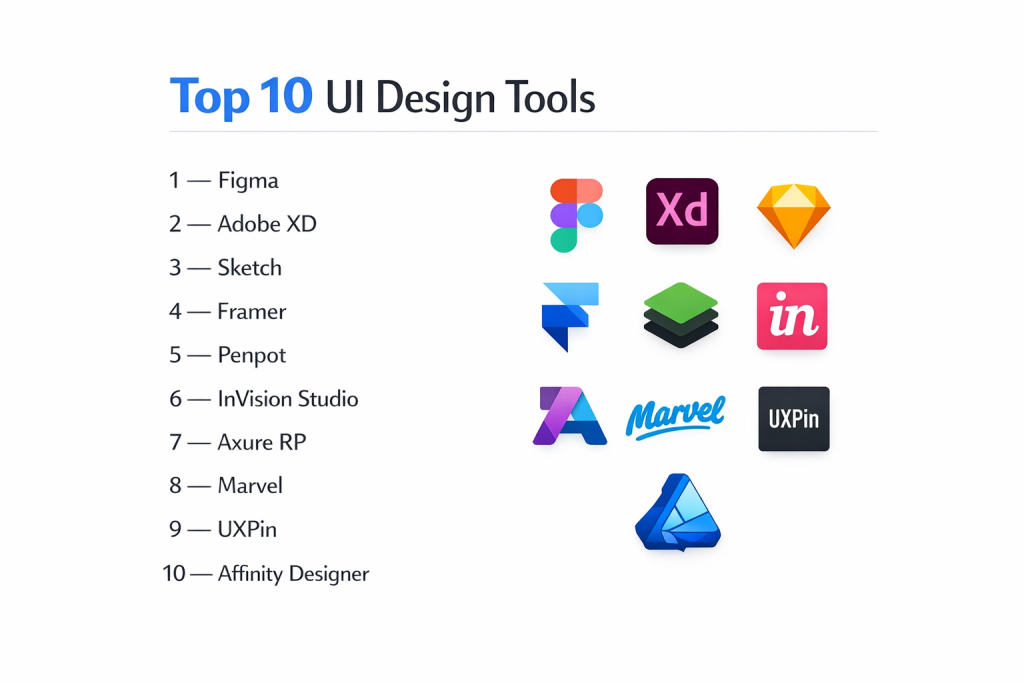
Top 10 UI Design Tools
1 — Figma
Figma is a cloud-based design and prototyping tool that revolutionized the industry by allowing multiple users to collaborate on the same file in real-time. It is the current market leader for web and mobile interface design.
- Key features:
- Real-time Collaboration: Multiple designers can work on the same canvas simultaneously with live cursors.
- Auto Layout: A flexbox-like system that allows components to grow or shrink based on their content.
- Design Systems: Robust library management for components, variables, and styles across multiple projects.
- Dev Mode: A dedicated space for developers to inspect designs and extract code snippets.
- FigJam Integration: An integrated whiteboarding tool for brainstorming and user flow mapping.
- Prototyping: Advanced transitions and “Smart Animate” for creating high-fidelity interactions.
- Pros:
- Platform Agnostic: Works in any web browser and has desktop apps for both macOS and Windows.
- Massive Community: Thousands of free community-made plugins, templates, and UI kits available.
- Cons:
- Requires Internet: While there is a limited offline mode, it is fundamentally designed for cloud connectivity.
- Resource Heavy: Can consume significant RAM when working on massive files with hundreds of layers.
- Security & compliance: SOC 2 Type II, SOC 3, ISO 27001, and GDPR compliant. Supports SSO (SAML) and provides detailed audit logs.
- Support & community: Extensive documentation, a very active community forum, and 24/7 priority support for enterprise customers.
2 — Adobe XD
Adobe XD is a vector-based tool specifically built for designing and prototyping user experiences. It is part of the Creative Cloud ecosystem, making it a natural choice for teams already using Photoshop and Illustrator.
- Key features:
- Repeat Grid: A unique tool that allows designers to replicate lists or galleries instantly with varying content.
- Voice Prototyping: Create interactions triggered by voice commands and speech playback.
- Auto-Animate: Automatically creates motion between artboards based on layer names.
- Creative Cloud Libraries: Seamlessly sync assets between Photoshop, Illustrator, and XD.
- Responsive Resize: Intelligently resizes groups of objects for different screen sizes.
- Pros:
- Performance: Known for being extremely fast and lightweight, even on older hardware.
- Ecosystem Integration: The best-in-class integration for users who rely on the Adobe suite.
- Cons:
- Uncertain Future: Since the attempted acquisition of Figma, Adobe has slowed down major updates for XD.
- Limited Free Tier: The “Starter” plan is quite restrictive compared to competitors.
- Security & compliance: SOC 2 compliant, GDPR compliant, and uses Adobe’s standard enterprise-grade encryption.
- Support & community: Professional Adobe support, a large library of Adobe Live tutorials, and a global user base.
3 — Sketch
Sketch is the original pioneer of modern UI design. It is a macOS-exclusive application known for its clean interface and powerful symbol system, favored by many traditional design agencies.
- Key features:
- Symbols: Powerful reusable components with smart overrides and nesting capabilities.
- Shared Libraries: Centralized design systems that sync across different team members.
- Native macOS Performance: Built specifically for Mac, utilizing hardware acceleration for a smooth experience.
- Workspace: A browser-based environment for stakeholders to inspect designs and leave comments.
- Prototyping: Simple, effective tools for linking artboards and simulating user flows.
- Pros:
- Offline Reliability: As a native app, it works perfectly without an internet connection.
- Privacy: Offers more control over where files are stored (local vs. cloud).
- Cons:
- Mac Only: There is no Windows or Linux version, which can be a dealbreaker for cross-functional teams.
- Subscription Model: Moved to a subscription-based “Workspace” model which frustrated some legacy users.
- Security & compliance: GDPR compliant and SOC 2 Type II certified. Offers SSO for enterprise teams.
- Support & community: Excellent documentation and a loyal professional community that has supported the tool for over a decade.
4 — Framer
Framer began as a coding-focused prototyping tool but has evolved into a powerful UI design and web publishing platform. It is unique because it allows you to publish designs directly to a live website.
- Key features:
- Publish to Web: Turn your design into a responsive, high-performance website with one click.
- High-Fidelity Prototyping: Uses real code under the hood to create interactions that feel identical to a finished product.
- Stack and Grid: Advanced layout tools that mimic modern CSS (Flexbox and CSS Grid).
- CMS Integration: Built-in content management system for blogs or portfolios.
- Interactions: A powerful “Action” system for creating complex animations without writing code.
- Pros:
- Production Ready: Bridges the gap between design and production more effectively than any other tool.
- Animation Quality: The motion engine is significantly more advanced than Figma or XD.
- Cons:
- Learning Curve: The layout logic is closer to development, which can be difficult for purely visual designers.
- Overkill for Small Tasks: Too complex for simple mockups or static social media graphics.
- Security & compliance: SOC 2 Type II compliant and GDPR compliant. All sites are hosted on secure, global CDNs.
- Support & community: Rapidly growing community, excellent video tutorials, and a very active Discord server.
5 — Penpot
Penpot is the first open-source UI design and prototyping tool. It is gaining traction as a free, privacy-focused alternative to Figma, particularly for developers and open-source advocates.
- Key features:
- SVG-based: The tool uses SVG as its native format, ensuring high compatibility with web standards.
- Flex Layout: A layout engine based on CSS Flexbox, making the handoff to developers seamless.
- Self-Hosting: Large organizations can host Penpot on their own servers for maximum security.
- Multi-player: Real-time collaboration features similar to Figma.
- Open Source: Completely free to use with a transparent development roadmap.
- Pros:
- No Vendor Lock-in: Because it’s open-source and SVG-based, you truly own your files.
- Developer Friendly: The layout logic matches how code is actually written.
- Cons:
- Smaller Ecosystem: Fewer plugins and community templates compared to Figma or Sketch.
- Feature Maturity: Some advanced features like “Variables” are still being refined.
- Security & compliance: GDPR compliant. Being open-source, it allows for independent security audits and on-premise hosting.
- Support & community: Community-driven support via GitHub and a growing forum of open-source designers.
6 — Axure RP
Axure RP is the “heavyweight” of the prototyping world. It is designed for UX professionals who need to build complex, data-driven prototypes with conditional logic and dynamic content.
- Key features:
- Conditional Logic: Create “if/then” scenarios to simulate complex app logic.
- Dynamic Content: Use variables and expressions to change what is displayed based on user input.
- Repeater Widgets: Manage large sets of data in grids or lists with sorting and filtering.
- Adaptive Views: Create different versions of a design for mobile, tablet, and desktop in one file.
- Comprehensive Documentation: Automatically generate functional specification documents from your designs.
- Pros:
- Functionality: No other tool can replicate complex software behavior as accurately as Axure.
- Offline Capability: A robust desktop application that does not require a constant cloud connection.
- Cons:
- Difficult to Learn: It has a very steep learning curve that can take months to master.
- UI Aesthetics: The interface itself feels a bit dated compared to modern tools like Figma.
- Security & compliance: ISO 27001 certified, SOC 2 Type II compliant, and GDPR compliant.
- Support & community: High-quality professional support and a dedicated user base in the enterprise software sector.
7 — InVision (Studio)
InVision was long the king of prototyping and feedback. While they have recently shifted focus toward their “Freehand” whiteboarding tool, InVision Studio remains a capable UI design application.
- Key features:
- Advanced Animations: A timeline-based animation editor for fine-tuning transitions.
- Responsive Design: Artboards that adjust layout based on screen size presets.
- Integration with Freehand: Send designs to a collaborative whiteboard for feedback.
- Design System Manager (DSM): A centralized hub for managing brand assets and components.
- Cloud Sync: Seamlessly sync files from Sketch or Studio to the InVision web app.
- Pros:
- Prototyping Legacy: Their web-based prototyping and commenting system is still very intuitive.
- Collaborative Feedback: The “Inspect” tool for developers is highly efficient.
- Cons:
- Stagnant Development: The Studio app has received fewer updates recently as the company pivots.
- Performance Issues: Some users report stability problems with the Studio desktop app.
- Security & compliance: SOC 2 Type II, ISO 27001, and GDPR compliant. Supports SSO for enterprise clients.
- Support & community: Extensive library of design education through “DesignBetter,” and professional customer success.
8 — UXPin
UXPin is a “code-based” design tool that allows designers to use actual code components in their designs. This drastically reduces the friction between designers and developers.
- Key features:
- Merge Technology: Sync your production React or Vue components directly into the design editor.
- States: Add multiple states (hover, active, disabled) to a single component without duplicating it.
- Variables and Logic: Use real data and logical expressions to drive prototypes.
- Conditional Interactions: Interactions that only happen if certain conditions are met.
- Forms and Inputs: Real interactive form fields that users can actually type into.
- Pros:
- The “Merge” Feature: The only tool that allows you to design with the exact components developers use.
- Prototype Accuracy: Prototypes behave like real apps, not just clickable pictures.
- Cons:
- Technical Requirements: To get the most out of it, you need a basic understanding of component logic.
- Higher Pricing: Positioned as a premium tool for professional product teams.
- Security & compliance: SOC 2 Type II compliant, GDPR compliant, and uses 256-bit AES encryption.
- Support & community: Personalized onboarding and a strong focus on enterprise-level customer success.
9 — Affinity Designer
Affinity Designer is a professional-grade vector graphics editor. While often used for illustration, its “Personas” and pixel-perfect accuracy make it a powerful choice for UI design without a subscription.
- Key features:
- Hybrid Environment: Switch between vector and raster workspaces in a single click.
- One-time Purchase: Unlike almost all other tools, this is a perpetual license (no subscription).
- Artboard Support: Manage multiple screens and device sizes in one document.
- Asset Panel: Save and organize UI components for reuse.
- Dynamic Symbols: Create components that update everywhere when modified.
- Pros:
- Extreme Speed: One of the fastest vector engines ever built; zero lag even with thousands of objects.
- Cost Effective: Pays for itself in just a few months compared to Adobe or Figma.
- Cons:
- No Prototyping: It is a design tool only; you will need another app to create interactive links.
- Collaboration: No real-time multi-user editing; it is a traditional file-based workflow.
- Security & compliance: GDPR compliant. Since files are stored locally, you have total control over data residency.
- Support & community: Massive community forum and high-quality official tutorial videos.
10 — Moqups
Moqups is an all-in-one web app that combines wireframing, prototyping, and UI design. It is built for teams that need to move from a “napkin sketch” to a mockup very quickly.
- Key features:
- Integrated Libraries: Huge set of built-in UI stencils for iOS, Android, and Web.
- Cloud-based Collaboration: Real-time editing and commenting in the browser.
- Icon Sets: Built-in access to Font Awesome, Material Design, and Hawcons.
- Page Management: Easily organize complex project hierarchies and flows.
- High-to-Low Fidelity: Switch from rough wireframes to polished mockups in the same app.
- Pros:
- Ease of Use: Very intuitive for non-designers or PMs who need to visualize an idea.
- Fast Brainstorming: Perfect for the early “concept” phase of a project.
- Cons:
- Limited Design Depth: Lacks the advanced vector and design system tools of Figma or Sketch.
- Simple Prototyping: Only supports basic transitions and page linking.
- Security & compliance: GDPR compliant and uses encrypted cloud storage.
- Support & community: Help center and email support; well-regarded for its simplicity.
Comparison Table
| Tool Name | Best For | Platform(s) Supported | Standout Feature | Rating |
| Figma | Real-time Collaboration | Web, Windows, Mac | Live Multiplayer Editing | 4.8/5 |
| Adobe XD | Adobe Ecosystem Users | Windows, Mac | Voice Prototyping | 4.4/5 |
| Sketch | Native Mac Enthusiasts | macOS | Native Mac Performance | 4.5/5 |
| Framer | Design to Web Publishing | Web, Mac | React-based Interactions | 4.6/5 |
| Penpot | Open Source Teams | Web (Self-hostable) | SVG-native Format | 4.2/5 |
| Axure RP | Complex App Logic | Windows, Mac | Conditional Logic | 4.3/5 |
| InVision | Prototyping & Feedback | Web, Windows, Mac | Stakeholder Inspection | 4.1/5 |
| UXPin | Design-Dev Alignment | Web, Windows, Mac | Code-based Merge Tech | 4.5/5 |
| Affinity Designer | Budget/Offline Use | Windows, Mac, iPad | One-time Purchase | 4.6/5 |
| Moqups | Quick Wireframing | Web | All-in-one Simplicity | 4.0/5 |
Evaluation & Scoring of UI Design Tools
The following table evaluates the top UI design tools based on a weighted scoring rubric to help identify the best all-around solutions.
| Category | Weight | Evaluation Criteria |
| Core Features | 25% | Vector capabilities, prototyping, and design system management. |
| Ease of Use | 15% | Intuitiveness of the interface and learning curve for beginners. |
| Integrations | 15% | Plugin ecosystem and ability to connect with developers/stakeholders. |
| Security | 10% | Compliance standards (SOC 2, GDPR) and access control features. |
| Performance | 10% | Software stability and speed when handling large, complex files. |
| Support | 10% | Quality of documentation, community size, and customer service. |
| Price / Value | 15% | Affordability relative to the feature set and ROI for teams. |
Which UI Design Tool Is Right for You?
Solo Users vs. SMB vs. Mid-Market vs. Enterprise
For Solo Users and Freelancers, Figma is generally the best choice due to its generous free tier and widespread industry adoption. If you are a solo user who prefers a one-time payment and works offline, Affinity Designer is unbeatable. Small and Medium Businesses (SMBs) usually thrive on Figma or Sketch because they allow for easy sharing and rapid iteration. Mid-Market and Enterprise organizations often lean toward Figma for its unparalleled collaboration or UXPin and Axure RP for the advanced logic required in complex enterprise software.
Budget-Conscious vs. Premium Solutions
If you are on a tight Budget, Penpot (free/open-source) and Figma (free tier) are the most powerful options. Affinity Designer is also a great investment as it eliminates monthly bills. For Premium Solutions, UXPin and Axure RP are more expensive but offer specialized features that can save hundreds of hours in the long run by producing more accurate prototypes.
Feature Depth vs. Ease of Use
If you prioritize Ease of Use, Moqups and Adobe XD have the cleanest interfaces with the least friction. If you require Feature Depth, especially for complex interactions, Framer and Axure RP provide the tools necessary for sophisticated design work, albeit with a longer learning curve.
Integration and Scalability Needs
For teams that need to Scale their design operations, Figma is the gold standard because its “Design Systems” and “Dev Mode” are built to grow with the company. If your team is primarily composed of developers who want to use code-like logic, Framer or Penpot will provide the best alignment between design and engineering.
Security and Compliance Requirements
Companies with high Security needs (like Banks or Government agencies) should look at Penpot or Axure RP, as both allow for on-premise or self-hosted installations, keeping all data behind a private firewall. Figma and Adobe also offer highly secure enterprise tiers with SAML SSO and dedicated data residency.
Frequently Asked Questions (FAQs)
1. What is the difference between UI and UX design tools?
UI (User Interface) tools focus on the visual aesthetic—colors, fonts, and layouts. UX (User Experience) tools focus on the flow, logic, and how a user feels while interacting with the product. Most modern tools like Figma and XD handle both.
2. Is Figma better than Sketch?
It depends on your needs. Figma is cloud-based and works on Windows and Mac with better real-time collaboration. Sketch is native to Mac, works better offline, and is preferred by designers who prioritize data privacy.
3. Do I need to know how to code to use UI design tools?
No. Most UI design tools are “drag-and-drop” and visual. However, tools like Framer and UXPin benefit from a basic understanding of how web layouts (like Flexbox) work.
4. Can I use these tools for free?
Yes. Figma, Penpot, and Moqups offer free versions. Others, like Adobe XD and Sketch, offer free trials. Penpot is the only one that is completely free and open-source for all features.
5. What is “Developer Handoff”?
This is the process of giving finished designs to developers. Modern tools help by providing CSS code, measurements, and asset export buttons so developers can build the design accurately.
6. Can I design mobile apps with these tools?
Absolutely. All ten tools on this list are designed to handle mobile app layouts, and many provide “mirror” apps so you can preview your design on a real phone.
7. Which tool is easiest for a beginner?
Adobe XD and Figma are generally considered the easiest for beginners due to their clean interfaces and massive amount of free online tutorials.
8. Is Adobe XD being discontinued?
Adobe has not officially “killed” XD, but they have moved it into “maintenance mode” following their attempt to buy Figma. It receives security updates but fewer new features than it used to.
9. What are “Design Systems”?
A design system is a library of reusable components (buttons, headers, etc.) and rules that ensure a brand looks the same across all its different digital products.
10. Do these tools work on Windows?
Figma, Adobe XD, Axure, UXPin, Framer, and Affinity Designer all work on Windows. Sketch is the only major tool that is strictly limited to macOS.
Conclusion
The landscape of UI design has shifted from static image editing to a world of dynamic, collaborative prototyping. Choosing the right tool is no longer just about which one has the best pen tool, but which one fits into your team’s specific workflow and technical goals.
For the vast majority of teams, Figma remains the most balanced choice, offering a powerful combination of collaboration and performance. However, if your project requires the extreme logic of a data-heavy application, Axure RP or UXPin might be your best bet. If you are looking for a way to bridge the gap between design and a live website, Framer stands alone. Ultimately, the best tool is the one that allows your team to communicate ideas clearly and build products that users love.