Introduction
Terminal emulators are software applications that replicate the functionality of classic video terminals within a modern graphical user interface (GUI). While most people interact with their computers through windows and icons, terminal emulators provide a direct text-based gateway to the operating system’s core. They allow users to execute commands, manage files, and run scripts through a “shell” like Bash, Zsh, or PowerShell. In a digital environment where efficiency and automation are paramount, the terminal remains the most powerful tool in a professional’s arsenal. It bypasses the limitations of a GUI, allowing for complex tasks—such as batch-processing thousands of images or deploying code to a global server network—to be accomplished with a few lines of text.
The importance of choosing the right terminal emulator cannot be overstated for those who spend their day in a command-line environment. A high-quality emulator isn’t just a black box for text; it is a productivity hub that offers features like split-pane multitasking, GPU acceleration for lag-free typing, and deep customization through themes and plugins. For developers, system administrators, and data scientists, the terminal is their primary workspace. A slow or poorly designed emulator can lead to “input lag,” which disrupts the flow of thought, while a feature-rich one can automate repetitive workflows. By bridging the gap between human intent and machine execution, terminal emulators remain the definitive tool for high-level computing.
Key Real-World Use Cases
- Software Development: Compiling code, managing version control with Git, and running local development servers.
- System Administration: Securely connecting to remote servers via SSH to perform maintenance, updates, and troubleshooting.
- Data Processing: Using command-line tools like Awk, Sed, or Python scripts to filter and analyze massive datasets that would crash standard spreadsheet software.
- DevOps & Automation: Writing and testing shell scripts that automate cloud infrastructure deployment and continuous integration (CI) pipelines.
- File Management: Performing advanced file operations, such as searching for specific text patterns across millions of files using “grep.”
What to Look For (Evaluation Criteria)
When evaluating a terminal emulator, you should look for specific technical and ergonomic features that match your workflow:
- Performance & Latency: Does the terminal use GPU acceleration? Low latency is crucial for a responsive feel, especially during fast typing or when scrolling through long logs.
- Multitasking Capabilities: Does it support tabs, split panes (tiling), or persistent sessions that stay open even if the window is closed?
- Customization: Can you adjust fonts, color schemes, and transparency? More importantly, does it support “ligatures” and Unicode icons (Powerline fonts)?
- Search & Buffer: How easily can you search through thousands of lines of previous output? Does it have a high “scrollback buffer” without slowing down?
- Integration: Does it play well with various shells (Zsh, Fish, PowerShell) and support modern protocols like TrueColor and Sixel graphics?
Best for:
Software engineers, DevOps professionals, cybersecurity researchers, and system administrators. It is an essential tool for technology-driven companies ranging from agile startups to global enterprise firms that manage their own server infrastructure or cloud environments.
Not ideal for:
Casual office workers or creative professionals who rely exclusively on GUI-based applications like Word, Excel, or Adobe Creative Cloud. If you never find yourself needing to automate tasks or manage remote servers, the default terminal included with your OS is more than sufficient.
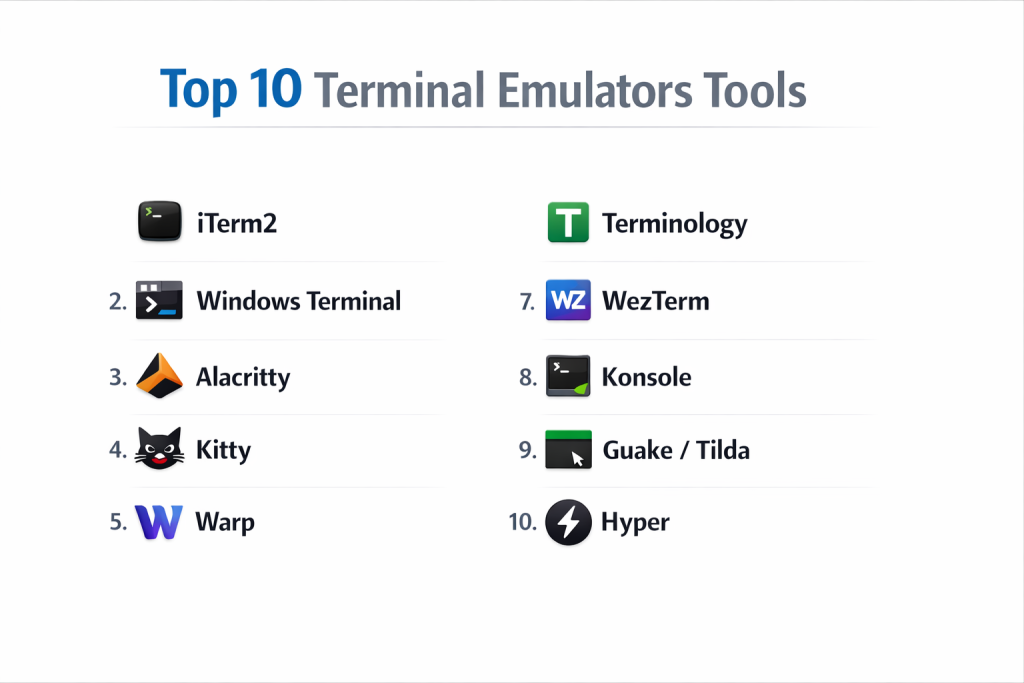
Top 10 Terminal Emulators Tools
1 — iTerm2
iTerm2 is the gold standard for macOS users, widely considered the most feature-complete terminal replacement for Apple’s default app. It is designed for power users who need advanced window management and deep integration with the macOS ecosystem. It was one of the first to popularize features like “Hotkey Windows” that drop down from the top of the screen.
- Key features: Split panes (horizontal and vertical), built-in “Autocomplete” for commands, “Mouseless Copy” feature, Paste History, and specialized “Exposé” view for all open tabs.
- Pros: Highly polished and incredibly stable with features that feel like they should have been built into the OS.
- Cons: Exclusive to macOS; can be slightly more resource-heavy than lightweight Linux alternatives.
- Security & compliance: Supports secure password storage in the macOS Keychain; Varies/NA.
- Support & community: Massive community with thousands of custom themes and scripts; excellent documentation and frequent updates.
2 — Windows Terminal
Windows Terminal is Microsoft’s modern, high-performance terminal application for Windows 10 and 11. It was built from the ground up to solve the limitations of the old “Command Prompt” (conhost.exe). It uses a GPU-accelerated text rendering engine and supports multiple profiles, allowing users to switch between PowerShell, Command Prompt, and Linux (WSL) in a single window.
- Key features: GPU-accelerated text rendering, multiple tabs and panes, JSON-based configuration, support for Unicode and emoji, and customizable background images/transparency.
- Pros: Exceptionally fast and the best way to manage Windows Subsystem for Linux (WSL).
- Cons: Configuration is primarily done through a JSON file, which might be intimidating for beginners compared to a GUI menu.
- Security & compliance: Integrates with Windows Hello and enterprise-grade security policies; GDPR compliant.
- Support & community: Open-source development on GitHub with massive backing from Microsoft and the developer community.
3 — Alacritty
Alacritty is famous for being the fastest terminal emulator in existence. Written in Rust, it prioritizes performance above all else by offloading text rendering to the GPU. It is a “minimalist” terminal, meaning it doesn’t include tabs or split panes by default, expecting the user to use a “terminal multiplexer” like tmux to handle window management.
- Key features: GPU-accelerated (OpenGL), high-performance rendering, cross-platform support, minimalist design, and VI-mode for keyboard-based selection.
- Pros: Virtually zero input lag and extremely efficient use of system resources.
- Cons: Lacks a GUI settings menu; requires manual editing of a configuration file for even basic changes.
- Security & compliance: Memory-safe (thanks to Rust); Varies/NA.
- Support & community: Growing community of performance-obsessed users; strong documentation on GitHub.
4 — Kitty
Kitty is a fast, featureful, GPU-based terminal emulator that is highly extensible via “kittens” (small Python programs). It is designed for power users who want Alacritty’s speed but with built-in support for tabs, tiling, and advanced graphics. It is unique in its support for displaying high-quality images directly in the terminal.
- Key features: GPU-based rendering, support for tiling layouts, “Kittens” extension framework, graphics support (Sixel/Protocols), and cross-platform (Linux/macOS).
- Pros: Combines extreme speed with a massive feature set that most other fast terminals omit.
- Cons: Does not have a native Windows version (requires WSL/Cygwin).
- Security & compliance: N/A.
- Support & community: Very active development and a loyal following among Linux enthusiasts.
5 — Warp
Warp is a “reimagined” terminal for the modern era, built with a focus on collaboration and AI integration. Unlike traditional terminals, Warp treats the command line like a text editor, allowing for block-based selection and AI-powered command suggestions. It is designed to modernize the CLI experience for teams.
- Key features: AI Command Search, “Warp Drive” for sharing command workflows with teams, block-based output, and collaborative shared drives.
- Pros: Makes the terminal much more approachable for beginners and significantly boosts team productivity.
- Cons: Requires an account/login for some features; closed-source (unlike most terminals).
- Security & compliance: SOC 2 Type II compliant; offers data encryption and secure sharing.
- Support & community: Excellent professional support and a growing community; very modern onboarding experience.
6 — Terminology
Terminology is part of the Enlightenment Foundation Libraries (EFL) and is perhaps the most visually innovative terminal on Linux. It is designed for users who want to push the boundaries of what a terminal can display. It can play videos, show images, and even display file thumbnails directly inside the terminal window.
- Key features: Support for inline images and video, “miniview” (like a code map), tab/split support, and highly customizable visual effects.
- Pros: Unmatched ability to handle multimedia and “rich” content in a text-based environment.
- Cons: Primarily optimized for Linux; can feel a bit “gimmicky” for users who prefer a strictly text-only workflow.
- Security & compliance: N/A.
- Support & community: Solid documentation within the Enlightenment project; smaller but dedicated user base.
7 — WezTerm
WezTerm is a powerful, cross-platform terminal emulator written in Rust. It is unique because its configuration is done entirely in Lua, the same language used by NeoVim. This makes it a favorite for “rICE” enthusiasts (users who love deep customization). It also features built-in multiplexing, meaning you don’t need a separate tool like tmux.
- Key features: Lua-based configuration, built-in multiplexer, GPU acceleration, SSH/TLS/Unix socket support, and support for ligatures.
- Pros: Works identically across Windows, macOS, and Linux; extremely customizable via script.
- Cons: High learning curve due to the Lua configuration requirement.
- Security & compliance: Supports TLS-encrypted remote terminal sessions.
- Support & community: Active GitHub community and very detailed documentation for Lua scripting.
8 — Konsole
Konsole is the default terminal emulator for the KDE Plasma desktop environment. It is a workhorse—reliable, feature-rich, and highly integrated with Linux desktop services. It is designed for users who want a powerful GUI-based settings menu without having to touch a configuration file.
- Key features: Split-view support, tab management, “Monitor for Activity/Silence” alerts, and profile-based management.
- Pros: Very easy to use and integrates perfectly with Linux file managers like Dolphin.
- Cons: Can feel “clunky” on non-KDE Linux distributions; no native Windows or macOS support.
- Security & compliance: Standard Linux security model; Varies/NA.
- Support & community: Huge community support as part of the massive KDE project.
9 — Guake / Tilda
Guake (for GNOME) and Tilda are “dropdown” terminals inspired by the console in games like Quake. They stay hidden in the background and slide down from the top of the screen when a hotkey is pressed. These are designed for users who need quick, intermittent access to the command line without switching windows.
- Key features: Dropdown “overlay” style, hotkey activation, tabbed interface, and transparency support.
- Pros: Keeps the desktop clean; perfect for quick commands like “git status” or “top.”
- Cons: Not ideal for long-form terminal work or managing many persistent sessions at once.
- Security & compliance: N/A.
- Support & community: Long-standing projects with stable community support.
10 — Hyper
Hyper is a terminal built on web technologies (HTML, CSS, and JavaScript using Electron). While not as fast as GPU-accelerated Rust terminals, Hyper is the most customizable terminal for web developers. If you can write CSS, you can change every single pixel of Hyper’s appearance.
- Key features: Extension system based on npm packages, fully customizable with CSS/JS, cross-platform, and beautiful default aesthetic.
- Pros: The easiest terminal to theme and extend if you are a web developer.
- Cons: Significantly slower and more memory-hungry than native terminals due to the Electron framework.
- Security & compliance: N/A.
- Support & community: Very active community of web developers; hundreds of plugins and themes available on npm.
Comparison Table
| Tool Name | Best For | Platform(s) Supported | Standout Feature | Rating |
| iTerm2 | macOS Power Users | macOS | Robust Split-Panes | 4.8 / 5 |
| Windows Terminal | Windows/WSL Users | Windows | Multi-Profile Integration | 4.7 / 5 |
| Alacritty | Speed Purists | Win, Mac, Linux | Raw GPU Performance | N/A |
| Kitty | Graphics/Linux Users | Mac, Linux | Inline Image Rendering | 4.6 / 5 |
| Warp | Teams & AI Fans | Mac, Linux | AI Command Search | 4.9 / 5 |
| Terminology | Multimedia Work | Linux | In-Terminal Video/Images | N/A |
| WezTerm | Cross-Platform Scripting | Win, Mac, Linux | Lua Configuration | N/A |
| Konsole | Linux Desktop Users | Linux | Profile Management | 4.5 / 5 |
| Guake | Quick Tasks | Linux | Dropdown Hotkey | 4.4 / 5 |
| Hyper | Web Developers | Win, Mac, Linux | CSS-based Extension | 4.2 / 5 |
Evaluation & Scoring of Terminal Emulators
| Category | Weight | iTerm2 | Windows Terminal | Alacritty | Warp | Kitty |
| Core Features | 25% | 24/25 | 23/25 | 15/25 | 25/25 | 24/25 |
| Ease of Use | 15% | 15/15 | 14/15 | 5/15 | 15/15 | 10/15 |
| Integrations | 15% | 14/15 | 15/15 | 10/15 | 14/15 | 12/15 |
| Security | 10% | 10/10 | 10/10 | 8/10 | 10/10 | 8/10 |
| Performance | 10% | 8/10 | 9/10 | 10/10 | 9/10 | 10/10 |
| Support | 10% | 10/10 | 10/10 | 7/10 | 9/10 | 8/10 |
| Price / Value | 15% | 15/15 | 15/15 | 15/15 | 12/15 | 15/15 |
| Total Score | 100% | 96/100 | 96/100 | 80/100 | 94/100 | 89/100 |
Which Terminal Emulator Tool Is Right for You?
Solo Users vs. SMB vs. Mid-Market vs. Enterprise
For solo users, the choice is usually about personal aesthetics and speed; Alacritty or iTerm2 are excellent starting points. SMBs and small dev teams often benefit from Warp, as its collaborative features allow senior developers to share “workflows” (pre-written command blocks) with new hires. Mid-Market and Enterprise organizations generally focus on Windows Terminal or Konsole, as these tools are highly stable, support enterprise-wide deployment via Group Policy (on Windows), and integrate with standard security protocols for remote access.
Budget-Conscious vs. Premium Solutions
Most terminal emulators are open-source and free to use, representing incredible value. However, “Premium” or VC-backed solutions like Warp offer a “freemium” model where team collaboration and AI-powered cloud features require a subscription. If you have no budget, Snappy Driver Installer (or in this case, Alacritty or Kitty) provides industrial-grade performance for zero cost.
Feature Depth vs. Ease of Use
If you want a tool that “just works” out of the box with a friendly settings menu, iTerm2 and Konsole are the best choices. If you are a power user who wants to script your own terminal behavior and doesn’t mind writing code to change a font, WezTerm and Kitty offer unparalleled depth.
Integration and Scalability Needs
For developers who work across Windows and Linux, Windows Terminal is essential due to its native WSL integration. If you need to scale your terminal setup across multiple operating systems while keeping your settings identical, WezTerm or Alacritty are the easiest to manage, as you can simply sync a single configuration file via Git or Dropbox.
Security and Compliance Requirements
In high-security environments, you should prioritize terminals that are audited and support modern encryption. Warp is notable for its SOC 2 compliance, making it a viable choice for regulated industries. For standard Linux environments, Konsole and iTerm2 are trusted veterans that respect local security policies and handle password prompts securely.
Frequently Asked Questions (FAQs)
1. What is the difference between a Shell and a Terminal?
The Terminal is the window (the GUI application) you see on your screen. The Shell (like Bash or Zsh) is the program running inside that window that interprets your text commands.
2. Why should I use a third-party terminal instead of the default one?
Third-party terminals offer better performance (GPU acceleration), better window management (split panes), and more customization options that make long hours of coding more comfortable.
3. Does GPU acceleration actually make a difference?
Yes. In non-accelerated terminals, scrolling through a large log file or typing very quickly can cause “stutter” or lag. GPU-accelerated terminals like Alacritty or Kitty feel much smoother.
4. What is a Terminal Multiplexer (like tmux)?
A multiplexer allows you to run multiple terminal sessions inside a single window and, more importantly, keeps those sessions running even if you disconnect or close the terminal window.
5. Is Warp terminal safe to use?
Yes, Warp uses industry-standard encryption. However, because it is closed-source and cloud-integrated, some privacy-conscious users prefer open-source alternatives like iTerm2.
6. Can I use Windows Terminal on a Mac?
No, Windows Terminal is exclusive to Windows. Mac users should look at iTerm2 or Warp.
7. How do I change the look of my terminal?
Most terminals use a configuration file (like .zshrc or a JSON/Lua file) or a settings menu where you can change the “Color Scheme,” “Font,” and “Opacity.”
8. What are “Nerd Fonts” or “Powerline Fonts”?
These are special fonts that include icons (like the Git logo or folders) alongside normal letters. Many modern terminal setups require these to look correct.
9. Can I run GUI apps from a terminal?
Yes, on Linux and macOS, you can launch GUI applications by typing their name, but the terminal usually remains “locked” until you close the app.
10. Which terminal is best for beginners?
iTerm2 (Mac) and Windows Terminal (Windows) are the best for beginners because they have standard menus and don’t require coding just to change the settings.
Conclusion
Selecting a terminal emulator is a deeply personal decision that can significantly impact your daily productivity and comfort. Whether you value the blistering speed of Alacritty, the rich multimedia features of Terminology, or the modern, AI-assisted workflow of Warp, the “best” tool is the one that removes the friction between your ideas and your machine. For most users, iTerm2 and Windows Terminal provide the perfect balance of power and approachability. However, as your technical needs grow, don’t be afraid to explore the scriptable depth of WezTerm or the minimalist efficiency of Kitty.
Ultimately, the terminal is more than just a place to type commands; it is a gateway to mastery over your digital environment. By investing time in a tool that supports your specific workflow—be it through split-panes, GPU acceleration, or collaborative cloud features—you are investing in your own professional efficiency. Try a few of the options on this list, customize them to your liking, and find the one that makes the command line feel like home.