Introduction
System cleanup utilities are specialized software applications designed to maintain, optimize, and secure your computer’s operating system by removing unnecessary files and fixing digital clutter. Over time, every computer accumulates “junk”—temporary internet files, system logs, redundant app data, and leftover registry entries—that can significantly slow down performance. These utilities act as a digital janitorial service, scanning deep into your system to identify files that are no longer needed. Beyond just deleting trash, modern cleanup tools also manage startup items, update outdated drivers, and protect your privacy by clearing tracking cookies and browsing history. By automating these maintenance tasks, these tools ensure that your hardware runs as efficiently as possible, effectively extending the lifespan of your machine.
The importance of using a system cleanup utility lies in its ability to prevent “system bloat” and hardware degradation. When a drive becomes too full, the operating system struggles to find contiguous space to write data, leading to fragmentation and sluggish response times. Furthermore, having too many background processes running from the moment you turn on your computer can drain your RAM and CPU power, making simple tasks feel like a chore. System cleanup utilities provide a centralized dashboard to solve these issues safely. They are particularly vital for security; by removing “leftover” data from uninstalled apps and clearing browser caches, they reduce the surface area that malware can exploit. In a professional setting, keeping a system lean means fewer crashes, faster application loading, and higher overall productivity for the user.
Key Real-World Use Cases
- Recovering Storage Space: Freeing up gigabytes of room on a nearly full SSD by removing hidden system logs, temporary files, and duplicate documents.
- Speeding Up Boot Times: Identifying and disabling non-essential apps that try to start automatically when the computer is turned on.
- Privacy Maintenance: Securely erasing browsing history, download logs, and sensitive form data to protect personal identity on shared computers.
- Software Uninstallation: Completely removing applications, including the “hidden” folders and registry keys that standard uninstallers often leave behind.
- System Stability: Repairing broken registry links and cleaning up invalid shortcuts to prevent software errors and the dreaded “Blue Screen of Death.”
What to Look For (Evaluation Criteria)
When selecting a system cleanup utility, you should judge the software based on these essential factors to ensure your system stays safe:
- Safety and Reliability: Does the tool clearly explain what it is deleting? A safe utility should have “safety levels” to prevent the accidental deletion of critical system files.
- Automation Features: Can you schedule cleanups to happen automatically in the background, or do you have to remember to run the scan manually every week?
- Real-Time Monitoring: Does the tool actively watch for junk accumulation and bloatware, or is it purely a reactive scanner?
- Feature Breadth: Does it include extras like a driver updater, a file shredder for secure deletion, or a duplicate file finder?
- Impact on Resources: Does the cleanup tool itself use a lot of memory and battery, or is it lightweight and fast?
Best for:
Power users, creative professionals using resource-heavy software, and small businesses that want to keep their existing hardware running smoothly for as long as possible. It is a must-have for anyone who frequently installs and uninstalls software or manages large amounts of local data.
Not ideal for:
Users on strictly locked-down corporate machines where IT handles all maintenance, or individuals using “Cloud-only” devices like Chromebooks. Additionally, users who are extremely tech-savvy may prefer to perform these tasks manually using built-in operating system commands to avoid installing third-party software.
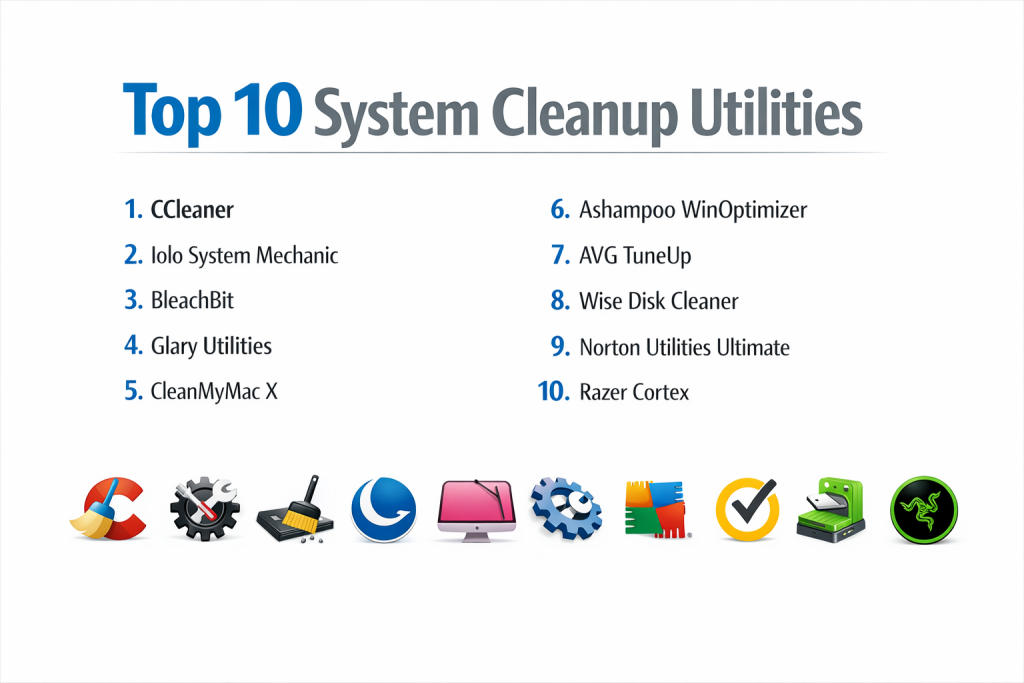
Top 10 System Cleanup Utilities
1 — CCleaner
CCleaner is arguably the most famous system cleanup tool in the world. It is designed for users who want a simple, one-click solution to clear browser junk and system waste. While it has faced some scrutiny in the past regarding data privacy, it remains a top contender due to its massive database of supported applications and its highly effective registry cleaner. It is perfect for home users who want a “Standard” maintenance routine without any complexity.
- Key features: Health Check for automated optimization, specialized browser cleaning, registry cleaner, software uninstaller, and a driver updater.
- Pros: Extremely easy to use and has a very generous free version that covers basic needs.
- Cons: The software can sometimes be “naggy” with upgrade notifications and pop-ups.
- Security & compliance: Includes secure file deletion; GDPR compliant privacy settings in the professional version.
- Support & community: Massive online community and a very large library of troubleshooting guides and FAQs.
2 — Iolo System Mechanic
Iolo System Mechanic is a comprehensive performance suite that goes beyond simple cleaning. It uses a technology called “ActiveCare” to monitor your system in real-time and fix issues as they occur. It is designed for users who want their computer to feel “brand new” every time they use it. It is particularly effective at optimizing internet settings and CPU power for gaming or high-end video editing.
- Key features: Real-time system monitoring, internet connection optimizer, “Program Accelerator” for faster app loading, and deep junk cleaning.
- Pros: One of the most thorough tools for actually increasing the speed of the OS, not just clearing space.
- Cons: The interface can be a bit overwhelming for beginners and it can be resource-intensive.
- Security & compliance: Features like “Privacy Shield” to block Windows telemetry; Varies by edition.
- Support & community: Professional technical support is available, along with a robust knowledge base.
3 — BleachBit
BleachBit is the “open-source” alternative to CCleaner. It is a no-nonsense, lightweight tool that focuses purely on cleaning and shredding files. It is famous for being used by high-level security professionals because it is completely transparent about what it does. It doesn’t have a fancy interface or “optimization” sliders; it is a serious tool for people who want to wipe data permanently and free up space.
- Key features: Vacuuming browser databases, deep system scanning, file shredding to prevent recovery, and support for cleaning thousands of apps.
- Pros: Completely free, open-source, and contains no advertisements or “bloatware” inside the installer.
- Cons: The interface is very basic and it lacks automated scheduling features.
- Security & compliance: High security through open-source transparency; used for sensitive data destruction.
- Support & community: Driven by a dedicated community of developers and security enthusiasts on GitHub and forums.
4 — Glary Utilities
Glary Utilities is a “Swiss Army Knife” for Windows maintenance. It offers over 20 different tools in a single package, including a context menu manager, an encrypted file protector, and a disk analysis tool. It is designed for the user who likes to “tinker” with their system settings. The “1-Click Maintenance” feature makes it accessible for novices, while the individual tools satisfy power users.
- Key features: 1-Click maintenance, startup manager, disk repair, memory optimizer, and an automated software updater.
- Pros: Offers a huge amount of functionality for free and has a very fast scanning engine.
- Cons: Some of the individual tools feel a bit dated in terms of design.
- Security & compliance: Standard encryption tools included; N/A for major enterprise certifications.
- Support & community: Good email support and a helpful online user manual.
5 — CleanMyMac X
CleanMyMac X is widely considered the gold standard for macOS optimization. It is beautifully designed and fits perfectly into the Mac ecosystem. It focuses on removing “System Junk” that macOS hides, such as language files for countries you don’t live in and redundant photo cache data. It also includes an excellent malware removal tool specifically tuned for Mac-based threats.
- Key features: Smart Scan for one-click cleaning, specialized Mac malware removal, uninstaller for “stubborn” apps, and a visual folder size map.
- Pros: Stunning user interface and highly safe for the macOS file structure.
- Cons: It is a premium product with a higher price point than most Windows-based tools.
- Security & compliance: Apple-notarized software; GDPR compliant and highly focused on user privacy.
- Support & community: Exceptional customer support and a very polished community blog with Mac tips.
6 — Ashampoo WinOptimizer
Ashampoo is a German-made utility that prioritizes system stability and privacy. It includes a unique “Game Booster” mode that shuts down unnecessary background processes to give your games more CPU power. The interface is very modern and provides detailed explanations of why specific files are being recommended for deletion, which builds trust with the user.
- Key features: Auto-Clean to wipe session data upon closing apps, privacy manager for Windows 10/11, disk doctor, and a benchmark tool.
- Pros: Very high level of transparency and excellent “Automatic” features for background maintenance.
- Cons: The installation process often tries to recommend other Ashampoo software.
- Security & compliance: Strong focus on blocking Microsoft telemetry and protecting user data.
- Support & community: Reliable professional support and a very active user base in Europe.
7 — AVG TuneUp
AVG TuneUp is built by the same experts who make the famous antivirus software. Its standout feature is “Sleep Mode,” which puts resource-hungry applications into a deep sleep when you aren’t using them, saving battery and RAM without uninstalling them. It is a great “set-and-forget” tool for people who want their computer to stay fast over several years of use.
- Key features: Automated maintenance, Sleep Mode for background apps, uninstaller for bloatware, and a browser cleaner.
- Pros: Excellent battery-saving features for laptops and a very stable scanning engine.
- Cons: Requires a subscription and the free version is very limited in functionality.
- Security & compliance: GDPR compliant; backed by the security infrastructure of Avast/AVG.
- Support & community: 24/7 technical support for subscribers and a large online help portal.
8 — Wise Disk Cleaner
Wise Disk Cleaner is a very lightweight and fast tool that focuses purely on cleaning and defragmenting. It doesn’t try to be an antivirus or a driver updater; it just clears the junk. It is a favorite for older computers because it uses very little system memory. It also includes a “Slim Down” feature that removes non-essential Windows components like help files and sample videos.
- Key features: Common cleaner, advanced cleaner, system “slim down,” and a scheduled disk defragmenter.
- Pros: Completely free for the basic version and very fast at scanning large drives.
- Cons: It lacks the advanced optimization and cybersecurity features of premium suites.
- Security & compliance: Basic; focused on standard home-office data cleaning.
- Support & community: Online forum and a library of basic user guides.
9 — Norton Utilities Ultimate
Norton is one of the most trusted names in the digital world. Their “Ultimate” utility is designed for users who want an “Enterprise-lite” experience. It focuses heavily on “Data Recovery” and “Secure Disposal,” making it a great choice for professionals who handle sensitive client information. It also includes a “Process Scanner” that helps you identify apps that are hogging your internet bandwidth.
- Key features: Real-time cleaning, file shredder, data recovery for accidentally deleted files, and an automated PC health optimizer.
- Pros: Backed by world-class security expertise and offers very deep system cleaning.
- Cons: Expensive and often bundled with other Norton products you may not want.
- Security & compliance: High-level security standards; focuses on ISO and GDPR compliance.
- Support & community: Premium 24/7 support and a huge global user community.
10 — Razer Cortex
Razer Cortex is a specialized cleanup utility for gamers. While it does clear system junk, its main purpose is to “Boost” your system for maximum frame rates. It clears out your RAM and pauses non-essential Windows services the moment you launch a game, then restores everything once you’re done. It is the best tool for anyone whose primary goal is performance in games.
- Key features: Game Booster, System Booster (cleaning), FPS counter, and a “deals” tracker for games.
- Pros: Completely free and provides a noticeable boost in gaming performance on mid-range PCs.
- Cons: Not a “general-purpose” tool; the interface is very much geared toward a gaming aesthetic.
- Security & compliance: N/A; primarily focused on performance optimization.
- Support & community: Massive community of gamers and excellent technical support through Razer.
Comparison Table
| Tool Name | Best For | Platform(s) Supported | Standout Feature | Rating |
| CCleaner | Home Users | Win, Mac, Android | One-Click Health Check | 4.5 / 5 |
| System Mechanic | Speed Seekers | Windows | ActiveCare Real-time Fix | 4.7 / 5 |
| BleachBit | Privacy Purists | Windows, Linux | Open-Source Shredding | N/A |
| Glary Utilities | Power Users | Windows | 20+ Maintenance Tools | 4.4 / 5 |
| CleanMyMac X | Apple Users | macOS | macOS Specific Junk Scan | 4.8 / 5 |
| Ashampoo | Privacy & Gaming | Windows | Auto-Clean on Exit | 4.3 / 5 |
| AVG TuneUp | Laptop Users | Win, Mac, Android | Sleep Mode for Apps | 4.2 / 5 |
| Wise Cleaner | Older PCs | Windows | System “Slim Down” | 4.0 / 5 |
| Norton Utilities | Professionals | Windows | Integrated Data Recovery | 4.1 / 5 |
| Razer Cortex | PC Gamers | Windows | Automated Game Boosting | 4.6 / 5 |
Evaluation & Scoring of System Cleanup Utilities
| Category | Weight | CCleaner | Sys Mechanic | BleachBit | CleanMyMac | Glary |
| Core Features | 25% | 23/25 | 25/25 | 18/25 | 24/25 | 24/25 |
| Ease of Use | 15% | 15/15 | 11/15 | 8/15 | 15/15 | 13/15 |
| Integrations | 15% | 13/15 | 12/15 | 8/15 | 14/15 | 12/15 |
| Security | 10% | 8/10 | 9/10 | 10/10 | 10/10 | 8/10 |
| Performance | 10% | 9/10 | 10/10 | 10/10 | 9/10 | 9/10 |
| Support | 10% | 10/10 | 9/10 | 4/10 | 10/10 | 8/10 |
| Price / Value | 15% | 13/15 | 11/15 | 15/15 | 10/15 | 14/15 |
| Total Score | 100% | 91/100 | 87/100 | 73/100 | 92/100 | 88/100 |
Which System Cleanup Tool Is Right for You?
Solo Users vs. SMB vs. Mid-Market vs. Enterprise
For solo users, CCleaner or Glary Utilities are excellent because they are low-cost and cover all the basic maintenance tasks. SMBs (Small to Medium Businesses) should look at AVG TuneUp or Norton Utilities, as these often include multi-device licenses that can cover a small team’s laptops. Enterprise and Mid-Market organizations usually do not use individual cleanup utilities; instead, they use RMM (Remote Monitoring and Management) software. However, for a high-end workstation, CleanMyMac X or System Mechanic are the professional choices.
Budget-Conscious vs. Premium Solutions
If you have a zero-dollar budget, BleachBit and Wise Disk Cleaner are your best options. They provide high-quality cleaning without any subscription fees. If you are willing to pay for a premium solution, CleanMyMac X and Iolo System Mechanic offer much deeper optimization features that can actually make your computer feel faster, rather than just reclaiming a few gigabytes of space.
Feature Depth vs. Ease of Use
If you want a tool that does everything from defragging to file encryption, Glary Utilities is the winner for depth. However, if you are not tech-savvy and just want a “Big Green Button” to fix your computer, CCleaner or EaseUS Partition Master (which includes cleanup tools) are designed with you in mind.
Integration and Scalability Needs
For those who need to manage their system across different platforms (Windows, Mac, and Mobile), AVG TuneUp and CCleaner offer the best cross-platform integration. They allow you to use one account to manage the health of your phone and your desktop simultaneously.
Security and Compliance Requirements
If your work involves handling sensitive data, you must prioritize tools with secure file shredding capabilities that meet military standards (like DoD 5220.22-M). BleachBit and Norton Utilities are the strongest here, ensuring that when you “delete” a file, it is overwritten multiple times so that it can never be recovered by data recovery experts.
Frequently Asked Questions (FAQs)
1. Can a cleanup utility damage my computer?
If you use a reputable tool like the ones on this list, it is very safe. However, you should be careful with “Registry Cleaning” features. Always make a backup of your registry (most tools offer this automatically) before allowing the software to make changes to it.
2. How often should I run a system cleanup?
For most users, running a cleanup once every two weeks is enough to keep junk from accumulating. If you work with large files (like video or 3D design), you might want to run it once a week.
3. Will these tools delete my personal photos or documents?
No. These tools are designed to target “junk” files—system logs, temporary internet data, and leftover app bits. They will not delete your personal files unless you specifically use a “Duplicate File Finder” and tell them to do so.
4. Do I need a cleanup tool if I have a new computer?
New computers often come with “Bloatware”—pre-installed apps from the manufacturer that you don’t need. A cleanup utility can help you identify and remove these to make your new PC even faster.
5. What is the difference between a cleanup utility and an antivirus?
An antivirus protects you from “external” threats like viruses and hackers. A cleanup utility focuses on “internal” maintenance, clearing out the trash and optimizing your settings to keep things running smoothly.
6. Can these tools make my internet faster?
Some tools, like Iolo System Mechanic, can optimize your network settings to improve speeds. However, most cleanup tools simply clear your “browser cache,” which makes the browser itself feel more responsive.
7. Does Windows have a built-in cleanup tool?
Yes, Windows has a tool called “Disk Cleanup” and “Storage Sense.” They are basic but effective. Third-party tools are popular because they find much more junk than the built-in Windows options.
8. Will cleaning my PC improve my gaming FPS?
Clearing system junk won’t directly make your graphics card faster, but it frees up RAM and CPU power. Tools like Razer Cortex specifically target this to give you a smoother gaming experience.
9. Why do I need to clear my browser cache?
The cache stores bits of websites to help them load faster next time. However, if it gets too large or corrupted, it can actually slow down your browsing and cause websites to display incorrectly.
10. Are free cleanup tools as good as paid ones?
Free tools like BleachBit are excellent for basic cleaning. Paid tools are generally better at “Optimization”—actually tweaking your system settings to improve speed and battery life.
Conclusion
System cleanup utilities are indispensable for maintaining the health, speed, and security of your digital life. While modern operating systems have improved their own self-maintenance, they still cannot match the deep-cleaning and optimization capabilities of specialized third-party tools. Choosing the right utility depends entirely on your specific goals—whether you are a gamer looking for every extra frame per second with Razer Cortex, a Mac enthusiast who values the polished design of CleanMyMac X, or a privacy advocate who trusts the transparency of BleachBit.
Ultimately, the best tool is the one that you will actually use consistently. A system that is maintained once a month will always outperform a powerful system that is allowed to accumulate digital clutter for a year. By automating your maintenance with a reputable utility, you are not just saving disk space—you are investing in the longevity of your hardware and the efficiency of your daily workflow. Take the time to try a few free versions, find an interface that you trust, and make system cleanup a regular part of your digital hygiene.