Introduction
Remote access software refers to a category of programs that allow a user to connect to and control a computer or a network from a different location via the internet or a private network. By utilizing these tools, a person can see the screen of a distant machine, move its mouse, and use its keyboard as if they were sitting directly in front of it. This technology serves as a vital bridge between physical locations, enabling seamless interaction with digital resources regardless of geographic barriers.
The importance of remote access has grown significantly as the global workforce shifts toward hybrid and remote models. It is the backbone of modern IT support, allowing technicians to fix hardware issues without traveling. In the corporate world, it enables employees to access powerful office workstations from home laptops. Key use cases include remote system administration, virtual training sessions, and accessing specialized software that is only licensed for specific office machines. When choosing a tool, users must look for latency performance, ease of deployment, multi-monitor support, and robust security protocols to prevent unauthorized entry.
Best for: IT support professionals, system administrators, remote employees, and global enterprises. It is highly beneficial for industries such as customer service, software development, and healthcare where immediate technical intervention is required.
Not ideal for: Those who only need to share files (where cloud storage is better) or individuals with extremely slow internet connections where the lag would make real-time control impossible.
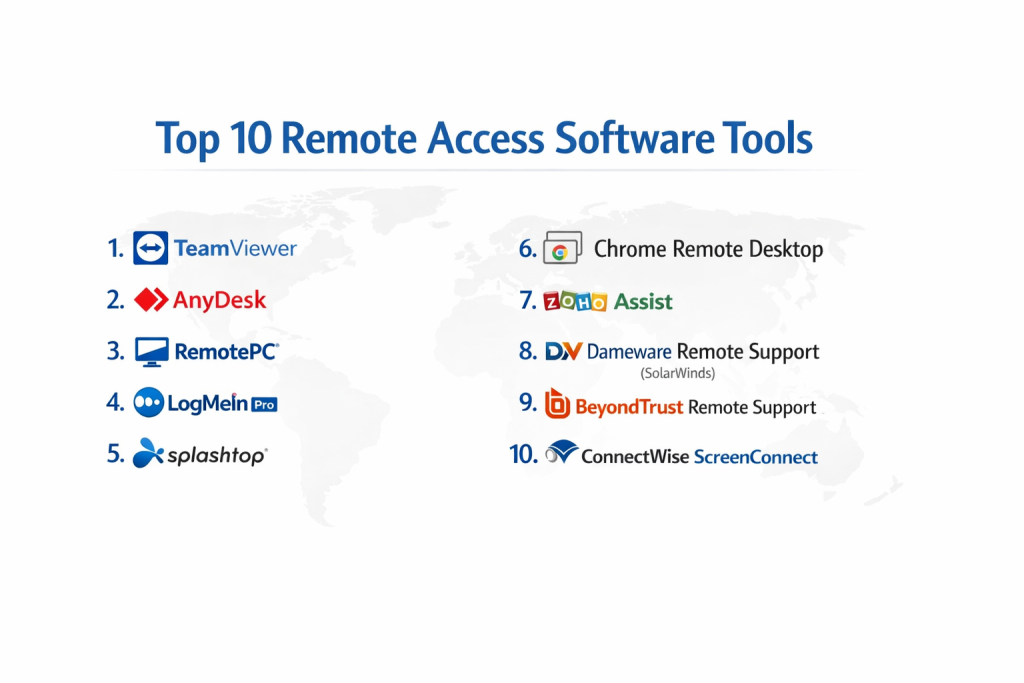
Top 10 Remote Access Software Tools
1 — TeamViewer
TeamViewer is one of the most established names in the industry, offering a comprehensive platform that handles everything from simple one-to-one screen sharing to complex enterprise-level device management.
- Key Features:
- Cross-Platform Connectivity: Connect between Windows, macOS, Linux, Android, and iOS.
- Unattended Access: Access servers or home computers without a person on the other end.
- Wake-on-LAN: Remotely turn on a computer that is in sleep mode.
- Integrated File Transfer: Drag and drop files between the local and remote machines.
- Remote Printing: Print documents from the remote machine to your local printer.
- Meeting and Video Chat: Built-in tools for collaborative sessions and training.
- Pros:
- Exceptionally easy to set up for first-time users via simple ID and password.
- High-performance video engine that adjusts to your bandwidth quality.
- Cons:
- The pricing is significantly higher than many competitors for commercial use.
- Frequent prompts for personal users to verify they are not using it for business.
- Security & compliance: 256-bit AES encryption, two-factor authentication (2FA), SOC 2, HIPAA, and GDPR compliance.
- Support & community: Extensive knowledge base, video tutorials, and a massive user community with professional enterprise support tiers.
2 — AnyDesk
AnyDesk is known for its proprietary DeskRT codec, which provides a near-lag-free experience, making it a favorite for those who require high frame rates and responsiveness.
- Key Features:
- DeskRT Video Codec: Designed for high-speed data transmission even at low bandwidths.
- Custom Client: Organizations can create their own branded version of the software.
- Permission Profiles: Detailed control over what the guest user can and cannot do.
- Session Recording: Record sessions for training or audit purposes.
- Address Book: Save and organize frequent remote connections.
- On-Premises Option: For companies that require data to stay within their own network.
- Pros:
- Small file size and very low system resource usage.
- Smooth performance even on older hardware or slower internet connections.
- Cons:
- The interface can be slightly confusing for non-technical users.
- Some security settings are disabled by default to favor ease of use.
- Security & compliance: RSA 2048 asymmetric key exchange, TLS 1.2, and GDPR readiness.
- Support & community: Professional ticket-based support for paid users and a helpful online documentation library.
3 — RemotePC
RemotePC is a versatile tool that balances professional features with an affordable price point, making it an excellent choice for small-to-medium businesses.
- Key Features:
- Always-on Access: Configure computers for permanent remote availability.
- One-Time Access: Allow a technician to connect using a temporary access key.
- Drag-and-Drop Transfers: Simple movement of files between connected devices.
- Whiteboard: Draw on the remote screen to highlight items during a session.
- Multi-Monitor to Multi-Monitor: View multiple remote screens on multiple local monitors simultaneously.
- Web-Based Access: Connect via a browser without installing the desktop client.
- Pros:
- One of the most cost-effective solutions for individuals and small teams.
- Reliable performance with a clean, modern interface.
- Cons:
- The web browser version lacks some of the features found in the desktop app.
- Initial configuration of “always-on” access can take more time than competitors.
- Security & compliance: TLS 1.2/AES-256 encryption, Personal Key options, HIPAA, and GDPR compliance.
- Support & community: 24/7 phone and chat support for business users, along with an extensive FAQ section.
4 — LogMeIn Pro
LogMeIn Pro focuses on the “prosumer” and business market, offering a robust set of productivity tools alongside standard remote control.
- Key Features:
- Remote Deployment: Install the software on multiple machines across a network at once.
- File Storage: Includes 1TB of cloud storage to share files across your team.
- LastPass Premium: Often bundled with a subscription for password management.
- Multi-Monitor Display: View all remote monitors on one screen or separate windows.
- Desktop Shortcuts: Create a direct link on your desktop to a specific remote machine.
- Alerts and Monitoring: Get notified when a remote machine is low on disk space or CPU.
- Pros:
- Deep feature set that goes beyond remote access into system management.
- Very high reliability and uptime for business-critical tasks.
- Cons:
- Generally considered expensive compared to modern competitors.
- No free version available for personal use.
- Security & compliance: AES-256 encryption, SSL/TLS, SOC 2 Type II, and HIPAA compliance.
- Support & community: Dedicated enterprise support teams and a long history of professional documentation.
5 — Splashtop
Splashtop offers specialized versions of its software for different needs, such as IT support, personal use, or educational environments.
- Key Features:
- High-Definition Quality: Supports 4k streaming at 60 frames per second.
- Active Directory Integration: Use your existing company credentials to log in.
- Remote Mic Pass-through: Use the remote computer’s microphone from your local device.
- Two-User Concurrency: Two people can remotely access the same machine simultaneously.
- Device Redirection: Use local USB devices (like printers) on the remote machine.
- Scheduling Access: Grant employees access to office PCs during specific hours only.
- Pros:
- Exceptional performance for creative professionals (video editors, designers).
- Clear and transparent pricing tiers for different business sizes.
- Cons:
- The mobile app can be tricky to navigate for complex tasks.
- Some advanced features are locked behind the highest-priced enterprise tier.
- Security & compliance: TLS and 256-bit AES encryption, SSO integration, SOC 2, GDPR, and HIPAA.
- Support & community: Strong customer service ratings and an active online help center.
6 — Chrome Remote Desktop
Chrome Remote Desktop is a free, lightweight tool provided by Google that operates through the Chrome browser environment.
- Key Features:
- Browser-Based: No need for a heavy standalone application.
- Cross-Platform: Works on any machine that can run the Chrome browser.
- Remote Support Mode: Generate a code to give someone temporary access.
- My Computers Mode: Link multiple machines to your Google account for easy access.
- Mobile App: Simple control via Android or iOS devices.
- Pros:
- Completely free for both personal and commercial use.
- Extremely fast setup if you already use the Google ecosystem.
- Cons:
- Lacks professional features like file transfer, remote printing, or chat.
- No multi-monitor support; you must scroll between screens.
- Security & compliance: Built on Google’s secure infrastructure using HTTPS. (Varies for enterprise needs).
- Support & community: Community-led help forums and standard Google support documentation.
7 — Zoho Assist
Zoho Assist is a cloud-based remote support and access software designed specifically for customer service and IT help desks.
- Key Features:
- On-Demand Sessions: Connect to customers without any prior software installation.
- Unattended Access: Manage computers that are not currently in use.
- Voice and Video Chat: Communicate with the customer during the session.
- Service Desk Integration: Works seamlessly with Zoho Desk and other CRM tools.
- Bulk Deployment: Easily push the software out to hundreds of machines.
- Custom Branding: Add your company logo and colors to the client portal.
- Pros:
- Ideal for support teams that need to log sessions and track time.
- Very easy for the “end-user” to join a session with just a code.
- Cons:
- The interface can be a bit slower than some of the dedicated desktop clients.
- File transfer speeds are not as fast as competitors like AnyDesk.
- Security & compliance: 256-bit AES encryption, SSL/TLS, GDPR, HIPAA, and SOC 2.
- Support & community: 24/5 or 24/7 support depending on the plan, and a very active user community.
8 — Dameware Remote Support (SolarWinds)
Dameware is an enterprise-grade tool that focuses heavily on the administrative side of remote management, particularly within Windows environments.
- Key Features:
- In-Session Chat: Talk to users while troubleshooting their machines.
- AD Management: Manage Active Directory users and groups remotely.
- Remote Registry Editor: Edit the Windows registry of a remote machine.
- Export System Info: Pull hardware and software details from remote computers.
- Smart Card Support: Allows for secure authentication in government and high-sec environments.
- Mobile Connectivity: Access Windows servers from Android or iOS.
- Pros:
- Powerful diagnostic tools that go far beyond just screen sharing.
- Excellent for managing large fleets of Windows machines.
- Cons:
- High learning curve; definitely designed for IT professionals, not casual users.
- The interface is utilitarian and feels like a traditional Windows system tool.
- Security & compliance: FIPS 140-2 validated, 2FA, and extensive audit logging.
- Support & community: Professional SolarWinds support and a deep technical knowledge base.
9 — BeyondTrust Remote Support
BeyondTrust (formerly Bomgar) is widely considered the gold standard for high-security environments where every action must be audited.
- Key Features:
- Credential Injection: Log in to remote machines without the technician ever seeing the password.
- Granular Permissions: Control exactly what scripts or folders a technician can access.
- Full Session Audit: Video and text logs of every single action taken during a session.
- Jump Clients: Highly stable unattended access for servers and workstations.
- Mobile Device Support: Remote into smartphones and tablets to provide support.
- Scalability: Designed to support thousands of concurrent sessions across a global firm.
- Pros:
- The most secure and compliant tool on the list.
- Centralized management that is perfect for large corporate help desks.
- Cons:
- Significant financial investment required.
- Requires a dedicated server or appliance (physical or virtual) to run.
- Security & compliance: SOC 2, HIPAA, GDPR, ISO 27001, and FIPS 140-2.
- Support & community: Top-tier enterprise support and extensive training certifications.
10 — ConnectWise ScreenConnect
ScreenConnect (formerly Control) is a fast and highly customizable tool favored by Managed Service Providers (MSPs).
- Key Features:
- Meeting Mode: Collaborative screen sharing for up to 10 participants.
- Extension Marketplace: Add extra functionality through a library of community add-ons.
- Customizable UI: Almost every part of the interface can be modified to fit company needs.
- Backstage Mode: Perform administrative tasks in a terminal window without disturbing the user.
- Toolbox: Save your favorite troubleshooting scripts and run them with one click.
- Automated Patching: Link with RMM tools to keep remote machines updated.
- Pros:
- Extremely fast connection times and low latency.
- Highly flexible; it can grow with your business needs.
- Cons:
- The administrative console can be intimidating for beginners.
- Pricing can be complex depending on the number of “agents” versus “technicians.”
- Security & compliance: AES-256 encryption, 2FA, SSO, and various industry certifications.
- Support & community: Active developer community and comprehensive technical support.
Comparison Table
| Tool Name | Best For | Platform(s) Supported | Standout Feature | Rating (Gartner/True) |
| TeamViewer | General Use | All | Wake-on-LAN | 4.5 / 5 |
| AnyDesk | Speed/Performance | All | DeskRT Codec | 4.6 / 5 |
| RemotePC | Small Business | Win, Mac, Mobile | Price-to-Feature Ratio | 4.3 / 5 |
| LogMeIn Pro | Productivity | Win, Mac | 1TB Cloud Storage | 4.0 / 5 |
| Splashtop | Creative Pros | All | 4K @ 60 FPS | 4.7 / 5 |
| Chrome RD | Casual Users | Browser-based | Completely Free | 4.1 / 5 |
| Zoho Assist | Help Desks | Win, Mac, Linux | CRM Integration | 4.4 / 5 |
| Dameware | Windows Admin | Windows | AD Management | 4.2 / 5 |
| BeyondTrust | High Security | All | Credential Injection | 4.8 / 5 |
| ConnectWise | MSPs | All | Backstage Mode | 4.7 / 5 |
Evaluation & Scoring of Remote Access Software
To evaluate these tools, we utilize a weighted rubric that reflects the priorities of modern IT departments and remote workers.
| Category | Weight | Evaluation Criteria |
| Core Features | 25% | Reliability of connection, file transfer, and multi-monitor support. |
| Ease of Use | 15% | Intuitiveness of the interface for both technician and end-user. |
| Integrations | 15% | Connectivity with CRMs, service desks, and cloud ecosystems. |
| Security & Compliance | 10% | Encryption standards, 2FA, and industry certifications. |
| Performance | 10% | Latency, frame rate, and responsiveness on slow networks. |
| Support & Community | 10% | Quality of documentation and availability of live help. |
| Price / Value | 15% | Affordability and transparency of the licensing model. |
Which Remote Access Software Tool Is Right for You?
Solo Users vs SMB vs Mid-Market vs Enterprise
- Solo Users: If you just need to access your home PC from a coffee shop, Chrome Remote Desktop or the free tier of TeamViewer are perfect.
- Small Businesses (SMBs): RemotePC offers the best balance of professional features without the enterprise price tag.
- Mid-Market: Splashtop and Zoho Assist scale well for growing teams that need more reporting and user management.
- Enterprise: BeyondTrust or TeamViewer Tensor are designed for high-volume, highly regulated environments.
Budget-Conscious vs Premium Solutions
- Budget: Chrome Remote Desktop is the clear winner for $0. For a paid tool, RemotePC often has the lowest annual costs.
- Premium: LogMeIn and BeyondTrust are premium solutions where you pay for high-end reliability and advanced security features.
Feature Depth vs Ease of Use
- Simple: AnyDesk and Chrome RD require very little learning. They are focused on one task: seeing the screen.
- Deep: ConnectWise ScreenConnect and Dameware have a vast array of technical sub-menus that allow for deep system troubleshooting without the user even seeing the screen.
Integration and Scalability Needs
If you already use a suite of business tools (like Zoho or SolarWinds), choosing the remote access tool from the same family will save you time on integration. For those who need to scale to thousands of devices, TeamViewer and ConnectWise offer the best bulk deployment tools.
Frequently Asked Questions (FAQs)
1. Is remote access software safe?
Yes, provided you use a reputable provider. Always ensure that Two-Factor Authentication (2FA) is enabled and never give your access ID or password to anyone you do not know or trust.
2. Does the remote computer need to be turned on?
Generally, yes. However, some tools support Wake-on-LAN, which allows you to “wake up” a computer from a sleep state if the network hardware supports it.
3. Will remote access work on slow internet?
Tools like AnyDesk and Splashtop are optimized for lower bandwidth. You may experience some visual “blurriness” as the software lowers the quality to maintain the speed of the connection.
4. Can I access my office PC from a tablet?
Yes, most modern remote access tools have apps for iPad and Android. While the screen is smaller, you can use touch gestures to simulate mouse movements.
5. What is “Unattended Access”?
This is a setting that allows you to connect to a machine without anyone having to click “Accept” on the other end. This is vital for managing servers or your own personal machines.
6. Can a technician see my personal files?
Once you grant a technician access, they can generally see anything you can see on your screen. Professional tools like Zoho Assist allow you to “pause” the session if you need to perform a private task.
7. Why is there a delay (lag) when I move my mouse?
Lag is usually caused by network latency. This is the time it takes for the signal to travel from your mouse, to the server, to the remote PC, and back to your screen.
8. Is there a difference between Remote Desktop and Remote Support?
Remote Desktop is usually for accessing your own files. Remote Support is optimized for a technician to help a customer, often including features like chat and session recording.
9. Can I use these tools to play games remotely?
While possible, it depends on the latency. Splashtop is specifically optimized for high-frame-rate tasks, making it a popular choice for remote gaming or video editing.
10. Do I have to install software on both computers?
In most cases, yes. The “host” computer (the one being accessed) needs a service running, and the “client” (the one you are using) needs an app or a browser extension.
Conclusion
The selection of a remote access software tool is no longer just a luxury for IT departments—it is a fundamental requirement for the modern digital workspace. Whether you are an individual trying to stay productive on the move or a corporate help desk supporting thousands of employees, the right tool can dramatically improve efficiency and reduce downtime.
When making your final decision, remember that performance and security should be your highest priorities. A fast connection is useless if it exposes your data, and a secure connection is frustrating if it lags during every mouse click. Start with a trial of a few different options, such as AnyDesk for speed or TeamViewer for features, to see which fits your specific network environment best. The “best” tool is ultimately the one that feels invisible—allowing you to work as if the distance between you and your machine didn’t exist at all.