Introduction
A Password Manager is a specialized software tool designed to store, manage, and secure all your digital credentials in a single, encrypted “vault.” Instead of forcing you to memorize dozens of complex passwords, these tools act as a digital safety deposit box. You only need to remember one “Master Password” to unlock the vault. Once inside, the manager can automatically fill in your usernames and passwords on websites and apps, generate high-strength random passwords for new accounts, and store sensitive notes or digital credit card information.
In today’s world, password managers are no longer a luxury but a fundamental necessity for digital safety. The average person manages dozens of accounts, leading to “password fatigue” where users reuse simple, weak passwords like “Password123.” This behavior is a goldmine for hackers. Password managers eliminate this risk by ensuring every single account you own has a unique, long, and complex password that would take a computer centuries to crack. Real-world use cases include securing company-wide access to shared software, protecting personal banking details, and safely sharing streaming service logins with family members without sending them in a plain text message. When evaluating these tools, you should look for “Zero-Knowledge” encryption (meaning the company can’t see your data), cross-platform syncing, and strong multi-factor authentication (MFA) support.
Best for: Individuals wanting to secure their personal identity, small businesses looking to stop password sharing via spreadsheets, and large enterprises that need to audit who is accessing sensitive company data. They are vital for industries like finance, healthcare, and IT services.
Not ideal for: People who do not use the internet or only use a single device that never leaves their home. It may also not be necessary for users who strictly use “Log in with Google/Apple” for every single service they own, though even then, a manager provides a helpful backup.
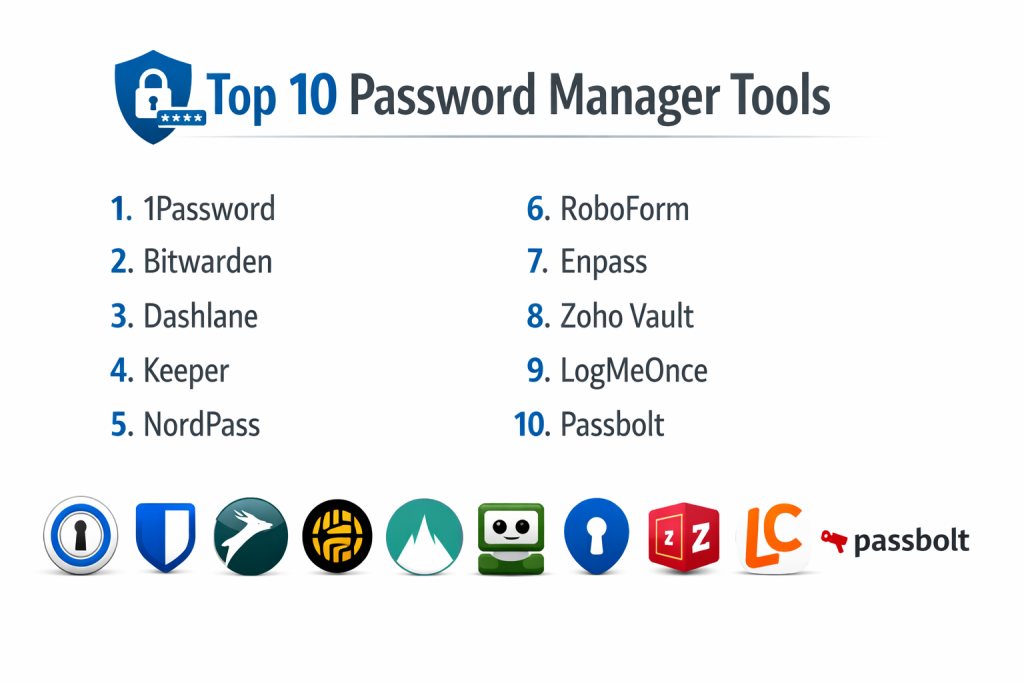
Top 10 Password Managers Tools
1 — 1Password
1Password is widely considered the gold standard for both families and businesses. It offers a polished, user-friendly interface combined with “Secret Key” technology that adds an extra layer of protection beyond just a master password.
- Key Features:
- Watchtower service that alerts you to data breaches and weak passwords.
- Secret Key technology for local-only encryption authorization.
- Travel Mode which temporarily removes sensitive vaults from your device when crossing borders.
- Secure digital wallet for credit cards, licenses, and memberships.
- Permission-based vault sharing for teams and families.
- Developer tools for managing API keys and “secrets” safely.
- Pros:
- The most intuitive and beautiful user interface in the industry.
- Exceptional security architecture that goes beyond the industry standard.
- Cons:
- There is no permanent free version; it is a subscription-only service.
- The “Secret Key” is one more thing you must store safely or risk losing access.
- Security & Compliance: SOC 2 Type II, GDPR, HIPAA, and ISO 27001. Uses AES-256 bit encryption with a 128-bit Secret Key.
- Support & Community: High-quality documentation, 24/7 email support, very active user forums, and dedicated onboarding for business clients.
2 — Bitwarden
Bitwarden has gained a massive following because it is open-source. This means its code is public, allowing security experts around the world to verify that it is truly safe. It offers the most generous free version on the market.
- Key Features:
- Open-source software that anyone can inspect for security flaws.
- Self-hosting option for companies that want to keep data on their own servers.
- Bitwarden Send for securely sharing text or files with others.
- Biometric unlock for mobile and desktop applications.
- Enterprise-wide policy management and audit logs.
- Built-in authenticator for generating 2FA codes.
- Pros:
- Incredible value with a free version that allows unlimited passwords on all devices.
- High trust factor due to its transparent, open-source nature.
- Cons:
- The user interface is functional but looks a bit “techy” and less modern than 1Password.
- Some advanced features require a more technical setup.
- Security & Compliance: SOC 2, HIPAA, GDPR, and Privacy Shield. Regular third-party security audits.
- Support & Community: Large community-led support, detailed help center, and priority support for paid users.
3 — Dashlane
Dashlane focuses on simplicity and extra features that go beyond just storing passwords. It is well-known for being one of the only managers to include a built-in VPN for secure browsing on public Wi-Fi.
- Key Features:
- Automatic Password Changer that can update passwords on many sites with one click.
- Built-in VPN for private and secure internet browsing.
- Real-time dark web monitoring with personalized alerts.
- Phishing protection that prevents you from entering credentials on fake sites.
- Secure file storage for up to 1GB of sensitive documents.
- Pros:
- The most “all-in-one” tool for general digital privacy.
- Very fast and reliable auto-fill performance on mobile devices.
- Cons:
- One of the most expensive individual plans on this list.
- The desktop app was recently replaced by a browser extension, which some users dislike.
- Security & Compliance: SOC 2, GDPR, and uses US-patented zero-knowledge architecture.
- Support & Community: Excellent live chat support, comprehensive blog, and business onboarding assistance.
4 — Keeper
Keeper is built with a “security-first” mindset and is often the choice for government agencies and highly regulated industries. It provides very granular control over who can see what within an organization.
- Key Features:
- KeeperFill for powerful auto-filling across all browsers and apps.
- BreachWatch that constantly scans the dark web for your specific credentials.
- Secure, encrypted messaging app called KeeperChat.
- One-time sharing feature to give others access to a password for a limited time.
- Version history that allows you to see and restore old passwords.
- Pros:
- Extremely high security certifications and compliance standards.
- Great for large organizations that need strict “role-based” access controls.
- Cons:
- The interface can feel a bit cluttered because of the many features.
- Many of the best features are sold as “add-ons” rather than being in the base price.
- Security & Compliance: SOC 2, ISO 27001, HIPAA, GDPR, and FedRAMP authorized.
- Support & Community: 24/7 phone and email support for business users and a deep library of video tutorials.
5 — NordPass
Created by the experts behind NordVPN, NordPass uses a modern encryption algorithm called XChaCha20. It is designed to be incredibly fast and very simple for people who aren’t “tech experts.”
- Key Features:
- XChaCha20 encryption, which is faster and more modern than the standard AES-256.
- Data Breach Scanner that checks if your email has appeared in any leaks.
- OCR (Optical Character Recognition) to scan credit cards with your camera.
- Secure notes and personal info storage (addresses, IDs, etc.).
- Password Health tool to identify reused or weak passwords.
- Pros:
- Very sleek, modern, and uncluttered user interface.
- Backed by the massive Nord security ecosystem.
- Cons:
- The free version only allows you to stay logged in on one device at a time.
- It does not have as many advanced “team sharing” features as 1Password.
- Security & Compliance: GDPR compliant and undergoes regular independent security audits.
- Support & Community: 24/7 email and live chat support with a helpful “Security Hub” blog.
6 — RoboForm
RoboForm is one of the oldest password managers in existence. While it started as a tool to help fill out long web forms, it has evolved into a powerful, reliable, and very affordable password manager.
- Key Features:
- Best-in-class web form filling (handles complex addresses and payment forms).
- Secure folder sharing for teams and families.
- Emergency access feature to allow trusted contacts to get into your vault.
- “Bookmarks” manager that stores and syncs your favorite websites.
- Offline access support for desktop applications.
- Pros:
- Often the most affordable paid option for individuals.
- The form-filling capabilities are more accurate than almost any other tool.
- Cons:
- The design looks a bit dated compared to 1Password or NordPass.
- The free version does not include syncing between devices.
- Security & Compliance: GDPR compliant and uses AES-256 bit encryption.
- Support & Community: Email and chat support are available, along with an extensive manual.
7 — Enpass
Enpass is unique because it is an “offline” password manager. Unlike other tools that store your vault on their servers, Enpass lets you choose where to save your data (like your personal Dropbox, iCloud, or just on your computer).
- Key Features:
- Local storage: You decide where your encrypted vault lives.
- Multiple Vaults: Separate your work and personal life completely.
- Ability to store license keys, attachments, and sensitive documents.
- Password auditing to find old or compromised logins.
- Smartwatch support for quick access on the go.
- Pros:
- Great for privacy-conscious users who don’t want their data on a third-party server.
- Offers a one-time purchase “lifetime” license, which is rare today.
- Cons:
- Syncing is harder to set up because you have to manage the cloud connection yourself.
- Lacks some of the advanced “dark web monitoring” seen in cloud-native tools.
- Security & Compliance: SQLCipher for 256-bit AES encryption. Privacy-focused architecture.
- Support & Community: Forum-based support and email assistance.
8 — Zoho Vault
Zoho Vault is designed specifically for business teams. It fits perfectly into the Zoho ecosystem (which includes mail, CRM, and books) and offers one of the best free versions for small businesses.
- Key Features:
- Centralized admin dashboard to manage team permissions.
- Integration with popular business tools like Slack and Microsoft Teams.
- “Password Assessment” to check the security level of the whole company.
- Bulk password sharing for specific departments.
- Ability to set “user-only” or “shared” passwords for every entry.
- Pros:
- Extremely competitive pricing for business teams.
- Excellent at managing “shared” company accounts without revealing passwords.
- Cons:
- The mobile app is not as polished as 1Password or Dashlane.
- Can be a bit complex to set up for a single, non-business user.
- Security & Compliance: SOC 2 Type II, ISO 27001, GDPR, and HIPAA compliant.
- Support & Community: 24/5 or 24/7 support depending on the plan, plus a large Zoho community.
9 — LogMeOnce
LogMeOnce is for users who want the maximum number of features and different ways to log in. It offers unique security features like “Mugshot,” which takes a photo of anyone trying to break into your account.
- Key Features:
- Passwordless login options (Photo Login, QR Code, or Fingerprint).
- “Password Shock” which sends a fake error screen to intruders.
- Anti-Theft: Allows you to remote-wipe your data if a device is stolen.
- Schedule-based access: Block logins during certain times of the day.
- Built-in file shredder to permanently delete sensitive documents.
- Pros:
- Huge variety of login methods and fun security “gadgets.”
- Very affordable for the number of features included.
- Cons:
- The interface is very busy and can be confusing for new users.
- Some people find the “extra” security features a bit gimmicky.
- Security & Compliance: AES-256 encryption and multi-factor authentication support.
- Support & Community: Email ticketing and a large database of help articles.
10 — Passbolt
Passbolt is a specialized tool built specifically for developers and agile teams. It is open-source and focuses heavily on collaboration and the ability to verify the identity of everyone sharing a secret.
- Key Features:
- Open-source and built on GnuPG (OpenPGP) for military-grade encryption.
- Deep integration with developer tools and terminal interfaces.
- Community-driven auditing and transparency.
- On-premise or cloud hosting options.
- Granular sharing policies for different development projects.
- Pros:
- The top choice for technical teams that need high transparency.
- Designed for team collaboration rather than just individual storage.
- Cons:
- Not suitable for non-technical users or families.
- Does not have the consumer “bells and whistles” like VPNs or credit card scanning.
- Security & Compliance: OpenPGP based, GDPR compliant, and regularly audited.
- Support & Community: Very strong developer community and professional enterprise support options.
Comparison Table
| Tool Name | Best For | Platform(s) Supported | Standout Feature | Rating (Gartner/Users) |
| 1Password | Families & Teams | Win, Mac, iOS, Android, Linux | Secret Key Security | 4.7 / 5 |
| Bitwarden | Free/Open-Source | Win, Mac, iOS, Android, Linux | Open-source transparency | 4.8 / 5 |
| Dashlane | All-in-one privacy | Win, Mac, iOS, Android | Built-in VPN | 4.5 / 5 |
| Keeper | High Compliance | Win, Mac, iOS, Android, Linux | Granular Permissions | 4.6 / 5 |
| NordPass | Simplicity | Win, Mac, iOS, Android | XChaCha20 Encryption | 4.4 / 5 |
| RoboForm | Form Filling | Win, Mac, iOS, Android | Best-in-class form fill | 4.5 / 5 |
| Enpass | Local Storage | Win, Mac, iOS, Android, Linux | No cloud-storage needed | 4.4 / 5 |
| Zoho Vault | Zoho Users / Business | Win, Mac, iOS, Android | Enterprise sharing | 4.5 / 5 |
| LogMeOnce | Feature variety | Win, Mac, iOS, Android | Photo Login | 4.3 / 5 |
| Passbolt | Developers | Web, iOS, Android, Linux | OpenPGP encryption | 4.6 / 5 |
Evaluation & Scoring of Password Managers
To ensure a fair comparison, we evaluate these tools based on a weighted rubric that prioritizes the things that keep you safe and make your life easier.
| Category | Weight | Evaluation Criteria |
| Core Features | 25% | Quality of auto-fill, password generation, and cross-device syncing. |
| Ease of Use | 15% | How intuitive the interface is for a non-technical person. |
| Integrations | 15% | Does it work across all browsers and operating systems? |
| Security & Compliance | 10% | Zero-knowledge architecture, encryption type, and third-party audits. |
| Performance | 10% | Speed of syncing and reliability of the auto-fill service. |
| Support | 10% | Help articles, live chat, and community involvement. |
| Price / Value | 15% | Cost vs. features provided (especially the quality of the free version). |
Which Password Manager Tool Is Right for You?
Selecting the right tool depends on your lifestyle and your technical comfort level. Use this guide to narrow down your top choices.
Solo Users vs. SMBs vs. Enterprises
- Solo Users: If you want something free, Bitwarden is unbeatable. If you want the most polished experience and can afford a small monthly fee, 1Password is the winner.
- Small Businesses (SMBs): Look for Zoho Vault or Bitwarden for Business. They offer great sharing features without being overly complex.
- Enterprises: Keeper and 1Password Business provide the heavy-duty reporting and security certifications that large corporations require.
Budget-Conscious vs. Premium
- Budget: RoboForm and Bitwarden are the most pocket-friendly options that still provide top-tier security.
- Premium: Dashlane and 1Password are the premium choices. You pay more, but you get a better user experience and extra features like VPNs or more advanced breach monitoring.
Feature Depth vs. Ease of Use
If you are a beginner, go with NordPass. It is stripped down to the essentials and very easy to look at. If you are a power user or a developer, Bitwarden or Passbolt will give you the control and transparency you crave.
Frequently Asked Questions (FAQs)
1. What happens if I forget my Master Password?
In a true “Zero-Knowledge” system, the company cannot reset your password for you. If you forget it, you may lose access to your data forever. Most tools offer “Emergency Access” or “Recovery Keys” that you should set up immediately after joining.
2. Are password managers safe from hackers?
No system is 100% unhackable, but password managers are significantly safer than any other method. Because your data is encrypted locally on your device, even if the company’s servers are hacked, the hackers only get scrambled data they cannot read.
3. Is it safe to use the password manager built into Chrome or Safari?
Browser-based managers are better than nothing, but they are less secure. If someone gains access to your computer, they can easily see all your passwords. Dedicated tools like 1Password require a separate login and work across all different browsers.
4. How much do password managers usually cost?
Individual plans usually range from $2 to $5 per month. Family plans (for up to 5 or 6 people) are often $5 to $7 per month. Business plans are usually charged per user.
5. Can I use a password manager on my phone?
Yes. All the tools on this list have mobile apps. They can “detect” when you are on a login screen on your phone and offer to fill in your details using your face or fingerprint.
6. Do I need an internet connection to use them?
Most managers store a local copy of your encrypted vault on your device. This means you can still look up your passwords even if you are offline or in “Airplane Mode.”
7. Is it okay to store my credit card info in these tools?
Yes. These vaults use the same encryption level that banks use. Storing your card info in a manager is much safer than letting a dozen different websites “save” your card info on their own systems.
8. Can I share a password with a co-worker securely?
Yes. Most managers allow you to create “Shared Vaults.” You can give a co-worker access to a login without ever actually telling them what the password is, and you can revoke that access at any time.
9. What is “Zero-Knowledge” encryption?
This means the service provider has zero knowledge of your data. Your master password is never sent to their servers; it only exists on your device. This ensures that only you can unlock your vault.
10. Should I use 2FA with my password manager?
Absolutely. You should always turn on Two-Factor Authentication (like a code on your phone) for your password manager. This ensures that even if someone steals your Master Password, they still can’t get into your vault.
Conclusion
Choosing a Password Manager is one of the single most effective steps you can take to protect your digital identity. By moving away from “memory-based” passwords to a secure, encrypted vault, you effectively close the biggest door that hackers use to steal data.
The “best” tool truly depends on your specific needs. If you value open-source transparency and a great free version, Bitwarden is your top choice. If you want the most beautiful and user-friendly experience for your family, 1Password is the industry leader. For those who want extra privacy tools like a VPN, Dashlane is a fantastic all-in-one solution.
The most important thing is to pick one and start today. It may take an hour to move your most important passwords over, but the peace of mind—and the time you’ll save never clicking “forgot password” again—is well worth the effort.