Introduction
Markdown editors are specialized software tools that allow users to write, edit, and preview content using Markdown—a lightweight markup language that uses simple plain-text syntax to format text for the web, documents, or notes. These editors typically provide live previews, syntax highlighting, export options, and additional features like themes or plugins, making it easy to create structured content without complex HTML coding.
Markdown editors are increasingly important in 2026 due to the rise of technical writing, blogging, documentation, and knowledge management in remote and collaborative environments. They promote portability (plain text files work anywhere), version control compatibility (great with Git), and focus on content over formatting. With AI integrations emerging, they streamline workflows for faster, cleaner output. Key real-world use cases include developers writing README files or API docs, writers drafting blog posts or books, technical communicators creating user guides, students taking structured notes, and teams maintaining wikis or knowledge bases.
When choosing a Markdown editor, consider live preview quality, distraction-free modes, plugin ecosystems for extensions, offline access, collaboration tools, export formats (PDF, HTML, Word), mobile support, and customization options like themes or keyboard shortcuts. Also evaluate performance with large files and integration with tools like GitHub or cloud storage.
Best for: Developers, technical writers, bloggers, students, researchers, content creators, and knowledge workers benefit most from Markdown editors. They suit solo freelancers for focused writing, SMBs for team documentation, mid-market companies for collaborative notes, and enterprises in tech, publishing, education, and software development needing secure, versioned content management.
Not ideal for: Users needing rich WYSIWYG formatting like advanced layouts in word processors—traditional tools like Microsoft Word may be better. Those creating highly visual designs might prefer graphic apps. Casual email or simple text writers could stick with basic notepads without Markdown syntax.
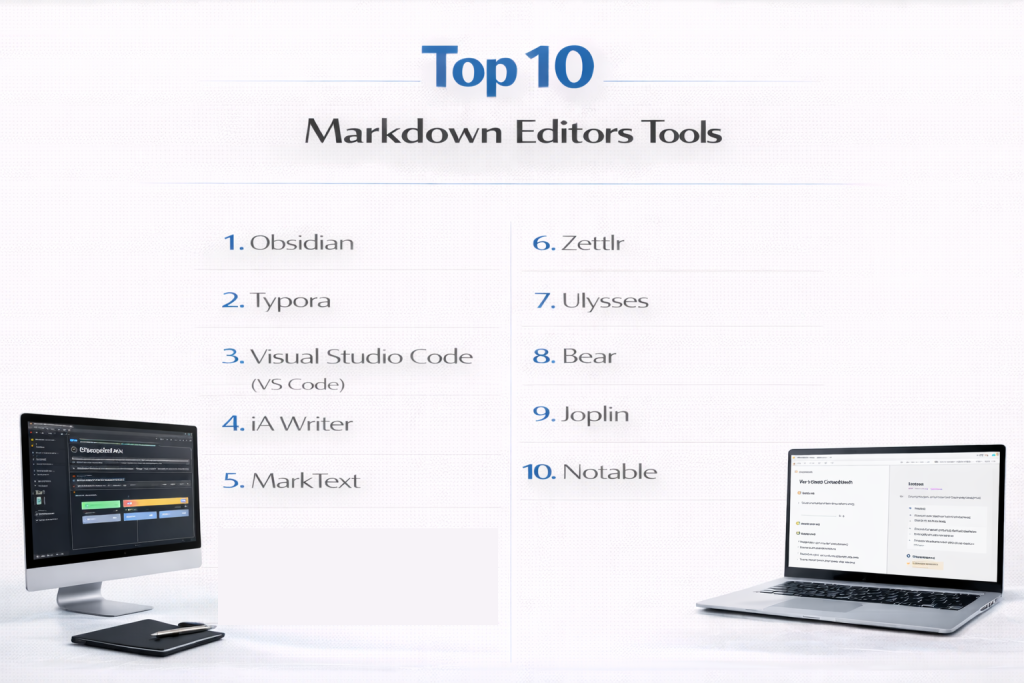
Top 10 Markdown Editors Tools
1 — Obsidian
Obsidian is a powerful, local-first Markdown-based knowledge management app that turns plain text files into an interconnected vault of notes, making it ideal for researchers, writers, and developers building personal or team knowledge bases in 2026. With its graph view and extensive plugin ecosystem, it supports complex linking and customization, allowing users to create a “second brain” while maintaining full control over their data through standard Markdown files. This approach ensures privacy, portability, and scalability as vaults grow to thousands of notes without performance loss.
Obsidian excels at networked thought and long-term note organization, appealing to users who want a flexible, extensible tool that grows with their needs without vendor lock-in, offering everything from daily journaling to full project documentation.
Key features:
- Graph view for visualizing note connections.
- Extensive community plugins for tasks, calendars, and AI.
- Canvas for infinite whiteboarding with notes.
- Core plugins for backlinks, search, and daily notes.
- Local folder storage with optional sync.
- Custom CSS themes and hotkeys.
- Markdown extensions like embeds and callouts.
Pros:
- Completely free for core use with unmatched extensibility.
- Privacy-focused with local files.
- Thriving community drives rapid innovation.
Cons:
- Can overwhelm beginners with options.
- Sync requires paid add-on or third-party.
- Performance dips with very large vaults.
Security & compliance: N/A – Local files; optional encrypted sync.
Support & community: Excellent docs, forums, Discord; vast plugin ecosystem.
2 — Typora
Typora is a minimalist, cross-platform Markdown editor offering a seamless WYSIWYG experience where syntax disappears during writing, favored by writers and developers seeking distraction-free flow in 2026. It supports diagrams, math, and tables natively, with one-time purchase licensing making it a long-term favorite for clean, focused authoring. The editor’s instant rendering and outline navigation make it perfect for drafting long documents without breaking concentration.
Typora’s live rendering hides Markdown markup, providing a word-processor-like feel while outputting pure Markdown, perfect for users prioritizing immersion and simplicity, from blog posts to technical reports.
Key features:
- Instant live preview hiding syntax.
- Outline panel and focus mode.
- Diagram support (Mermaid, Flowchart).
- Math equations and code blocks.
- Custom themes and CSS.
- File tree and auto-save.
- Export to PDF, HTML, Word.
Pros:
- Beautiful, fluid writing experience.
- Affordable one-time license.
- Excellent for long-form content.
Cons:
- Limited collaboration features.
- No built-in vault or linking like Obsidian.
- Beta on some platforms.
Security & compliance: N/A – Local app.
Support & community: Forums, tutorials; active users.
3 — Visual Studio Code (VS Code)
Visual Studio Code is a free, extensible code editor from Microsoft that becomes a top Markdown powerhouse with extensions, used by millions of developers for documentation alongside code in 2026. Its built-in preview and marketplace plugins make it highly customizable for technical writing. Integrated terminal and Git support turn it into an all-in-one environment for full project workflows.
VS Code combines code editing with robust Markdown support, ideal for developers and technical writers who need a single tool for programming and documentation workflows, leveraging its vast ecosystem for tailored setups.
Key features:
- Built-in Markdown preview and extensions.
- Git integration and terminal.
- Marketplace for Markdown plugins (linting, tables).
- Live share for collaboration.
- Themes and snippets.
- Tasks and debugging.
- Multi-file projects.
Pros:
- Free, powerful, and endlessly extensible.
- Seamless with development stacks.
- Excellent performance.
Cons:
- Overkill for pure writing.
- Requires setup for optimal Markdown.
- Resource use with many extensions.
Security & compliance: Varies – Enterprise features available.
Support & community: Vast docs, Stack Overflow, extensions marketplace.
4 — iA Writer
iA Writer is a distraction-free Markdown editor emphasizing focus and typography, popular among professional writers on Mac and iOS for its clean interface and syntax control in 2026. It strips away extras to let content shine, with features like focus mode and library organization. Authentic preview and typewriter mode enhance the writing rhythm.
iA Writer delivers a zen-like writing environment with precise Markdown handling, suited for authors who value minimalism and cross-device consistency, producing distraction-free prose that feels natural and intentional.
Key features:
- Focus mode and syntax highlighting.
- Library for file management.
- Custom templates and styles.
- Preview with authentic typography.
- iCloud/Dropbox sync.
- Export to Word, HTML, PDF.
- Typewriter scrolling.
Pros:
- Superb focus and readability.
- Beautiful design.
- Reliable sync.
Cons:
- Limited plugins or advanced features.
- Higher price for full cross-platform.
- No graph or linking.
Security & compliance: N/A – Local with cloud sync.
Support & community: Docs, email support.
5 — MarkText
MarkText is a free, open-source Markdown editor with live preview and modern interface, offering a clean alternative for everyday writing. It balances simplicity with useful tools like table editing and diagram support, making it accessible for beginners while satisfying power users.
MarkText provides elegant WYSIWYG-like editing with source code mode, appealing to users wanting free, lightweight tools without complexity, ideal for notes, blogs, or quick documentation.
Key features:
- Side-by-side or live preview.
- Themes and dark mode.
- Table and diagram support.
- Export to HTML/PDF.
- Focus mode.
- Copy as Markdown/HTML.
- Keyboard shortcuts.
Pros:
- Completely free and open-source.
- Modern, responsive UI.
- Lightweight.
Cons:
- Fewer advanced features.
- Development pace varies.
- No mobile app.
Security & compliance: N/A.
Support & community: GitHub issues.
6 — Zettlr
Zettlr is an open-source Markdown editor geared toward academics and researchers with citation and export tools. It integrates Pandoc for advanced exports and Zotero for references, supporting scholarly workflows from drafting to publishing.
Zettlr’s project management and statistical tools make it excellent for long documents like theses or papers, providing researchers with a comprehensive environment that handles references, attachments, and multi-format outputs effortlessly.
Key features:
- Pandoc integration for exports.
- Zotero/Better BibTeX support.
- Tags and projects organization.
- Heatmap and statistics.
- Dark/light themes.
- Internal linking.
- File attachments.
Pros:
- Excellent for research/academia.
- Free with powerful exports.
- Customizable.
Cons:
- Interface less polished.
- Steeper for casual use.
- macOS/Linux focus.
Security & compliance: N/A.
Support & community: GitHub, docs.
7 — Ulysses
Ulysses is a premium Mac/iOS Markdown-based writing app with sheet organization and publishing tools. It offers library management and goals, perfect for professional writers on Apple devices needing structured projects and direct exports.
Ulysses turns writing into a seamless process with sheets, keywords, and attachments, enabling authors to organize large works like novels or series while maintaining focus and achieving daily targets.
Key features:
- Sheet-based organization.
- Goals and keywords.
- Direct publishing to WordPress/Medium.
- Themes and exports.
- iCloud sync.
- Attachments and notes.
- Focus mode.
Pros:
- Beautiful Apple integration.
- Strong organization.
- Professional publishing.
Cons:
- Subscription model.
- Apple-only.
- No Windows/Linux.
Security & compliance: N/A.
Support & community: Help, forums.
8 — Bear
Bear is an elegant Mac/iOS Markdown note app with tagging and nesting. It provides fast, beautiful notes with export options, suited for Apple users wanting simple yet powerful organization and quick capture.
Bear’s nested tags and todo integration create a flexible system for everything from daily notes to long-term archives, with its stunning design encouraging consistent use across devices.
Key features:
- Nested tags.
- Focus mode.
- Custom themes.
- Export rich formats.
- iCloud sync.
- Todo integration.
- Encryption.
Pros:
- Gorgeous design.
- Fast search.
- Pro features reasonable.
Cons:
- Apple-exclusive.
- Subscription for pro.
- Limited advanced Markdown.
Security & compliance: Encryption.
Support & community: Docs.
9 — Joplin
Joplin is an open-source note-taking app with Markdown and end-to-end encryption. It syncs across devices with plugins, ideal for privacy-focused users needing notebooks and todos in a secure, portable format.
Joplin’s notebooks, web clipper, and extensible plugins support comprehensive note-taking workflows, from research clipping to task management, all while keeping data under user control.
Key features:
- Notebooks and tags.
- E2E encryption.
- Web clipper.
- Plugins (diagrams, backups).
- Sync via Dropbox/OneDrive.
- Markdown preview.
- Todos.
Pros:
- Free and secure.
- Cross-platform.
- Extensible.
Cons:
- Interface basic.
- Sync setup manual.
- Slower mobile.
Security & compliance: E2E encryption.
Support & community: Forums.
10 — Notable
Notable is a minimalist Markdown note app with tagging and attachments. It focuses on simplicity with Zen mode, great for quick notes and organization without bloat, supporting Markdown for structured yet lightweight capture.
Notable’s clean split view and Git sync option provide a no-frills environment for users who want reliable note-taking with tagging and search, emphasizing speed and privacy over advanced features.
Key features:
- Tags and search.
- Attachments.
- Split editing.
- Themes.
- Git sync option.
- Export Markdown.
- Zen mode.
Pros:
- Clean and fast.
- Free.
- Good for basics.
Cons:
- Development paused.
- Limited features.
- No mobile.
Security & compliance: N/A.
Support & community: GitHub.
Comparison Table
| Tool Name | Best For | Platform(s) Supported | Standout Feature | Rating |
|---|---|---|---|---|
| Obsidian | Knowledge bases & linking | Windows, Mac, Linux, Mobile | Graph view & plugins | N/A |
| Typora | Distraction-free writing | Windows, Mac, Linux | Seamless WYSIWYG preview | N/A |
| VS Code | Developers & extensions | Windows, Mac, Linux | Marketplace plugins | N/A |
| iA Writer | Focused professional writing | Mac, iOS | Syntax control & focus | N/A |
| MarkText | Free modern editing | Windows, Mac, Linux | Live preview & themes | N/A |
| Zettlr | Academic/research writing | Windows, Mac, Linux | Pandoc & citations | N/A |
| Ulysses | Apple writers & publishing | Mac, iOS | Sheets & direct publish | N/A |
| Bear | Elegant Apple notes | Mac, iOS | Nested tags | N/A |
| Joplin | Secure cross-platform notes | Windows, Mac, Linux, Mobile | E2E encryption | N/A |
| Notable | Minimalist notes | Windows, Mac, Linux | Zen mode | N/A |
Evaluation & Scoring of Markdown Editors
| Tool Name | Core Features (25%) | Ease of Use (15%) | Integrations & Ecosystem (15%) | Security & Compliance (10%) | Performance & Reliability (10%) | Support & Community (10%) | Price / Value (15%) | Total Score |
|---|---|---|---|---|---|---|---|---|
| Obsidian | 9.5 (2.375) | 8 (1.2) | 10 (1.5) | 8 (0.8) | 9 (0.9) | 9 (0.9) | 10 (1.5) | 9.18 |
| Typora | 9 (2.25) | 9.5 (1.425) | 7 (1.05) | 6 (0.6) | 9 (0.9) | 8 (0.8) | 9 (1.35) | 8.38 |
| VS Code | 9 (2.25) | 8 (1.2) | 10 (1.5) | 8 (0.8) | 9 (0.9) | 10 (1.0) | 10 (1.5) | 9.15 |
| iA Writer | 8.5 (2.125) | 9.5 (1.425) | 7 (1.05) | 7 (0.7) | 9 (0.9) | 8 (0.8) | 8 (1.2) | 8.2 |
| MarkText | 8 (2.0) | 9 (1.35) | 6 (0.9) | 6 (0.6) | 9 (0.9) | 7 (0.7) | 10 (1.5) | 7.95 |
| Zettlr | 9 (2.25) | 7.5 (1.125) | 8 (1.2) | 6 (0.6) | 8 (0.8) | 8 (0.8) | 10 (1.5) | 8.28 |
| Ulysses | 9 (2.25) | 9 (1.35) | 8 (1.2) | 7 (0.7) | 9 (0.9) | 8 (0.8) | 7 (1.05) | 8.25 |
| Bear | 8 (2.0) | 9.5 (1.425) | 7 (1.05) | 7 (0.7) | 9 (0.9) | 8 (0.8) | 8 (1.2) | 7.98 |
| Joplin | 8.5 (2.125) | 8 (1.2) | 8 (1.2) | 9 (0.9) | 8 (0.8) | 8 (0.8) | 10 (1.5) | 8.53 |
| Notable | 7.5 (1.875) | 9 (1.35) | 6 (0.9) | 6 (0.6) | 9 (0.9) | 7 (0.7) | 10 (1.5) | 7.83 |
Which Markdown Editors Tool Is Right for You?
Solo users: Obsidian or Typora for depth; iA Writer or MarkText for focus.
SMBs: VS Code or Joplin for teams; Obsidian with sync.
Mid-market: Obsidian or Ulysses for organization.
Enterprise: VS Code or licensed tools with compliance.
Budget-conscious: Obsidian, MarkText, Joplin.
Premium solutions: Ulysses, Typora for polished experience.
Feature depth vs. ease of use: Obsidian/VS Code depth; Typora/iA Writer ease.
Integration and scalability: VS Code extensions; Obsidian plugins.
Security and compliance: Joplin E2E; enterprise-focused paid.
Match to platform—cross for Obsidian/VS Code; Apple for Ulysses/Bear.
Frequently Asked Questions (FAQs)
What is a Markdown editor? It’s software for writing in Markdown syntax with previews and tools, producing clean, portable content.
Why use Markdown over Word? Plain text portability, Git-friendly, focus on content, easy web conversion.
Best free Markdown editor? Obsidian or VS Code for features; MarkText for simplicity.
Offline or cloud? Offline (Obsidian, Typora) for privacy; cloud sync optional.
Collaboration possible? Limited—real-time rare; use Git or shared folders.
Export options? Most support PDF/HTML; advanced like Ulysses more formats.
Common mistake? Choosing complex for simple needs. Best: Start minimal, add features.
For developers? VS Code with extensions; Obsidian for docs.
Mobile support? Obsidian, Joplin strong; others vary.
AI in Markdown editors? Emerging in some for suggestions; not widespread yet.
Conclusion
2026’s Markdown editors range from knowledge powerhouses like Obsidian to minimalist gems like Typora and extensible giants like VS Code. Trends show stronger local-first privacy, plugin ecosystems, and cross-device sync.
Prioritize your workflow—linking for research, focus for writing, extensions for dev. The “best” is personal: test free options to find what enhances your productivity without friction. A great Markdown editor turns ideas into lasting, versatile content effortlessly.