Introduction
An FTP Client is a specialized software application that facilitates the transfer of files between a local computer and a remote server over the File Transfer Protocol (FTP) or its more secure variants. While web browsers and cloud storage interfaces have become common, FTP clients remain the professional standard for moving large volumes of data, managing website backends, and automating server-side file organization. They act as a bridge, providing a user-friendly interface to navigate complex remote directory structures as easily as one would navigate a local hard drive.
The importance of these tools lies in their reliability, speed, and precision. Unlike standard web uploads, FTP clients allow for paused and resumed transfers, directory synchronization, and granular permission management. Real-world use cases are vast: web developers use them to push code to production servers; IT administrators use them for scheduled backups; and media professionals use them to send massive raw video files to post-production houses. When choosing a tool, users should evaluate protocol support (SFTP, FTPS, S3), interface efficiency, automation capabilities, and security features like site manager encryption.
Best for: Web developers, system administrators, data analysts, and digital media agencies. It is essential for small-to-large businesses that manage their own hosting environments or require frequent, high-volume data movement to off-site servers.
Not ideal for: Casual users who only need to share a few documents with friends (where cloud links like Dropbox are better) or organizations that have moved entirely to “serverless” architectures and modern CI/CD pipelines where manual file transfers are discouraged.
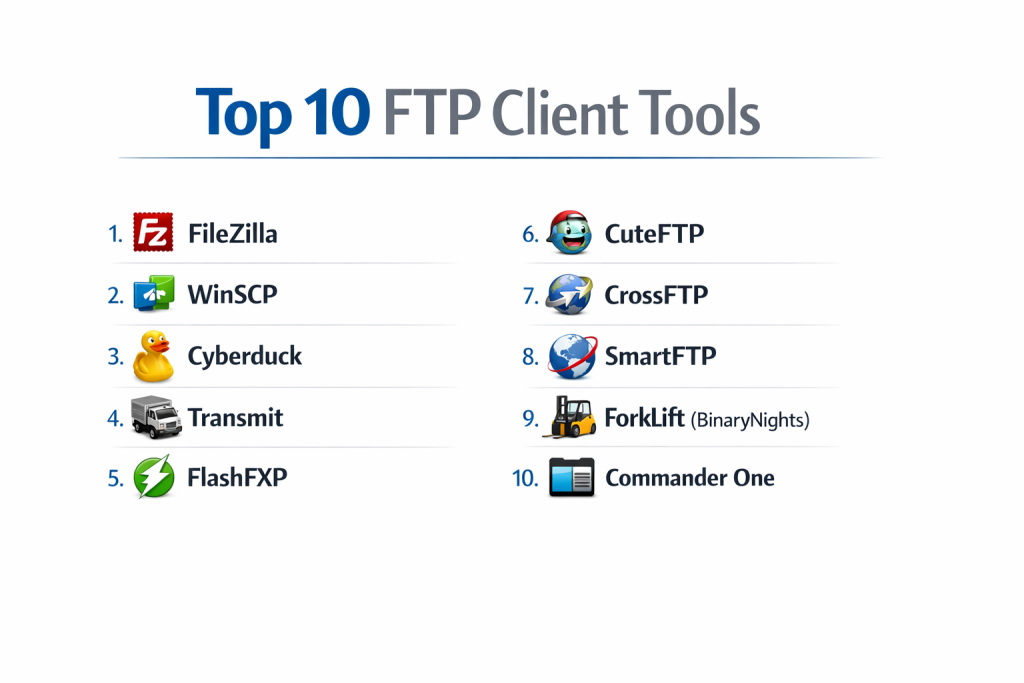
Top 10 FTP Clients Tools
1 — FileZilla
FileZilla is perhaps the most recognized name in the industry. It is an open-source solution designed for speed and ease of use, making it a go-to choice for beginners and pros alike.
- Key Features:
- Cross-Platform Compatibility: Runs natively on Windows, Linux, and macOS.
- Tabbed User Interface: Allows users to connect to multiple servers simultaneously.
- Powerful Site Manager: Organizes bookmarks and connection settings for dozens of remote hosts.
- Remote File Search: Search for specific filenames directly on the server.
- Directory Comparison: Highlights differences between local and remote folders visually.
- Large File Support: Capable of handling files larger than 4GB.
- Pros:
- Completely free for the standard version with a massive support community.
- Extremely fast transfer speeds and low system resource consumption.
- Cons:
- The standard installer has a history of including bundled “bloatware” (opt-out required).
- The interface feels somewhat dated compared to modern macOS or Windows 11 apps.
- Security & compliance: Supports SFTP, FTPS, and master password encryption for site settings. GDPR compliant.
- Support & community: Robust documentation, active user forums, and a vast library of community-made tutorials.
2 — WinSCP
WinSCP is a highly popular, Windows-only free client that excels in its integration with the Windows environment and its deep support for scripting.
- Key Features:
- Integrated Text Editor: Edit remote code files directly within the application.
- Scripting and Task Automation: Comprehensive support for .NET assembly and command-line interfaces.
- Workspace Support: Save your entire session, including all open tabs and paths.
- Directory Browsing: Choice between a “Commander” (dual-pane) or “Explorer” interface.
- Master Password: Encrypts saved session passwords for enhanced local security.
- Portable Version: Can be run from a USB drive without installation.
- Pros:
- The best free option for Windows users needing automation and scripting.
- Seamless integration with Pageant (PuTTY’s SSH agent) for key-based authentication.
- Cons:
- Not available for Mac or Linux users.
- The sheer number of settings can be overwhelming for a casual user.
- Security & compliance: Supports SFTP, SCP, and FTPS. FIPS 140-2 compliant mode available.
- Support & community: Excellent official documentation and a very active developer-led support forum.
3 — Cyberduck
Cyberduck is a sleek, open-source client that has gained a massive following for its “cloud-first” approach, supporting traditional FTP alongside modern cloud storage.
- Key Features:
- Cloud Storage Support: Connects to Amazon S3, Google Drive, Dropbox, and Microsoft Azure.
- Cryptomator Integration: Client-side encryption for files stored in the cloud.
- Quick Look: Preview remote files without downloading them (macOS).
- External Editor Support: Open files in any application with a single click.
- History and Bookmarks: Sophisticated tracking of recent connections.
- Browser Integration: Works with “Open in Browser” shortcuts for web development.
- Pros:
- Excellent, modern user interface that feels native to both macOS and Windows.
- The best choice for users who mix traditional FTP with cloud object storage.
- Cons:
- No dual-pane view, which can make drag-and-drop transfers feel clunky.
- Occasional performance lag when navigating very large directories.
- Security & compliance: Supports SFTP, FTPS, and client-side encryption. GDPR and HIPAA compliant.
- Support & community: High-quality documentation and a professional support system for donors.
4 — Transmit (Panic)
Transmit is widely considered the gold standard for FTP clients on the macOS platform, known for its incredible speed and beautiful design.
- Key Features:
- Twin-Turbo Engine: Highly optimized for fast multi-threaded file transfers.
- Transmit Disk: Mount a remote server as a local drive in the macOS Finder.
- Panic Sync: Securely sync your site settings and passwords across multiple Macs.
- Batch Renaming: Powerful local/remote file renaming tools built-in.
- Keys Management: Built-in UI for managing SSH keys without the terminal.
- Cloud Gateway: Support for over 11 cloud services including Backblaze B2 and S3.
- Pros:
- Likely the fastest and most stable client available for Mac users.
- An interface that is both powerful and aesthetically pleasing.
- Cons:
- macOS only; no version for Windows or Linux.
- Commercial software with no free tier (though a trial is available).
- Security & compliance: SFTP, FTPS, SSO support, and 2FA compatibility. ISO/SOC 2 varies by server connection.
- Support & community: Professional email support from the developers and premium documentation.
5 — FlashFXP
FlashFXP is a powerful Windows-based client that focuses on “FXP” (File eXchange Protocol), allowing for direct server-to-server transfers.
- Key Features:
- Server-to-Server (FXP): Transfer files directly between two remote servers without local bottleneck.
- On-the-Fly Compression: Supports MODE Z for faster transfers on slow connections.
- Schedule Tasks: Built-in transfer scheduler for automated backups.
- High-Performance Engine: Designed to handle massive queues of thousands of files.
- Remote File Editing: Automated upload-on-save for remote coding.
- Selective Transfer Rules: Skip or include files based on size, date, or extension.
- Pros:
- Ideal for users who need to move data between different hosting providers quickly.
- Robust and stable engine that rarely crashes even under heavy load.
- Cons:
- The interface looks like it belongs in the early 2000s.
- It is a paid product in a market where many excellent tools are free.
- Security & compliance: SFTP, FTPS, and SSL/TLS support. AES encryption for local settings.
- Support & community: Mature knowledge base and a dedicated, though smaller, user community.
6 — CuteFTP
CuteFTP is a commercial-grade client aimed at enterprises that require high security, automation, and technical support.
- Key Features:
- TIGHT Security: Features for highly secure transfers and password management.
- Automation Tools: Scripting for repetitive tasks and folder monitoring.
- Multi-Part Transfers: Splits large files into several pieces to maximize bandwidth.
- Backup and Synchronize: Built-in wizards for mirroring folders.
- Podcast Manager: Specialized tools for uploading and managing media feeds.
- Color-Coded Status: Visual indicators for failed, pending, or successful transfers.
- Pros:
- Professional enterprise support that is often required by large corporations.
- High level of reliability for mission-critical file movements.
- Cons:
- Expensive licensing compared to almost every other tool on this list.
- Development cycles have slowed down significantly in recent years.
- Security & compliance: HIPAA, PCI DSS, and FIPS 140-2 compliance. Supports SSH and SSL.
- Support & community: Professional technical support team and detailed administrator guides.
7 — CrossFTP
CrossFTP is a Java-based client that provides a uniform experience across all major operating systems, with a focus on high-volume cloud data.
- Key Features:
- Multi-Protocol Engine: Supports FTP, SFTP, FTPS, S3, Glacier, and Azure.
- Multi-Tab Interface: Manage multiple remote connections in a single window.
- Internal Compression: Zip/Unzip files directly on the server (for supported hosts).
- Visual Tools: Includes a built-in image viewer and text editor.
- Turbo Engine: Multi-threaded transfers for improved speed.
- Scheduling: Simple UI for setting up recurring transfer jobs.
- Pros:
- Highly versatile; works on Windows, Mac, Linux, and even Solaris.
- Excellent support for Amazon S3 and Glacier workflows.
- Cons:
- Requires Java, which some users find cumbersome or a security risk.
- The interface can feel sluggish compared to native (non-Java) apps.
- Security & compliance: Supports encryption for all protocols. GDPR compliant.
- Support & community: Good documentation and email-based support for “Pro” users.
8 — SmartFTP
SmartFTP is a Windows-exclusive client that focuses on providing an extremely feature-rich environment for power users and IT professionals.
- Key Features:
- Terminal Emulator: Integrated SSH terminal for running server-side commands.
- Visual Compare: Side-by-side comparison for local/remote file versions.
- Modern UI: Uses a ribbon-style interface similar to Microsoft Office.
- Search Integration: Search remote files using Windows-style search queries.
- Cloud Support: Native connections for Google Drive, OneDrive, and S3.
- SDK Availability: Allows developers to integrate the engine into their own apps.
- Pros:
- The most feature-complete Windows client for those who need a terminal + FTP.
- Frequent updates and compatibility with the latest Windows builds.
- Cons:
- Higher cost than many competitors.
- Can be intimidating for users who just want to upload a few images.
- Security & compliance: FIPS 140-2 and HIPAA compliant. Supports modern encryption standards.
- Support & community: Direct developer support and a comprehensive online manual.
9 — ForkLift (BinaryNights)
ForkLift is a powerful file manager and FTP client for macOS that aims to replace the Finder entirely while providing professional transfer capabilities.
- Key Features:
- Dual-Pane Interface: Classic file management layout optimized for productivity.
- Sync Browsing: Navigating one folder automatically navigates the other.
- Multi-Rename: Professional-grade tool for renaming thousands of files locally or remotely.
- Git Support: Integration for basic Git commands within the file manager.
- Mount Remote Volume: Works like Transmit to show servers in the Finder.
- Workspaces: Save different layouts for different types of projects.
- Pros:
- A complete file management replacement, not just an FTP client.
- Extremely fast and responsive user experience.
- Cons:
- Only available on macOS.
- The pricing model has moved toward a “one year of updates” license.
- Security & compliance: Supports SFTP, FTPS, and Amazon S3 encryption. GDPR compliant.
- Support & community: Responsive email support and a loyal community of power users.
10 — Commander One
Commander One is a dual-pane file manager for Mac written in Swift, designed for users who need a fast, keyboard-driven FTP experience.
- Key Features:
- Swift-Based Performance: Highly optimized for the latest Apple Silicon (M1/M2/M3) chips.
- Built-in Process Viewer: Monitor system resources while performing heavy transfers.
- Archive Support: Open ZIP, RAR, and 7Z archives on remote servers as folders.
- Advanced Search: Search remote files with RegEx support.
- Hotkeys: Fully customizable keyboard shortcuts for every action.
- Cloud Mounting: Supports Dropbox, Google Drive, and Amazon S3.
- Pros:
- The best option for keyboard-centric users who hate using a mouse.
- Excellent performance on modern macOS hardware.
- Cons:
- The free version is very limited; most FTP features require the “Pro” pack.
- Not as specialized in FTP automation as Transmit or WinSCP.
- Security & compliance: Supports all major secure protocols and 2FA where applicable.
- Support & community: Regular software updates and a helpful knowledge base.
Comparison Table
| Tool Name | Best For | Platform(s) Supported | Standout Feature | Rating (Gartner/True) |
| FileZilla | Beginners & General Use | Win, Mac, Linux | Ease of Use / Free | 4.5 / 5 |
| WinSCP | Windows Scripting | Windows | Integrated Text Editor | 4.7 / 5 |
| Cyberduck | Cloud + FTP Mix | Win, Mac | Cryptomator Security | 4.4 / 5 |
| Transmit | Mac Power Users | macOS | Panic Sync / Speed | 4.8 / 5 |
| FlashFXP | Server-to-Server | Windows | FXP Transfers | 4.2 / 5 |
| CuteFTP | Large Enterprise | Windows | TIGHT Security Mode | 4.1 / 5 |
| CrossFTP | Cross-Platform Pro | Win, Mac, Linux | Glacier/S3 Support | 4.3 / 5 |
| SmartFTP | Windows IT Admins | Windows | Integrated Terminal | 4.5 / 5 |
| ForkLift | File Management | macOS | Dual-Pane Navigation | 4.6 / 5 |
| Commander One | Keyboard Users | macOS | Swift-Optimized Code | 4.4 / 5 |
Evaluation & Scoring of FTP Clients
To provide a fair assessment, we used a weighted rubric based on the core needs of modern IT environments.
| Category | Weight | Evaluation Criteria |
| Core Features | 25% | Protocol support (SFTP/S3), dual-pane views, and remote editing. |
| Ease of Use | 15% | Intuitiveness of the interface and setup speed. |
| Integrations | 15% | Cloud storage support and external editor connectivity. |
| Security & Compliance | 10% | Encryption levels, master passwords, and regulatory compliance. |
| Performance | 10% | Multi-threaded transfer speeds and system resource usage. |
| Support & Community | 10% | Quality of documentation and availability of technical help. |
| Price / Value | 15% | Cost-effectiveness and licensing flexibility. |
Which FTP Clients Tool Is Right for You?
Solo Users vs SMB vs Mid-Market vs Enterprise
- Solo Users: If you are a freelancer or hobbyist, FileZilla or Cyberduck are ideal. They are free, support every major protocol, and have massive community help available.
- SMBs: Smaller teams benefit from WinSCP (on Windows) or Transmit (on Mac). The ability to share site settings and automate small tasks saves significant time.
- Enterprise: Large corporations should look at CuteFTP or SmartFTP. These tools provide the compliance (FIPS/HIPAA) and technical support contracts required by large-scale IT departments.
Budget-Conscious vs Premium Solutions
- Free/Open Source: FileZilla, WinSCP, and Cyberduck prove that you don’t need to pay for professional-grade file transfers.
- Premium: If you spend several hours a day moving files, the $30-$50 for Transmit or ForkLift is a worthwhile investment in your productivity and sanity.
Feature Depth vs Ease of Use
- Simplicity: Cyberduck is the easiest to pick up. Its interface is very similar to a modern web browser.
- Feature Depth: SmartFTP and WinSCP allow for deep scripting, terminal access, and complex directory rules that most users will never touch but power users require.
Integration and Scalability Needs
If your workflow involves moving files from a traditional FTP server to an Amazon S3 bucket, CrossFTP or Cyberduck are the best choices, as they handle both environments seamlessly in a single window.
Frequently Asked Questions (FAQs)
1. Is FTP still secure for modern business?
Standard FTP is not secure; it sends data in plain text. However, SFTP (SSH File Transfer Protocol) and FTPS (FTP over SSL) are highly secure and standard in modern clients. You should always use these encrypted variants.
2. Can I use an FTP client to edit my website’s code?
Yes. Most clients allow you to right-click a file and “Edit.” This opens the file in your favorite local editor (like VS Code), and the FTP client automatically uploads the changes when you save the file.
3. Why would I use an FTP client instead of a browser?
Browsers are poor at handling thousands of small files or very large individual files. FTP clients support resuming interrupted transfers, multi-threading for speed, and advanced file management tools.
4. What is the difference between SFTP and FTPS?
SFTP uses a single secure channel (SSH) to move data. FTPS is the traditional FTP protocol wrapped in an SSL/TLS layer. Both are secure, but SFTP is often easier to configure with firewalls.
5. Do I need to pay for an FTP client?
Not necessarily. Open-source tools like FileZilla and WinSCP are extremely powerful. You generally pay for premium tools if you need a better interface, specialized cloud support, or professional technical assistance.
6. Can an FTP client work with Google Drive or OneDrive?
Some can. Tools like Cyberduck, Transmit, and SmartFTP include “Cloud Connectors” that allow you to manage your cloud storage just like a traditional FTP server.
7. How do I speed up my FTP transfers?
Enable multi-threaded transfers in your client settings. This allows the client to upload or download multiple files at once rather than one by one.
8. Is FileZilla safe to use?
Yes, the core software is safe and widely audited. However, always download it from the official site and be careful during installation to decline any “optional” third-party software bundles.
9. Can I transfer files between two servers directly?
Yes, this is called FXP. Only a few clients, like FlashFXP and CrossFTP, support this, and both the source and destination servers must also allow it.
10. What happens if my internet disconnects during a 10GB transfer?
Modern FTP clients will “pause” the transfer. Once your connection returns, you can click “Resume,” and the client will pick up exactly where it left off rather than starting over.
Conclusion
The landscape of file transfer tools has expanded significantly, yet the core need for a reliable FTP client remains unchanged. Whether you are a Windows user looking for the automation power of WinSCP, a macOS enthusiast who appreciates the speed of Transmit, or a cross-platform user who relies on the universality of FileZilla, there is a tool specifically tuned to your workflow.
Choosing the “best” tool isn’t about finding the one with the most features; it’s about finding the one that removes the most friction from your daily tasks. For developers, that might mean deep integration with code editors. For IT admins, it might mean robust scripting. For media pros, it’s all about raw transfer speed. By evaluating your needs against the criteria of speed, security, and protocol support, you can ensure your data moves exactly where it needs to be, every time.