Introduction
File Sync & Share (FSS) tools are software applications that allow users to store files in a remote cloud repository and synchronize them across multiple devices, such as laptops, smartphones, and tablets. Beyond simple storage, these tools provide a collaborative layer where multiple people can access, edit, and comment on the same document in real-time. By maintaining a single “source of truth” in the cloud, these platforms eliminate the confusion of emailing multiple versions of the same file back and forth, ensuring that everyone on a team is working with the most recent data.
The importance of FSS tools has grown exponentially with the rise of remote and hybrid work. They are essential for business continuity, version control, and secure external collaboration. Real-world use cases include creative teams co-editing large design assets, legal departments managing sensitive document discovery, and field workers uploading site photos directly from mobile devices to a central office. When choosing a tool, evaluators should look for synchronization speed, security protocols, the quality of the mobile experience, and integration with existing productivity suites.
Best for: Remote and hybrid teams, creative agencies, project managers, and organizations requiring high levels of collaboration across different geographic locations. It is particularly valuable for industries like marketing, architecture, and consulting.
Not ideal for: Organizations with extremely limited internet bandwidth who may prefer a local Network Attached Storage (NAS) system, or high-performance computing environments that require raw block storage for database low-latency operations.
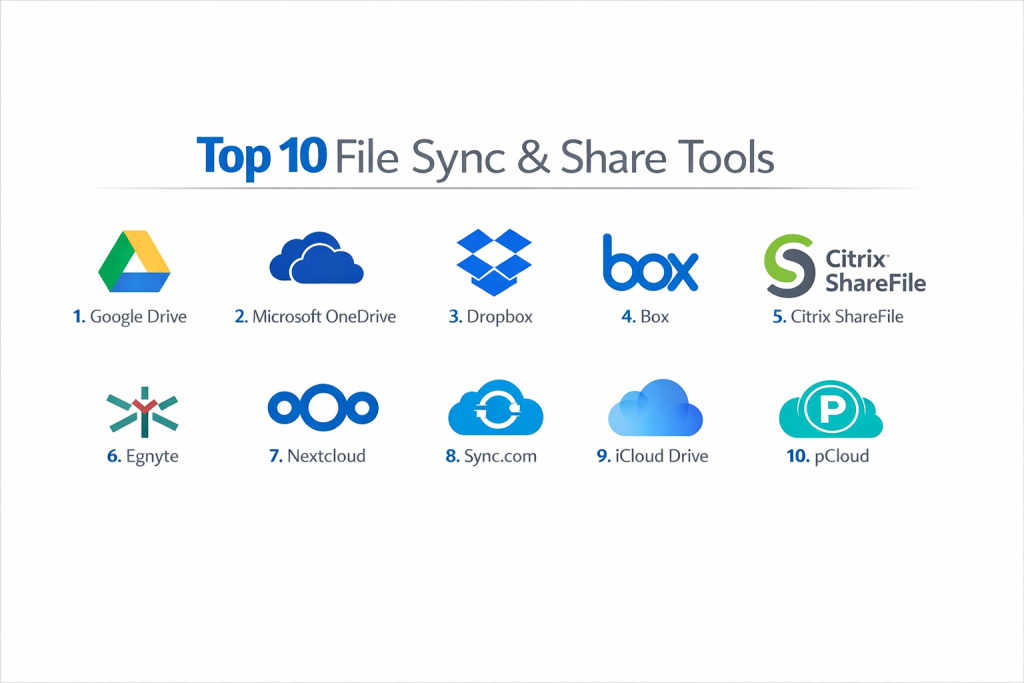
Top 10 File Sync & Share Tools
1 — Google Drive
Google Drive is a pioneer in the collaborative space, offering a cloud-native environment where file sharing and real-time co-authoring are at the heart of the experience.
- Key Features:
- Native Workspace Integration: Seamless collaboration within Docs, Sheets, and Slides.
- AI-Powered Search: Advanced “Priority” view that predicts which files you need next.
- Shared Drives: Centralized ownership where the team, not the individual, owns the files.
- Google Drive for Desktop: Access files directly from your computer without taking up local disk space.
- Granular Sharing: Simple link-based sharing with specific “viewer,” “commenter,” or “editor” roles.
- Extensive App Ecosystem: Thousands of third-party integrations via the Google Workspace Marketplace.
- Pros:
- The most intuitive real-time co-authoring experience available today.
- Excellent search capabilities that make finding buried files effortless.
- Cons:
- Privacy-conscious users may have concerns over Google’s data-handling practices.
- Offline functionality, while improved, is still less robust than desktop-first competitors.
- Security & compliance: AES-256 encryption at rest, TLS in transit, SSO, SOC 2, GDPR, HIPAA (with BAA), and ISO 27001.
- Support & community: Large-scale community forums, extensive documentation, and 24/7 enterprise support for Workspace customers.
2 — Microsoft OneDrive
OneDrive is the default choice for the modern enterprise, deeply woven into the Windows operating system and the Microsoft 365 productivity suite.
- Key Features:
- Files On-Demand: Browse your entire cloud library in File Explorer without downloading them.
- Office Desktop Integration: Real-time autosave and co-authoring within the desktop versions of Word and Excel.
- Known Folder Move: Automatically syncs your Desktop, Documents, and Pictures folders.
- Differential Sync: Only uploads modified portions of a file to save time and bandwidth.
- Personal Vault: An extra-secure area requiring two-step verification for sensitive files.
- Pros:
- Deepest integration with Windows 10 and 11, making it feel like a local drive.
- High value for organizations already paying for Microsoft 365 subscriptions.
- Cons:
- The macOS version can occasionally experience sync delays compared to the Windows client.
- Sharing permissions can sometimes be overly complex for non-technical users.
- Security & compliance: AES-256 encryption, SSO, SOC 2, HIPAA, GDPR, and FedRAMP compliance.
- Support & community: Robust Microsoft Tech Community, global enterprise support, and a massive network of certified partners.
3 — Dropbox
Dropbox remains a leader by focusing on a “platform-neutral” approach and offering some of the fastest, most reliable sync technology in the industry.
- Key Features:
- Block-Level Sync: Dramatically speeds up uploads by only syncing the changed “blocks” of a file.
- Dropbox Paper: A minimalist collaborative workspace for project planning and brainstorming.
- Dropbox Transfer: Send large files (up to 250 GB) to external clients with password protection.
- Smart Sync: Seamlessly move files to the cloud while keeping them visible on your desktop.
- Dropbox Rewind: Roll back folders or your entire account to a specific point in time (up to 30 or 180 days).
- Pros:
- Highly reliable syncing that rarely results in file conflicts.
- Exceptional third-party integrations with tools like Slack, Zoom, and Adobe.
- Cons:
- Can be more expensive than bundled solutions from Google or Microsoft.
- Personal plans have seen significant feature bloat that some users find unnecessary.
- Security & compliance: AES-256 encryption, SSO, 2FA, SOC 2, HIPAA, and GDPR.
- Support & community: 24/7 chat support for paid tiers, active user community, and clear self-help documentation.
4 — Box
Box is designed specifically for the enterprise, with a heavy emphasis on security, administrative control, and workflow automation.
- Key Features:
- Box Relay: A tool to build and automate custom workflows like document approvals.
- Box Shield: AI-powered security that detects anomalous behavior and data leaks.
- Box Sign: Integrated e-signature capabilities within the file management system.
- Content Governance: Advanced retention policies and legal hold capabilities.
- Box Notes: Collaborative note-taking with a focus on business-grade security.
- Pros:
- Unmatched administrative controls for large-scale user management.
- “Best-of-breed” integration strategy, working equally well with both Google and Microsoft.
- Cons:
- The user interface can feel more utilitarian and less “friendly” than consumer-focused tools.
- Lower-tier plans have restrictive file size limits.
- Security & compliance: FIPS 140-2, HIPAA, FedRAMP, FINRA, SOC 2, and GDPR.
- Support & community: High-touch enterprise support, “Box University” for training, and dedicated account management.
5 — Citrix ShareFile
ShareFile is a professional-grade solution that excels in industries requiring secure document exchange and client-facing portals, such as accounting and legal.
- Key Features:
- Client Portals: Custom-branded areas for clients to securely upload and download documents.
- Integrated E-Signatures: Powered by RightSignature for legally binding document execution.
- StorageZones: Choice of storing data in the Citrix cloud, your own data center, or both.
- Large File Support: Share files up to 100 GB without clogging email systems.
- Outlook Plug-in: Automatically converts attachments into secure ShareFile links.
- Pros:
- The gold standard for professional client document exchange.
- Flexible storage options satisfy strict data residency requirements.
- Cons:
- The pricing is significantly higher than general-purpose sync tools.
- The learning curve for administrators is steeper than for Dropbox or Google.
- Security & compliance: AES-256 encryption, SSO, SOC 2, HIPAA, and GDPR.
- Support & community: Professional support desk, detailed webinars, and a strong presence in the financial services sector.
6 — Egnyte
Egnyte provides a “hybrid” file sharing platform that bridges the gap between on-premises servers and the cloud, making it a favorite for architecture and construction firms.
- Key Features:
- Hybrid Architecture: Syncs cloud files with local hardware for high-speed local access.
- Content Governance: Built-in tools to identify sensitive data (PII) and ensure compliance.
- Global File Locking: Prevents version conflicts by locking a file while someone is editing it.
- Large File Optimization: Specifically tuned for CAD files and high-resolution media.
- Ransomware Protection: Signature-based detection to stop attacks in progress.
- Pros:
- Best-in-class performance for users working with massive files on local networks.
- Exceptional visibility into data compliance and user activity.
- Cons:
- Complexity of the hybrid setup may be overkill for small businesses.
- The mobile app is functional but lacks the polish of consumer-focused rivals.
- Security & compliance: SOC 2, HIPAA, GDPR, and FINRA. Supports client-managed encryption keys.
- Support & community: High-quality technical support, an active “Egnyte University,” and detailed deployment guides.
7 — Nextcloud
Nextcloud is the leading open-source alternative, allowing organizations to host their own private cloud on their own servers for total data sovereignty.
- Key Features:
- Self-Hosting: Total control over where your data is stored and who accesses it.
- Nextcloud Hub: Includes built-in email, calendar, and video chat (Talk).
- End-to-End Encryption: Client-side encryption ensures the server administrator cannot read files.
- Federation: Share files securely with users on other Nextcloud servers.
- App Store: Hundreds of community-developed plugins to extend functionality.
- Pros:
- The ultimate choice for privacy advocates and organizations with strict data sovereignty needs.
- No per-user licensing fees if you host it yourself.
- Cons:
- Requires significant IT expertise to set up, maintain, and secure.
- You are responsible for your own hardware and backup strategy.
- Security & compliance: Highly customizable; supports GDPR, HIPAA, and encryption standards based on configuration.
- Support & community: Massive open-source community, though professional enterprise support is available via subscription.
8 — Sync.com
Sync.com is a Canadian provider focused on absolute privacy through “Zero-Knowledge” encryption, making it ideal for the legal and medical sectors.
- Key Features:
- Zero-Knowledge Encryption: Sync.com can never access your files; only you have the keys.
- Sync Vault: A cloud-only folder to offload files without syncing them to every device.
- Advanced Link Controls: Expiry dates, download limits, and “view-only” modes for shared links.
- Remote Wipe: Instantly remove files from a device if it is lost or stolen.
- Data Residency: All data is stored in Canada, which has strong privacy laws.
- Pros:
- Extremely high privacy standards without the complexity of Nextcloud.
- Simple, transparent pricing for both individuals and teams.
- Cons:
- Zero-knowledge architecture makes file indexing and searching slower than Google or Dropbox.
- Very few third-party app integrations.
- Security & compliance: SOC 2, HIPAA, GDPR, and PIPEDA.
- Support & community: Email-based support with priority for business tiers; solid knowledge base.
9 — Apple iCloud Drive
iCloud Drive is the primary sync tool for the Apple ecosystem, providing an “invisible” sync experience for Mac and iOS users.
- Key Features:
- Native Apple Integration: Syncs Desktop and Documents folders across all Macs automatically.
- Collaboration in iWork: Real-time editing for Pages, Numbers, and Keynote.
- Shared Folders: Easy invitation system for family or small teams.
- iCloud Private Relay: Enhances privacy by masking your IP address during web browsing.
- Hide My Email: Create unique, random email addresses for better online privacy.
- Pros:
- Zero-configuration sync for users fully committed to Apple hardware.
- Excellent for managing personal and light business data in one place.
- Cons:
- The Windows client is significantly less reliable and feature-poor.
- Lacks the advanced administrative controls required by larger enterprises.
- Security & compliance: End-to-end encryption (for many categories), 2FA, and GDPR compliance.
- Support & community: World-class support via Apple Stores and 24/7 online chat.
10 — pCloud
Based in Switzerland, pCloud is a security-focused provider known for its unique “Lifetime” payment plans and robust media handling.
- Key Features:
- Lifetime Subscription: Pay once and own the storage for 99 years.
- pCloud Crypto: A client-side encryption folder for maximum confidentiality.
- Virtual Drive: Access files as if they were on a local drive without using local space.
- Built-in Media Player: Stream video and audio directly from the cloud app.
- Public Folder: Create direct download links or host small static websites.
- Pros:
- The best long-term value for users who want to avoid monthly subscription fatigue.
- Benefits from some of the world’s strongest privacy laws in Switzerland.
- Cons:
- The Zero-Knowledge “Crypto” folder is often a separate one-time purchase.
- Collaboration features are not as deep as Google or Microsoft.
- Security & compliance: Swiss privacy laws, AES-256 encryption, 2FA, and GDPR compliance.
- Support & community: Professional email support and a growing user base, especially among photographers and videographers.
Comparison Table
| Tool Name | Best For | Platform(s) Supported | Standout Feature | Rating (Gartner/G2) |
| Google Drive | Collaboration | Web, Win, Mac, iOS, Android | Real-time Co-authoring | 4.7 / 5 |
| OneDrive | MS 365 Users | Win, Mac, iOS, Android | Files On-Demand | 4.5 / 5 |
| Dropbox | Sync Reliability | Win, Mac, Linux, Mobile | Block-Level Sync | 4.4 / 5 |
| Box | Enterprise Admin | Web, Win, Mac, Mobile | Workflow Relay | 4.2 / 5 |
| Citrix ShareFile | Client Portals | Win, Mac, Mobile | Professional Portals | 4.3 / 5 |
| Egnyte | Large Files/Hybrid | Win, Mac, Local Server | Hybrid Sync | 4.5 / 5 |
| Nextcloud | Data Sovereignty | Self-Hosted, All | Open Source/Total Control | 4.6 / 5 |
| Sync.com | Privacy | Win, Mac, iOS, Android | Default Zero-Knowledge | 4.4 / 5 |
| iCloud Drive | Apple Users | Mac, iOS, iPadOS | System-Level Sync | 4.3 / 5 |
| pCloud | Lifetime Value | Win, Mac, Linux, Mobile | Lifetime Plans | 4.5 / 5 |
Evaluation & Scoring of File Sync & Share Tools
We have evaluated the market based on the following weighted scoring rubric to provide an objective look at tool quality.
| Category | Weight | Evaluation Criteria |
| Core Features | 25% | Reliability of sync, versioning, and sharing flexibility. |
| Ease of Use | 15% | Intuitiveness of the interface and onboarding speed. |
| Integrations | 15% | Ability to connect with Office, Slack, and third-party apps. |
| Security & Compliance | 10% | Encryption standards, MFA, and industry certifications. |
| Performance | 10% | Sync speed, system resource usage, and low-latency access. |
| Support & Community | 10% | Quality of documentation and availability of live support. |
| Price / Value | 15% | Transparency of pricing and cost-per-GB. |
Which File Sync & Share Tool Is Right for You?
Selecting the right FSS tool requires a careful look at your team size, your technical comfort level, and your specific industry requirements.
Solo Users vs SMB vs Mid-Market vs Enterprise
- Solo Users: Focus on ease of use and cost. Google Drive or pCloud (for the lifetime plan) are excellent.
- SMBs: Usually require a balance of collaboration and value. Microsoft OneDrive is almost impossible to beat if you already use Office.
- Enterprise: Security and control are the priority. Box or Citrix ShareFile provide the audit logs and governance that large organizations demand.
Budget-Conscious vs Premium Solutions
- Budget: If you have the technical skill, Nextcloud is free. For a one-time fee, pCloud is the best financial investment.
- Premium: Dropbox and Egnyte command a higher price but deliver superior sync speeds and specialized hardware integration.
Feature Depth vs Ease of Use
If you want a tool that “just works” without setting anything up, stay within your ecosystem (iCloud for Mac, OneDrive for Windows). If you need deep automation (approvals, e-signatures), you must invest the time to learn Box or ShareFile.
Integration and Scalability Needs
If your team is growing quickly, look for a tool with SSO (Single Sign-On) support. Google Drive, OneDrive, and Box excel at scaling from five users to five thousand effortlessly.
Security and Compliance Requirements
If you are in a highly regulated field (Law, Medicine, Finance), Sync.com or Nextcloud are the safest bets because they ensure that the service provider cannot access your data. For most other businesses, the standard security of Dropbox or Google is sufficient when combined with a strong password and 2FA.
Frequently Asked Questions (FAQs)
1. Is cloud file sync the same as a cloud backup?
No. File sync ensures your files are the same across devices. If you delete a file on your computer, it deletes in the cloud. Cloud backup is designed to store copies of your data that remain even if the original is deleted.
2. What is “Zero-Knowledge” encryption?
It means the provider has no way to see your data. Even if they are served with a legal warrant, they cannot unlock your files because they don’t have your password. Sync.com is a primary example.
3. Does file syncing slow down my internet?
It can during large initial uploads. Most professional tools like Dropbox or OneDrive allow you to set “bandwidth limits” so the syncing doesn’t interfere with your video calls or browsing.
4. Can I use these tools without an internet connection?
Yes. You can mark files for “Offline Access.” You can edit them while on a plane or in a remote area, and the tool will automatically sync the changes as soon as you reconnect.
5. How do these tools handle two people editing the same file?
Cloud-native tools like Google Docs allow you to see each other’s cursors. For traditional files (like an Excel .xlsx), tools like Dropbox or Egnyte will create a “Conflicted Copy” so no data is overwritten.
6. Is my data safe if I lose my laptop?
Yes, as long as you have a password on your computer. Most business-grade tools (Box, Dropbox, Sync.com) also allow you to “Remote Wipe” the files from that specific device as soon as it goes online.
7. Can I share files with people who don’t have an account?
Yes. Most of these tools allow you to generate a “Public Link.” The recipient can view or download the file directly through their web browser without signing up.
8. What happens to my files if I stop paying?
Most providers will “freeze” your account. You can still view and download your files, but you won’t be able to upload anything new or sync changes until you resume payment.
9. Why should I use a specialized tool instead of just email?
Email has file size limits (usually 25MB) and creates “version sprawl” (e.g., Final_v1, Final_v2_edit). FSS tools handle huge files and ensure everyone is always looking at the exact same version.
10. How difficult is it to migrate from one tool to another?
It can be time-consuming to move terabytes of data. However, there are third-party migration services that can move files directly from “Cloud to Cloud” without you having to download everything to your computer first.
Conclusion
The market for File Sync & Share tools has matured to a point where there is a perfect solution for every specific need. The “best” tool is no longer the one with the most storage, but the one that fits most naturally into your existing workflow.
If you are a creative professional dealing with massive files, the hybrid speed of Egnyte or the reliability of Dropbox will be your best friend. For the privacy-conscious, the Swiss-made pCloud or the open-source Nextcloud offer unparalleled peace of mind. Meanwhile, for the standard office, the deep integrations of Google Drive and Microsoft OneDrive remain the most productive choices.
Ultimately, your decision should come down to testing. Most of these platforms offer free tiers; try two or three with your most common file types. Pay attention to how quickly they sync and how easy it is to share a link. In the end, a tool is only as good as its ability to get out of the way and let you work.