Introduction
File Compression Tools are specialized software utilities designed to reduce the size of digital files and folders without losing the underlying data (lossless compression) or by selectively removing non-essential data (lossy compression). These tools work by using complex mathematical algorithms to identify and eliminate redundancies within a data stream. Beyond just shrinking files, these utilities function as “archivers,” allowing users to bundle hundreds of separate files into a single, manageable package that is easier to store, move, and protect.
The importance of file compression cannot be overstated in a data-heavy landscape. Smaller files take up less disk space, which is critical for cloud storage costs and physical drive management. More importantly, compressed files transfer significantly faster over the internet, making them essential for email attachments, web publishing, and software distribution. When evaluating a tool in this category, users should look for high compression ratios, multi-format support (such as ZIP, 7Z, and RAR), strong encryption standards (AES-256), and speed of execution. A tool that takes an hour to save 10% of space is rarely better than one that takes a minute to save 8%.
Key Real-World Use Cases
- Email Management: Shrinking large PDF reports or high-resolution image batches to fit within the strict attachment limits of corporate mail servers.
- Software Distribution: Bundling complex applications with thousands of sub-files into a single “installer” package for easy downloading.
- Data Backup & Archiving: Compressing historical business records before moving them to long-term cold storage to minimize ongoing cloud costs.
- Secure File Transfer: Using password-protected and encrypted archives to send sensitive legal or financial documents over unsecure channels.
Best for:
- IT Administrators & Developers: Who need to package code and manage server storage efficiently.
- Creative Professionals: Managing massive raw media assets, high-res photos, and project folders.
- Everyday Office Workers: Sending daily documents, spreadsheets, and presentations.
- Government & Legal Sectors: Where data must be archived for years in a secure, encrypted format.
Not ideal for:
- Users of Lossy Media Only: People who only deal with modern video formats (MP4) or music (MP3), which are already highly compressed; further “zipping” these files usually yields negligible space savings.
- Live Streamers: Where real-time data flow is more critical than the storage footprint of static files.
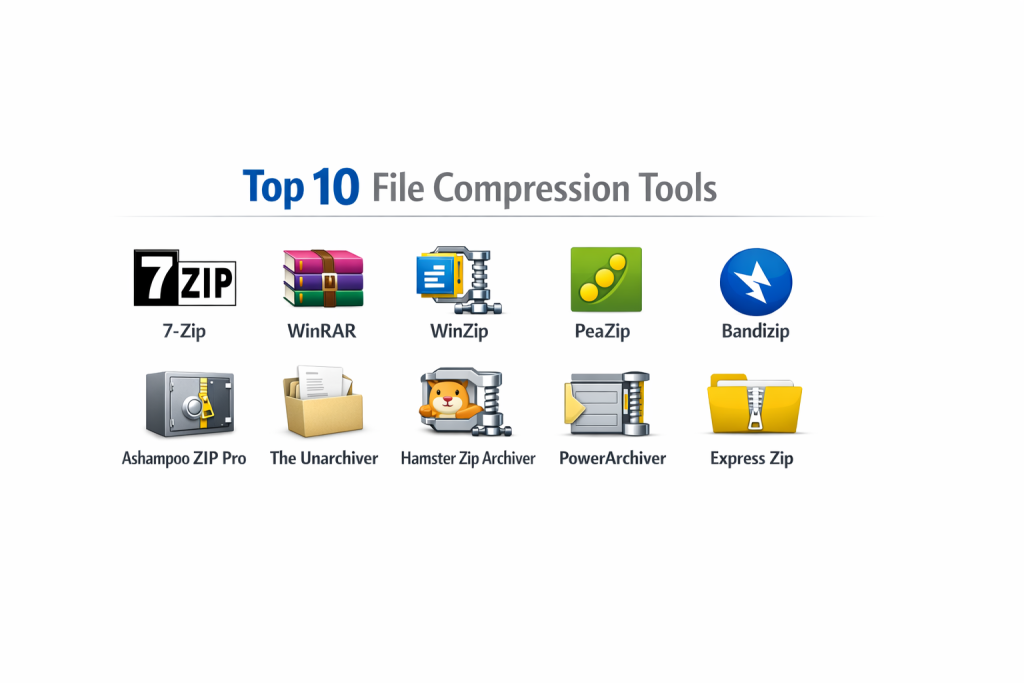
Top 10 File Compression Tools
1 — 7-Zip
7-Zip is a legendary open-source file archiver known for having one of the highest compression ratios in the industry, particularly when using its native 7z format.
- Key features:
- Native 7z format using LZMA and LZMA2 compression for superior results.
- Supports a vast array of formats for unpacking (ARJ, CAB, DMG, ISO, LZH, RAR, etc.).
- Powerful command-line version for automated server scripting.
- Self-extracting capability for the 7z format.
- Integrated Windows Shell menu for quick right-click actions.
- Plugin available for Far Manager.
- Pros:
- Completely free for personal and commercial use with no “nag” screens.
- Significantly better compression than the standard ZIP format.
- Cons:
- The user interface is very dated and looks like Windows 95 software.
- Does not have as many “flashy” features or cloud integrations as paid rivals.
- Security & compliance: Strong AES-256 encryption in 7z and ZIP formats.
- Support & community: Extensive community support, active developer forums, and translated into 87 languages.
2 — WinRAR
WinRAR is a powerhouse in the compression world, most famous for its proprietary RAR format which often provides better recovery and split-volume features than standard ZIP.
- Key features:
- Full support for RAR and ZIP archives; unpacking support for over a dozen others.
- “Recovery Record” feature which allows for the repair of physically damaged archives.
- Multithreaded compression to take advantage of modern multi-core processors.
- Split-volume archiving to break large files into smaller, manageable chunks.
- Advanced “Wizard” mode for beginners.
- Unique “Solid” archiving for further size reduction of similar files.
- Pros:
- The RAR algorithm is exceptionally robust for handling massive data sets.
- The recovery features are a lifesaver for corrupted downloads.
- Cons:
- It is “trialware,” meaning it technically requires a purchase after 40 days (though the trial is famous for never expiring).
- The proprietary RAR5 format cannot be created by many other free tools.
- Security & compliance: AES-256 bit encryption and authenticated signatures.
- Support & community: Professional customer support, frequent security updates, and a global user base.
3 — WinZip
WinZip is the most recognizable name in the category, having evolved from a simple utility into a comprehensive file management and productivity suite.
- Key features:
- Direct integration with major cloud services (Dropbox, OneDrive, Google Drive).
- PDF management tools, including converting Office files to PDF and merging PDFs.
- Image management for resizing and watermarking photos during compression.
- Secure “ZipShare” feature for sending large files via email or social media.
- Automated backup features and background tool scheduling.
- Advanced deduplication to ensure multiple copies of a file aren’t stored twice.
- Pros:
- Excellent modern interface that feels familiar to Microsoft Office users.
- Feature-rich suite that replaces several other productivity tools.
- Cons:
- One of the most expensive options on the market.
- Often perceived as “bloatware” by users who only want simple compression.
- Security & compliance: FIPS 140-2 compliance, AES encryption, and GDPR readiness.
- Support & community: Enterprise-grade support, live chat, and extensive knowledge bases.
4 — PeaZip
PeaZip is an open-source archiver that prioritizes security and a clean, modern user experience, making it a favorite for privacy-focused users.
- Key features:
- Support for over 200 archive formats (one of the highest in the industry).
- Built-in “Secure Delete” (file shredding) to wipe data permanently.
- Integrated password manager and two-factor authentication for archives.
- Portable version available that runs without installation.
- Strong focus on the PEA (Pack, Encrypt, Authenticate) format.
- Can convert existing archives between formats without manual extraction.
- Pros:
- Beautiful, modern interface that is highly customizable.
- Exceptional security features that go beyond simple zipping.
- Cons:
- The sheer number of options can be confusing for casual users.
- Slightly slower compression speeds compared to 7-Zip on some systems.
- Security & compliance: AES-256, Two-Factor Authentication, and encrypted password storage.
- Support & community: Active open-source development and helpful GitHub community.
5 — Bandizip
Bandizip is a “blue-chip” utility from Korea that has gained global popularity for its extreme speed and efficient handling of multi-core CPUs.
- Key features:
- “High Speed Archiving” that automatically skips files that don’t compress well.
- Support for Unicode to ensure characters from different languages display correctly.
- “Smart Strategy” for automatically choosing the best compression method.
- Password Manager and Archive Image Preview.
- Support for extracting 30+ formats, including RAR5 and 7z.
- Built-in “Antimalware Scan” for archives.
- Pros:
- Incredibly fast; it feels snappier than WinZip or WinRAR on Windows.
- Clean, ad-free interface (in the paid version).
- Cons:
- The free version now includes advertisements.
- Some advanced features are locked behind a relatively steep professional license.
- Security & compliance: AES-256 encryption and archive repair tools.
- Support & community: Professional email support and frequent software patches.
6 — Ashampoo ZIP Pro
Ashampoo ZIP Pro is a complete “Swiss Army Knife” for file management, aimed at business professionals who need more than just a zipping tool.
- Key features:
- Virtual Drive support to mount ISO files as local drives.
- Integrated Office and Outlook add-ins for zipping directly from apps.
- Cloud Browser for managing files across various cloud providers.
- Built-in PDF editor and creator.
- File encryption suite that can encrypt individual files or entire folders.
- Scripting support for automated business backups.
- Pros:
- Very polished and professional user experience.
- Bundles many utilities (PDF, ISO, Cloud) into a single purchase.
- Cons:
- The “Pro” nature makes it heavier on system resources.
- Frequent marketing pop-ups for other Ashampoo products.
- Security & compliance: FIPS 140-2, OpenPGP, and AES-256 encryption.
- Support & community: Professional helpdesk and a strong European user base.
7 — The Unarchiver (macOS)
The Unarchiver is the essential utility for Mac users who find the built-in Archive Utility too restrictive for modern file formats.
- Key features:
- Handles foreign character sets in filenames much better than native macOS tools.
- Small, lightweight, and stays out of the way.
- Supports a massive list of old or obscure formats (StuffIt, LZH, etc.).
- One-click extraction: it opens a file and then quits automatically.
- Can be set as the default app for all archive types.
- Totally free with no ads.
- Pros:
- The “set it and forget it” tool for macOS.
- Cleanly handles RAR and 7z files on a Mac with zero configuration.
- Cons:
- It is primarily an “unarchiver”; it lacks robust options for creating complex archives.
- No Windows version available.
- Security & compliance: Relies on standard macOS sandboxing and security.
- Support & community: High rating on the Mac App Store and backed by MacPaw.
8 — Hamster Zip Archiver
Hamster Zip Archiver focuses on a “cloud-first” approach and a minimalist, drag-and-drop interface that appeals to non-technical users.
- Key features:
- Direct “upload to cloud” support for Dropbox, Drive, and Yandex.
- Optimized for high-speed ZIP and 7z compression.
- Modern, colorful UI that is very easy to navigate.
- Touch-friendly interface for Windows tablets.
- One-click sharing via generated links.
- Automatic adjustment of compression levels based on file type.
- Pros:
- One of the most aesthetically pleasing interfaces in the category.
- Excellent for beginners who find 7-Zip too intimidating.
- Cons:
- The installer sometimes tries to bundle additional software.
- Fewer advanced settings for technical users compared to PeaZip.
- Security & compliance: Basic password protection and encryption.
- Support & community: Primarily community-driven via social media and FAQ pages.
9 — PowerArchiver
PowerArchiver is a feature-rich, enterprise-grade tool that focuses heavily on data security and integration with business workflows.
- Key features:
- Proprietary .PA format with the strongest available encryption/compression balance.
- FIPS 140-2 validated 256-bit AES encryption.
- Secure FTP (SFTP) client built directly into the archiver.
- Outlook and Office plugins with automatic attachment zipping.
- Advanced backup features with cloud support.
- Integrated media player and image viewer for archive previews.
- Pros:
- Superior security certifications for government or corporate use.
- The .PA format is exceptionally fast on modern CPUs.
- Cons:
- The interface can feel “busy” with many toolbars.
- Expensive for individual users compared to free alternatives.
- Security & compliance: FIPS 140-2, SOC 2 ready, and OpenPGP support.
- Support & community: Comprehensive enterprise support and dedicated training.
10 — Express Zip File Compression (NCH Software)
Express Zip is a fast, efficient tool that focuses on simplicity and bulk processing for Windows and Mac.
- Key features:
- Simple “drag and drop” interface for creating new ZIP files.
- Convert archives from other formats to ZIP for universal compatibility.
- Email archives directly from the program with two clicks.
- Burn archives to CD/DVD/Blu-ray for long-term physical storage.
- Right-click context menu integration for speed.
- Small footprint that doesn’t slow down older computers.
- Pros:
- Very fast to learn; no training required.
- Available for both Windows and macOS.
- Cons:
- The free version is for non-commercial use only.
- Lacks the advanced RAR5 or 7z-specific tweaks of other tools.
- Security & compliance: Standard AES encryption.
- Support & community: Email support and a library of video tutorials provided by NCH.
Comparison Table
| Tool Name | Best For | Platform(s) Supported | Standout Feature | Rating |
| 7-Zip | Tech-Savvy Users | Windows, Linux | Best Free Compression | 4.7/5 |
| WinRAR | Large Data Sets | Windows, Android | Archive Repair Tool | 4.8/5 |
| WinZip | Corporate Suite | Windows, Mac | Cloud & PDF Tools | 4.5/5 |
| PeaZip | Privacy Seekers | Windows, Linux | Secure File Shredder | 4.6/5 |
| Bandizip | High Speed | Windows, Mac | Multi-core Optimization | 4.6/5 |
| Ashampoo ZIP | Business Admins | Windows | Virtual Drive Mount | 4.4/5 |
| The Unarchiver | Mac Users | macOS | Universal Unpacking | N/A |
| Hamster Zip | Beginners | Windows | Cloud-First Sync | 4.3/5 |
| PowerArchiver | High Security | Windows | FIPS 140-2 Encryption | 4.7/5 |
| Express Zip | Simple Backups | Windows, Mac | Disc Burning Support | 4.2/5 |
Evaluation & Scoring of File Compression Tools
| Criteria | Weight | Average Score (out of 10) | Notes |
| Core Features | 25% | 9.0 | Compression/extraction is high quality in all tools. |
| Ease of Use | 15% | 8.0 | WinZip and Hamster lead; 7-Zip is the most difficult. |
| Integrations | 15% | 7.5 | Cloud and Office integrations are becoming standard. |
| Security & Compliance | 10% | 8.5 | PowerArchiver and PeaZip are top-tier for security. |
| Performance | 10% | 9.0 | 7-Zip and Bandizip are the current speed leaders. |
| Support & Community | 10% | 7.5 | Open-source tools have the best forums; paid have support. |
| Price / Value | 15% | 9.5 | 7-Zip and PeaZip provide infinite value (Free). |
Which File Compression Tool Is Right for You?
Solo Users vs SMB vs Mid-Market vs Enterprise
If you are a Solo User or a student, you likely do not need to pay for a tool; 7-Zip or PeaZip will handle 100% of your needs. For SMBs that need consistent support and a familiar interface for employees, Bandizip or WinRAR offer a great middle ground. Mid-Market to Enterprise organizations should lean toward WinZip or PowerArchiver, as these tools offer the administrative controls, MSI deployment packages, and FIPS compliance required for corporate risk management.
Budget-Conscious vs Premium Solutions
If you are Budget-Conscious, the open-source world is your friend. You gain the highest compression ratios without spending a dime. However, Premium Solutions like Ashampoo or WinZip provide “convenience value.” They save you time by integrating PDF editors and cloud management directly into the zipping interface, which can be worth the license fee for busy professionals.
Feature Depth vs Ease of Use
If you want Ease of Use, The Unarchiver (Mac) or Hamster Zip (Windows) are the way to go; they require no configuration. If you need Feature Depth—specifically the ability to repair broken archives, mount ISOs, or script automated backups—WinRAR and Ashampoo ZIP Pro are the technical leaders.
Integration and Scalability Needs
For those heavily invested in the Microsoft ecosystem, WinZip offers the best scalability with its deep Outlook and Office plugins. For Linux or Mixed-Environment teams, 7-Zip and PeaZip are the most scalable because their command-line versions allow for universal automation across different operating systems.
Security and Compliance Requirements
If your industry (Health, Law, Finance) requires strict Security and Compliance, do not settle for basic ZIP tools. You need a tool that supports AES-256 encryption at a minimum. For government contracts, PowerArchiver or WinZip Enterprise are the preferred choices because they offer FIPS-validated encryption modules.
Frequently Asked Questions (FAQs)
1. Is “zipping” a file the same as “compressing” it?
Yes. ZIP is the most common format, so the terms are often used interchangeably. However, “compression” is the general act of shrinking data, while “zipping” specifically refers to creating a .zip file.
2. Can I compress a file that is already compressed (like a JPEG or MP4)?
You can, but the size reduction will be almost zero. These file types are already compressed by their own internal algorithms, and trying to “zip” them again is like trying to squeeze a sponge that is already tightly balled up.
3. Is it safe to open a compressed file from an unknown sender?
No. Compressed files are often used by attackers to hide malware from basic email scanners. Always use a tool like Bandizip or WinZip that includes a built-in malware scanner for archives.
4. What is the difference between ZIP and RAR?
ZIP is a universal open format that every computer can open without extra software. RAR is a proprietary format that usually offers slightly better compression and better “repair” features for corrupted data.
5. Can I set a password on my compressed files?
Yes, most tools on this list allow you to set a password. For maximum security, ensure you select AES-256 encryption rather than the older, weaker “ZipCrypto” standard.
6. Do I really have to pay for WinRAR after 40 days?
Legally, yes, if you are a commercial user. For personal users, the trial continues to function, but you will be greeted with a reminder to purchase every time you open the program.
7. Which tool has the best compression ratio?
Generally, 7-Zip using the .7z format is considered the leader for most document and data sets, often outperforming ZIP by 30% to 50%.
8. Can I extract a file without installing software?
Both Windows and macOS have built-in tools that can open standard ZIP files. For more complex formats like RAR or 7z, you will need to install a utility or use a portable version of PeaZip.
9. Why would I “split” an archive into volumes?
This is useful for sending large files over services with size limits (like email). You can split a 100MB file into ten 10MB “volumes” and send them separately.
10. Can I see what’s inside a zip file before I extract it?
Yes, almost all modern compression tools allow you to “double-click” the archive to browse the contents as if it were a regular folder before you decide to extract anything to your hard drive.
Conclusion
The “best” File Compression Tool is ultimately defined by your specific workflow and technical comfort level. For the vast majority of users, 7-Zip provides the perfect combination of high-end compression and zero cost, making it the industry’s default recommendation. Its ability to handle almost any format thrown at it ensures that you will never be stuck with an “unopenable” file.
However, if you are a business professional who values time and integrated features, the “productivity suites” like WinZip or Ashampoo can streamline your day by handling PDFs and cloud uploads in the same breath. For those on Mac, The Unarchiver remains a mandatory installation to bridge the gap between different OS formats. Regardless of which tool you choose, the goal remains the same: protecting your data, saving your storage space, and making your digital life move just a little bit faster.