Introduction
Data recovery tools are specialized software applications designed to rescue lost, deleted, or inaccessible files from various storage devices like hard drives, SSDs, USB flash drives, and SD cards. When you delete a file, it isn’t immediately erased from the physical disk; instead, the operating system marks the space as “available.” Data recovery software scans these hidden sectors to reconstruct the file headers and retrieve the information before it is overwritten by new data. These tools are sophisticated enough to handle complex scenarios, including formatted partitions, system crashes, and even partially damaged storage media that the computer no longer recognizes through standard file explorers.
The importance of these tools cannot be overstated in our digital-first world. Data loss can happen in a heartbeat—a simple accidental click, a sudden power surge, or a software glitch can wipe out years of family photos, critical business documents, or sensitive financial records. For businesses, data loss is a major emergency that can lead to operational downtime, legal complications, and massive financial hits. Data recovery software provides a vital “last line of defense,” allowing users to fix mistakes and hardware failures without needing to send drives to expensive laboratory cleanrooms that can cost thousands of dollars. It empowers everyone from home users to IT professionals to maintain control over their digital assets and mitigate the risks of an increasingly fragile hardware landscape.
Key Real-World Use Cases
- Accidental Deletion: The most common scenario where a user empties the Recycle Bin or uses “Shift+Delete” on a critical folder and needs it back immediately.
- Formatted Drive Recovery: Rescuing data after a user accidentally formats the wrong partition or USB drive while installing a new operating system.
- Corrupted Memory Cards: Photographers often use these tools when an SD card becomes “unreadable” or shows a “card error” message after a long shoot.
- System Crash Recovery: Retrieving files from a computer that will no longer boot into Windows or macOS due to registry errors or blue-screen loops.
- Malware/Ransomware Aftermath: Helping to restore files that were deleted or moved by a virus infection once the threat has been neutralized.
What to Look For (Evaluation Criteria)
Choosing the right data recovery tool is a high-stakes decision, and you should evaluate your options based on these specific factors:
- Recovery Success Rate: How effective is the tool at actually reconstructing files without corruption? This is the most important metric.
- File System Support: Does the software understand the language of your drive? Look for support for NTFS (Windows), APFS/HFS+ (Mac), and FAT32/exFAT (External drives).
- Deep Scan Capabilities: Can the tool look past the file directory and search the raw sectors of the drive for “fragmented” data?
- Preview Functionality: Does the tool let you see a thumbnail of the photo or a snippet of the document before you pay for the recovery?
- Read-Only Operation: A safe tool should never write data back to the drive it is scanning, as this could overwrite the very files you are trying to save.
Best for:
Individual users, creative professionals (photographers/videographers), IT help desk technicians, and small business owners. These tools are essential for anyone who manages local storage and lacks a secondary, real-time backup for every single file they create.
Not ideal for:
Physically broken hardware. If your hard drive is making a loud “clicking” sound or has been submerged in water, software cannot help; in these cases, you must use a professional lab service. It is also not ideal for those who have already overwritten their data by continuing to use the drive after the loss occurred.
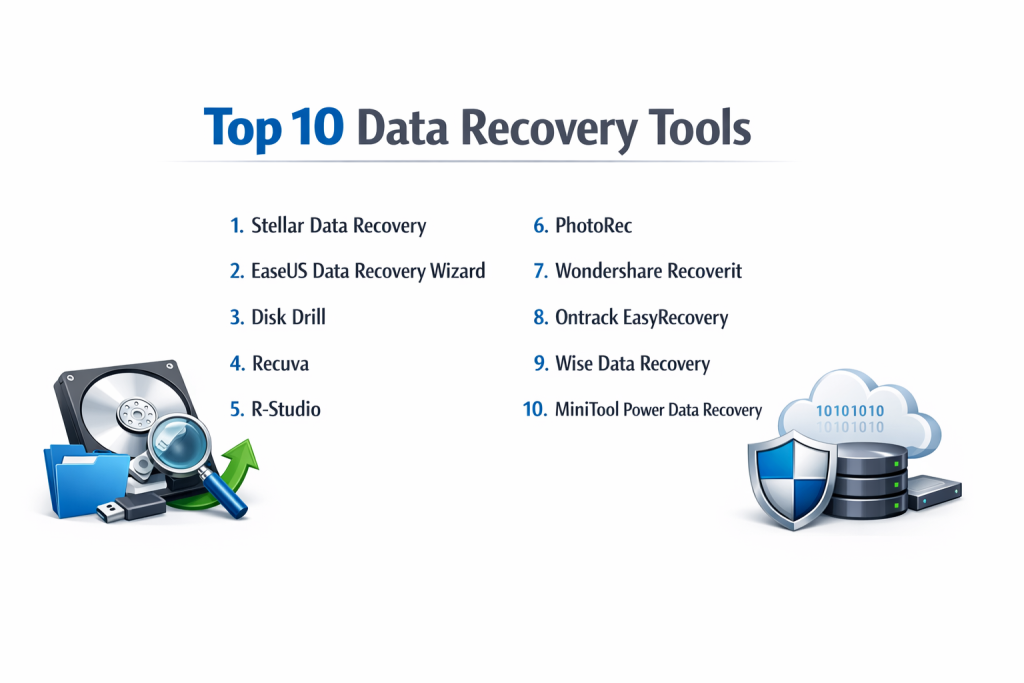
Top 10 Data Recovery Tools
1 — Stellar Data Recovery
Stellar is a veteran in the data recovery industry, offering a highly polished and powerful application that caters to both beginners and experts. It is known for its ability to handle “unbootable” systems and its specialized repairs for corrupted photo and video files during the recovery process. The software uses a step-by-step approach that makes it nearly impossible for a user to make a mistake.
- Key features: Deep scan for formatted partitions, recovery from encrypted drives (BitLocker), optical media recovery (CD/DVD), and built-in file repair for videos.
- Pros: Extremely intuitive interface and excellent success rates for common file types like JPG and DOCX.
- Cons: The deep scan can be significantly slower than competitors on high-capacity drives.
- Security & compliance: Supports recovery of encrypted volumes; generally compliant with GDPR data privacy standards.
- Support & community: Extensive knowledge base, video tutorials, and reliable 24/5 technical support for paid users.
2 — EaseUS Data Recovery Wizard
EaseUS has built a reputation for having the most user-friendly interface in the category. It is designed to look and feel like a standard Windows folder, making it very comfortable for non-technical users. Despite its simplicity, it packs a punch with its scanning engine, which can find files that other tools often miss after a partition loss. It is a highly efficient tool that focuses on speed and results.
- Key features: Quick and Deep scan modes, “Recover while scanning” feature, partition recovery, and support for 1,000+ file formats.
- Pros: Very fast initial scan speeds and a high-quality preview window for images.
- Cons: The free version has a strict data limit, and the subscription price is on the higher end.
- Security & compliance: Includes standard data encryption; GDPR and ISO 27001 compliant company practices.
- Support & community: Large library of “how-to” articles and a very responsive live chat support system.
3 — Disk Drill
Disk Drill is a modern, stylish recovery tool that is particularly popular with macOS users, though its Windows version is equally capable. It stands out by offering “Data Protection” features that help prevent future data loss. It can create “Byte-level” backups of failing drives, allowing you to scan a copy of the drive rather than the physical hardware itself, which is much safer.
- Key features: Recovery Vault for future protection, disk health monitoring (S.M.A.R.T.), DMG/ISO image creation, and support for iOS/Android recovery.
- Pros: Beautiful interface and unique features that help you prevent data loss before it happens.
- Cons: The Windows version sometimes lags behind the Mac version in terms of new feature updates.
- Security & compliance: Secure scanning protocols; N/A for specific enterprise certifications like SOC 2.
- Support & community: Great technical documentation and a modern, helpful user community.
4 — Recuva
Recuva is a classic tool developed by the same team behind CCleaner. It is a lightweight, “no-nonsense” application that is perfect for quick recoveries of recently deleted files. While it may not look as modern as Disk Drill or EaseUS, it is incredibly efficient and offers a completely free version that is actually useful for home users who don’t want to spend money.
- Key features: Simple wizard mode, deep scan for buried files, secure file shredder (for permanent deletion), and portable version.
- Pros: Very low system resource usage and an entirely free version without a data cap.
- Cons: Not very effective at recovering data from highly corrupted drives or formatted partitions.
- Security & compliance: N/A; focused on consumer-level usage.
- Support & community: Primarily community-driven forums and an online help center.
5 — R-Studio
R-Studio is a professional-grade tool designed for data recovery experts and IT technicians. It is a “heavy-duty” application that can handle network recoveries and complex RAID arrays. It lacks the friendly “wizards” of other tools but offers granular control over every aspect of the scanning process, including Hex editors and advanced file system analysis.
- Key features: RAID reconstruction, recovery over network, Hexadecimal editor, and support for heavy-duty file systems like ReFS and Ext4.
- Pros: Unmatched power for complex technical scenarios and professional environments.
- Cons: The interface is very complicated and can be overwhelming for a regular home user.
- Security & compliance: Advanced audit logs and support for professional security standards; GDPR compliant.
- Support & community: High-level technical support for engineers and detailed professional manuals.
6 — PhotoRec
PhotoRec is a free, open-source tool that focuses on the “raw” recovery of files. It does not have a graphical interface; instead, it runs in a command-line window. While this sounds scary to beginners, it is one of the most powerful tools for finding photos and documents on a drive that has a completely destroyed file system. It ignores the “file map” and looks directly for the “signatures” of files.
- Key features: Signature-based recovery, support for hundreds of file formats, open-source code, and multi-platform support.
- Pros: Completely free forever and incredibly effective at finding images on “unreadable” SD cards.
- Cons: No mouse support; you must navigate using your keyboard.
- Security & compliance: Open source allows for full security auditing by the user.
- Support & community: Huge community of developers and extensive wiki documentation.
7 — Wondershare Recoverit
Wondershare Recoverit is a versatile tool that has invested heavily in “Video Fragment Recovery.” This technology is essential for professional videographers whose large video files are often stored in different parts of a drive. Recoverit can find these fragments and stitch them back together into a playable file, which is a common failure point for cheaper recovery tools.
- Key features: Advanced Video Recovery, system crash recovery, support for 2,000+ storage devices, and a simple 3-step recovery process.
- Pros: Excellent at recovering large, high-resolution video files without corruption.
- Cons: Can be very memory-intensive during the scanning process.
- Security & compliance: Varies; standard encryption for recovered data.
- Support & community: 24/7 technical support and a wealth of video guides on YouTube.
8 — Ontrack EasyRecovery
Ontrack is one of the biggest names in professional data recovery services, and their software is a direct extension of their laboratory expertise. It is a reliable, enterprise-ready tool that excels at large-scale recoveries. It is often the choice for big corporations that need a trusted name with high-level compliance and a track record of success with massive databases.
- Key features: Specialized RAID recovery, large volume support, VMWare recovery, and disk health monitoring.
- Pros: Very stable and backed by a company with global physical recovery labs if the software fails.
- Cons: The pricing structure is quite complex and can get very expensive for high-end versions.
- Security & compliance: High standards for corporate compliance, including ISO certifications.
- Support & community: World-class professional support and consulting services.
9 — Wise Data Recovery
Wise Data Recovery is a small, fast, and efficient tool that gets the job done without any extra “fluff.” It is designed to be as light as possible, making it perfect for running on older laptops or machines with limited RAM. It provides a simple “Traffic Light” indicator (Green, Yellow, Red) next to each file to tell you how likely a successful recovery is before you try it.
- Key features: Portable version available, fast scanning algorithm, file “recoverability” ratings, and multi-language support.
- Pros: Very fast and simple to use; no steep learning curve.
- Cons: It lacks the deep-scanning power of tools like Stellar or R-Studio for complex cases.
- Security & compliance: Basic; focused on standard home and office use.
- Support & community: Online documentation and email support for registered users.
10 — MiniTool Power Data Recovery
MiniTool is a robust recovery tool that focuses on “Partition Recovery.” It is particularly good at finding data on drives that have been accidentally “deleted” or lost during a Windows update. It offers a very clear interface and specialized modules for different loss scenarios, such as “Damaged Partition” or “Digital Media Recovery.”
- Key features: Specific recovery modules, preview before save, support for WinPE bootable media, and 24/7 scanning.
- Pros: Great at reconstructing lost partition tables and very reliable for everyday office files.
- Cons: The free version is very limited compared to some other free alternatives.
- Security & compliance: Standard data safety protocols; HIPAA compliant company standards.
- Support & community: Excellent documentation and a very helpful blog with technical tips.
Comparison Table
| Tool Name | Best For | Platform(s) Supported | Standout Feature | Rating |
| Stellar | General Home Use | Windows, macOS | File Repair for Videos | 4.5 / 5 |
| EaseUS | Beginners | Windows, macOS | Fastest Scan Speed | 4.7 / 5 |
| Disk Drill | Apple/Mac Users | Windows, macOS | Recovery Vault Protection | 4.6 / 5 |
| Recuva | Free Recovery | Windows | Small, Portable App | N/A |
| R-Studio | Tech Professionals | Win, Mac, Linux | RAID & Network Recovery | 4.4 / 5 |
| PhotoRec | Unreadable SD Cards | All Platforms | Signature-Based Scan | N/A |
| Recoverit | Videographers | Windows, macOS | Video Fragment Stitching | 4.3 / 5 |
| Ontrack | Large Enterprises | Windows, macOS | Industrial Scale Support | 4.2 / 5 |
| Wise Data | Older Computers | Windows | Recoverability Ratings | 4.1 / 5 |
| MiniTool | Partition Errors | Windows | Module-Based Recovery | 4.5 / 5 |
Evaluation & Scoring of Data Recovery Tools
| Category | Weight | Stellar | EaseUS | Disk Drill | R-Studio | PhotoRec |
| Core Features | 25% | 24/25 | 23/25 | 24/25 | 25/25 | 21/25 |
| Ease of Use | 15% | 14/15 | 15/15 | 14/15 | 4/15 | 2/15 |
| Integrations | 15% | 12/15 | 13/15 | 13/15 | 15/15 | 10/15 |
| Security | 10% | 9/10 | 9/10 | 8/10 | 10/10 | 9/10 |
| Performance | 10% | 8/10 | 10/10 | 8/10 | 10/10 | 10/10 |
| Support | 10% | 9/10 | 9/10 | 9/10 | 9/10 | 4/10 |
| Price / Value | 15% | 11/15 | 11/15 | 12/15 | 13/15 | 15/15 |
| Total Score | 100% | 87/100 | 90/100 | 88/100 | 86/100 | 71/100 |
Which Data Recovery Tool Is Right for You?
Solo Users vs. SMB vs. Mid-Market vs. Enterprise
For solo users and home environments, the priority should be ease of use. EaseUS or Disk Drill provide the smoothest experience with the least amount of technical jargon. SMBs (Small to Medium Businesses) should look toward Stellar or MiniTool, as they offer a good balance of cost and powerful partition recovery. Enterprises and Mid-Market firms require the industrial power of Ontrack or R-Studio, which can handle network-wide data loss and complex server structures.
Budget-Conscious vs. Premium Solutions
If you have zero budget, PhotoRec is your most powerful option, though you’ll need to be comfortable using a keyboard-only interface. Recuva is also a great free choice for simple deletions. For those willing to invest in a premium solution, Stellar and Wondershare Recoverit offer specialized repairs (like fixing a broken video file) that free tools simply cannot do.
Feature Depth vs. Ease of Use
If you are a technician who needs to see the raw data in Hexadecimal and manually reconstruct a RAID 5 array, you need the feature depth of R-Studio. However, if you are a regular person who just wants their “Vacation Photos” folder back, the simplicity of EaseUS or Wise Data Recovery will be much more effective and less stressful.
Integration and Scalability Needs
For companies that need to recover data from remote laptops or servers across a global network, R-Studio Network Edition is the standard. If your needs are local but you have a huge variety of hardware (iPhones, Androids, Macs, and PCs), Disk Drill offers the best multi-device integration in a single package.
Security and Compliance Requirements
If you are working in a field like healthcare (HIPAA) or legal services, you need a tool that operates in a “Read-Only” mode to maintain the chain of custody for data. Ontrack and Stellar are highly respected in the corporate world for their adherence to strict data privacy and security protocols, ensuring that the recovery process itself doesn’t cause a security breach.
Frequently Asked Questions (FAQs)
1. Is it guaranteed that I will get my files back?
No tool can guarantee 100% recovery. If the physical area of the disk where the file was stored has been “overwritten” by a new file, the old data is gone forever. This is why you should stop using the drive immediately after losing data.
2. Can I recover data from a SSD as easily as a HDD?
No, SSDs are harder to recover from because of a feature called “TRIM.” When you delete a file on an SSD, TRIM often wipes the data immediately to keep the drive fast. Quick action is even more critical for SSDs.
3. Why do I need to save recovered files to a different drive?
If you save a recovered file back onto the same drive you are scanning, you might overwrite other lost files that the software hasn’t rescued yet. Always use a secondary USB or external drive.
4. Can software recover a clicking hard drive?
No. A clicking sound indicates a mechanical failure of the read/write heads. Running software on a clicking drive can physically scratch the disks and make the data unrecoverable even for professionals.
5. How long does a scan usually take?
A “Quick Scan” takes less than a minute. A “Deep Scan” on a large 2TB hard drive can take anywhere from 5 to 15 hours depending on the speed of your computer and the drive’s health.
6. Is free recovery software safe?
Reputable free tools like PhotoRec and Recuva are very safe. However, be wary of unknown “free” tools online that may contain malware or “ransomware” disguised as recovery software.
7. Can I recover files from a formatted SD card?
Yes, as long as it was a “Quick Format” and not a “Low-Level” or “Full Format.” Most tools like PhotoRec and Stellar are excellent at finding photos on formatted cards.
8. What does “Preview” mean in these tools?
Preview allows you to open a file within the recovery software to see if it’s intact. If the preview looks garbled or won’t open, the file is likely corrupted beyond repair.
9. Can these tools recover data from a smartphone?
Some tools like Disk Drill and Wondershare have specific modules for iOS and Android. However, you often need to “Root” or “Jailbreak” the phone to give the software deep enough access.
10. Do I need to be a tech expert to use these?
Most modern tools like EaseUS and Wise are designed for regular people. If you can follow a “Next-Next-Finish” wizard, you can use these tools to recover your data.
Conclusion
Data recovery software is a powerful and essential part of a modern digital strategy, serving as a critical safety net when all other systems fail. Choosing the right tool requires a clear understanding of your specific situation—whether you are a home user trying to rescue family memories or an IT professional managing a complex corporate server. There is no single “winner” in the market because the best tool depends on the file system, the type of hardware, and the specific way the data was lost. For the average person, the user-friendly approach of EaseUS or Stellar is often the best path, while technical users will find the deep control of R-Studio or PhotoRec indispensable.
The most important takeaway is that data recovery is a time-sensitive process. The longer you continue to use a device after a data loss event, the higher the risk that your precious files will be overwritten and lost forever. By keeping a reliable recovery tool in your toolkit and understanding the basic principles of read-only scanning, you can transform a potential digital disaster into a minor setback. Always remember to test the preview feature before purchasing a full license, and most importantly, let this be a reminder to set up an automated backup system so you never have to rely on recovery software in the future.