Introduction
Cloud Backup Tools are specialized software solutions designed to automatically replicate data from local devices, servers, or cloud applications and store it securely in a remote, off-site data center. Unlike traditional local backups—which rely on external hard drives or on-premise tapes—cloud backup leverages the internet to send data to “the cloud.” This ensures that even if a physical office is destroyed by fire, flood, or theft, the data remains intact and recoverable from any location. These tools are the foundation of modern data resilience, providing a safety net against hardware failures, human error, and the ever-growing threat of ransomware.
The importance of cloud backup cannot be overstated. In an era of remote work and digital-first business, data is the most valuable asset an organization owns. Key real-world use cases include recovering a laptop’s files after a coffee spill, restoring a company’s entire database after a cyberattack, and maintaining “version history” so users can roll back to a document draft from three weeks ago. When evaluating tools, users should prioritize encryption standards, bandwidth efficiency (deduplication), automation capabilities, and ease of recovery.
Best for: IT Managers, remote workers, freelancers, and businesses of all sizes—from micro-startups to global enterprises. It is particularly vital for industries handling sensitive information, such as healthcare, legal services, and finance.
Not ideal for: Organizations with extremely limited internet bandwidth or those with massive multi-petabyte datasets that require “instant” local recovery speeds. In these rare cases, a hybrid approach (local + cloud) or dedicated physical off-site rotation may be preferred.
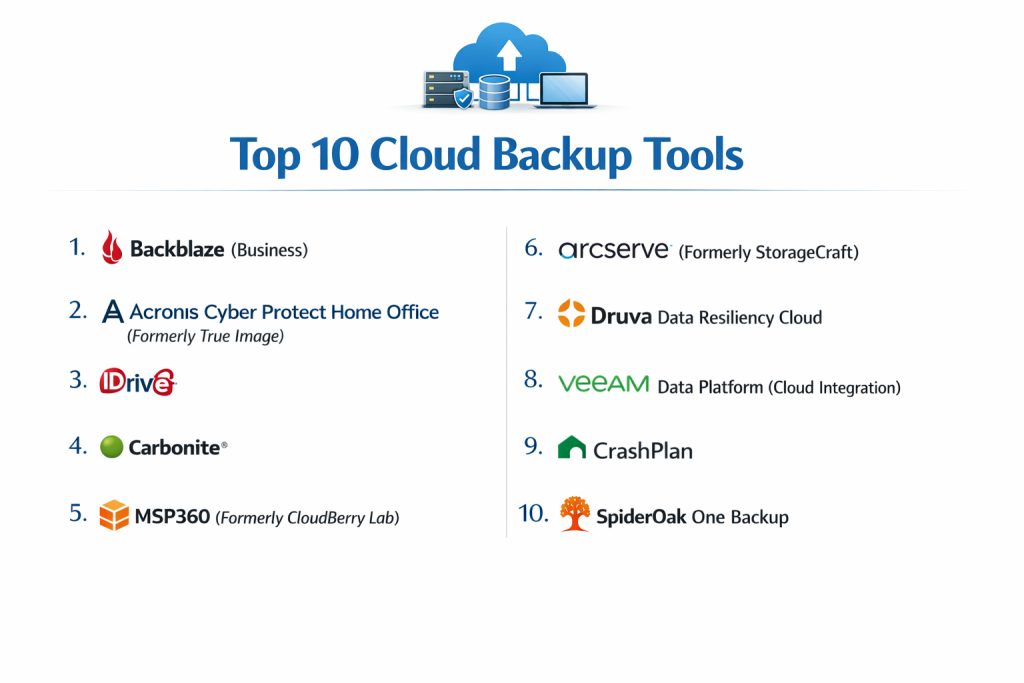
Top 10 Cloud Backup Tools
1 — Backblaze (Business)
Backblaze is widely recognized for its “uncomplicated” approach to backup, offering unlimited storage for workstations at a flat, predictable price. It is designed for businesses that want reliable protection without a complex setup.
- Key Features:
- Unlimited Workstation Backup: No caps on data size for individual computers and laptops.
- B2 Cloud Storage: An S3-compatible object storage layer for servers and developers.
- Rapid Restore: Options to download files via the web or have a physical hard drive shipped to your door.
- Silent Background Operation: Automatically throttles bandwidth to ensure it doesn’t slow down your work.
- Versioning: Keeps old versions of files for 30 days (extendable to a year or forever).
- Centrally Managed Admin Console: Easily add or remove users and monitor backup status across the fleet.
- Pros:
- The most straightforward pricing in the industry; very high “bang for your buck.”
- Extremely lightweight agent that doesn’t bog down system resources.
- Cons:
- Lacks advanced “image-based” backup for full server bare-metal recovery in the basic tier.
- Mobile app is primarily for viewing/downloading files, not backing up mobile data.
- Security & compliance: SOC 2 Type II, GDPR, HIPAA (with BAA), and AES-128 encryption. Supports Two-Factor Authentication (2FA).
- Support & community: High-quality knowledge base, responsive email support, and an active developer community for B2 integrations.
2 — Acronis Cyber Protect Home Office (Formerly True Image)
Acronis is a powerhouse that blends traditional backup with advanced artificial intelligence to stop ransomware in its tracks before it can encrypt your files.
- Key Features:
- Full Image Backup: Creates a complete replica of your operating system, settings, and apps.
- Active Protection: AI-based behavioral analysis that detects and stops ransomware.
- Universal Restore: Ability to restore your system to entirely different hardware.
- Cloud-to-Cloud Backup: Specifically protects Microsoft 365 accounts (Outlook, OneDrive).
- Vulnerability Assessment: Scans your system for security holes that hackers might exploit.
- Blockchain Notarization: Uses Acronis ASign to prove a file hasn’t been tampered with.
- Pros:
- Best-in-class security features that act as a second layer of antivirus.
- Very fast backup and recovery speeds thanks to highly optimized protocols.
- Cons:
- The interface can be overwhelming for non-technical users.
- Pricing follows a subscription model that can get expensive for multiple devices.
- Security & compliance: AES-256 encryption, GDPR, HIPAA compliance readiness, and ISO 27001.
- Support & community: 24/7 technical support (on higher tiers), extensive forums, and step-by-step video guides.
3 — IDrive
IDrive is a versatile tool that excels at “cross-platform” backup, allowing users to back up PCs, Macs, iPhones, Androids, and Servers all under a single account.
- Key Features:
- Multi-Device Backup: Protect an unlimited number of devices into one storage pool.
- IDrive Express: For large initial backups, they ship you a physical drive to seed the data.
- Snapshots and Versioning: Maintains up to 30 versions of all files backed up.
- Continuous Data Protection (CDP): Automatically detects changes to files and backs them up in real-time.
- Disk Image Backup: Can clone an entire hard drive for total system recovery.
- Face Retouch/Recognition: Specialized features for photographers and cloud photo storage.
- Pros:
- One of the few providers that backs up mobile devices (photos/contacts/calendars) directly to the cloud.
- Very competitive introductory pricing for the first year.
- Cons:
- The desktop user interface feels a bit dated and clunky.
- Upload speeds can be inconsistent depending on geographic location.
- Security & compliance: AES-256 encryption with a private key option, SOC 2, HIPAA, and GDPR.
- Support & community: 24/7 chat and phone support, comprehensive FAQ section, and active social media presence.
4 — Carbonite
Carbonite is a veteran in the space, focusing on “set-and-forget” simplicity for small businesses and home offices. It is known for its seamless integration into Windows and macOS.
- Key Features:
- Automatic Cloud Backup: Scans your folders and keeps the cloud updated without user input.
- Mirror Image Backup: Creates a local copy for quick restores while keeping a secondary copy in the cloud.
- Courier Recovery: Hard drive delivery service for users with massive data loss.
- Remote Access: Access your backed-up files from any web-connected device.
- Ransomware Recovery: Integrated tools to roll back files to a point in time before an infection.
- External Drive Backup: Included in higher-tier plans to protect secondary storage.
- Pros:
- Incredibly simple user experience; ideal for employees who aren’t “tech-savvy.”
- Excellent history of reliability and high-tier customer service.
- Cons:
- The entry-level plan does not back up video files automatically (requires manual selection).
- Initial backup can be quite slow compared to Acronis or Backblaze.
- Security & compliance: 128-bit or 256-bit AES encryption, HIPAA, GDPR, and SOC 2.
- Support & community: U.S.-based phone support, extensive webinars, and a professional services team for large deployments.
5 — MSP360 (Formerly CloudBerry Lab)
MSP360 is a unique “bring-your-own-storage” solution. It provides the management software, but allows you to store your data in AWS, Azure, or Google Cloud.
- Key Features:
- Storage Independence: Connect to over 20 different cloud storage providers.
- Image-Based Backup: Full system snapshots for Windows and Linux servers.
- Deduplication and Compression: Shrinks data size before it leaves your network to save costs.
- SQL and Exchange Support: Specialized modules for backing up critical business databases.
- Centralized Monitoring: A web-based dashboard to manage thousands of endpoints globally.
- G-Suite/M365 Backup: Direct cloud-to-cloud protection for productivity suites.
- Pros:
- Unrivaled flexibility; you only pay for the software and whatever your storage provider charges.
- The most powerful option for IT professionals and Managed Service Providers.
- Cons:
- Not a “turnkey” solution; requires technical knowledge to set up storage buckets and API keys.
- Support is primarily focused on the software, not the storage destination.
- Security & compliance: FIPS 140-2, AES-256 encryption, HIPAA, GDPR, and ISO 27001.
- Support & community: Active forums, Slack community, and a very detailed technical documentation library.
6 — Druva Data Resiliency Cloud
Druva is a 100% SaaS backup solution built on AWS. It is designed for modern enterprises that want to eliminate on-premise hardware entirely.
- Key Features:
- Serverless Architecture: No hardware to install, maintain, or upgrade.
- Global Deduplication: Removes duplicate data across the entire organization, not just one machine.
- E-Discovery and Legal Hold: Advanced tools for finding and preserving data for legal reasons.
- Disaster Recovery as a Service (DRaaS): Can spin up your servers in the cloud during a local outage.
- Air-Gapped Backups: Keeps data isolated to ensure it can’t be deleted by ransomware.
- Compliance Monitoring: Automatically flags PII (Personally Identifiable Information) violations.
- Pros:
- Scales infinitely; perfect for high-growth tech companies.
- Provides a very high level of data governance and security “out of the box.”
- Cons:
- Pricing is enterprise-tier and may be prohibitive for small businesses.
- Learning curve is steep for admins who are used to traditional backup tools.
- Security & compliance: FedRAMP authorized, SOC 2, HIPAA, GDPR, and FIPS 140-2.
- Support & community: 24/7 global enterprise support, dedicated account managers, and specialized training programs.
7 — Veeam Data Platform (Cloud Integration)
Veeam is the “gold standard” for virtualized environments (VMware/Hyper-V). While traditionally on-prem, its cloud integration allows for seamless off-site replication.
- Key Features:
- Cloud Connect: Easily send backups to a service provider’s cloud or your own S3 bucket.
- SureBackup: Automatically boots your backup in a sandbox to verify it actually works.
- Instant Recovery: Get a failed VM back online in minutes by running it directly from the backup file.
- Immutable Storage: Prevents data deletion even by an admin for a set period.
- Granular Recovery: Restore individual emails, files, or database rows without a full system restore.
- Veeam ONE: Advanced monitoring and reporting for your entire data ecosystem.
- Pros:
- The most powerful and reliable tool for complex server environments.
- Exceptional flexibility in terms of recovery options (restore anywhere).
- Cons:
- Very complex to configure; usually requires a certified Veeam engineer.
- Hardware-heavy; requires a local server to run the management software.
- Security & compliance: ISO 27001, SOC 2, GDPR, HIPAA, and Common Criteria certification.
- Support & community: Massive global user group (VUG), world-class technical support, and extensive certifications.
8 — CrashPlan
CrashPlan specializes in small business backup with a focus on high-frequency, continuous protection for laptops and desktops.
- Key Features:
- Continuous Data Protection: Backs up new versions of files as often as every 15 minutes.
- Unlimited Storage: No limits on the amount of data you can protect.
- External Drive Support: Can back up drives attached via USB or Thunderbolt.
- Smart Throttling: Detects when you are using your computer and slows down the backup.
- Detailed Reporting: Sends daily or weekly emails summarizing your backup health.
- Custom Retention: Choose exactly how long to keep deleted files in the cloud.
- Pros:
- Excellent at handling “versioning”—you can go back to almost any point in time.
- Very affordable flat-rate monthly pricing per computer.
- Cons:
- No longer offers a home version; strictly focused on business accounts.
- Does not offer full image/bare-metal restore; primarily file and folder focused.
- Security & compliance: AES-256 encryption, HIPAA (with BAA), GDPR, and SOC 2.
- Support & community: Responsive ticket-based support, detailed documentation, and a helpful user forum.
9 — SpiderOak One Backup
SpiderOak is the tool of choice for the privacy-conscious, offering a “No-Knowledge” environment where not even the company can see your data.
- Key Features:
- End-to-End Encryption: Data is encrypted before it ever leaves your computer.
- No-Knowledge Policy: SpiderOak has no access to your plaintext data or password.
- Point-in-Time Recovery: Roll back your entire folder system to a state before a virus attack.
- Cross-Platform Sync: Sync files between different computers while maintaining the backup.
- Share Rooms: Securely share files with others through temporary, encrypted links.
- Command Line Interface: Advanced features for developers and Linux enthusiasts.
- Pros:
- Unbeatable privacy; even if SpiderOak is subpoenaed, they have no data to give.
- Very strong integrity checks to ensure no data corruption occurs.
- Cons:
- If you lose your password, your data is lost forever (no “forgot password” reset).
- Higher cost per gigabyte compared to “unlimited” providers like Backblaze.
- Security & compliance: “No-Knowledge” architecture, AES-256, GDPR, and HIPAA readiness.
- Support & community: Email support and a very deep library of technical security articles.
10 — Arcserve (Formerly StorageCraft)
Arcserve is a legendary name in disaster recovery, offering high-fidelity cloud backup for organizations that cannot afford a single minute of downtime.
- Key Features:
- ShadowProtect Technology: Sector-level backups for the most reliable system images.
- VirtualBoot: Instantly boot a backup as a virtual machine on a local PC or in the cloud.
- Cloud Premium: Provides full disaster recovery orchestration in the Arcserve cloud.
- Policy-Based Management: Set one rule for a thousand machines and forget it.
- Consolidated Reporting: Real-time visibility into the health of all global backups.
- Advanced Retention: Patented technology to collapse old incremental backups into daily/weekly rolls.
- Pros:
- The best tool for “Zero Downtime” requirements; recovery is almost instant.
- Extremely reliable for Windows Server and specialized database environments.
- Cons:
- High cost and complex licensing.
- Requires a significant amount of local storage for the primary backup staging.
- Security & compliance: ISO 27001, SOC 2, HIPAA, GDPR, and FIPS-compliant encryption.
- Support & community: Professional 24/7 emergency support and a global partner network.
Comparison Table
| Tool Name | Best For | Platform(s) Supported | Standout Feature | Rating (Gartner) |
| Backblaze | Simple Workstation | Win, Mac | Unlimited Data / Flat Price | 4.6 / 5 |
| Acronis | Security-Conscious | Win, Mac, M365 | AI Ransomware Defense | 4.4 / 5 |
| IDrive | Multi-Device Users | Win, Mac, iOS, Android | Mobile & PC Integration | 4.2 / 5 |
| Carbonite | Small Office (SMB) | Win, Mac | “Set-and-Forget” Ease | 4.0 / 5 |
| MSP360 | IT Power Users | Win, Mac, Linux | Storage Provider Choice | 4.5 / 5 |
| Druva | Modern Enterprise | Cloud-Native / SaaS | Global Deduplication | 4.8 / 5 |
| Veeam | Virtualized Servers | Win, Linux, VMware | SureBackup Verification | 4.7 / 5 |
| CrashPlan | Frequent Versioning | Win, Mac, Linux | 15-Min Continuous Backup | 4.3 / 5 |
| SpiderOak | Extreme Privacy | Win, Mac, Linux | No-Knowledge Encryption | 4.1 / 5 |
| Arcserve | Disaster Recovery | Win, Linux, Virtual | VirtualBoot Recovery | 4.4 / 5 |
Evaluation & Scoring of Cloud Backup Tools
To determine the rankings, we evaluated these tools across seven critical dimensions. The weightings reflect what matters most to the modern buyer: security, reliability, and value.
| Category | Weight | Evaluation Criteria |
| Core Features | 25% | Versioning, automation, full-image vs. file-level, and recovery speed. |
| Ease of Use | 15% | Setup time, UI modernity, and silent/background performance. |
| Integrations | 15% | Support for M365, Google Workspace, and various OS types. |
| Security & Compliance | 10% | Encryption levels, 2FA, SOC2, HIPAA, and private key options. |
| Performance | 10% | Bandwidth efficiency, CPU impact, and upload/download speeds. |
| Support & Community | 10% | 24/7 availability, documentation depth, and user forums. |
| Price / Value | 15% | Cost per device/TB, unlimited plans, and free tier availability. |
Which Cloud Backup Tool Is Right for You?
Choosing a backup tool is a highly personal decision based on your technical comfort and your risk profile.
Solo Users vs. SMB vs. Mid-Market vs. Enterprise
- Solo/Freelancers: Backblaze is the king of simplicity. If you just want your laptop safe, start here.
- Small Businesses (SMB): IDrive or Carbonite are excellent for protecting a small office’s mix of devices and mobile phones.
- Mid-Market: MSP360 or CrashPlan provide the control and reporting needed for teams of 50–500.
- Enterprise: Druva or Veeam are the standard. They handle the scale and compliance needs of massive data footprints.
Budget-Conscious vs. Premium Solutions
- On a Budget: Backblaze and IDrive offer the best introductory deals and unlimited data options.
- Premium: Acronis and Arcserve are premium because they include integrated security and instant-recovery hardware.
Feature Depth vs. Ease of Use
If you want to configure every detail, choose Veeam or MSP360. If you want to install it and never look at it again, choose Backblaze or Carbonite.
Security and Compliance Requirements
If you are in Healthcare (HIPAA) or Government, ensure you choose a provider that will sign a Business Associate Agreement (BAA). Druva, Backblaze, and Acronis are top choices for these regulated sectors.
Frequently Asked Questions (FAQs)
1. Is cloud storage (like Dropbox/Google Drive) the same as cloud backup?
No. Cloud storage is for syncing and collaboration. If you delete a file on your computer, it usually deletes in the cloud. Cloud backup is a one-way archive that keeps versions and history even after you delete the local file.
2. How long does the first backup take?
The first “seed” backup can take several days or even weeks depending on your data size and upload speed. Most tools offer an “Express” service where they ship you a physical drive to speed this up.
3. Will cloud backup slow down my internet?
Most modern tools use “Smart Throttling.” They only back up when you aren’t using the web or allow you to set a schedule (e.g., only back up at night).
4. What happens if the backup company gets hacked?
This is why “Private Encryption Keys” (PEK) are important. If you choose a tool like SpiderOak or IDrive with a private key, even if the company is hacked, the hackers cannot read your files.
5. Do I still need an external hard drive if I have cloud backup?
The “3-2-1 Rule” is best practice: 3 copies of data, on 2 different media (local drive + cloud), with 1 copy off-site (cloud). Having both is the safest path.
6. Can I back up my phone to the cloud?
Yes, but only certain tools like IDrive and Acronis support mobile backup. Most others only support PC, Mac, and Linux.
7. Is cloud backup safe for HIPAA compliance?
Yes, provided the vendor offers AES-256 encryption and is willing to sign a BAA. Always verify this with the vendor’s legal department before uploading patient data.
8. What is “Versioning”?
Versioning allows you to see a file as it was yesterday, last week, or last month. This is the ultimate cure for ransomware; you simply roll back to a version from before the attack.
9. Can I back up my Microsoft 365 / Google Workspace?
Yes. Modern tools like Acronis, Druva, and Veeam offer “Cloud-to-Cloud” backup, protecting your emails and cloud docs independently of Microsoft or Google.
10. What is the most common mistake in cloud backup?
Thinking it is working when it isn’t. The biggest mistake is not checking your “Backup Health” reports. Always ensure your tool is sending you success notifications.
Conclusion
The “best” cloud backup tool is ultimately the one you will actually use. A feature-rich tool like Veeam is worthless if it’s too complex to set up, and a simple tool like Backblaze might be insufficient for a massive database server.
If you are a business owner, prioritize security and reliability over price. The cost of a few dollars a month is nothing compared to the catastrophic cost of losing your client records. If you are a home user, prioritize unlimited storage and ease of use.