Introduction
Classroom management software is a specialized category of digital tools designed to help teachers supervise student activity, encourage positive behavior, and streamline the distribution of learning materials. In a modern educational setting where every student often has a laptop or tablet, these tools act as a “digital lens” for the teacher. Instead of walking around the room to see every screen, a teacher can monitor progress, block distracting websites, and share their own screen with the entire class from a single dashboard. This technology bridges the gap between traditional teaching and the digital world, ensuring that technology remains a tool for learning rather than a source of distraction.
The importance of these systems lies in their ability to reclaim instructional time. When a teacher can instantly “blank” all student screens to get everyone’s attention or push a specific website link to every device at once, the transition between activities becomes seamless. Beyond just monitoring, these tools often include features for gamification, digital “hand-raising,” and private messaging, which helps shy students ask for help without feeling embarrassed. By creating a controlled and interactive digital environment, schools can ensure that their investment in hardware actually leads to better grades and more engaged students.
Key Real-World Use Cases
- Screen Monitoring and Control: Teachers can see thumbnails of all student screens in real-time to ensure everyone is staying on task during a research project.
- Web Filtering and Whitelisting: During a test, a teacher can restrict internet access so that students can only visit the specific exam website and nothing else.
- Instant Communication: A student who is struggling can send a private “help request” to the teacher’s screen, allowing for discreet support.
- Digital Resource Sharing: Instead of writing long URLs on a chalkboard, the teacher can “push” a document or website directly to every student’s browser.
- Behavior Tracking: Many tools allow teachers to award “points” for participation or focus, which can be shared with parents to show a child’s daily progress.
What to Look For (Evaluation Criteria)
Choosing the right software requires looking past the flashy buttons to see how it works in a busy classroom. Key criteria include:
- Cross-Platform Compatibility: Does it work if some students have iPads while others have Chromebooks or Windows laptops?
- Ease of Deployment: Can the IT department install it across the whole school quickly, or does every device need manual setup?
- Real-Time Speed: Is there a delay between what the student does and what the teacher sees? In a classroom, every second counts.
- Granular Controls: Can the teacher control the whole class at once, or focus on just a small group or an individual student?
- Data Privacy: Since the software monitors what children are doing, it must have the highest levels of encryption and legal protection.
Best for:
- K-12 Teachers: Educators who need to keep students focused during digital lessons.
- School IT Administrators: Those responsible for managing thousands of devices and ensuring they are being used for educational purposes.
- Computer Lab Instructors: Teachers in specialized environments like coding or graphic design labs who need to demonstrate complex tasks on student screens.
Not ideal for:
- University Professors: High-level lecture halls usually don’t require “screen locking,” as college students are responsible for their own focus.
- Home Schooling Parents: Most of these tools are designed for “groups.” A single child at home can usually be supervised without expensive software.
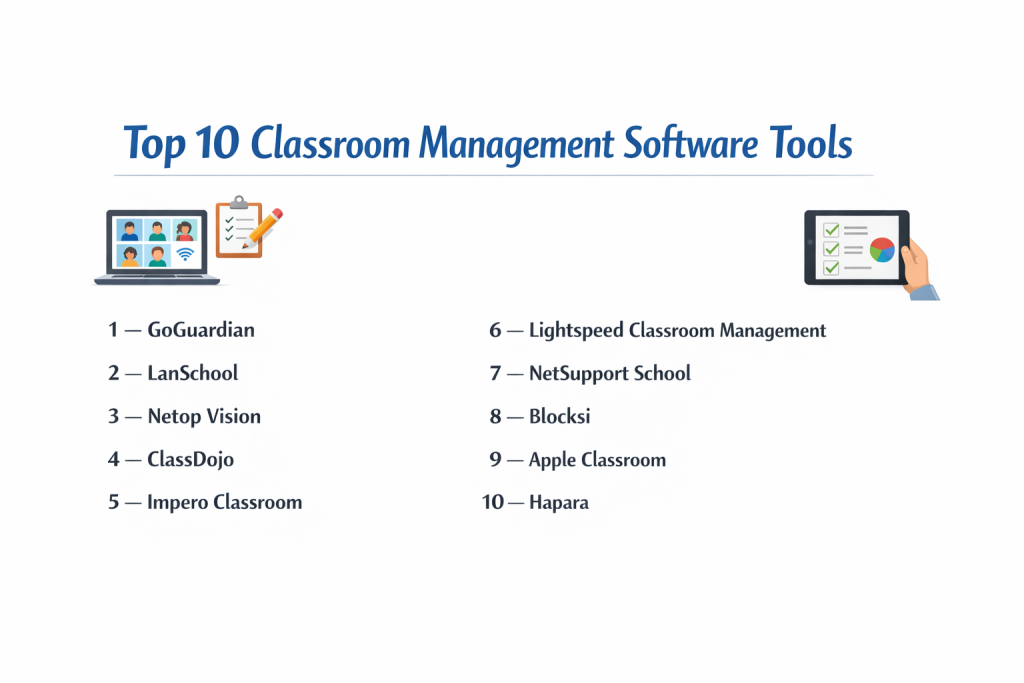
Top 10 Classroom Management Software Tools
1 — GoGuardian
GoGuardian is a powerhouse in the K-12 space, particularly for schools using Chromebooks. It provides a very deep look into student activity and helps schools keep their digital environments safe and productive.
- Key features:
- Live screen monitoring with high-definition thumbnails.
- “Scenes” which allow teachers to set specific web filters for different class periods.
- Tab control, allowing teachers to remotely close distracting tabs on a student’s device.
- Student-to-teacher chat for private questions and feedback.
- Integration with Google Classroom for easy roster syncing.
- Smart alerts that flag “at-risk” behavior or self-harm searches.
- Pros:
- Extremely reliable on Chromebooks, which are the most common school devices.
- The “Scenes” feature is a massive time-saver for lesson planning.
- Cons:
- Can be more expensive than basic filtering tools.
- Some features are limited when used on non-Chrome browsers.
- Security & compliance: SOC 2 Type 2, FERPA, COPPA, and CSPC (Student Privacy Pledge) compliant.
- Support & community: Extensive video library, a dedicated “GoGuardian Academy” for certification, and 24/7 technical support.
2 — LanSchool
As one of the oldest names in the industry, LanSchool has evolved into a modern, cloud-based platform that works across almost every type of device a school might own.
- Key features:
- Thumbnail and full-screen monitoring for all student devices.
- “Blank Screen” feature to pull all attention back to the teacher.
- Web limiting and application blocking to prevent gaming or social media.
- Battery status monitoring to see which student laptops might die soon.
- Push-to-talk and screen sharing for classroom demonstrations.
- Snapshot feature to capture a student’s screen as evidence of work (or distraction).
- Pros:
- Works seamlessly across Windows, Mac, Chrome, and iOS.
- Very low impact on the school’s network speed.
- Cons:
- The interface is functional but feels a bit “clinical” and less modern than others.
- Cloud and local versions have slightly different feature sets which can be confusing.
- Security & compliance: GDPR and FERPA compliant; uses secure tunneling for off-site monitoring.
- Support & community: Strong documentation and a long-standing user base with regional training events.
3 — Netop Vision
Netop Vision is focused on “making teaching visible.” It is designed to be so simple that a teacher can use it without any technical training, focusing on the most essential classroom tasks.
- Key features:
- One-click screen sharing to show the teacher’s screen to students.
- Simple web filters that can be turned on or off instantly.
- “Attention” button that freezes student keyboards and mice.
- Remote login and logout for managing lab computers.
- Chat and file-sharing capabilities.
- Student showcase, allowing a teacher to share one student’s work with the rest of the class.
- Pros:
- One of the easiest user interfaces to learn; very “point and click.”
- Excellent for computer labs where physical movement is restricted.
- Cons:
- Doesn’t have as many “behavior tracking” or “gamification” features.
- The reporting for administrators is not as deep as GoGuardian.
- Security & compliance: Uses 256-bit AES encryption and is fully HIPAA and FERPA compliant.
- Support & community: Extensive “How-To” guides and a responsive global support team.
4 — ClassDojo
ClassDojo is unique because it focuses on “culture” and “behavior” rather than “screen monitoring.” It is a favorite for elementary schools to build a positive community.
- Key features:
- Point-based reward system for student behavior (e.g., “Helping others,” “Staying on task”).
- “Class Story” where teachers share photos and videos with parents.
- Student portfolios for digital work submissions.
- Direct messaging for parents with automatic translation in 35+ languages.
- Noise meter and music player for classroom environment management.
- “Big Ideas” video series for social-emotional learning.
- Pros:
- Increases parent engagement more than any other tool on this list.
- Completely free for individual teachers and classrooms.
- Cons:
- Does NOT monitor screens or block websites; it is a communication tool.
- Less useful for older students in high school.
- Security & compliance: COPPA and FERPA compliant; certified by Privacy i-KeepSafe.
- Support & community: Massive global community of teachers; thousands of shared resources online.
5 — Impero Classroom
Impero is designed for the complex needs of modern schools, combining classroom management with “safety” and “device management” in one package.
- Key features:
- Live view of all screens across different locations (great for remote learning).
- Keyword monitoring that alerts teachers to bullying or concerning language.
- Ability to remotely launch websites or applications on all devices.
- Centralized power management to turn off all lab computers at night.
- Inventory tracking for school hardware.
- Student messaging and digital hand-raising.
- Pros:
- A “one-stop-shop” for both IT managers and classroom teachers.
- The “wellbeing” alerts are very sophisticated and help protect students.
- Cons:
- Because it does so much, the setup can be quite technical.
- The mobile app for teachers is not as feature-rich as the desktop version.
- Security & compliance: ISO 27001 certified and GDPR compliant.
- Support & community: Offers “Impero University” training and high-level enterprise support contracts.
6 — Lightspeed Classroom Management
Lightspeed is built to work with the natural flow of a classroom, giving teachers the power to guide students without being “policemen.”
- Key features:
- Real-time visibility into student browser tabs.
- AI-powered “insights” that group students based on what they are doing.
- Ability to “push” URLs and record student screens for later review.
- Shared screen mode for collaborative learning.
- Customized web-rule sets for different grade levels.
- Integration with SIS (Student Information Systems) for easy roster management.
- Pros:
- The AI grouping helps teachers identify who is struggling vs. who is ahead.
- Very strong performance on large-scale school networks.
- Cons:
- The interface can feel a bit “data-heavy” for some teachers.
- Primary focus is on web-based activity; less control over offline apps.
- Security & compliance: Privacy Shield certified and FERPA/COPPA compliant.
- Support & community: Robust documentation and active webinars for staff development.
7 — NetSupport School
NetSupport School is a “feature-heavy” solution that provides an incredible amount of control, specifically for schools with dedicated computer labs.
- Key features:
- Interactive whiteboard and polling tools built-in.
- Printer management (stop students from wasting paper).
- “Messenger” for sending silent alerts to the whole class.
- Testing and quiz creator that grades itself instantly.
- Ability to monitor audio (see if a student is listening to music).
- Technician console for fixing student computers remotely.
- Pros:
- The most feature-rich tool for traditional computer lab settings.
- Does not require an internet connection if used on a local network.
- Cons:
- The interface is very “busy” and can take time to master.
- Less optimized for “iPad-only” environments compared to others.
- Security & compliance: Varies by version; supports local encryption and active directory integration.
- Support & community: Decades of experience with a very deep library of technical manuals.
8 — Blocksi
Blocksi is a cloud-based solution that is very popular for Chromebook environments, focusing on simplicity and “anywhere” management.
- Key features:
- Classroom screen monitoring and web filtering.
- Anti-theft and geo-location for school-issued devices.
- Headless “Teacher Dashboard” that works from any browser.
- Parent dashboard so parents can see activity after school hours.
- YouTube filtering (block specific categories but allow educational videos).
- Detailed “Time on Task” reports for every student.
- Pros:
- The “Parent Dashboard” creates a bridge between school and home.
- Very fast to set up via the Google Admin console.
- Cons:
- Most features are strictly tied to the Chrome ecosystem.
- The filtering can occasionally be “too aggressive,” blocking good sites.
- Security & compliance: COPPA, FERPA, and GDPR compliant; uses G-Suite security protocols.
- Support & community: Good email support and a growing YouTube tutorial channel.
9 — Apple Classroom
For schools that are 100% committed to iPads and Macs, Apple Classroom is the built-in, elegant solution for managing a classroom.
- Key features:
- Launch an app, book, or website on every student iPad simultaneously.
- “Screen View” to see exactly what a student is seeing.
- Shared iPad support (multiple students using one device with different logins).
- Mute student devices if they are making too much noise.
- AirDrop files to the whole class with one tap.
- Password reset for student Managed Apple IDs.
- Pros:
- Completely free if you own Apple devices.
- The most “beautiful” and intuitive interface on the list.
- Cons:
- Only works on Apple devices. Zero support for Windows or Chromebooks.
- Requires a specific “Apple School Manager” setup by the IT team.
- Security & compliance: Built on Apple’s strict hardware-level privacy and security standards.
- Support & community: Support provided through Apple Education and local Apple Stores.
10 — Hapara
Hapara is often called the “Teacher Dashboard” for Google. It organizes a student’s entire digital life into a format that makes sense for an educator.
- Key features:
- “Highlights” feature for live screen monitoring and tab tracking.
- “Workspace” for creating and distributing digital assignments.
- Direct access to student Google Drive folders without needing shared links.
- Smart “Filter” that shows who hasn’t opened an assignment yet.
- Ethical monitoring that encourages student digital citizenship.
- Peer-to-peer sharing and collaboration tools.
- Pros:
- The best tool for managing “Google Drive clutter.”
- Focuses on “helping” students learn rather than “catching” them doing wrong.
- Cons:
- Relies entirely on the Google ecosystem.
- The “Workspace” feature has a bit of a learning curve for teachers.
- Security & compliance: Google Cloud Partner; fully compliant with all major student privacy laws.
- Support & community: Very active “Hapara Champion” community and excellent training webinars.
Comparison Table
| Tool Name | Best For | Platform(s) Supported | Standout Feature | Rating |
| GoGuardian | Chromebook Schools | ChromeOS, Windows | “Scenes” Filtering | N/A |
| LanSchool | Mixed-Device Rooms | Windows, Mac, iOS, Chrome | Cross-Platform Stability | N/A |
| Netop Vision | Simplicity / Labs | Windows, Mac, Chrome | One-Click Screen Share | N/A |
| ClassDojo | Elementary / Behavior | Web, iOS, Android | Parent Communication | N/A |
| Impero | Safety & Monitoring | Windows, Mac, Chrome, iOS | Wellbeing/Bullying Alerts | N/A |
| Lightspeed | Large Scale / AI | Web, Chrome, Windows | AI Student Grouping | N/A |
| NetSupport School | Computer Labs | Windows, Mac, Chrome | Printer & Audio Control | N/A |
| Blocksi | Chrome / Parent Sync | ChromeOS | Parent Dashboard | N/A |
| Apple Classroom | iPad-Only Schools | iOS, iPadOS, macOS | Native System Integration | N/A |
| Hapara | Google Ecosystem | ChromeOS, Web | Drive Folder Organization | N/A |
Evaluation & Scoring of Classroom Management Software
| Criteria | Weight | Score (1-10) | Explanation |
| Core Features | 25% | 9 | Most top tools provide excellent monitoring and filtering. |
| Ease of Use | 15% | 8 | Modern cloud tools are much easier than old “server” versions. |
| Integrations | 15% | 9 | Connectivity with Google and Microsoft is now exceptional. |
| Security | 10% | 10 | High standards are mandatory due to strict student privacy laws. |
| Performance | 10% | 8 | Real-time speeds have improved greatly with better school Wi-Fi. |
| Support | 10% | 8 | Most offer deep libraries, though phone support can vary. |
| Price / Value | 15% | 7 | Can be expensive, but often bundled with other safety tools. |
Which Classroom Management Software Tool Is Right for You?
Solo Users vs SMB vs Mid-Market vs Enterprise
If you are an individual teacher at a school that doesn’t provide software, ClassDojo (for behavior) or the free version of Apple Classroom (if you have iPads) are great starting points. Small schools often prefer Gradelink or Netop for their simplicity. Large “Enterprise” school districts need the heavy data processing power of GoGuardian, Lightspeed, or Impero, which can handle 50,000+ devices simultaneously.
Budget-Conscious vs Premium Solutions
For those with no budget, Apple Classroom and ClassDojo are the clear winners. If you have a moderate budget, Blocksi and LanSchool offer great “middle-ground” pricing. Premium solutions like GoGuardian and Impero cost more but provide advanced AI alerts and safety features that cheaper tools lack.
Feature Depth vs Ease of Use
If your teachers are “tech-phobic,” Netop Vision or Alma are the best choices because they don’t have a million confusing buttons. If your school is tech-forward and you want to do advanced testing, polling, and “digital citizenship” training, NetSupport School or Hapara offer the depth you need, even if they take a week or two to learn.
Integration and Scalability Needs
You must choose a tool that matches your “Ecosystem.” If you use Google Workspace, Hapara or GoGuardian are built specifically for you. If you are a Microsoft school using Teams and Windows laptops, LanSchool or NetSupport will feel more natural. Scalability is also key; ensure the tool doesn’t slow down your school’s internet when 30 teachers all turn on “Live View” at 9:00 AM.
Security and Compliance Requirements
Every tool on this list is professional and secure. However, if your school has specific “Wellbeing” requirements (like monitoring for keywords related to self-harm or bullying), Impero and GoGuardian provide a layer of safety that simple “screen monitoring” tools do not.
Frequently Asked Questions (FAQs)
Will this software slow down my students’ computers?
Most modern classroom tools are “lightweight,” meaning they use very little memory. However, if your school’s Wi-Fi is weak, seeing 30 live screens at once can slow down the network.
Can teachers see what students are doing at home?
This depends on the settings. Some schools allow monitoring 24/7 on school-issued devices, while others only allow the teacher to see screens during school hours.
Do students know they are being monitored?
Usually, yes. Best practices suggest that teachers should be honest with students. Some tools even show a small icon on the student’s screen when the teacher is viewing it.
Can I block social media but keep YouTube open?
Yes. These tools allow “granular” filtering. You can block Facebook and Instagram but allow specific educational YouTube channels or videos.
Does this work if students are using their own personal laptops?
It is much harder to manage “Bring Your Own Device” (BYOD) laptops. Usually, students have to install a special “extension” or “app” for the teacher to see their screen.
What is the “Attention” or “Blank Screen” feature?
This is a button that essentially “locks” the student’s screen and displays a message like “Eyes on me.” It stops all keyboard and mouse movement.
Can teachers read students’ private emails?
Most tools monitor web activity but do not necessarily log into private accounts. However, if a student is writing an email during class, a teacher using “Live View” will see it.
How do I get the rosters of my students into the software?
Most tools sync automatically with Google Classroom, Microsoft Teams, or your school’s main database (SIS), so you don’t have to type in names manually.
Is there a free version for teachers?
ClassDojo and Apple Classroom are free. Others like LanSchool or Netop often offer a free trial, but require a paid license for long-term use.
What is the biggest mistake schools make when buying this software?
Buying a tool that only works on one platform (like Chromebooks) and then realizing next year that they want to buy iPads. Always plan for a “mixed-device” future.
Conclusion
Choosing the right classroom management software is about finding the balance between “Control” and “Connection.” The goal isn’t to be a “big brother” watching every move, but to be a guide who ensures that technology helps children learn rather than distracts them from their potential. Whether you need a simple tool to share screens in a computer lab or a high-tech AI system to protect student wellbeing, there is an option that fits your school’s culture.
The most important thing to remember is that technology should support the teacher, not replace them. The “best” tool is the one that fades into the background, allowing the teacher to focus on the students while the software quietly handles the distractions. Before making a final decision, involve your teachers in the testing phase—their feedback is the most valuable data you will ever find.