Introduction
Browser Extensions are small software modules or “add-ons” that integrate directly into your web browser to customize your internet experience. Think of them as specialized tools in a Swiss Army knife; while your browser (like Chrome, Firefox, or Safari) provides the basic platform, extensions add specific capabilities that the browser doesn’t have by default. These tools range from grammar checkers and password managers to ad blockers and developer utilities, allowing users to build a personalized workspace tailored to their specific needs.
The importance of browser extensions lies in their ability to bridge the gap between a standard web browser and a professional-grade productivity suite. They allow users to automate repetitive tasks, enhance digital security, and improve focus without ever leaving the page they are viewing. By extending the functionality of the browser, these tools save time, reduce the need for switching between different applications, and often provide critical layers of protection against online threats.
Key Real-World Use Cases
- Professional Writing: Using grammar and style extensions to ensure emails and reports are polished and error-free in real-time.
- Cybersecurity: Managing complex passwords or blocking malicious tracking scripts to protect personal and corporate data.
- Research & Organization: Clipping web articles, taking notes, and saving references directly to a cloud-based knowledge base.
- E-commerce & Saving: Automatically finding and applying coupon codes or comparing prices across different retailers during checkout.
What to Look For (Evaluation Criteria)
When evaluating which extensions to install, users should prioritize resource impact, as too many extensions can slow down your computer’s memory. Privacy and permissions are also vital; an extension should only ask for the data it absolutely needs to function. Additionally, consider the frequency of updates and the reputation of the developer, as outdated extensions can become security vulnerabilities.
Best for:
- Remote Workers and Freelancers: Who need to stay organized and productive across various web platforms.
- Digital Marketers and Researchers: Who require specialized tools for SEO, data scraping, and content curation.
- Security-Conscious Users: Who want to add extra layers of encryption and privacy to their browsing habits.
Not ideal for:
- Highly Restricted Corporate Environments: Where IT policies may block third-party add-ons to prevent data leaks.
- Users on Older Hardware: Since running multiple heavy extensions can significantly degrade system performance.
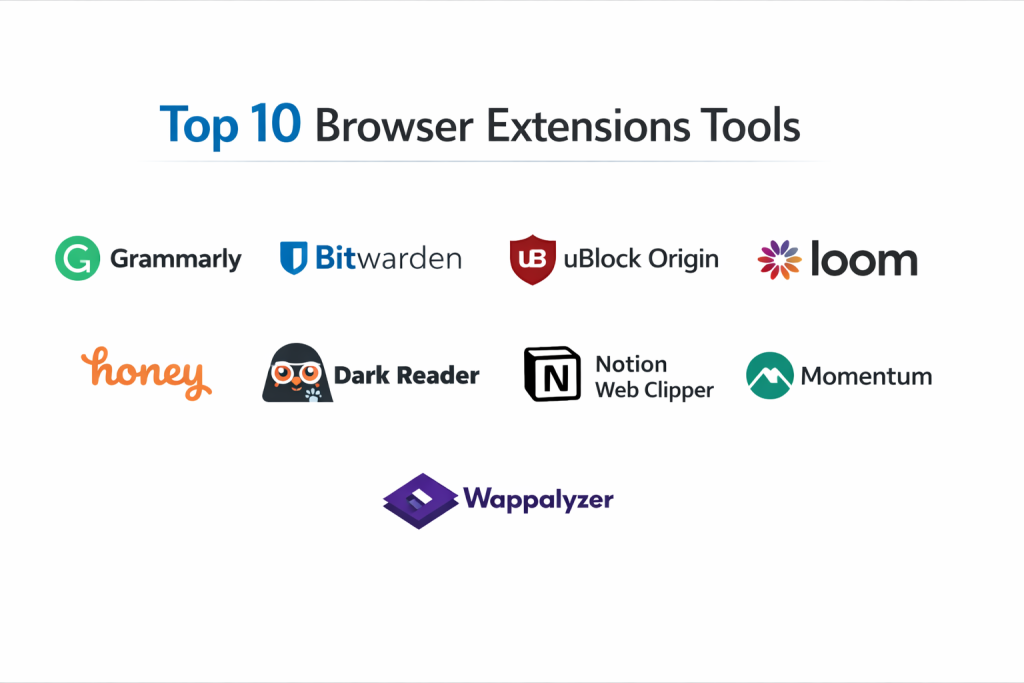
Top 10 Browser Extensions Tools
1 — Grammarly
Grammarly is an AI-powered writing assistant that goes beyond simple spell-check. It acts as a real-time editor that follows you across almost every website, from Gmail to LinkedIn, ensuring your communication is clear and professional.
- Key features:
- Real-time spelling, grammar, and punctuation correction.
- Tone detection to see how your message sounds to readers.
- Plagiarism detection against billions of web pages.
- Vocabulary enhancement suggestions for more impactful writing.
- Style and clarity adjustments tailored to specific audiences.
- Cross-platform synchronization across desktop and mobile.
- Pros:
- Extremely intuitive interface that highlights errors without being intrusive.
- Highly accurate suggestions that improve writing habits over time.
- Cons:
- The free version is quite basic; the best features are behind a premium wall.
- Can occasionally struggle with specialized technical jargon.
- Security & compliance: SOC 2 Type II, HIPAA compliant (Enterprise), GDPR, and CCPA.
- Support & community: Extensive knowledge base, email support, and a very active blog for writing tips.
2 — Bitwarden
Bitwarden is an open-source password management extension that helps users store, secure, and sync sensitive login information. It is widely respected for its transparency and robust security model.
- Key features:
- Unlimited password storage across all devices.
- Secure password generator for creating complex credentials.
- End-to-end AES-256 bit encryption.
- Two-factor authentication (2FA) support.
- Secure note and credit card storage.
- Self-hosting options for advanced users and enterprises.
- Pros:
- The most generous free tier among all major password managers.
- Being open-source allows for constant security audits by the community.
- Cons:
- The user interface is functional but not as “sleek” as some competitors.
- Setup for enterprise features can be slightly technical.
- Security & compliance: ISO 27001, SOC 2 Type II, GDPR, and HIPAA.
- Support & community: Strong community forum, detailed documentation, and 24/7 support for paid tiers.
3 — uBlock Origin
uBlock Origin is a wide-spectrum content blocker that is light on system resources. Unlike many other ad blockers, it focuses on efficiency and giving the user total control over what is loaded on a webpage.
- Key features:
- Blocks ads, trackers, and malware-distributing domains.
- Element zapper to manually remove annoying parts of a website.
- Custom filter lists for advanced users.
- Low memory and CPU footprint compared to other blockers.
- Protection against “pop-under” ads and site redirects.
- Privacy-oriented “no-script” capabilities.
- Pros:
- Significantly speeds up page loading times by preventing heavy ads from loading.
- Totally free and open-source with no “acceptable ads” program.
- Cons:
- Can occasionally “break” a website’s functionality if filtering is too aggressive.
- Requires a bit of a learning curve for custom filtering.
- Security & compliance: Varies / N/A (Focuses on user-side privacy).
- Support & community: Massive community on GitHub and Reddit; highly documented by volunteer contributors.
4 — Loom
Loom is a video messaging extension that allows users to record their screen, camera, and microphone simultaneously. It is designed to replace long emails with quick, digestible video snippets.
- Key features:
- Instant screen and cam recording directly from the browser tab.
- Cloud-based hosting with instant link sharing.
- Drawing tools to highlight areas of the screen during recording.
- Automatic transcriptions and closed captioning.
- Viewer insights to see who watched your video and for how long.
- Emoji reactions and comments for interactive feedback.
- Pros:
- Drastically reduces the need for synchronous meetings.
- Video processing is extremely fast; links are ready to share immediately.
- Cons:
- The free tier has a time limit per video (usually 5 minutes).
- Requires a stable internet connection for real-time cloud uploading.
- Security & compliance: SOC 2 Type II and GDPR compliant.
- Support & community: Dedicated help center, video tutorials, and priority support for Business users.
5 — Pocket
Pocket is a “save-for-later” extension that allows users to capture articles, videos, and stories from any publication. It creates a personalized, distraction-free reading list that can be accessed offline.
- Key features:
- One-click saving of any web link.
- Tags for easy organization and categorization of content.
- Distraction-free reading mode that removes ads and sidebars.
- Text-to-speech functionality to listen to articles like a podcast.
- Cross-device syncing with mobile apps.
- Personalized content recommendations based on saved interests.
- Pros:
- Excellent for building a personal knowledge library over time.
- Reading mode is very easy on the eyes and customizable.
- Cons:
- The search functionality is limited in the free version.
- Some complex web layouts don’t translate perfectly to reading mode.
- Security & compliance: Varies / N/A.
- Support & community: Comprehensive FAQ section and active presence on social media.
6 — Honey (by PayPal)
Honey is a shopping extension that automatically searches for and applies coupon codes at checkout. It helps users save money and earn rewards without having to manually hunt for discounts.
- Key features:
- Automatic coupon scanning and application at 30,000+ sites.
- “Droplist” feature to track price drops on specific items.
- Price history tool to see if you are buying at the right time.
- Honey Gold rewards program for cashback on purchases.
- Amazon price comparison tool.
- Supports multiple currencies and international retailers.
- Pros:
- Requires almost zero effort from the user to save money.
- The price history chart is invaluable for avoiding “fake” sales.
- Cons:
- Can collect a significant amount of shopping data.
- The extension can sometimes feel a bit “busy” during the checkout process.
- Security & compliance: Managed by PayPal; follows standard financial data security protocols.
- Support & community: Large user base, email support, and a detailed help portal.
7 — Dark Reader
Dark Reader is an open-source extension that enables “dark mode” for every website you visit. It is a must-have for users who work long hours at night and want to reduce eye strain.
- Key features:
- Inverts bright colors to high-contrast dark themes.
- Adjustable brightness, contrast, and sepia filters.
- Font settings and site-specific exclusion lists.
- Automation based on time of day (system-wide dark mode sync).
- Works on all websites, even those without a native dark mode.
- No ads and does not track user data.
- Pros:
- Significantly reduces blue light exposure and ocular fatigue.
- The “Dynamic” mode does a great job of preserving image colors while darkening backgrounds.
- Cons:
- Can cause minor visual glitches on very complex or old websites.
- Slightly increases page load time on very weak computers.
- Security & compliance: N/A (Runs locally, no data collection).
- Support & community: Strong GitHub community and developer-led troubleshooting.
8 — Notion Web Clipper
For users of the Notion workspace, the Web Clipper is an essential tool for research. It allows you to save any webpage directly into a specific database for later use.
- Key features:
- One-click capture of URLs and page content.
- Ability to choose the exact Notion workspace and page for the save.
- Saves the full text and images, not just a link.
- Tagging and property assignment during the clipping process.
- Mobile-friendly versions for saving on the go.
- Clean layout retention for clipped articles.
- Pros:
- Perfectly integrates with the Notion ecosystem for project management.
- Eliminates the “copy-paste” hassle for research projects.
- Cons:
- Only useful for people who already use Notion.
- Content formatting can sometimes get slightly messy in the transfer.
- Security & compliance: SOC 2 Type II and GDPR.
- Support & community: Massive “Notion Community” and extensive video tutorials.
9 — Momentum
Momentum replaces the “New Tab” page with a personal dashboard featuring a beautiful landscape photo, a daily goal, and a weather report. It is designed to inspire focus and calm.
- Key features:
- Daily inspiring photos and quotes.
- “Main Focus” prompt to keep you on track throughout the day.
- Integrated To-Do list that stays with your new tab.
- Local weather reports and custom greeting.
- Quick links and search bar customization.
- “Balance” mode to hide productivity features during off-hours.
- Pros:
- Transforms a boring browser tab into a functional work of art.
- Helps reduce the habit of mindless browsing when opening a new tab.
- Cons:
- Most advanced customization (like syncing with other to-do apps) requires a subscription.
- Can be a distraction for users who prefer a minimalist, blank new tab.
- Security & compliance: Varies / N/A.
- Support & community: Helpful blog, user-submitted photography community, and email support.
10 — Wappalyzer
Wappalyzer is a technology profiler that shows you what websites are built with. It is a favorite among web developers, marketers, and curious tech enthusiasts.
- Key features:
- Identifies CMS, web frameworks, and e-commerce platforms.
- Detects tracking tools, analytics, and advertising networks.
- Identifies programming languages and UI libraries.
- API access for bulk technology lookups.
- Alerts for technology changes on specific sites.
- Detailed lists of versions and server information.
- Pros:
- Incredible for competitive research and finding out “how they did that.”
- Very fast and runs quietly in the background until clicked.
- Cons:
- The data is mostly for technical or professional use, not general consumers.
- Free version has limits on deep data exports.
- Security & compliance: GDPR compliant; follows strict data privacy for identified sites.
- Support & community: Technical documentation, API support, and a developer-centric user base.
Comparison Table
| Tool Name | Best For | Platform(s) Supported | Standout Feature | Rating |
| Grammarly | Writing & Editing | All (Chrome/Edge/Safari) | AI Tone Detection | 4.7/5 |
| Bitwarden | Password Security | All Browsers | Open Source Transparency | 4.8/5 |
| uBlock Origin | Ad Blocking | Chrome/Firefox/Edge | Zero Resource Impact | 4.9/5 |
| Loom | Video Messaging | Chrome/Edge | Instant Video Sharing | 4.6/5 |
| Content Curation | All Browsers | Offline Reading Mode | 4.5/5 | |
| Honey | Coupon Hunting | All Browsers | Auto-Apply Coupons | 4.4/5 |
| Dark Reader | Eye Comfort | All Browsers | Dynamic Dark Themes | 4.8/5 |
| Notion Clipper | Researchers | Chrome/Firefox/Safari | Notion Ecosystem Sync | 4.3/5 |
| Momentum | Daily Focus | Chrome/Edge/Firefox | Daily Inspirational Dash | 4.5/5 |
| Wappalyzer | Web Developers | All Browsers | Tech Stack Detection | 4.6/5 |
Evaluation & Scoring of Browser Extensions
| Criteria | Weight | Average Score (out of 10) | Notes |
| Core Features | 25% | 9.0 | High specialized utility across the top 10. |
| Ease of Use | 15% | 9.5 | Most are “one-click” or automated tools. |
| Integrations | 15% | 8.5 | Tools like Notion and Grammarly excel here. |
| Security & Compliance | 10% | 8.0 | Varies; privacy tools score higher. |
| Performance | 10% | 8.5 | Top tools are optimized for low CPU usage. |
| Support & Community | 10% | 8.0 | Open-source tools have the best communities. |
| Price / Value | 15% | 9.0 | Many top-tier features are available for free. |
Which Browser Extension Tool Is Right for You?
Selecting the right set of extensions is about balancing functionality with browser speed.
Solo Users vs. SMB vs. Enterprise
For Solo Users, the focus is often on individual productivity and personal security. Tools like Bitwarden and Grammarly are essential “must-haves.” SMBs may look toward Loom for faster team communication without the cost of high-end video suites. For the Enterprise, security is the top priority; they usually prefer managed extensions like Bitwarden Enterprise or Grammarly Business which offer SSO and centralized administration to ensure data doesn’t leave the company “fence.”
Budget-Conscious vs. Premium Solutions
If you are on a tight budget, the “Open Source” route is your friend. uBlock Origin, Bitwarden, and Dark Reader provide world-class service for zero cost. However, if you are a professional writer or a large marketing team, the Premium tiers of Grammarly or Loom offer advanced AI and collaboration features that easily pay for themselves in time saved.
Feature Depth vs. Ease of Use
If you want something that “just works” with no setup, Honey and uBlock Origin are perfect examples of invisible efficiency. On the other hand, if you need Feature Depth—like the ability to track the entire technology stack of a competitor—you will want a specialized tool like Wappalyzer, which provides dense data that might be overwhelming for a casual user.
Security and Compliance Requirements
Users in the legal, medical, or financial sectors must be extremely careful. You should only use extensions that provide SOC 2 or HIPAA compliance. For these users, an open-source tool like Bitwarden is often the gold standard because its code can be publicly verified, ensuring there are no “backdoors” for data to leak out.
Frequently Asked Questions (FAQs)
1. Are browser extensions safe to use?
Most well-known extensions from reputable developers are safe. However, you should always check the permissions. If a simple calculator extension asks for permission to “read all your data on all websites,” it is likely a security risk.
2. Do extensions slow down my computer?
Each extension uses a small amount of your computer’s RAM. If you have 20 or 30 extensions running at once, you will likely notice a significant slowdown in your browser’s performance.
3. Can I use Chrome extensions in Microsoft Edge?
Yes. Since both browsers are built on the “Chromium” engine, almost all extensions available in the Chrome Web Store can be installed and used in Microsoft Edge.
4. How do I remove an extension I no longer want?
Usually, you can right-click the extension icon in your browser toolbar and select “Remove from Browser.” You can also manage all add-ons in the “Extensions” menu in your browser settings.
5. Why do some extensions ask for permission to “read and change data”?
This is a standard permission for tools that need to interact with the page content. For example, a grammar checker needs to “read” your text to find errors and “change” it to fix them.
6. Do extensions work on mobile browsers?
Most standard mobile browsers (like Chrome on iPhone or Android) do not support extensions. However, some browsers like Safari (iOS) and Firefox (Android) do allow a limited number of extensions.
7. Is open-source software better for extensions?
For security tools like password managers or ad blockers, open-source is often preferred because anyone can check the code to ensure it isn’t doing anything malicious.
8. Can extensions track my browsing history?
Technically, yes, if they have the permission to do so. This is why it is important to use trusted extensions and read their privacy policies regarding data collection.
9. What is a “Manifest V3” update?
This is a technical update to how extensions work in Google Chrome. It aims to improve security and performance but has caused some older extensions to need major updates to continue working.
10. Can I sync my extensions across multiple computers?
Yes, if you sign in to your browser account (like your Google or Firefox account), your extensions and their settings will usually sync automatically when you log in on a new machine.
Conclusion
Building the perfect browser setup is a personal journey. Whether you are looking to save money with Honey, protect your identity with Bitwarden, or improve your focus with Momentum, the right extensions can transform your digital life.
What matters most when choosing a browser extension is the balance between the value it provides and the “cost” of your privacy and system resources. There is no single “best” extension because everyone’s workflow is unique. Start with the basics—security and productivity—and gradually add tools that solve specific problems for you. By being mindful of permissions and staying with reputable developers, you can turn your browser into a powerful, secure, and highly efficient engine for your daily tasks.