Introduction
Bookmark Managers are advanced digital filing systems designed to help you save, organize, and retrieve web content far more effectively than a standard browser’s “favorites” bar. These tools allow you to capture more than just a link; they often store images, full-text articles, PDFs, and social media posts in a searchable database. By moving beyond simple folders, modern bookmark managers use tags, AI-powered sorting, and visual boards to help you manage the massive flood of information we encounter every day. They act as a bridge between a chaotic internet and your organized personal knowledge base.
these tools are essential for preventing “link rot” and information overload. Key real-world use cases include researchers gathering sources for a project, marketers tracking competitor strategies, and developers maintaining a library of code snippets. When choosing a tool, you should look for high-speed search capabilities, cross-device synchronization, and the ability to organize links via flexible tagging systems rather than just rigid folders. A great bookmark manager should feel like an extension of your own memory, making the web searchable according to your specific needs.
Best for: Academic researchers, content creators, digital marketers, and developers who manage hundreds of web resources. These tools are also vital for small teams who need a shared library of reference materials and individuals who want to build a long-term “second brain.”
Not ideal for: Casual internet users who only save one or two links a month. If you only need to store a link to your email or a single news site, the built-in bookmarking feature in Chrome, Safari, or Firefox is likely sufficient and less complicated.
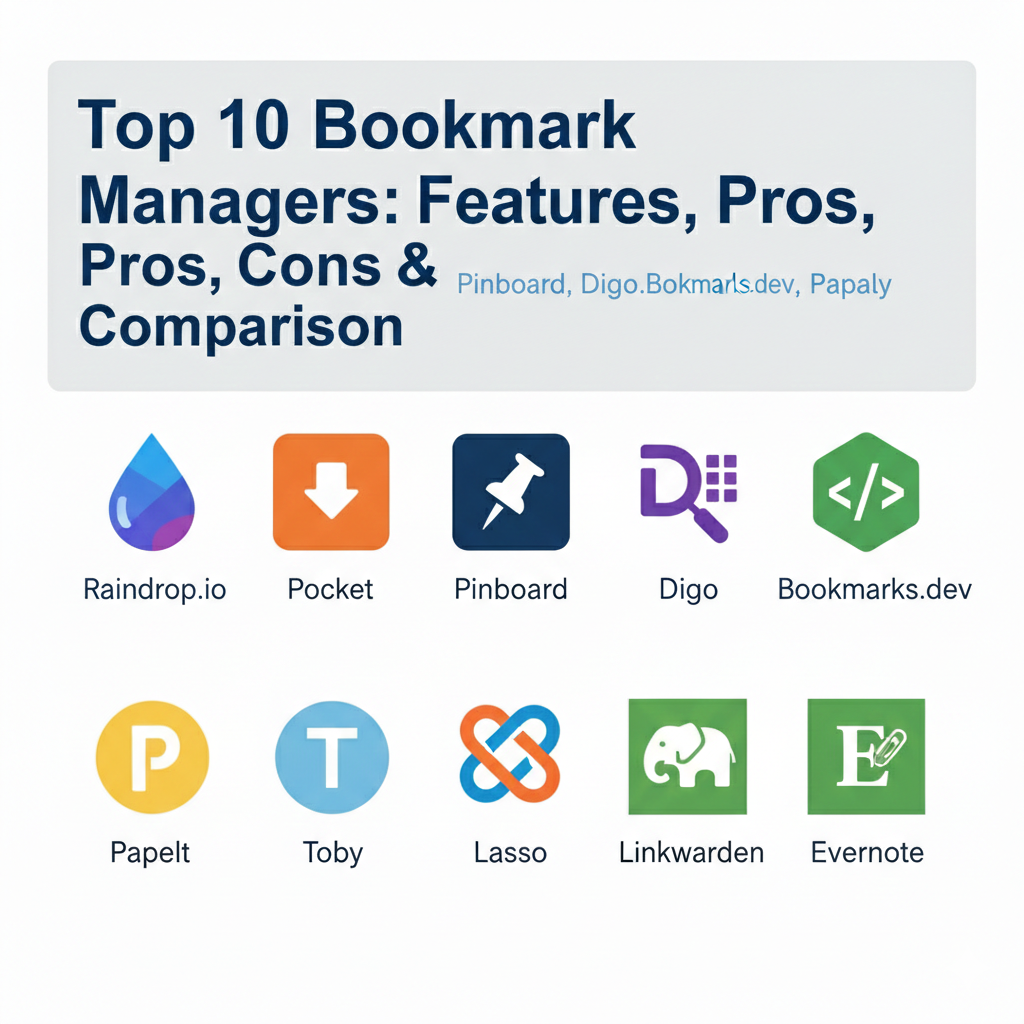
Top 10 Bookmark Managers Tools
1 — Raindrop.io
Raindrop.io is a beautifully designed, all-in-one bookmark manager that caters to both casual users and professionals who want a visual way to manage their links. It allows you to save anything from web pages and photos to videos and PDFs, organizing them into “collections” that can be viewed as lists, cards, or mood boards. It is perfect for those who want a clean, aesthetic interface combined with powerful, modern features.
Key Features:
- Visual Views: Choose between list, headlines, cards, or mood board views for your collections.
- Full-Text Search: Search through the actual content of every page and PDF you have saved.
- Nested Collections: Create a deep hierarchy of folders and sub-folders to keep topics separated.
- Auto-Tagging Suggestions: Uses AI to suggest relevant tags based on the content of the saved link.
- Broken Link Finder: Automatically detects and alerts you to links that are no longer active.
- Permanent Library: Premium users get a permanent copy of the page even if the original website goes down.
Pros:
- Exceptionally clean and intuitive user interface across all platforms.
- Highly flexible organization with both folders and multi-level tagging.
- Great for visual creators who need to see thumbnails of their saved content.
Cons:
- Full-text search and permanent backups are locked behind a subscription.
- Can feel slightly overwhelming if you have thousands of links without tags.
Security & Compliance: GDPR compliant; SSL/TLS encryption; regular security audits.
Support & Community: Extensive help documentation, active Twitter community, and responsive email support.
2 — Pocket
Pocket is primarily designed for the “read-it-later” crowd, focusing on providing a clean, distraction-free environment for consuming saved articles. It is designed for people who find interesting content during the work day but want to read it in a simplified format on their phone or tablet later. Pocket’s standout feature is its ability to strip away ads and clutter, leaving only the text and images of the article.
Key Features:
- Distraction-Free Reading: Automatically cleans web pages into a simplified, easy-to-read layout.
- Listen Mode: Uses high-quality text-to-speech to read your saved articles out loud.
- Offline Access: Downloads saved content to your mobile device so you can read without Wi-Fi.
- Discovery Feed: Recommends trending articles based on your interests and saved content.
- Tagging System: Allows for quick categorization of articles to keep your reading list organized.
- Integration Ecosystem: Works with over 1,500 apps, including Twitter, Flipboard, and Slack.
Pros:
- The best mobile reading experience in the bookmarking category.
- High-quality offline capabilities for travelers and commuters.
- Very simple and focused on the single task of reading.
Cons:
- Not ideal for organizing non-article links like tools or code.
- The “Premium” version can be expensive for a simple reading app.
Security & Compliance: GDPR compliant; encrypted data transfer; standard cloud security.
Support & Community: Robust help center, huge global user base, and active community recommendations.
3 — Pinboard
Pinboard is the “anti-fancy” choice, designed for power users who value speed, minimalism, and long-term reliability over visual flair. It is a text-based bookmarking site that has remained virtually unchanged for over a decade, making it a favorite for developers and scholars who want a tool that is fast and won’t ever “go out of style” or change its interface.
Key Features:
- Lightning Fast: Minimalist, text-only interface that loads instantly even with 10,000+ links.
- Archiving Service: For an extra fee, it saves a permanent cached copy of every link you bookmark.
- API First: Extremely powerful API that allows developers to build their own tools on top of it.
- Privacy Focused: No tracking, no ads, and very clear “public vs private” bookmark settings.
- Tagging Power: Designed specifically for massive tagging systems to manage large libraries.
- Twitter Integration: Automatically bookmarks links you tweet or “like” on social media.
Pros:
- Zero clutter and zero distractions; focused purely on the links.
- Extremely reliable long-term storage that doesn’t suffer from “link rot.”
- Trusted by the technical community for its stability.
Cons:
- There is no free tier; you must pay to use the service at all.
- The interface looks very old-fashioned and is not “visual” at all.
Security & Compliance: Encrypted data storage; privacy-centric business model.
Support & Community: Primarily managed via a dedicated Twitter account and developer documentation.
4 — Diigo
Diigo is a specialized bookmarking tool built for researchers, students, and collaborative teams who need to do more than just save a link. It allows you to highlight text on any web page and add digital “sticky notes” to specific sections of a site. When you return to the page later, your highlights and notes are still there, making it an incredible tool for deep study and knowledge gathering.
Key Features:
- Web Annotation: Highlight text and add sticky notes directly onto live web pages.
- Outliner: Organize your bookmarks into structured outlines for papers or projects.
- PDF Management: Upload and annotate PDFs just as you would with a web page.
- Collaborative Groups: Share folders of bookmarks and annotations with a specific team.
- Screenshot Tool: Capture and mark up images of websites for quick reference.
- Advanced Filtering: Filter by tags, dates, or specific annotations within your library.
Pros:
- Unmatched for academic and professional research workflows.
- The “sticky note” feature makes it feel like you are working with physical documents.
- Great for teams who need to collaborate on specific web resources.
Cons:
- The user interface can feel clunky and outdated compared to modern apps.
- The free version is quite limited and contains advertisements.
Security & Compliance: Varies / N/A; standard encryption for cloud-based storage.
Support & Community: User forums, email support, and a long-standing educator community.
5 — Bookmarks.dev
Bookmarks.dev is an open-source bookmark manager specifically tailored for developers and technical professionals. It allows users to save code snippets, technical documentation, and GitHub repositories with ease. Because it is built by developers for developers, it focuses on features like Markdown support and keyboard shortcuts that make navigating technical links extremely fast.
Key Features:
- Snippet Support: Save and categorize code snippets alongside your web bookmarks.
- Keyboard Shortcuts: Navigate the entire application without ever touching your mouse.
- Markdown Support: Add notes and descriptions to your bookmarks using Markdown.
- GitHub Integration: Easily bookmark and tag repositories directly from GitHub.
- Personal & Shared Boards: Keep your personal technical library separate from team resources.
- Open Source: The code is public, allowing for transparency and community contributions.
Pros:
- Perfect for managing technical documentation and code resources.
- Very fast and streamlined for a professional developer workflow.
- Completely free and open for the community.
Cons:
- Lacks the visual “mood board” features of apps like Raindrop.
- May be too technical for non-developers to enjoy.
Security & Compliance: Transparent open-source code; SSL encryption.
Support & Community: GitHub issue tracking and an active developer-focused Discord.
6 — Papaly
Papaly is a cloud-based bookmark manager that uses a board-and-tile system to organize links. It is designed for users who want to create a “start page” for their browser, where their most-used links are organized into logical columns. It is particularly strong for social bookmarking, allowing you to follow other people’s boards to discover new resources in specific niches.
Key Features:
- Board Layout: Organize links into columns and boards that act as a personalized homepage.
- Social Discovery: Follow public boards from experts in fields like design, tech, or cooking.
- Drag-and-Drop: Easily move links between categories with a simple mouse movement.
- Quick Search: Instant search functionality to find links across all your boards.
- Cloud Sync: Access your personalized start page from any computer or mobile device.
- Chrome Extension: One-click saving that allows you to pick exactly which board the link goes to.
Pros:
- Excellent for creating a personalized “Command Center” for your daily web tasks.
- Social features make it fun to discover new content from others.
- Very easy to organize links visually without much effort.
Cons:
- Can become messy if you have too many boards active at once.
- Some users find the interface to be a bit cluttered with social features.
Security & Compliance: Standard HTTPS encryption; GDPR compliant.
Support & Community: Help center and email support; active social sharing community.
7 — Toby
Toby is a unique bookmark manager that lives inside your “New Tab” page in Chrome or Edge. It is designed for people who struggle with “tab hoarders”—those who keep 50 tabs open because they don’t want to lose them. Toby allows you to save an entire session of open tabs into a collection with one click, clearing your browser while keeping your work safe.
Key Features:
- Session Saving: Save all your currently open tabs into a named collection instantly.
- New Tab Hub: Every time you open a new tab, your organized link collections are right there.
- Drag-and-Drop Organization: Move tabs into different project folders with ease.
- Search Across Tabs: Search through all your saved collections from the new tab page.
- Team Workspaces: Share collections of links with your coworkers for specific projects.
- Syncing: Access your saved tab collections across any computer where you are logged in.
Pros:
- Drastically reduces browser memory usage by allowing you to close tabs safely.
- Keeps your current projects right in front of you every time you open a tab.
- Extremely easy to use; requires almost no learning curve.
Cons:
- Only works as a browser extension (no standalone mobile app).
- Primarily focused on short-term project organization rather than long-term archiving.
Security & Compliance: SOC 2 Type II; GDPR compliant; data encrypted at rest.
Support & Community: Direct customer support for teams; active developer feedback loop.
8 — Lasso
Lasso is a professional-grade bookmark manager that focuses heavily on curation and organization. It is designed for people who need to create “curated lists” for others, such as a list of resources for a blog post or a bibliography for a student. Lasso offers a unique “comparison” view, making it useful for people who are shopping or comparing different web services.
Key Features:
- Grid & Map Views: View your bookmarks in a grid, list, or even on a map if they have locations.
- Curated Pages: Turn any collection of bookmarks into a beautiful public page with one click.
- Deep Tagging: Filter your library using complex “and/or” logic with your tags.
- Collaborative Curation: Allow multiple users to add to and edit a single collection.
- Screenshot Capture: Automatically takes a high-quality screenshot of the page you are saving.
- Bulk Editing: Move, tag, or delete hundreds of bookmarks at the same time.
Pros:
- The most powerful tool for creating public, curated lists for others.
- “Map view” is a unique feature not found in most other bookmarkers.
- Very robust bulk management tools for large libraries.
Cons:
- The interface can feel a bit more “business-like” and less cozy than Raindrop.
- Some of the advanced display options require a bit of setup.
Security & Compliance: GDPR compliant; encrypted cloud storage.
Support & Community: Detailed user guides and responsive email-based help.
9 — Linkwarden
Linkwarden is a self-hosted, open-source bookmark manager that focuses on “archiving” the web. It is designed for users who are worried about “link rot” and want to make sure that the information they save today will still be available in 20 years, even if the website is deleted. It captures a screenshot and a PDF of every page you save.
Key Features:
- Self-Hosting: You can run the software on your own server for total control.
- Automatic Archiving: Saves a PDF and a full-page screenshot of every bookmark automatically.
- Collaborative Folders: Organize links into “libraries” and share them with specific users.
- Tagging & Filtering: Robust system to find content based on metadata.
- Privacy Focused: Because it can be self-hosted, you own 100% of your data.
- Clean Interface: Modern, minimalist design that focuses on the content.
Pros:
- The ultimate tool for someone who wants to “own” their bookmarks forever.
- Solves the problem of websites disappearing or changing content.
- Very high privacy and security for sensitive research.
Cons:
- Requires some technical knowledge if you choose to self-host.
- Lacks the social discovery features of some other platforms.
Security & Compliance: Fully transparent code; GDPR compliant by nature of self-hosting.
Support & Community: Active GitHub community, Discord, and detailed documentation.
10 — Evernote (Web Clipper)
While Evernote is primarily a note-taking app, its “Web Clipper” is widely considered one of the most powerful bookmarking tools in existence. It is designed for people who want to save a bookmark and then immediately start writing notes about it. Instead of just saving a link, Evernote allows you to clip the “simplified article,” the “full page,” or just a “bookmark” directly into your notebooks.
Key Features:
- Multi-Format Clipping: Choose to save the link, a screenshot, or the entire text of an article.
- Annotate While Clipping: Highlight and mark up a page before you even save it.
- Notebook Organization: Place bookmarks directly into project-specific notebooks.
- AI Search: Find text inside images and PDFs within your saved bookmarks.
- Universal Search: Search your bookmarks alongside your meeting notes and documents.
- Multi-Device Sync: Access your web clips on every device you own seamlessly.
Pros:
- Best choice for users who are already using Evernote for notes.
- The “Full Page” clip is extremely reliable for capturing a site’s exact look.
- Keeps your research and your writing in the exact same place.
Cons:
- Can be “overkill” if you only want to save a simple list of links.
- The free version of Evernote has become very restricted recently.
Security & Compliance: SOC 2 Type II; GDPR compliant; ISO 27001; data encrypted at rest.
Support & Community: Professional 24/7 support, massive global community, and certified experts.
Comparison Table
| Tool Name | Best For | Platform(s) Supported | Standout Feature | Rating |
| Raindrop.io | Visual Users | All Platforms | Permanent Library | 4.8/5 |
| Reading Later | iOS, Android, Web | Offline Listen Mode | 4.7/5 | |
| Pinboard | Minimalists | Web, 3rd Party Apps | High-Speed Text UI | 4.6/5 |
| Diigo | Researchers | Web, iOS, Android | Web Annotations | 4.3/5 |
| Bookmarks.dev | Developers | Web, Extension | Code Snippet Support | 4.5/5 |
| Papaly | Start Pages | Web, Extension | Social Boards | 4.2/5 |
| Toby | Tab Management | Chrome, Edge | Session Saving | 4.7/5 |
| Lasso | Curating Lists | Web, iOS, Android | Map View Collections | 4.4/5 |
| Linkwarden | Archiving | Self-Hosted, Web | PDF/Screenshot Archive | 4.6/5 |
| Evernote | Note-Takers | All Platforms | Full Page Clipping | 4.4/5 |
Evaluation & Scoring of Bookmark Managers
| Category | Weight | Top Performer | Score (1-10) |
| Core Features | 25% | Raindrop.io | 9.8 |
| Ease of Use | 15% | Toby | 9.9 |
| Integrations | 15% | 9.7 | |
| Security & Compliance | 10% | Linkwarden | 9.6 |
| Performance | 10% | Pinboard | 9.8 |
| Support & Community | 10% | Evernote | 9.5 |
| Price / Value | 15% | Bookmarks.dev | 9.4 |
Which Bookmark Managers Tool Is Right for You?
Choosing the right tool depends entirely on your daily “web habit.” If you are a solo user who loves visual design and wants to build a long-term library, Raindrop.io is the clear winner for its balance of beauty and power. For budget-conscious researchers or students, Bookmarks.dev or the free version of Papaly provide great value without a high cost.
If you are a professional who finds yourself drowning in open tabs, Toby will change the way you work by allowing you to close your browser with peace of mind. For those doing deep academic or technical research, the annotation power of Diigo or the code-focus of Bookmarks.dev are better suited for your specialized workflow. Finally, if you are a privacy enthusiast who wants to own your data forever, Linkwarden or Pinboard are the most stable and secure options on the market. Always prioritize a tool that matches your current device ecosystem (iOS vs. Android vs. Desktop) to ensure you can save links wherever you are.
Frequently Asked Questions (FAQs)
1. Is it better to use tags or folders for my bookmarks?
Folders are good for broad categories (Work, Personal), but tags are more flexible because one link can have multiple tags (e.g., “Marketing” and “Inspiration”), making it easier to find later.
2. What is “link rot”?
Link rot is when a web page you saved years ago is deleted or moved, leaving you with a broken link. Tools like Raindrop.io or Linkwarden prevent this by saving a permanent copy of the page.
3. Are these tools safer than browser bookmarks?
Yes. Browser bookmarks are often tied to one browser and can be lost if your profile is corrupted. These tools store your bookmarks in the cloud (or your own server), making them more secure and accessible.
4. Can I import my existing bookmarks from Chrome or Safari?
Yes, almost every tool on this list allows you to export an “HTML” file from your browser and import it into their system within seconds.
5. Do I have to pay for a bookmark manager?
Many have great free versions. You usually only need to pay if you want “Pro” features like full-text search, permanent backups, or high-volume PDF storage.
6. Can these tools help me save social media posts?
Yes, apps like Raindrop.io and Lasso are excellent at saving specific tweets, Instagram posts, or LinkedIn articles in a way that preserves their look.
7. Why should I use Toby instead of just opening more tabs?
Toby saves your computer’s RAM by allowing you to close tabs while keeping them organized in one place. It makes your browser run faster and reduces mental clutter.
8. Can I share my bookmarks with my team?
Tools like FamilyWall (for families) or Lasso and Toby (for teams) are designed specifically for sharing “collections” or “boards” of links with others.
9. What is “Web Annotation”?
Web annotation is the ability to draw or highlight directly on a website. Diigo is the leader in this space, allowing you to treat the internet like a textbook you can mark up.
10. How do I start using a bookmark manager without feeling overwhelmed?
Start by saving only your most-used links for one week. Don’t try to organize everything at once; let your folders and tags grow naturally as you use the tool.
Conclusion
Finding the right bookmark manager is the first step toward taking control of your digital life. We have seen that there is a perfect tool for everyone—from the visual beauty of Raindrop.io to the developer-focused speed of Bookmarks.dev and the academic power of Diigo. What matters most is choosing a tool that fits your specific workflow and makes it easier for you to find the information you need, when you need it.
A high-quality bookmark manager should do more than just store a link; it should help you understand and recall the knowledge you’ve found. Whether you are building a “read-later” list with Pocket or a permanent research archive with Linkwarden, the goal is to reduce the stress of information overload. Remember that the “best” tool is the one that you will actually use every day.
We recommend picking one tool from this list that matches your top priority (be it speed, aesthetics, or research) and trying it for a full week. Export your current browser bookmarks, import them into your new manager, and start tagging. You will be surprised at how much more productive you feel when your digital library is organized and at your fingertips. Your journey to a more organized web experience starts with the very next link you save.