Introduction
A password vault, also known as a password manager, is a specialized application that acts as a secure, encrypted digital locker for all your online login information. Its primary job is to store usernames, passwords, and other sensitive data, protecting them behind one strong master password. This solves the modern dilemma of having dozens of unique, complex passwords by making them easy to use and hard to forget.
Using a password vault is no longer a luxury but a necessity for basic online safety. Simple passwords and password reuse are the top reasons for account takeovers and identity theft. A vault automatically creates and stores strong passwords, fills them in on websites and apps, and keeps them synchronized across all your devices. Key real-world uses include securing online banking and shopping, protecting email and social media accounts, and safely storing private notes, credit card details, and important documents.
When choosing a tool, you should prioritize several key criteria. First is security architecture: look for zero-knowledge encryption (AES-256 bit is the gold standard), meaning the company cannot access your data. Second is ease of use: it should have intuitive apps for your phone, computer, and browser with reliable autofill. Third are essential features like a strong password generator, secure sharing options, and emergency access. Finally, consider value, balancing cost against the features you genuinely need.
Best for: These tools are indispensable for nearly every individual internet user. They are particularly valuable for people with numerous online accounts, anyone concerned about privacy and identity theft, families needing to share logins safely, and professionals managing both personal and work credentials. They are a foundational tool for personal cybersecurity.
Not ideal for: Individuals with an extremely minimal digital footprint (e.g., only one or two rarely used accounts) may find the setup superfluous. Those who are profoundly uncomfortable with digital tools or who have a very high risk of forgetting their single master password should proceed with caution. For large organizations needing to manage team access and corporate secrets at scale, dedicated business/enterprise password managers are more appropriate than consumer-focused apps.
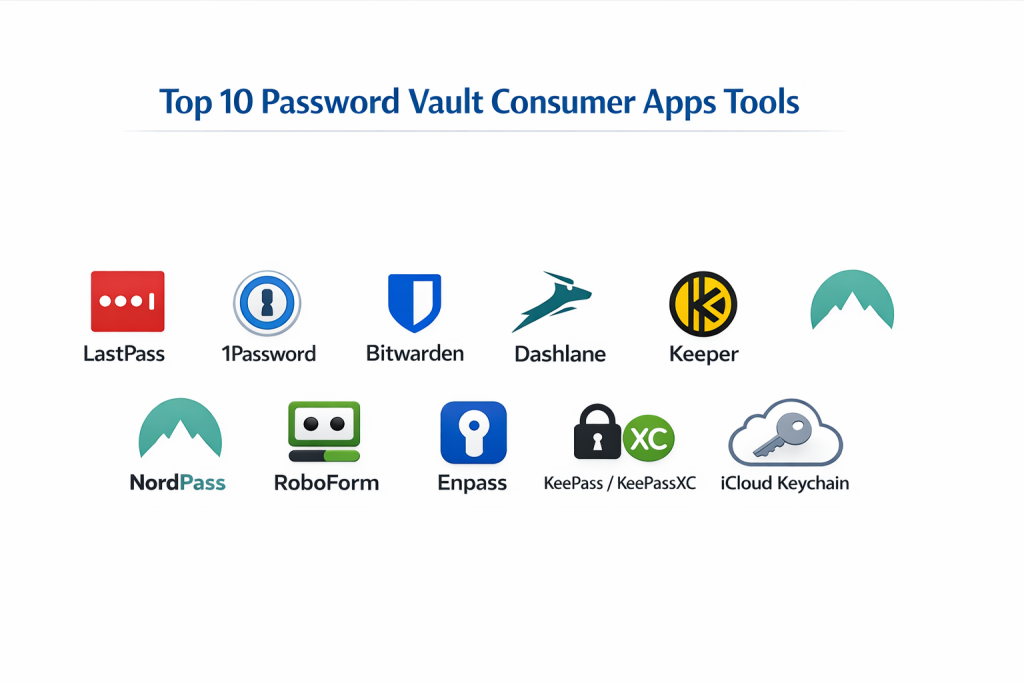
Top 10 Password Vault Consumer Apps Tools
1 — LastPass
LastPass is a widely recognized freemium password manager that stores encrypted passwords in the cloud. It is designed for individuals and families seeking a straightforward balance of robust features and accessibility.
- Key features
- Stores passwords, secure notes, form-fill details, and payment cards in an encrypted online vault.
- Automatically fills login credentials and personal information across websites and apps.
- Generates strong, unique passwords when creating or updating accounts.
- Provides a Security Dashboard that identifies weak, reused, or compromised passwords.
- Enables secure password and note sharing with other LastPass users.
- Supports multiple forms of multifactor authentication (MFA) for added security.
- Allows setting up emergency access for trusted contacts.
- Pros
- Offers a very capable and generous free tier for single-device use.
- Known for its user-friendly interface and shallow learning curve.
- Extensive library of browser extensions and mobile apps for wide compatibility.
- Cons
- Has experienced several high-profile security incidents in the past, though user vaults remained encrypted.
- Many advanced features, like cross-device synchronization, are restricted to paid plans.
- Autofill functionality can occasionally be inconsistent on certain mobile applications.
- Security & compliance
- Utilizes AES-256 bit encryption with a zero-knowledge model.
- Complies with SOC 2, ISO 27001, and GDPR standards.
- Support & community
- Maintains a comprehensive knowledge base, with email support for free users and priority support for paying customers.
- Boasts a large and active user community for peer-to-peer help.
2 — 1Password
1Password is a premium password manager celebrated for its exceptional security design, elegant user experience, and excellent plans for families and teams. It is a top-tier choice for security-conscious users.
- Key features
- Creates a unique Secret Key alongside your Master Password, providing an additional, mandatory layer of security.
- Organizes items into customizable “Vaults” for passwords, documents, software licenses, and more.
- Features a Travel Mode to temporarily remove sensitive vaults from your device when crossing borders.
- Includes a “Watchtower” service that alerts you to password breaches, weak passwords, and sites offering 2FA.
- Facilitates easy and granular sharing through vaults with family or team members.
- Maintains item history, allowing you to restore previous versions of any saved login or note.
- Pros
- Exceptionally polished, intuitive, and consistent apps across all platforms (Windows, Mac, iOS, Android, Linux).
- The Secret Key + Master Password combination provides superior protection against remote attacks.
- Outstanding family plan that makes managing a household’s digital life simple and secure.
- Cons
- Does not offer a permanent free plan (only a 14-day free trial).
- Subscription cost is slightly higher than some competitors.
- Requires a bit more initial setup compared to the simplest managers.
- Security & compliance
- Employs AES-256 encryption. The unique Secret Key ensures data is indecipherable without both components.
- SOC 2 Type II certified. Adheres to GDPR and can support HIPAA compliance.
- Support & community
- Excellent, clearly written documentation and setup guides.
- Responsive email support and a very active, helpful community forum.
3 — Bitwarden
Bitwarden is a powerful, open-source password manager that offers full transparency into its code and security. It is the ideal choice for tech-savvy users, privacy advocates, and those seeking maximum value.
- Key features
- All core features—unlimited passwords, sync across unlimited devices, password generator—are completely free.
- Being open-source, its code is publicly auditable by security experts worldwide, ensuring transparency.
- Offers the option for advanced users to self-host the entire software on their own private server.
- Includes a secure “Send” feature for encrypted sharing of text notes and files.
- Provides comprehensive vault health reports and data breach monitoring.
- Supports a wide array of two-factor authentication (2FA) methods, including FIDO2 WebAuthn.
- Pros
- Unbeatable value with the most fully-featured free tier on the market.
- Complete transparency and regular third-party security audits foster high trust.
- Available on all major platforms, including strong support for Linux.
- Cons
- The user interface is functional and clear but less polished than commercial rivals like 1Password.
- The autofill experience is reliable but can feel less seamless on some mobile apps.
- Advanced features like 1GB of encrypted file storage require a very affordable premium subscription.
- Security & compliance
- Uses end-to-end AES-256 bit encryption, salted hashing, and PBKDF2.
- The open-source model allows for continuous public scrutiny. Compliant with GDPR, CCPA, and SOC 2.
- Support & community
- Strong community-driven support via forums and GitHub.
- Official priority support is available for premium and business users.
4 — Dashlane
Dashlane is a feature-rich password manager that extends beyond basic functionality by including a built-in VPN and dark web monitoring. It is designed as an all-in-one digital security suite.
- Key features
- Provides a built-in VPN (Virtual Private Network) for secure and private browsing on public Wi-Fi networks.
- Actively scans the dark web for your personal information and alerts you if it is found.
- Features a proprietary, automated password changer for updating passwords on hundreds of supported sites at once.
- Includes a secure digital wallet for payments, IDs, and receipts.
- Offers personalized security alerts and an easy-to-understand Security Dashboard.
- Pros
- Unique combination of a password manager, VPN, and dark web scanner in one subscription.
- Excellent, modern, and visually appealing user interface.
- Strong focus on proactive security alerts and identity protection features.
- Cons
- One of the most expensive options on a yearly subscription basis.
- The integrated VPN has data limits and is not as full-featured as standalone VPN services.
- Has moved to a limited-feature free tier, removing its former robust free plan.
- Security & compliance
- Uses AES-256 encryption with a zero-knowledge architecture.
- Certified to ISO 27001 and SOC 2 Type II standards. Compliant with GDPR.
- Support & community
- Support is provided via email with generally good response times.
- Maintains a detailed help center with articles and tutorials.
5 — Keeper
Keeper is a security-focused password manager with a strong reputation in both consumer and enterprise markets. It emphasizes robust protection and offers unique features like encrypted messaging.
- Key features
- Offers KeeperChat, a secure, encrypted messaging app for sending private texts and files.
- Provides KeeperDNA, a unique multi-factor authentication method using wearable devices.
- Includes BreachWatch, a dark web scanner that monitors for exposed credentials.
- Allows for secure, encrypted file storage with size limits per file.
- Features detailed and customizable shared folders for team or family use.
- Supports hardware security keys (like YubiKey) for strong 2FA.
- Pros
- Very strong security posture with a wide array of advanced protection features.
- The interface is clean, business-like, and presents information clearly.
- Excellent for users who also need secure messaging or significant encrypted file storage.
- Cons
- Can feel feature-heavy and slightly complex for a brand-new user.
- Pricing is on the higher end, especially for the full suite of add-ons (Chat, BreachWatch).
- The free version is very limited, acting more as a trial.
- Security & compliance
- Uses AES-256-GCM and PBKDF2 encryption. True zero-knowledge architecture.
- Certified for SOC 2, ISO 27001, and PCI DSS. Compliant with GDPR and HIPAA.
- Support & community
- Offers 24/7 live chat and email support, which is highly responsive.
- Has a thorough help center and regular webinars for user education.
6 — NordPass
NordPass is a password manager from the creators of NordVPN. It leverages a modern, simple interface and the established trust of a major cybersecurity brand.
- Key features
- Uses the XChaCha20 encryption algorithm, a modern alternative to AES-256.
- Features a streamlined, minimalist interface focused on core password management.
- Includes a Data Breach Scanner to check if your emails have been involved in known leaks.
- Allows secure sharing of passwords and notes with other NordPass users.
- Can identify weak, old, or reused passwords in your vault.
- Offers a password health tool to gauge overall vault security.
- Pros
- Clean, intuitive, and very easy to use, especially for beginners.
- Strong brand recognition and trust from its association with NordVPN.
- The free plan is decent, allowing unlimited password storage on one device type.
- Cons
- Less feature-rich compared to more established competitors.
- The ecosystem of integrations and advanced sharing features is still growing.
- Some users report occasional minor bugs in browser extensions.
- Security & compliance
- Employs XChaCha20 encryption and follows a zero-knowledge architecture.
- Independently audited. Complies with GDPR and other major privacy regulations.
- Support & community
- Support is available 24/7 via live chat and email.
- Provides a helpful library of setup guides and articles.
7 — RoboForm
RoboForm is one of the longest-standing password managers, known for its reliable form-filling capabilities and straightforward, no-frills approach.
- Key features
- Excels at filling not just logins, but also long web forms (addresses, payment details, etc.).
- Stores passwords, bookmarks, identities, and secure notes.
- Provides strong password generation and a security center for auditing passwords.
- Offers a portable, USB-friendly version that can run on any Windows computer without installation.
- Includes secure sharing of logins with other RoboForm users.
- Syncs data across all your devices.
- Pros
- Often more affordable than many competitors, especially for multi-year plans.
- Extremely reliable and accurate form-filling technology.
- The interface is simple and functional, appealing to users who dislike complexity.
- Cons
- The user interface design feels dated compared to modern applications.
- Lacks some advanced security features (like built-in VPN or dark web monitoring).
- Mobile app experience is functional but not as polished as the market leaders.
- Security & compliance
- Uses AES-256 bit encryption with PBKDF2 SHA-256. Local-only decryption.
- Has undergone third-party security audits.
- Support & community
- Provides email and chat support with generally satisfactory responses.
- Maintains a knowledge base with FAQs and troubleshooting steps.
8 — Enpass
Enpass is a unique password manager that stores your encrypted data locally on your devices, syncing via your own cloud account (iCloud, Google Drive, etc.), rather than on Enpass’s servers.
- Key features
- Local-first / offline vault. Your primary data is stored on your device, not on a company’s cloud.
- Syncs via your own cloud account (iCloud, Google Drive, OneDrive, WebDAV), giving you control.
- Offers a one-time purchase option for desktop versions, with only mobile apps requiring a subscription.
- Includes all standard features: password generation, secure notes, identity and card storage.
- Offers a security dashboard to analyze password strength.
- Pros
- Ideal for privacy purists who want to avoid storing data on a password manager’s servers.
- Cost-effective due to the one-time license model for desktop use.
- Very fast performance because it works primarily with local data.
- Cons
- Relies on you to set up and manage your own sync via a third-party cloud service.
- The interface and user experience can feel less cohesive than cloud-first rivals.
- Lacks some integrated, real-time security alerts of cloud-based services.
- Security & compliance
- Uses SQLCipher (AES-256) to encrypt data locally. It is a zero-knowledge tool.
- Because data is local, many compliance aspects are governed by your chosen sync method.
- Support & community
- Support is primarily via email and a community forum.
- Documentation is adequate for setup and troubleshooting.
9 — KeePass / KeePassXC
KeePass is a free, open-source, and locally installed password manager. KeePassXC is a modern community-driven fork with active development. This is the ultimate choice for technical control and maximum customization.
- Key features
- Stores all data in an encrypted local database file (
.kdbx) on your computer. - Completely free and open-source, with no subscriptions or fees.
- Highly customizable through a wide array of community-created plugins for browsers, cloud sync, and more.
- Offers advanced features like multiple key file support and two-channel auto-type obfuscation.
- KeePassXC provides a more user-friendly interface with direct browser integration.
- Stores all data in an encrypted local database file (
- Pros
- Maximum privacy and control, as you are solely responsible for your database file.
- Zero cost and no reliance on any company’s servers or business model.
- Extremely powerful and customizable for advanced users.
- Cons
- Not user-friendly for non-technical people. Requires manual setup for syncing across devices.
- Lacks the polished, seamless experience of commercial cloud-based managers.
- No official mobile apps; you must rely on third-party ports (like KeePassDX for Android).
- Security & compliance
- Uses strong encryption (AES-256, Twofish). Security is as strong as your master password and file management.
- Being offline and self-managed, compliance is entirely up to the user’s handling of the data file.
- Support & community
- Support is community-driven through forums and wikis. No official customer support.
- A wealth of technical documentation exists for those willing to learn.
10 — Apple iCloud Keychain
iCloud Keychain is Apple’s built-in password manager for macOS, iOS, and iPadOS. It is deeply integrated into the Apple ecosystem and requires no additional app installation.
- Key features
- Automatically saves and fills in passwords, credit card info, and Wi-Fi passwords in Safari and apps.
- Suggests strong, unique passwords when creating new accounts.
- Syncs seamlessly and automatically across all Apple devices signed into the same iCloud account.
- Works with Face ID or Touch ID for quick and secure autofill.
- Can store one-time verification codes for two-factor authentication.
- Includes a dedicated Passwords app in recent OS versions for managing entries.
- Pros
- Completely free and built into Apple devices—no setup or subscription required.
- Offers the most seamless and frictionless experience for users deeply invested in the Apple ecosystem.
- Extremely secure, leveraging Apple’s device hardware (Secure Enclave) for protection.
- Cons
- Only works within the Apple ecosystem (macOS, iOS, iPadOS). Limited official support for Windows (via iCloud for Windows) and no support for Android.
- Lacks advanced features like secure sharing, detailed security audits, or encrypted notes storage.
- Organization and management features are basic compared to third-party apps.
- Security & compliance
- Uses strong end-to-end encryption. Data is protected by the device’s passcode and Secure Enclave.
- Adheres to Apple’s privacy policies. Data is synced via iCloud with strong security.
- Support & community
- Support is handled through standard Apple Support channels.
- Documentation is available on Apple’s official support website.
Comparison Table
| Tool Name | Best For | Platform(s) Supported | Standout Feature |
|---|---|---|---|
| LastPass | Beginners & users wanting a strong free tier | Win, Mac, Linux, iOS, Android, Browsers | Generous free plan & ease of use |
| 1Password | Security-focused users & families | Win, Mac, iOS, Android, Linux, Browsers | Travel Mode & Secret Key security |
| Bitwarden | Tech enthusiasts & budget-conscious users | Win, Mac, Linux, iOS, Android, Browsers | Open-source & best free tier |
| Dashlane | Users wanting an all-in-one security suite | Win, Mac, iOS, Android, Browsers | Integrated VPN & dark web monitoring |
| Keeper | Users needing secure messaging & file storage | Win, Mac, Linux, iOS, Android, Browsers | KeeperChat encrypted messaging |
| NordPass | Users in the Nord ecosystem & beginners | Win, Mac, Linux, iOS, Android, Browsers | Modern XChaCha20 encryption |
| RoboForm | Users who frequently fill long web forms | Win, Mac, iOS, Android, Browsers | Superior form-filling capability |
| Enpass | Privacy-focused users who prefer local storage | Win, Mac, Linux, iOS, Android, Browsers | Local vault & one-time purchase option |
| KeePassXC | Technical users who want maximum control | Windows, Mac, Linux | Free, open-source, & offline |
| iCloud Keychain | Users exclusively within the Apple ecosystem | macOS, iOS, iPadOS | Free & deeply integrated with Apple OS |
Evaluation & Scoring of Password Vault Consumer Apps
This weighted rubric outlines the critical factors for evaluating any password manager, helping you understand where to focus your decision-making.
| Criteria | Weight | Explanation & What to Look For |
|---|---|---|
| Core Features | 25% | The foundation. Must include reliable password capture/autofill, a strong generator, and secure storage for more than just passwords (notes, IDs). Advanced features like security audits and emergency access add significant value. |
| Ease of Use | 15% | The interface must be intuitive for all intended users. A difficult manager leads to poor adoption. Look for a clean design, simple import tools, and hassle-free autofill across all platforms. |
| Integrations & Ecosystem | 15% | Must work flawlessly on every device (phone, computer, tablet) and browser you use. Dedicated apps and browser extensions are essential. Integration with other security tools (2FA apps) is a plus. |
| Security & Compliance | 10% | Non-negotiable. Must use AES-256 or equivalent encryption and a zero-knowledge model. Independent security audits (SOC 2, etc.) provide verified trust. Compliance with standards like GDPR may be required. |
| Performance & Reliability | 10% | The vault should sync quickly and accurately. Autofill should work instantly and correctly nearly 100% of the time. Downtime or lag erodes trust and usability. |
| Support & Community | 10% | Good documentation can solve most problems. For critical issues, timely email or chat support is key. An active user community is a valuable resource for tips and shared knowledge. |
| Price / Value | 15% | Evaluate cost against the features you actually need. Does the free plan suffice? Does the family plan offer good value? The most expensive option is not always the best fit. |
Which Password Vault Consumer Apps Tool Is Right for You?
Making the right choice depends on your specific priorities and situation. Use this guide to find your match.
- For Solo Users vs. Families vs. Enterprises:
- Solo Users: A robust free plan might suffice. Bitwarden offers the best free tier. LastPass Free works if you use one device type. For a premium solo experience, consider 1Password or NordPass.
- Families: Easy, secure sharing is paramount. 1Password Families and Bitwarden Families are top choices, offering great value and control over shared vaults.
- Enterprises: Business needs like centralized billing and policy enforcement point toward dedicated business plans from 1Password, Bitwarden, or Keeper.
- Budget-Conscious vs. Premium Solutions:
- Tight Budget: Bitwarden is unbeatable. Its free plan is powerfully complete. KeePass is free but requires technical skill. Apple users should use the free iCloud Keychain.
- Premium Solutions: For top-tier polish, support, and advanced features, 1Password and Dashlane are leading choices, though at a higher subscription cost.
- Feature Depth vs. Ease of Use:
- Maximum Features: Dashlane (with VPN), Keeper (with encrypted chat), and 1Password (with Travel Mode) lead in offering features beyond core password management.
- Simplicity & Ease: NordPass, iCloud Keychain, and LastPass prioritize a straightforward, get-started-quickly experience ideal for beginners.
- Integration and Scalability Needs:
- Apple-Only Users: iCloud Keychain is the default, seamless choice. For mixed Windows/Android/Apple ecosystems, you need a cross-platform tool like 1Password, Bitwarden, or LastPass.
- Scalability: If you plan to grow from personal use to a family or team, choose a tool with clear upgrade paths like Bitwarden or 1Password.
- Security and Compliance Requirements:
- General Users: Any manager on this list using zero-knowledge and AES-256 encryption is secure enough for personal use.
- Privacy-Focused Users: For those who distrust cloud storage, Enpass (local vault) or KeePass (fully offline) provide ultimate control.
- Regulated Data: If storing professional or medical data, verify the tool’s specific compliance certifications (e.g., HIPAA for 1Password or Keeper).
Frequently Asked Questions (FAQs)
1. Are password managers really safe?
Yes, when you choose a reputable one. They use military-grade encryption (like AES-256) and a “zero-knowledge” architecture. This means your data is encrypted before it leaves your device, and the company cannot see or access your passwords.
2. What happens if I forget my master password?
This is critical: Most password managers cannot recover or reset your master password. They do not store it. You must use the account recovery option set up during registration, such as a recovery phrase or one-time emergency codes. Store this information in a safe, offline place.
3. Is it worth paying for a password manager?
A free manager like Bitwarden is excellent for core functionality. Paid plans unlock useful features like advanced security reports, priority support, secure file storage, or convenient family sharing. The value depends on how much you need those extras.
4. Can password managers get hacked?
The encrypted vault itself is extremely difficult to crack. Most security incidents involve phishing attacks targeting users or vulnerabilities in browser extensions. Using a strong master password and enabling two-factor authentication (2FA) on your vault account are your best defenses.
5. How do I move my passwords from one manager to another?
All major password managers have export and import functions. You typically export your data as a .csv file from your old manager and import it into the new one. Always securely delete the exported .csv file after a successful import.
6. Should I use my web browser’s built-in password saver?
Browser savers (like those in Chrome, Edge, or Safari) are convenient but often lack strong encryption, advanced features, and easy cross-platform use. A dedicated password manager is generally more secure, versatile, and designed specifically for this purpose.
7. Can I share passwords safely with my family?
Absolutely. Most paid managers and some free ones offer secure sharing. You can share a login item without ever revealing the actual password text. Tools like 1Password and Bitwarden have excellent family plans built around this concept.
8. What is two-factor authentication (2FA), and should I use it with my vault?
2FA adds a second step to logging in (like a code from an app on your phone). You must enable it on your password vault account. This single step is the most important action you can take to protect your entire digital life stored inside the vault.
9. What’s the biggest mistake people make with password managers?
Using a weak master password. Since this one password protects everything, it must be a long, unique, and memorable passphrase. Another common mistake is failing to enable two-factor authentication on the vault account itself.
10. Can I store more than just passwords in a vault?
Yes. Most managers allow you to store secure notes, identity details (address, driver’s license), Wi-Fi passwords, software licenses, bank account information, and even secure documents in an encrypted format.
Conclusion
Selecting the right password manager is one of the most impactful steps you can take to secure your online life. The fundamental lesson is that robust security and everyday convenience are not mutually exclusive; a good password vault delivers both, enabling you to use unique, complex passwords everywhere without the burden of memorizing them.
There is no single “best” password manager for everyone. The optimal tool is the one that aligns perfectly with your individual needs, technical comfort, and budget. For the security-focused family, 1Password stands out. For the value-driven and tech-savvy individual, Bitwarden is exceptional. For those fully immersed in Apple’s ecosystem, iCloud Keychain provides effortless and powerful protection. Remember to base your decision on the core pillars of strong encryption, a zero-knowledge model, and reliable cross-platform support.
In the end, the most secure password manager is the one you will use consistently. Begin by trying the free versions of one or two that seem to fit your style. Experience firsthand how they can transform a chaotic and risky password habit into an organized, simple, and secure routine. Taking this step moves you from being passively vulnerable to being proactively in control of your personal cybersecurity.