Introduction
Disk partition tools are specialized software designed to manage the physical and logical space on your hard drives or SSDs. A “partition” is essentially a section of a storage drive that the operating system treats as a separate entity. These tools allow you to create, resize, split, merge, and format these sections without losing the data already stored on them. While modern operating systems like Windows and macOS come with basic built-in utilities, dedicated third-party partition managers provide much more power. They allow for complex operations like converting a disk from MBR to GPT, recovering lost partitions, or migrating an entire operating system to a brand-new drive with just a few clicks.
The importance of these tools lies in their ability to maximize storage efficiency and keep your data organized. By separating your operating system from your personal files into different partitions, you can reinstall your OS or fix system errors without touching your important documents. These tools are also vital for performance tuning; for example, they can “align” partitions on an SSD to ensure the fastest possible read and write speeds. In a professional setting, they help IT managers prepare drives for company-wide deployment or securely wipe data from old hardware. Using a high-quality partition tool is like having a master architect for your digital storage, ensuring every gigabyte is used effectively and safely.
Key Real-World Use Cases
- Resizing Partitions: Expanding a “C: Drive” that is running out of space by taking unused room from a different partition on the same physical disk.
- Operating System Migration: Moving your entire Windows installation and all your programs from an old mechanical hard drive to a high-speed SSD without reinstalling anything.
- Multi-Boot Setups: Creating separate partitions to run different operating systems (like Windows and Linux) on the same computer.
- Data Recovery: Searching for and restoring partitions that were accidentally deleted or lost due to a virus or system crash.
- Disk Conversion: Switching a disk from MBR (old standard) to GPT (new standard) to support drives larger than 2TB without wiping the data.
What to Look For (Evaluation Criteria)
When choosing a partition tool, you should look for specific features that ensure your data remains safe while you move it around:
- Data Safety (Non-Destructive): Does the tool move and resize partitions without deleting the files inside? This is the most critical feature.
- Ease of Use: Is the interface intuitive, or does it require you to understand complex command-line codes?
- Bootable Media: Can you create a USB “Rescue Disk” to manage partitions even if your computer won’t start?
- Feature Set: Does it include advanced extras like disk cloning, surface testing for bad sectors, and secure data wiping?
- Operating System Support: Does it support the latest versions of Windows, macOS, or Linux, as well as various file systems like NTFS, FAT32, and exFAT?
Best for:
System administrators, PC repair technicians, and home power users who want to optimize their storage or upgrade their hardware. It is especially beneficial for small to medium-sized businesses that need to maintain a fleet of older computers and keep them running efficiently without buying new hardware.
Not ideal for:
Very casual users who only use their computer for web browsing and cloud-based apps. If you never worry about drive space or hardware upgrades, the basic “Disk Management” tool already built into Windows is likely enough for your needs.
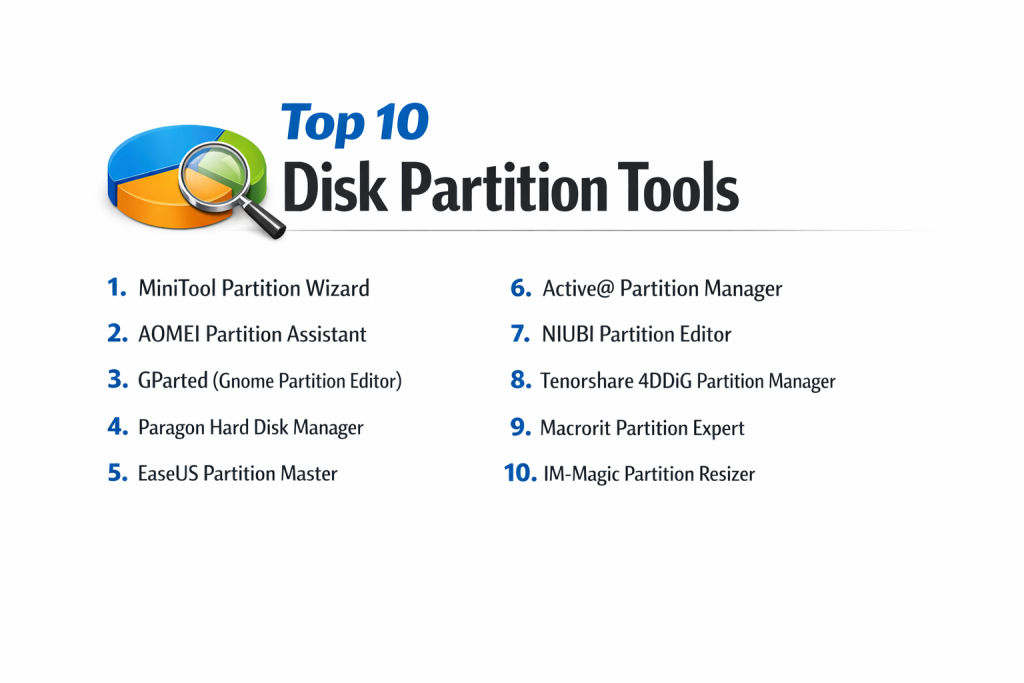
Top 10 Disk Partition Tools
1 — MiniTool Partition Wizard
MiniTool is widely considered one of the most balanced partition managers on the market. It offers a huge range of features in a very clean, modern interface that makes complex disk operations feel simple. It is a favorite among home users who need to migrate their OS to a new SSD or recover lost data. The software is very stable and provides clear explanations for every button you click.
- Key features: Partition resizing/moving, OS migration to SSD/HDD, data recovery from lost partitions, disk benchmark testing, and space analyzer.
- Pros: Extremely user-friendly interface and very high success rate for OS migrations.
- Cons: The free version is quite limited, and the Pro version can be expensive for a single-use task.
- Security & compliance: Supports password-protected partitions and basic data wiping; Varies by version.
- Support & community: Extensive online manuals, video tutorials, and a responsive email support team.
2 — AOMEI Partition Assistant
AOMEI is known for being an “all-in-one” solution that focuses on automation. It includes unique features like “Windows To Go Creator,” which lets you put a full version of Windows on a USB stick. It is designed to be foolproof, often including “wizards” that guide you through every step of a process. This makes it a great choice for beginners who are nervous about touching their drive settings.
- Key features: Dynamic disk management, MBR/GPT converter, partition splitting and merging, and secure SSD erasing.
- Pros: Very reliable “wizards” and includes many extra utility tools that others charge for.
- Cons: The interface can feel a little cluttered with ads for their other products.
- Security & compliance: Features military-grade data wiping protocols for secure disk disposal.
- Support & community: Solid documentation and a helpful forum for troubleshooting common issues.
3 — GParted (Gnome Partition Editor)
GParted is the gold standard for free, open-source partition management. It is most commonly used as a “Live” tool, meaning you put it on a USB drive and boot into it. It is incredibly powerful and supports almost every file system in existence. Because it runs outside of your operating system, it can move and resize partitions that Windows usually keeps locked.
- Key features: Support for dozens of file systems, partition flagging (boot, hidden), and deep drive scanning.
- Pros: Completely free of charge and extremely lightweight with no “bloatware.”
- Cons: Has a steep learning curve and no official technical support.
- Security & compliance: N/A; depends on the user’s implementation and Linux environment.
- Support & community: Massive community of developers and Linux enthusiasts provide help on forums.
4 — Paragon Hard Disk Manager
Paragon is a professional-grade toolkit that combines partition management with backup and disaster recovery. It is built for reliability in business environments where data loss is not an option. It handles complex tasks like managing virtual disks or working with Apple’s FileVault encryption. It is a very “heavy” tool that offers extreme control for those who know exactly what they are doing.
- Key features: Professional-level partitioning, complex backup scheduling, disk cloning, and virtual disk mounting.
- Pros: Incredibly robust and stable; rarely fails even on damaged drives.
- Cons: Very expensive and the interface is designed for experts, not casual users.
- Security & compliance: High-level encryption support and detailed audit logs for enterprise use.
- Support & community: Dedicated professional support for business clients and detailed technical whitepapers.
5 — EaseUS Partition Master
EaseUS is a household name in the utility software world. Their partition manager is incredibly fast and offers a “preview” feature, allowing you to see what your drive will look like before you commit to the changes. It is particularly good at managing 4K alignment for modern SSDs. The interface is bright, modern, and very easy for non-technical people to understand.
- Key features: One-click partition adjustment, 4K alignment for SSDs, WinPE bootable disk, and smart space management.
- Pros: The fastest performance in terms of moving data and a very “polished” feel.
- Cons: The “Free” version constantly asks you to upgrade to the “Pro” version.
- Security & compliance: Supports standard disk encryption and secure wiping.
- Support & community: 24/7 live chat support is available, along with a massive library of help articles.
6 — Active@ Partition Manager
This is a no-frills, lightweight tool that focuses on the basics. It is a great choice for technicians who need a small tool that loads quickly to initialize new disks or change drive letters. It doesn’t have the fancy migration features of Acronis or MiniTool, but it is excellent for manual partition editing. It is also one of the few tools that is completely free for both personal and commercial use in its basic form.
- Key features: Manual partition editing, support for large disks (over 2TB), and attribute editing (hidden/active).
- Pros: Very small file size and totally free for many tasks.
- Cons: It cannot resize existing partitions without deleting the data (it is not non-destructive).
- Security & compliance: Basic; does not include advanced enterprise security features.
- Support & community: Standard documentation and email-based technical support.
7 — NIUBI Partition Editor
NIUBI is famous for its “1-Second Rollback” technology. If something goes wrong while you are resizing a partition (like a power outage), it automatically reverts the computer to its original state. This makes it one of the safest tools for businesses that cannot afford a system crash. It is also extremely fast, using a unique file-moving algorithm that outperforms many competitors.
- Key features: 1-Second Rollback, virtual mode (prevents mistakes), and hot-resize (resize without rebooting).
- Pros: Unmatched safety features and incredible speed during data movement.
- Cons: The interface looks a bit outdated and “industrial.”
- Security & compliance: Standard encryption support; designed for high-availability environments.
- Support & community: Good professional support with a focus on business continuity.
8 — Tenorshare 4DDiG Partition Manager
Tenorshare offers a modern, simplified tool that is perfect for hardware upgrades. It specializes in cloning disks and migrating operating systems to new machines. It is very focused on the “home user” experience, stripping away complex jargon and replacing it with clear graphics. It is a great choice if you just bought a new SSD and want to move your data over as quickly as possible.
- Key features: Easy OS migration, disk cloning, partition recovery, and disk health monitoring.
- Pros: Very modern interface and very easy to use for first-timers.
- Cons: Lacks the deep technical tools found in GParted or Paragon.
- Security & compliance: Varies; primarily focused on data integrity during migration.
- Support & community: Helpful video guides and standard email support.
9 — Macrorit Partition Expert
Macrorit is a portable tool, meaning you can run it from a USB drive without installing it on the computer. This makes it a favorite for IT technicians who travel between different office desks. It offers a “Cancel-at-will” technology, which allows you to stop a partition operation halfway through without destroying your data—a feature most other tools lack.
- Key features: Portable version available, Cancel-at-will technology, and fast data moving.
- Pros: Great for technicians on the move and very safe to use.
- Cons: Does not support Apple’s HFS+ or APFS file systems well.
- Security & compliance: Basic password protection and secure wiping.
- Support & community: Good documentation but a smaller user community than others.
10 — IM-Magic Partition Resizer
This is a very simple tool that focuses on one thing: resizing partitions without losing data. It is extremely lightweight and works well on older computers with very little RAM. It is perfect for someone who just needs to fix a “Low Disk Space” warning and doesn’t want to deal with a hundred other features they will never use.
- Key features: Non-destructive resizing, partition merging, and wiping of unallocated space.
- Pros: Very simple and works on nearly any version of Windows (even old ones).
- Cons: Very limited feature set compared to “all-in-one” tools.
- Security & compliance: N/A.
- Support & community: Basic online help and email support.
Comparison Table
| Tool Name | Best For | Platform(s) Supported | Standout Feature | Rating |
| MiniTool | Home Power Users | Windows | Great Data Recovery | 4.6 / 5 |
| AOMEI | Beginners | Windows | Windows To Go Creator | 4.4 / 5 |
| GParted | Open Source Fans | Linux, Win, Mac | Completely Free | N/A |
| Paragon | Enterprise IT | Windows, macOS | Virtual Disk Support | 4.2 / 5 |
| EaseUS | Speed & Polish | Windows, macOS | 4K SSD Alignment | 4.5 / 5 |
| Active@ | Basic Tech Tasks | Windows | Lightweight & Free | N/A |
| NIUBI | Mission Critical | Windows | 1-Second Rollback | 4.7 / 5 |
| Tenorshare | SSD Upgrades | Windows | Simplified OS Clone | 4.1 / 5 |
| Macrorit | Portable Use | Windows | Cancel-at-will Tech | 4.3 / 5 |
| IM-Magic | Older PCs | Windows | Extreme Simplicity | N/A |
Evaluation & Scoring of Disk Partition Tools
| Category | Weight | MiniTool | AOMEI | GParted | EaseUS | Paragon |
| Core Features | 25% | 24/25 | 23/25 | 22/25 | 24/25 | 25/25 |
| Ease of Use | 15% | 14/15 | 15/15 | 3/15 | 14/15 | 8/15 |
| Integrations | 15% | 12/15 | 13/15 | 10/15 | 12/15 | 14/15 |
| Security | 10% | 8/10 | 9/10 | 6/10 | 8/10 | 10/10 |
| Performance | 10% | 9/10 | 8/10 | 9/10 | 10/10 | 9/10 |
| Support | 10% | 9/10 | 8/10 | 4/10 | 9/10 | 9/10 |
| Price / Value | 15% | 11/15 | 12/15 | 15/15 | 11/15 | 8/15 |
| Total Score | 100% | 87/100 | 88/100 | 69/100 | 88/100 | 83/100 |
Which Disk Partition Tool Is Right for You?
Solo Users vs. SMB vs. Mid-Market vs. Enterprise
For solo users, a tool like EaseUS or AOMEI is best because they guide you through common tasks like resizing a drive. SMBs should consider NIUBI for its safety rollback features, ensuring that if a computer crashes during a partition change, no data is lost. Enterprise users require Paragon or AOMEI Technician versions, which allow for network-based management and support for server operating systems.
Budget-Conscious vs. Premium Solutions
If you have no budget, GParted is the most powerful free tool available, though it requires a technical mind. If you are willing to pay for convenience, MiniTool and EaseUS offer premium experiences that save you time and reduce the risk of user error.
Feature Depth vs. Ease of Use
If you need to perform complex tasks like converting dynamic disks to basic disks or managing virtual hard drives, you need the feature depth of Paragon. However, if you just want to move space from your D: drive to your C: drive, the simplicity of IM-Magic or AOMEI will serve you better.
Integration and Scalability Needs
For companies that need to manage hundreds of drives, look for tools that offer command-line interfaces or portable editions. Macrorit and Active@ are excellent for technicians who need to scale their work across many different physical machines without installing software on every single one.
Security and Compliance Requirements
If you are working in a field like healthcare or finance, you need a tool with secure wiping features that meet military standards (like DoD 5220.22-M). Paragon and AOMEI are strong in this area, ensuring that once you delete a partition, the data is gone forever and cannot be recovered by hackers.
Frequently Asked Questions (FAQs)
1. Is partition management safe for my files?
Yes, most modern tools are “non-destructive,” meaning they move data around while they resize partitions. However, you should always have a backup of your important files just in case a power failure occurs during the process.
2. Can I merge two partitions that aren’t next to each other?
Most third-party tools can do this by moving the “blocks” of data across the drive, but it takes longer than merging partitions that are side-by-side.
3. What is the difference between MBR and GPT?
MBR is an older standard that only supports drives up to 2TB and 4 partitions. GPT is the modern standard that supports massive drives and nearly unlimited partitions.
4. Why can’t I resize my partition using Windows built-in tool?
The Windows tool is very limited; it can only extend a partition if there is empty space directly to its right. Third-party tools can move that empty space from anywhere on the drive.
5. Do these tools work on SSDs as well as HDDs?
Yes, but they perform different tasks. For SSDs, these tools help with “4K Alignment” to ensure the drive stays fast and lasts longer.
6. Can I convert a disk from NTFS to FAT32 without losing data?
Yes, tools like AOMEI and MiniTool have built-in converters that can switch file systems without formatting the drive.
7. Do I need to reboot my computer to resize a partition?
If you are resizing the partition that Windows is currently running on (the C: drive), most tools will require a reboot into a special “Pre-OS” mode to finish the job safely.
8. Can these tools help me if my computer won’t boot?
Yes, if you use the tool to create a “Bootable USB” on a working computer, you can plug it into the broken one to fix partition errors or recover data.
9. Is it better to have one large partition or many small ones?
Generally, it’s better to have one for your OS/Programs and one for your Data. This makes it much easier to back up your documents or reinstall Windows without a headache.
10. What is “unallocated space”?
This is space on your hard drive that hasn’t been assigned to any partition yet. It’s like an empty room in a house that hasn’t been turned into a bedroom or a kitchen.
Conclusion
Finding the right disk partition tool is a vital step in maintaining a healthy and organized computer system. While there is no single tool that is perfect for everyone, the options listed here cover every possible need, from the free power of GParted to the professional stability of Paragon. The most important factor is choosing a tool that you feel comfortable using; if the interface is too complex, you run the risk of making a mistake that could lead to data loss. Always prioritize tools with safety features like NIUBI’s rollback or Macrorit’s cancel-at-will technology if you are working with critical data. By taking control of your drive partitions, you aren’t just cleaning up your digital space—you are ensuring your computer runs faster, stays more organized, and is much easier to recover in the event of a system failure.