Introduction
Disk imaging tools are specialized software applications that create an exact, bit-by-bit copy of a computer’s hard drive or partition. Unlike a simple file backup that only copies your documents and photos, a disk image captures everything: the operating system, boot sectors, registry settings, hidden partitions, installed software, and personal system configurations. Think of it as a digital “clone” or a frozen snapshot of your entire machine at a specific moment in time. This snapshot is typically stored as a single, compressed image file that can be used to recreate your digital environment on a brand-new drive if your current one fails. By preserving the exact state of the software and file structure, these tools ensure that your workspace remains identical to how you left it, right down to the desktop wallpaper and browser cookies.
The importance of these tools cannot be overstated for both personal and professional data management. In an era where ransomware attacks can lock you out of your entire system and hardware failures are an eventual reality for any mechanical or solid-state drive, disk imaging serves as the ultimate safety net. It eliminates the need to manually reinstall Windows or Linux, hunt for license keys, and reconfigure complex software settings, which can save days of productive work. Furthermore, it provides a “time machine” effect, allowing you to roll back your entire system to a healthy state after a bad software update or a virus infection. Without a proper disk image, a hardware crash often means losing not just files, but the specific way you have optimized your computer over years of use. It is the only way to achieve true peace of mind, knowing that a catastrophic failure is merely a temporary inconvenience rather than a permanent loss.
Key Real-World Use Cases
- Disaster Recovery: Restoring an entire system after a catastrophic hard drive crash, blue-screen loop, or devastating malware infection.
- Hardware Upgrades: Seamlessly migrating an existing operating system and all files from an old mechanical hard drive to a much faster Solid State Drive (SSD).
- Mass Deployment: IT departments use “Golden Images” to set up dozens or hundreds of identical laptops for new employees simultaneously over a network.
- Safe Software Testing: Creating an image before trying out risky software or a new operating system version, allowing for an instant “undo” if things go wrong.
- Forensic Analysis: Law enforcement and security experts use bit-by-bit imaging to preserve a “frozen” copy of a drive for evidence without altering the original data.
What to Look For (Evaluation Criteria)
When selecting a disk imaging tool, you should look for specific capabilities that ensure your data is actually recoverable:
- Imaging Speed and Compression: How fast can the tool read and write data, and how well can it shrink the final image file to save storage space?
- Hardware Independence: Can the software restore an image to a different computer with different hardware (motherboard, CPU, etc.)?
- Bootable Media Creation: Does it provide a simple way to create a USB or CD “Rescue Disk” that works even if your computer won’t start?
- Live Imaging: Can the tool create an image while you are still using the computer, or do you have to restart into a special mode?
- Verification Features: Does the tool check the image for errors after creation to guarantee that the data is not corrupted?
Best for:
Individual power users, IT administrators, and enterprise organizations that require a “fail-safe” plan for their digital infrastructure. It is especially vital for industries handling sensitive data, such as healthcare, finance, and legal sectors, where downtime directly results in financial loss.
Not ideal for:
Casual users who only save a few documents to the cloud (like Google Drive or OneDrive) and don’t care about their system settings. It is also not a replacement for “file-sync” services; if you only need to share a file between two computers, a disk image is far too bulky and complex for the task.
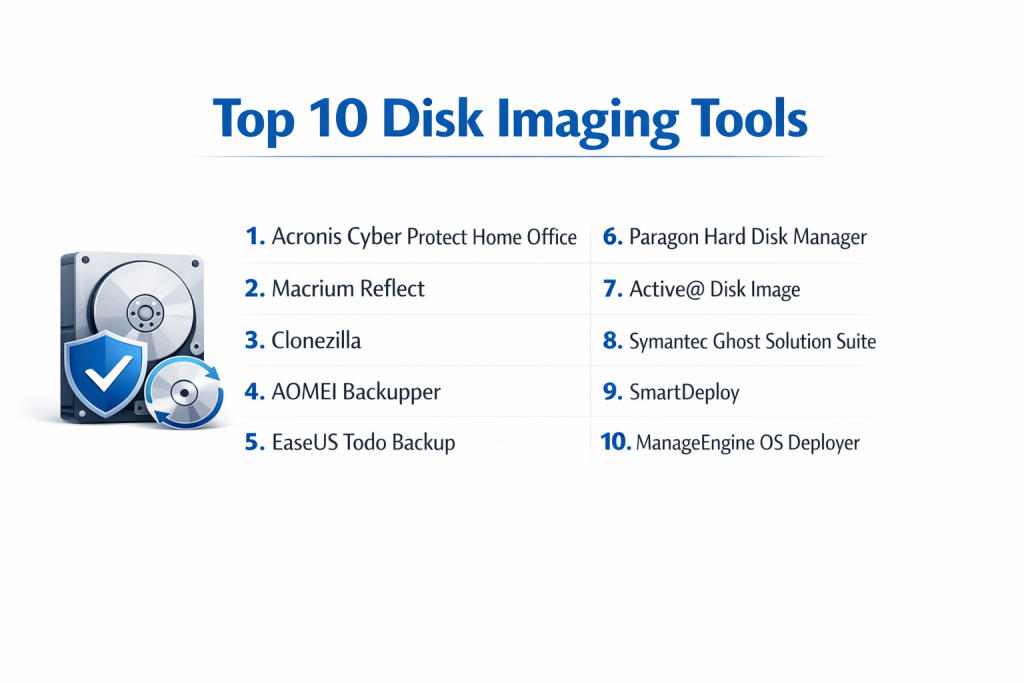
Top 10 Disk Imaging Tools
1 — Acronis Cyber Protect Home Office
Formerly known as Acronis True Image, this is a premium, all-in-one solution that blends professional-grade disk imaging with modern cybersecurity features like ransomware protection. It is designed to provide a “set-and-forget” experience for users who want the highest level of automation and cloud integration. The software actively monitors your system for suspicious behavior while performing backups in the background without slowing down your work. It is particularly effective for people who manage multiple devices, as it allows for remote management through a single web dashboard.
- Key features: Full image and mirror imaging, active disk cloning even during use, universal restore for different hardware, AI-based ransomware protection, and cloud-to-cloud backup.
- Pros: Extremely fast imaging speeds and a very modern, easy-to-navigate interface.
- Cons: It is a subscription-based model which can become expensive over time, and it consumes significant system resources.
- Security & compliance: Includes AES-256 encryption, end-to-end encryption for cloud storage, and is designed to meet HIPAA and GDPR standards for data protection.
- Support & community: Offers 24/7 technical support, an extensive knowledge base, and a very active user forum for troubleshooting.
2 — Macrium Reflect
Macrium Reflect is highly respected by IT professionals for its reliability and its “Rapid Delta” technology, which makes incremental updates incredibly fast. This tool is built on a very stable engine that excels at creating bootable rescue media that works on almost any hardware configuration. It is the go-to choice for users who value data integrity above all else, as it includes rigorous verification steps to ensure an image is never corrupted. The software also features a unique “Image Guardian” that prevents unauthorized changes to your backup files.
- Key features: Rapid Delta Cloning and Restore, specialized protection against ransomware (Macrium Image Guardian), WinPE rescue media builder, and scheduled imaging.
- Pros: Highly stable and reliable; the rescue media is widely considered the best in the industry.
- Cons: The user interface looks a bit dated and can be intimidating for beginners.
- Security & compliance: Supports password protection and AES encryption; widely used in corporate environments for compliance-heavy tasks.
- Support & community: Excellent documentation and responsive email support for paid users.
3 — Clonezilla
Clonezilla is the gold standard for free, open-source disk imaging. It is a “Live” system, meaning you run it from a USB stick rather than installing it on your computer. While it lacks a modern windowed interface, it offers power and flexibility that many paid tools cannot match, especially for Linux users. It is capable of cloning massive numbers of computers simultaneously using multicast technology, making it a favorite for university labs and small IT shops. It supports a massive range of file systems, ensuring it can image almost any drive you plug in.
- Key features: Multicast support for cloning 40+ computers at once, support for almost every file system (Windows, Linux, Mac), and minimal system requirements.
- Pros: Completely free of charge and extremely powerful for mass deployments.
- Cons: No graphical interface; it uses a text-based menu that is very difficult for non-technical users to navigate.
- Security & compliance: Supports AES-256 encryption for image files; compliance depends entirely on how the user configures the server environment.
- Support & community: Driven by a massive community of developers; support is mainly found through online forums and tutorials.
4 — AOMEI Backupper
AOMEI offers a very friendly and approachable tool that balances powerful imaging features with a “one-click” design philosophy. It is specifically built for home users who might be intimidated by technical jargon, offering clear icons and step-by-step wizards for every task. Despite its simplicity, it includes advanced features like universal restore and the ability to merge multiple incremental backups into one. It is a great middle-ground option for those who want professional results without a steep learning curve.
- Key features: System/Disk/Partition imaging, dynamic disk volume support, PXE boot tool for network booting, and automatic “set-and-forget” scheduling.
- Pros: The interface is very simple and clean, making it perfect for home users.
- Cons: The free version is quite limited, and some users have reported occasional issues with the bootable media.
- Security & compliance: Provides basic password encryption; advanced security features are reserved for the Pro and Technician versions.
- Support & community: Good email support and a helpful library of “how-to” articles on their website.
5 — EaseUS Todo Backup
EaseUS is a well-known name in data recovery, and their disk imaging tool is built to be as foolproof as possible for the average user. It focuses on making “system migration” easy, allowing you to move your entire Windows installation to a new SSD with just a few clicks. The tool also includes a “smart backup” feature that automatically monitors specific files for changes, ensuring your image is always up to date. It is a highly polished product that feels modern and responsive during use.
- Key features: Smart backup technology that only saves changed data, one-click system migration to SSD, and P2V (Physical to Virtual) conversion support.
- Pros: Very easy to set up and offers a generous free version for basic imaging.
- Cons: The software often tries to “up-sell” other products within the interface, which can be annoying.
- Security & compliance: Includes standard encryption and password protection for all image archives.
- Support & community: Offers live chat support and a very large collection of video tutorials.
6 — Paragon Hard Disk Manager
This is a comprehensive toolkit that combines disk imaging with advanced partition management and secure data wiping. It is designed for users who need to do more than just back up, such as resizing partitions or moving data between different file systems. The software is built on a robust industrial engine that can handle very large disks and complex server configurations. It also features a “recovery media builder” that is highly customizable for technical troubleshooting.
- Key features: Hardware-independent restoration, advanced partitioning tools (resize/move), secure disk wiping to military standards, and a powerful recovery media builder.
- Pros: A true “Swiss Army Knife” for hard drives; great for people who need to manage partitions while imaging.
- Cons: The software is quite heavy and can be slow when performing full-disk backups.
- Security & compliance: Strong focus on data sanitization and encryption, making it popular for businesses retiring old hardware.
- Support & community: Professional enterprise-level support is available, along with standard documentation for home users.
7 — Active@ Disk Image
Active@ Disk Image is a no-nonsense tool designed for speed and simplicity. It is often used by technicians who need a portable tool to carry on a USB drive for quick diagnostic work. Unlike some bloatware-heavy competitors, this tool focuses purely on creating and restoring images without unnecessary extra features. It is capable of creating “raw” images, which are bit-for-bit copies of every sector on a drive, regardless of the file system. This makes it a great choice for recovering data from partially damaged or corrupted drives.
- Key features: Sector-by-sector “Raw” imaging, image compression, task scheduling, and the ability to mount images as virtual drives to browse files.
- Pros: Very small footprint and very fast at creating raw copies of damaged drives.
- Cons: The interface is very basic and lacks the “polish” of more expensive competitors.
- Security & compliance: Supports AES-128, 192, and 256 encryption for image files.
- Support & community: Standard documentation and email-based technical support.
8 — Symantec Ghost Solution Suite
Ghost is one of the oldest names in the industry. Today, it is a specialized enterprise tool for managing and deploying thousands of images across a corporation. It is not meant for home use, as it requires a server-client architecture to function correctly. IT managers use it to “push” entire operating systems to hundreds of computers simultaneously over a local network. It also includes advanced reporting tools to track which machines have been updated and which are out of compliance.
- Key features: Centralized management console, hardware-independent deployment, software distribution, and detailed asset inventory.
- Pros: Unmatched power for massive organizations with complex networks.
- Cons: Extremely expensive and far too complicated for an individual user or small business.
- Security & compliance: Fully enterprise-compliant with advanced audit logs, SSO, and role-based access control.
- Support & community: Dedicated enterprise support with high-level service agreements (SLAs).
9 — SmartDeploy
SmartDeploy takes a unique “layered” approach to imaging, separating the operating system from the hardware drivers and applications. This means an IT department only needs to manage one “Golden Image” for every different laptop model in the office. The software automatically detects the hardware during restoration and injects the correct drivers. It is a massive time-saver for companies that use a mix of Dell, HP, and Lenovo machines. It also allows for deployment over the cloud, making it ideal for remote teams.
- Key features: Single-image management for all hardware models, cloud-based deployment via Dropbox/OneDrive, and automated driver injection.
- Pros: You only need to maintain one “Golden Image” for every different type of laptop in your company.
- Cons: Higher price point and geared strictly toward IT departments rather than individuals.
- Security & compliance: Enterprise-grade security with cloud integration and secure deployment protocols.
- Support & community: Excellent professional support and a well-maintained library of hardware-specific driver packs.
10 — ManageEngine OS Deployer
ManageEngine specializes in IT management software, and their OS Deployer is built for speed and automation in a business setting. It allows administrators to capture an image of a “live” machine and then deploy it to target computers without any manual intervention. The tool is particularly good at handling the unique security identifiers (SIDs) that Windows requires for each machine on a network. It provides a centralized dashboard where you can see the progress of all your imaging tasks in real-time across multiple office locations.
- Key features: Centralized image library, automated SID handling, hardware-independent deployment, and remote office imaging.
- Pros: Integrates perfectly with other ManageEngine products; great for remote workers.
- Cons: The setup process can be complex and requires a dedicated server to run effectively.
- Security & compliance: High-level security including SOC 2 and GDPR compliance tools for large organizations.
- Support & community: Comprehensive enterprise support and a large global community of IT admins.
Comparison Table
| Tool Name | Best For | Platform(s) Supported | Standout Feature | Rating |
| Acronis Cyber Protect | Personal Security | Windows, macOS | Built-in Anti-Ransomware | 4.4 / 5 |
| Macrium Reflect | IT Professionals | Windows | Rapid Delta Imaging | 4.7 / 5 |
| Clonezilla | Tech Savvy Users | Windows, Linux, Mac | Free & Open Source | N/A |
| AOMEI Backupper | Home Beginners | Windows | Simple “One-Click” UI | 4.3 / 5 |
| EaseUS Todo Backup | SMBs | Windows, macOS | P2V Conversion | 4.5 / 5 |
| Paragon HDM | Partition Experts | Windows | Advanced Disk Wiping | 4.1 / 5 |
| Active@ Disk Image | Data Recovery | Windows | Raw Sector Imaging | N/A |
| Symantec Ghost | Large Corporations | Windows, Linux | Centralized Management | 4.0 / 5 |
| SmartDeploy | Diverse Hardware | Windows | Layered Image Architecture | 4.8 / 5 |
| ManageEngine | Remote Teams | Windows | WAN-based Deployment | 4.2 / 5 |
Evaluation & Scoring of Disk Imaging Tools
| Category | Weight | Acronis | Macrium | Clonezilla | AOMEI | EaseUS |
| Core Features | 25% | 24/25 | 23/25 | 25/25 | 19/25 | 20/25 |
| Ease of Use | 15% | 14/15 | 10/15 | 2/15 | 15/15 | 14/15 |
| Integrations | 15% | 13/15 | 11/15 | 10/15 | 12/15 | 12/15 |
| Security | 10% | 10/10 | 9/10 | 7/10 | 8/10 | 8/10 |
| Performance | 10% | 9/10 | 10/10 | 9/10 | 7/10 | 7/10 |
| Support | 10% | 9/10 | 8/10 | 4/10 | 7/10 | 8/10 |
| Price / Value | 15% | 10/15 | 12/15 | 15/15 | 13/15 | 13/15 |
| Total Score | 100% | 89/100 | 83/100 | 72/100 | 81/100 | 82/100 |
Which Disk Imaging Tool Is Right for You?
Solo Users vs. SMB vs. Enterprise
If you are a solo user looking to protect your personal laptop, Acronis or AOMEI are the best choices because they don’t require advanced networking knowledge. SMBs (Small to Medium Businesses) should look toward Macrium Reflect or EaseUS, as they offer a good balance of professional reliability and manageable costs. Enterprises with thousands of devices should stick to Symantec Ghost or SmartDeploy to handle the sheer scale of their operations.
Budget-Conscious vs. Premium Solutions
If you have zero budget, Clonezilla is your only choice, provided you are willing to learn how to use a text-based interface. For those who can afford a small investment, a perpetual license for Macrium Reflect offers the best long-term value. If you want the absolute best security and don’t mind a monthly subscription, Acronis is the premium leader.
Feature Depth vs. Ease of Use
Beginners should prioritize EaseUS or AOMEI; these tools use “wizards” that guide you through every step. Power users and IT technicians will likely find those tools too restrictive and will prefer the “bare-metal” control and customization options found in Paragon or Active@ Disk Image.
Integration and Scalability Needs
If your company is growing fast, you need a tool that can deploy images over a network without you having to touch every individual computer. ManageEngine and SmartDeploy are built specifically for this “hands-off” scalability, whereas home-oriented tools would require you to walk to every machine with a USB drive.
Security and Compliance Requirements
If you work in a regulated industry, your imaging tool must support high-level encryption (AES-256) and provide logs of every backup and restore. Acronis and Macrium are excellent here because they provide “Immutable” backups that cannot be altered or deleted by ransomware, ensuring your recovery data remains safe.
Frequently Asked Questions (FAQs)
1. What is the difference between disk imaging and a simple backup?
A backup copies files; a disk image copies the entire “brain” of the computer. With a disk image, you don’t have to reinstall Windows or your apps; with a file backup, you do.
2. Can I restore an image from a large hard drive to a smaller SSD?
Yes, most modern tools like Macrium Reflect and EaseUS can automatically shrink the partition to fit a smaller drive, as long as the actual data isn’t larger than the new drive’s capacity.
3. Is it possible to image a computer while I am still using it?
Yes, this is called “Hot Imaging.” Most tools use a technology called VSS (Volume Shadow Copy Service) to take a snapshot of the drive without making you stop your work.
4. How often should I create a new disk image?
It depends on how much you change your system. A good rule of thumb is to create a “Base Image” when your computer is fresh and a new “Incremental Image” once a month or before any major software update.
5. Do I need a separate hard drive to store my disk images?
Yes. You should never store a disk image on the same physical drive you are imaging. If that drive fails, you lose both your original data and your backup.
6. Can I use a disk image on a completely different computer?
This requires “Hardware Independent Restore” or “Universal Restore.” Tools like Acronis and SmartDeploy excel at this, but basic free tools might cause a “Blue Screen” due to driver conflicts.
7. Are free tools like Clonezilla as safe as paid ones?
The technology is just as safe, but the lack of a graphical interface makes it much easier for a user to make a mistake and accidentally overwrite the wrong drive.
8. How much storage space does a disk image take?
Most tools use “High Compression.” A 500GB hard drive with 100GB of actual data will usually result in a disk image file of about 50GB to 60GB.
9. Can I extract just one file from a disk image without restoring the whole thing?
Yes. Most tools allow you to “Mount” the image as a virtual drive, letting you browse it like a folder and copy-paste individual files.
10. What is a “Rescue Media” and why do I need it?
It is a bootable USB drive that contains a small version of the imaging software. If your Windows won’t boot, you plug this in to run the software and restore your image.
Conclusion
Selecting the right disk imaging tool is a vital investment in your long-term digital resilience and business continuity. While there is a vast range of options available, the “best” tool is ultimately the one that aligns with your specific technical expertise, your hardware environment, and your financial constraints. For home users, the focus should always be on simplicity and a foolproof recovery process, whereas enterprise organizations must prioritize centralized control and high-speed network deployment. It is important to remember that having the software is only half the battle; the other half is maintaining a consistent imaging schedule and regularly testing your recovery media.
A robust disk imaging strategy transforms a potential technology nightmare into a manageable minor delay. By choosing a reputable tool and keeping your images stored on separate, secure hardware, you ensure that your data and your customized digital workspace are always within reach. No matter which tool you choose, the true value lies in the confidence it provides, knowing that you can recover from almost any disaster in just a few clicks. Take the time today to secure your digital future—your future self will thank you for the foresight.