Introduction
Parental control software is a set of tools that helps parents guide and protect their children’s experience on phones, tablets, and computers. It allows you to see what your child is doing online, set limits on screen time, and block access to harmful or inappropriate websites and apps. In simple terms, it acts like a digital fence and a window, giving your child freedom to explore while keeping them safe.
This software is important because the internet, while full of wonderful things to learn, also has risks. Children can accidentally see violent or adult content, talk to strangers, or spend too much time on games and videos. Parental control tools help you manage these risks. You can use them to make sure your child isn’t using their device during homework or bedtime, to filter out inappropriate content, or to track their location for safety.
When you are choosing a tool, you should look for a few key things. First, it must work on all the devices your child uses. Second, it should be easy for you to set up and use. Third, you want the right level of control—some parents just want to block adult websites, while others want detailed reports on every app used. Finally, consider if you want features like location tracking or controls that work across phones, tablets, and computers.
Best for: These tools are most helpful for parents and guardians of children and teenagers, especially those between the ages of 5 and 16. They are also useful for caregivers who want to ensure a safer online environment. They benefit families of all sizes, from a single child to several.
Not ideal for: These tools are generally not designed for monitoring adults or employees without their consent, which can be unethical or illegal. They are also less necessary for parents of very young children who do not use devices independently, or for families who practice strict, device-free parenting and do not need digital management tools.
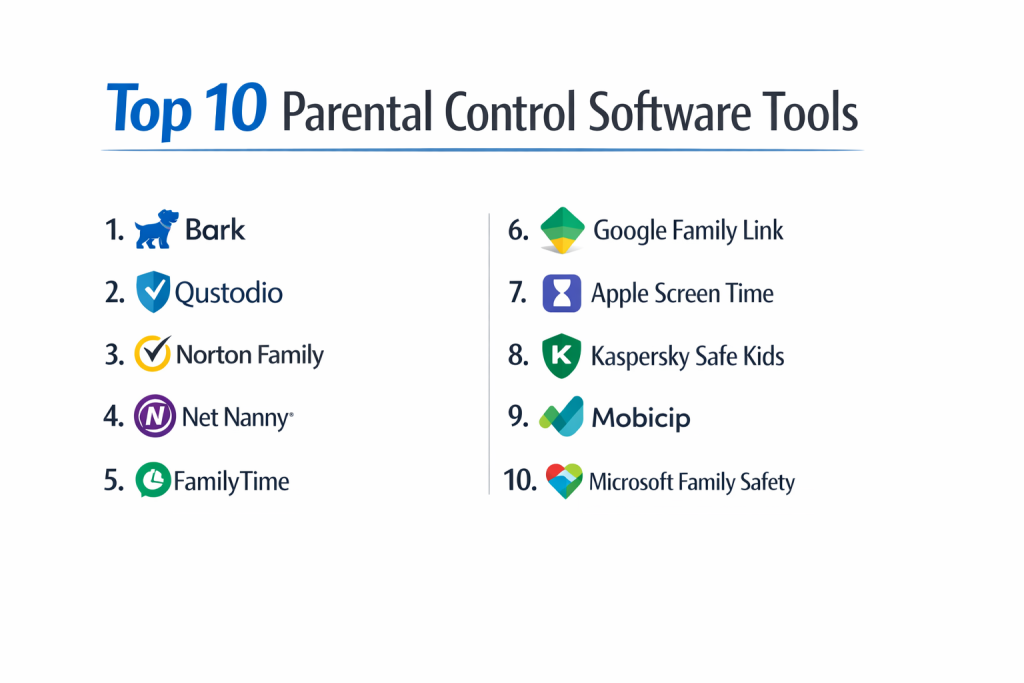
Top 10 Parental Control Software Tools
Here is a detailed look at ten of the most effective and widely-used parental control applications available today.
1 — Bark
Bark is a monitoring-focused tool that uses smart technology to scan your child’s texts, emails, and social media for signs of danger, like bullying, depression, or online predators. It is designed for parents who want to be alerted to potential problems rather than controlling every minute online.
Key features:
- Monitors over 30 social media platforms and apps for risky content.
- Sends parents alerts for issues like cyberbullying, sexual content, drug references, and thoughts of self-harm.
- Allows screen time scheduling and website filtering on computers and phones.
- Tracks your child’s location and can alert you to new places they visit.
- Can monitor text messages (SMS) and email on Android devices.
Pros:
- The alert system is powerful and can catch serious issues other filters miss because it understands context.
- It respects some teen privacy by alerting you to potential problems instead of showing you every single message.
Cons:
- To get the full monitoring on social media, you need your child’s login credentials for each account, which can be a hurdle.
- The focus is on alerts, so it has fewer hardcore blocking and scheduling features than some other tools.
Security & compliance: Bark uses strong encryption to protect family data. They have a clear privacy policy stating they do not sell personal data.
Support & community: Bark offers email and chat support, along with a detailed help center online. They do not have phone support.
2 — Qustodio
Qustodio is a powerful, all-in-one parental control suite known for its strong web filtering and detailed activity reports. It is designed for parents who want comprehensive visibility and control over multiple types of devices.
Key features:
- Highly customizable web filter that blocks content in over 25 categories (like adult content, violence, gambling).
- Detailed reports showing exactly what your child searched for, which websites they visited, and which apps they used and for how long.
- Strong screen time limits that can be set by day of the week or a total daily allowance.
- App blocking for specific games or applications like TikTok or YouTube.
- Panic button feature on your child’s phone to send an immediate alert and location to parents.
Pros:
- Offers one of the most detailed and easy-to-understand dashboards, showing a complete picture of your child’s digital day.
- Works very well across Windows, Mac, Android, iOS, and Kindle, giving you consistent control.
Cons:
- The large number of features can make the initial setup feel a bit complex for some parents.
- To use all features on an iPhone or iPad, you must use Qustodio’s own web browser, which your child may not like.
Security & compliance: Qustodio is transparent about its security practices, which include data encryption. They are a Certified B Corporation, meeting high standards of social and environmental performance.
Support & community: Support is provided via email. There is an extensive online knowledge base with setup guides and troubleshooting tips.
3 — Norton Family
Norton Family comes from the well-known cybersecurity company. It focuses heavily on supervision, web monitoring, and teaching kids healthy online habits through alerts and rules. It’s a good fit for parents who want to partner with their child on digital safety.
Key features:
- “School Time” feature to block distracting apps and websites during designated learning hours.
- Gets search terms from your child’s device to see what they are looking for online.
- Sends instant alerts to your phone when your child tries to visit a blocked website.
- Allows your child to request access to a blocked site or more screen time, which you can approve or deny from your phone.
- Tracks location and gives a 30-day location history.
Pros:
- The “Instant Lock” feature lets you immediately pause all internet access on your child’s device with one click.
- It includes a unique feature that lets you monitor video searches on YouTube.
Cons:
- Lacks deep social media monitoring features found in tools like Bark.
- Some advanced features require your child to use the Norton Family browser on their device.
Security & compliance: Backed by NortonLifeLock, it employs strong security measures. Parental data is protected with encryption.
Support & community: Support includes phone and chat options. The website has video tutorials and a community forum where parents can ask questions.
4 — Net Nanny
Net Nanny is one of the oldest names in parental controls, famous for its robust and reliable internet filtering technology. It is ideal for parents whose top priority is proactively blocking inappropriate and harmful web content before it reaches their child’s screen.
Key features:
- Powerful real-time content filtering that analyzes web pages as they load to block inappropriate material.
- Customizable filtering profiles (Pre-teen, Teen, Child, Adult) to quickly apply the right level of restriction.
- Can mask profanity on websites, replacing offensive words with symbols.
- Provides screen time management and app blocking controls.
- Family News Feed gives a quick, scrolling summary of your child’s recent online activity.
Pros:
- Its web filtering is considered one of the most effective and “smart” at catching content that slips past simple blocklists.
- The interface is straightforward and not overwhelming, making it easy to manage.
Cons:
- Does not monitor social media activity or private messages within apps.
- Some users report that the mobile app interface feels slightly outdated compared to newer competitors.
Security & compliance: Net Nanny states they use industry-standard security practices to protect user information. Parental controls are their sole focus.
Support & community: Customer support is available via phone and email. Their online help portal contains articles and setup guides.
5 — FamilyTime
FamilyTime emphasizes control and scheduling, with a strong suite of features for managing screen time, routines, and real-world activities. It is great for parents who want to structure their child’s day and encourage breaks from the screen.
Key features:
- Extensive scheduling for screen time, app use, and internet access, down to the minute for different days.
- “FunTime” feature lets you grant extra, one-time screen time as a reward.
- Geofencing alerts you when your child arrives at or leaves a designated place like school or home.
- Drive safety features to see if your teen is speeding or using their phone while driving.
- Allows you to lock your child’s device remotely, instantly.
Pros:
- Offers unique “PickMeUp” alerts for your child to send you a notification when they need to be collected from somewhere.
- The scheduling tools are very flexible and powerful for creating daily routines.
Cons:
- The interface has many icons and options, which can take some time to learn.
- Web filtering is not as advanced or customizable as dedicated tools like Net Nanny or Qustodio.
Security & compliance: FamilyTime uses encryption for data. They have a clear privacy policy regarding the collection and use of family data.
Support & community: Support is offered through in-app chat, email, and a help center with tutorials.
6 — Google Family Link
Google Family Link is a free tool from Google designed to help parents set digital ground rules for children using Android devices or Chromebooks. It is the foundational choice for families embedded in the Google ecosystem.
Key features:
- Approve or block apps your child wants to download from the Google Play Store.
- Set daily screen time limits and a “bedtime” to lock the device.
- See your child’s location if their device is with them.
- Manage privacy settings on your child’s Google Account.
- For younger children, you can remotely lock their device when it’s time for a break.
Pros:
- Completely free to use.
- Deeply integrated with Android, making setup and management seamless if your child uses an Android phone or tablet.
Cons:
- Very limited functionality on Apple iOS devices (iPhone/iPad).
- Lacks advanced content filtering, social media monitoring, and detailed activity reports compared to paid services.
- Some controls expire when the child turns 13 in most countries.
Security & compliance: As a Google product, it ties into Google’s extensive security infrastructure and privacy controls for accounts.
Support & community: Support is through Google’s online help forums and help center articles.
7 — Apple Screen Time
Apple Screen Time is a built-in, free feature on iPhones, iPads, and Macs. It allows parents to set up controls directly on their child’s Apple device or manage them remotely from a parent’s iPhone. It’s the essential tool for families using Apple products.
Key features:
- “Downtime” schedules times when only phone calls and apps you choose are allowed.
- “App Limits” set daily time allowances for specific app categories (like Games or Social Media).
- “Communication Limits” control who your child can communicate with (phone, FaceTime, Messages) during allowed hours.
- “Content & Privacy Restrictions” block inappropriate content, music, movies, and prevent changes to privacy settings.
- Always-on activity reports show daily and weekly app usage.
Pros:
- Built directly into the device’s operating system, so it works perfectly without installing extra software.
- Gives children clear warnings when their time is almost up, teaching them to manage their own usage.
Cons:
- Only works within the Apple ecosystem (iOS, iPadOS, macOS). Does not work on Android, Windows, or Kindle.
- The web content filter is basic and can be less effective than third-party tools.
- Settings can sometimes be reset if the child knows the device passcode.
Security & compliance: All data is stored on-device or encrypted in iCloud, adhering to Apple’s strong privacy stance.
Support & community: Support is available through Apple’s official support channels, including the Apple Support website and app.
8 — Kaspersky Safe Kids
Kaspersky Safe Kids is a balanced offering from the cybersecurity giant, providing a good mix of web filtering, screen time management, and location tracking at a competitive price. It’s a solid middle-ground option.
Key features:
- Web filtering that blocks adult and inappropriate content.
- Screen time scheduler to limit device use.
- Battery level tracking on your child’s device, so you know if it’s about to die.
- Location tracking and geofencing with alerts.
- A simple, uncluttered dashboard that shows key information quickly.
Pros:
- Often more affordable than many top competitors while still offering a strong core feature set.
- Lightweight and generally does not slow down your child’s device.
Cons:
- Lacks the depth of social media monitoring or advanced reporting found in premium tools.
- Some parents in certain regions have expressed data privacy concerns due to the parent company’s origins, though Kaspersky denies any wrongdoing.
Security & compliance: Kaspersky employs its own cybersecurity technology to protect the product. They have independent transparency centers to review their code.
Support & community: Support is accessible through a ticket system on their website, which includes a knowledge base.
9 — Mobicip
Mobicip is a service that focuses on providing safe internet access through its own filtered web browser. It is a strong choice for parents who want to ensure safe browsing on a wide variety of devices, including school-issued laptops.
Key features:
- Provides a secured, filtered web browser that must be used on the child’s device for controls to work.
- Offers different filtering levels (Young Kids, Kids, Teens, Parents).
- Manages screen time and app usage.
- Works on a very wide range of platforms, including Windows, Mac, Android, iOS, and even Chromebooks.
- Can be used to set up safe browsing on school computers where you cannot install traditional software.
Pros:
- Excellent cross-platform compatibility, making it versatile for mixed-device families.
- The browser-based approach can be effective on managed devices where app installation is restricted.
Cons:
- Because it relies on its own browser, your child can bypass filters by using a different browser like Chrome or Safari.
- The experience is tied to using the Mobicip browser, which some children may resist.
Security & compliance: Mobicip states it uses encryption for data in transit. Their privacy policy details what data is collected.
Support & community: Primary support is via email and an online help desk with articles and guides.
10 — Microsoft Family Safety
Microsoft Family Safety is a free app from Microsoft that helps manage your family’s digital habits across Windows 10/11 PCs, Xbox consoles, and Android devices (with limited iOS support). It’s best for families who use Windows PCs and Xbox gaming systems heavily.
Key features:
- Set screen time limits on Windows PCs and Xbox devices.
- Filter inappropriate websites and searches on the Microsoft Edge browser.
- Get activity reports for apps and games on PC and Xbox.
- Set spending limits for your child to request purchases in the Microsoft Store.
- Share locations between family members (requires mobile app).
Pros:
- Free and offers excellent, integrated control over Windows and Xbox, which are hard for other tools to manage.
- The spending limits for game and app purchases are a unique and useful feature for gaming families.
Cons:
- Very limited controls and monitoring for mobile devices (Android/iOS).
- Web filtering only works in the Microsoft Edge browser on PC.
- The family group setup can be confusing initially.
Security & compliance: As a Microsoft service, it benefits from the company’s enterprise-grade security and privacy commitments.
Support & community: Support is found through Microsoft’s online community forums and help documentation.
Comparison Table
| Tool Name | Best For (target user or scenario) | Platform(s) Supported | Standout Feature | Rating |
|---|---|---|---|---|
| Bark | Parents concerned about cyberbullying, depression, and online predators. | iOS, Android, Amazon Fire, Windows, Mac | Advanced social media & text message monitoring for risks. | N/A |
| Qustodio | Parents who want the most detailed reports and comprehensive cross-platform control. | iOS, Android, Windows, Mac, Kindle | Unmatched, detailed activity reporting dashboard. | N/A |
| Norton Family | Parents focusing on supervision and teaching moments during web browsing. | iOS, Android, Windows | “Instant Lock” and “School Time” distraction blocker. | N/A |
| Net Nanny | Parents whose #1 priority is blocking inappropriate web content effectively. | iOS, Android, Windows, Mac | Best-in-class real-time internet content filtering. | N/A |
| FamilyTime | Parents who want to build strict daily digital routines and schedules. | iOS, Android | Powerful scheduling and “PickMeUp” alert feature. | N/A |
| Google Family Link | Families with young children using Android devices, seeking a free foundation. | Android, Chromebook (Limited iOS) | Free, deep integration with Android/Google ecosystem. | N/A |
| Apple Screen Time | Families fully invested in the Apple ecosystem (iPhone, iPad, Mac). | iOS, iPadOS, macOS | Native, seamless controls built into the Apple OS. | N/A |
| Kaspersky Safe Kids | Parents looking for a well-rounded, budget-friendly paid option. | iOS, Android, Windows, Mac | Good balance of core features at a lower cost. | N/A |
| Mobicip | Families with many device types or who need controls on school-managed laptops. | iOS, Android, Windows, Mac, Chromebook | Browser-based filtering for wide device compatibility. | N/A |
| Microsoft Family Safety | Families managing screen time on Windows PCs and Xbox consoles. | Windows, Xbox, Android (Limited iOS) | Screen time & purchase controls for PC/Xbox. | N/A |
Evaluation & Scoring of Parental Control Software
To choose the right tool, it helps to score them based on what matters most to you. Here is a simple scoring system with the most important categories and how much weight they might carry in your decision.
| Category | Weight | What It Means | Top Performers in This Category |
|---|---|---|---|
| Core Features | 25% | Does it have the key controls you need? (Filtering, time limits, monitoring, location). | Qustodio, Bark, Net Nanny |
| Ease of Use | 15% | Is the setup simple? Is the parent dashboard clear and easy to navigate? | Apple Screen Time, Google Family Link, Norton Family |
| Integrations & Ecosystem | 15% | Does it work on all your family’s devices (iOS, Android, PC, Mac)? | Mobicip, Qustodio, Apple Screen Time* |
| Security & Compliance | 10% | Does the company protect your family’s data with encryption and clear privacy policies? | Bark, Qustodio, Apple Screen Time |
| Performance & Reliability | 10% | Does it work consistently without slowing down devices or crashing? | Net Nanny, Apple Screen Time, Qustodio |
| Support & Community | 10% | Can you get help when you need it? Are there good guides? | Norton Family, Qustodio, Bark |
| Price / Value | 15% | Are you getting good features for the price you pay? | Google Family Link (Free), Apple Screen Time (Free), Kaspersky Safe Kids |
*Apple Screen Time only integrates deeply within Apple’s own ecosystem.
Which Parental Control Software Tool Is Right for You?
Choosing the right tool isn’t about finding the “best” one overall, but the best one for your family. Ask yourself these questions:
For different family needs:
- Solo User / Single Child: Most tools will work well. Consider ease of use and value. Google Family Link (Android) or Apple Screen Time (Apple) are great free starts. Kaspersky Safe Kids offers strong paid features affordably.
- Small Family (2-3 kids): You need a tool that can manage multiple profiles easily. Qustodio and Norton Family have excellent multi-child dashboards.
- Large or Blended Family: Look for tools with generous device allowances per subscription. Bark and Qustodio often support unlimited devices for a flat family rate.
For your budget:
- Budget-Conscious: Start with the free tools built into your devices: Apple Screen Time or Google Family Link. If you need more, Kaspersky Safe Kids is a low-cost paid option.
- Premium Solutions: If you need advanced monitoring or filtering and are willing to pay for it, Bark (for social/emotional risks) and Net Nanny (for web filtering) are top-tier specialists. Qustodio is a premium all-rounder.
For feature depth vs. ease of use:
- Feature Depth & Control: If you want the most powerful reports, filters, and schedules, choose Qustodio or Net Nanny. Be prepared for a slightly more complex setup.
- Simplicity & Ease: If you want something that works immediately with minimal fuss, choose Apple Screen Time (if on Apple) or Norton Family.
For integration and device needs:
- All Apple Family: Apple Screen Time is your default and best choice. It’s free and works perfectly.
- All Android/Google Family: Google Family Link is the essential free foundation.
- Mixed Device Family (iOS, Android, Windows): You need a strong cross-platform tool. Qustodio and Mobicip are excellent here.
For security and specific risks:
- General Safety & Filtering: Net Nanny or Qustodio.
- Social Media & Emotional Wellbeing: Bark is unmatched for detecting potential dangers in communication.
- Gaming & PC Focus: Microsoft Family Safety is best for managing Xbox and Windows PC time.
Frequently Asked Questions (FAQs)
1. Is it wrong to use parental controls on my teen?
Not if done openly. The healthiest approach is to have a conversation with your teen about why you’re using them—for safety, not spying. Many tools allow you to adjust controls as your teen demonstrates responsibility.
2. Can my child bypass or disable the software?
On mobile devices, especially if they know the passcode, they might be able to uninstall an app. Choose tools with features that warn you if the app is removed and have honest conversations about rules. On iPhones, using Apple’s Screen Time with a separate passcode your child doesn’t know is very secure.
3. Are free parental control apps any good?
Yes, for basic needs. Apple Screen Time and Google Family Link are powerful free tools built into your devices. They are perfect for setting time limits and basic content filters but lack the advanced monitoring and reporting of paid apps.
4. What’s the main difference between monitoring and filtering?
Filtering (like Net Nanny) blocks harmful content from ever being seen. Monitoring (like Bark) reviews your child’s activity and alerts you to potential problems. The best tools, like Qustodio, do both.
5. Do I need a different app for each of my child’s devices?
No. A single parental control subscription typically covers multiple devices. You install a small app or profile on each of your child’s devices and manage them all from one parent dashboard on your phone or computer.
6. How do parental controls work on iPhones?
Due to Apple’s strict privacy rules, third-party apps on iPhones cannot see activity inside other apps (like Instagram messages). They rely on Apple’s Screen Time framework for controls. For full iPhone monitoring, you must use Apple Screen Time itself or pair a service with it.
7. Will these tools slow down my child’s phone or computer?
Most modern parental control apps are designed to be lightweight and have a minimal impact on device performance. You might notice a slight effect on very old devices.
8. What happens when my child turns 18?
Policies vary. Most services have the parent account in control, so you can choose to remove the monitoring. It’s a good milestone to transition to trust-based guidance instead of software controls.
9. Can I control when homework gets done?
Yes. Tools like Norton Family’s “School Time” or Qustodio’s schedules can block games and social media during specific hours of the day to encourage focus.
10. What’s the first step I should take before installing anything?
Talk to your child. Explain your concerns about online safety and that you will be using a tool to help keep them safe. This builds trust and reduces the chance they will see it as an unfair invasion of privacy.
Conclusion
Choosing the right parental control software is a significant step towards creating a safer digital environment for your child. The key is to align the tool’s strengths with your family’s specific needs, values, and the devices you use. There is no single “best” application for everyone. For some, the free, built-in tools like Apple Screen Time or Google Family Link provide ample control. For others, the advanced monitoring of Bark or the robust filtering of Net Nanny is a necessary investment in peace of mind.
The most effective digital safety strategy combines reliable technology with open, ongoing communication. Use these tools not as a hidden surveillance system, but as a supportive framework that helps you guide your child, set healthy boundaries, and teach them to navigate the online world responsibly. Ultimately, the best tool is the one that you will use consistently and that fits seamlessly into your family’s life, empowering you to protect and mentor your child through their digital growth.