Introduction
Email Client Software refers to applications installed on a computer or mobile device that allow users to access, manage, and send emails from various accounts in one centralized interface. Unlike webmail, which you access via a browser, a dedicated email client downloads your messages to your local system, often providing a much faster, more powerful, and offline-capable experience. These tools act as the command center for your digital communication, pulling in threads from Gmail, Outlook, iCloud, and private servers into a single unified inbox.
The importance of a high-quality email client lies in its ability to transform an overwhelming flood of messages into an organized workflow. For professionals handling hundreds of daily inquiries, the right software can be the difference between “Inbox Zero” and missing a critical deadline. Modern clients go far beyond simple messaging; they integrate calendars, task managers, and AI writing assistants to streamline how we work. By providing advanced search capabilities, custom filtering, and encryption, these tools ensure that your communication is not only efficient but also secure.
Key Real-World Use Cases
- Unified Inbox Management: Executives managing multiple businesses use clients to view emails from five different domains in one window without logging in and out of browsers.
- Offline Productivity: Frequent travelers use email clients to draft replies and organize folders while on a plane, with all changes syncing the moment they reconnect to Wi-Fi.
- Complex Scheduling: Sales teams use integrated calendar features within the client to send meeting invites and track availability without leaving the message thread.
- Privacy-Sensitive Communication: Legal and medical professionals use clients that support end-to-end encryption to ensure sensitive client data remains confidential.
What to Look For (Evaluation Criteria)
When evaluating email client software, the most critical factor is account compatibility; ensure the tool supports IMAP, POP3, and Exchange. User Interface (UI) design is also vital, as a cluttered layout can lead to fatigue. Additionally, look for integration depth, which allows the client to talk to your project management tools (like Trello or Asana), and security protocols like PGP encryption or Two-Factor Authentication (2FA).
Best for:
- Corporate Professionals and Executives: Who need to manage heavy volumes of communication and tight schedules.
- Freelancers and Small Business Owners: Who manage multiple client-facing email accounts simultaneously.
- Power Users: Who want to customize their workflow with keyboard shortcuts, plugins, and automation rules.
Not ideal for:
- Casual Personal Users: Who only check email once or twice a week and are satisfied with basic browser-based Gmail or Yahoo.
- Users on Low-Storage Devices: Since desktop clients store data locally, they can consume significant disk space over time compared to cloud-only webmail.
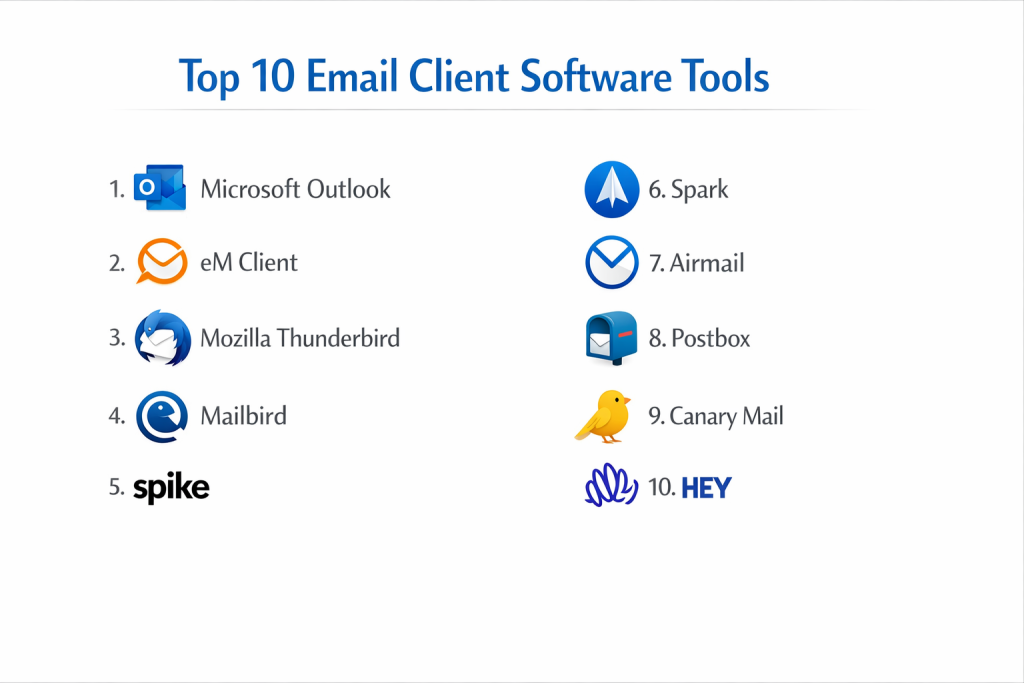
Top 10 Email Client Software Tools
1 — Microsoft Outlook
Microsoft Outlook is the industry standard for corporate communication. It is a comprehensive personal information manager that combines email, calendaring, and task management into a single, deeply integrated platform.
- Key features:
- Focused Inbox to automatically separate important emails from “Other” clutter.
- Deep integration with the entire Microsoft 365 suite (Word, Excel, Teams).
- Advanced scheduling assistant for managing complex team calendars.
- Customizable “Quick Steps” to automate multi-action tasks with one click.
- Built-in dictation and “Read Aloud” features for accessibility.
- Massive library of enterprise-grade add-ins (Salesforce, Zoom, etc.).
- Pros:
- The most robust feature set for enterprise-level project and time management.
- Offline access is seamless, allowing for high productivity without internet.
- Cons:
- Can feel overly “heavy” and slow on older computer hardware.
- The interface is dense, which creates a steep learning curve for new users.
- Security & compliance: SOC 2, HIPAA compliant, GDPR, and ISO 27001; supports S/MIME and Office 365 Message Encryption.
- Support & community: Professional 24/7 global support, massive online documentation, and certified training programs.
2 — eM Client
eM Client is a versatile desktop application designed for Windows and macOS. It is highly praised for its clean interface and its ability to handle email, calendars, tasks, and chat in one sleek package.
- Key features:
- “Superfast” search functionality that indexes even within attachments.
- Easy-to-use PGP encryption setup for secure communication.
- Built-in image editor to crop or resize photos before sending.
- Sidebar “Communication History” showing all past threads with a specific contact.
- Automatic translation for incoming emails using Bing or Google Translate.
- Support for all major services including Google Workspace and iCloud.
- Pros:
- One of the few clients that makes PGP encryption simple for non-tech users.
- The “Pro” version is a one-time purchase, making it cost-effective long-term.
- Cons:
- The free version is limited to only two email accounts.
- Some users find the mobile app less feature-rich than the desktop version.
- Security & compliance: Supports PGP, S/MIME, and OAuth2 for secure logins; GDPR compliant.
- Support & community: Dedicated VIP support for Pro users and a very helpful community forum.
3 — Mozilla Thunderbird
Thunderbird is a free, open-source email client developed by the community. It is designed for users who want total control over their data and a highly customizable workspace.
- Key features:
- Tabbed email browsing, allowing you to keep multiple messages open like a web browser.
- Large attachment management via “Filelink” (upload to cloud instead of sending files).
- Robust add-on manager to install community-built themes and tools.
- “Phishing Protection” to warn you about suspicious links.
- Automated updates and a “Smart Folders” feature for unified views.
- One-click Address Book for easy contact management.
- Pros:
- Completely free to use for both personal and commercial purposes.
- Privacy-focused; it does not track your usage or data for advertising.
- Cons:
- The user interface can feel dated compared to modern “SaaS” style clients.
- Setting up advanced features can sometimes require technical manual configuration.
- Security & compliance: Open-source transparency, S/MIME, PGP support, and strong anti-spam filters.
- Support & community: Vast volunteer-driven wiki and a large, passionate global user community.
4 — Mailbird
Mailbird is a Windows-centric email client that focuses on speed, simplicity, and a beautiful design. It is often described as the “cool, modern” alternative to traditional business clients.
- Key features:
- Unified Inbox with color-coded accounts for easy identification.
- “Speed Reader” to help you breeze through long emails in half the time.
- Integration with social and productivity apps like WhatsApp, Slack, and Asana.
- Custom sounds and notification settings to reduce digital stress.
- Undo send feature (with a customizable delay).
- LinkedIn lookup to see contact profiles directly from your inbox.
- Pros:
- Exceptionally easy to set up; perfect for users who hate complex settings.
- The layout is minimalist and reduces “inbox anxiety.”
- Cons:
- Only available for Windows users; no native macOS or Linux versions.
- Some advanced filtering rules are not as deep as Outlook’s.
- Security & compliance: OAuth2 support, SSL/TLS encryption; GDPR compliant.
- Support & community: Fast email support and an extensive knowledge base for troubleshooting.
5 — Spike
Spike is a unique “conversational” email client that turns your inbox into something that looks and feels like a chat app (similar to iMessage or WhatsApp).
- Key features:
- Chat-like interface that removes repetitive headers and signatures.
- Built-in collaborative “Notes” that live inside your inbox.
- Integrated voice and video calls directly from the email app.
- “Priority Inbox” that uses AI to filter out newsletters and promos.
- Group chats for team collaboration using standard email protocols.
- Real-time “Read Receipts” so you know when your message was opened.
- Pros:
- Drastically speeds up communication by making it feel less formal.
- Excellent for teams who want “Slack-like” speed without leaving email.
- Cons:
- The chat-style layout may be confusing for people who prefer traditional threads.
- Can be difficult to manage extremely long, formal business documents.
- Security & compliance: AES-256 encryption; SOC 2 and GDPR compliant.
- Support & community: Live chat support and a very modern, helpful help center.
6 — Spark (by Readdle)
Spark is an intelligent email client designed for both individuals and teams. It is widely considered the best email client for Mac and iOS users, though it has recently expanded to Windows.
- Key features:
- “Smart Inbox” that categorizes mail into Personal, Notifications, and Newsletters.
- Collaborative drafting: team members can write an email together in real-time.
- “Snooze” and “Follow-up” reminders to keep you from forgetting tasks.
- Home Screen with widgets for a quick overview of your day.
- Private team comments on email threads that the original sender can’t see.
- AI-assisted writing to summarize threads or draft quick replies.
- Pros:
- The “Smart Inbox” is one of the best at actually identifying what is important.
- Cross-platform sync is nearly perfect; settings follow you everywhere.
- Cons:
- To use team collaboration features, your mail must pass through their servers.
- The desktop version for Windows is still catching up to the Mac version in features.
- Security & compliance: GDPR compliant, OAuth2, and encrypted server communication.
- Support & community: High-quality video tutorials and a responsive customer service team.
7 — Airmail
Airmail is a powerful, highly customizable client designed specifically for the Apple ecosystem. It is built for speed and offers deep integration with macOS and iOS services.
- Key features:
- Unified inbox with extensive support for Gmail, Exchange, and IMAP.
- Custom “Actions” that allow you to send emails to apps like Todoist or Evernote.
- Rich Markdown support for writing emails in plain text that renders beautifully.
- Robust “VIP” notification system to only alert you about specific people.
- Privacy-focused “Pixel Blocking” to stop senders from tracking you.
- Dark mode and extensive theme customization.
- Pros:
- Incredible levels of customization for power users who love to “tweak” things.
- Seamlessly integrated with Apple Shortcuts and Siri.
- Cons:
- Can be prone to occasional bugs due to its high level of complexity.
- The subscription model may turn off users looking for a one-time purchase.
- Security & compliance: Privacy-first architecture; GDPR compliant.
- Support & community: Dedicated Slack community for users and a detailed help desk.
8 — Postbox
Postbox is a professional-grade email client built for Windows and Mac. It targets power users who need advanced tools for managing massive amounts of data and complex projects.
- Key features:
- “Account Groups” to organize different sets of email addresses (e.g., Work, Personal, Side-hustle).
- Integrated “Quick Post” to send email content to Slack, Trello, or Evernote.
- Pre-made “70+ Response Templates” to handle repetitive inquiries.
- Focus Pane to filter your inbox by tag, contact, or date in one click.
- Image Effects: apply filters and frames to attachments within the app.
- HTML editor for creating beautiful, professional-looking newsletters.
- Pros:
- The interface is clean but incredibly powerful; it feels like a “pro” tool.
- Excellent at handling search across multiple large mailboxes.
- Cons:
- There is no free version; it is a paid product for serious users.
- Development updates are slower compared to some of the larger competitors.
- Security & compliance: OAuth2, OpenPGP support; follows standard privacy regulations.
- Support & community: High-quality documentation and a professional ticket-based support system.
9 — Canary Mail
Canary Mail is a security-first email client that places a heavy emphasis on end-to-end encryption and AI productivity. It is designed for those who want their inbox to be both smart and “unhackable.”
- Key features:
- Automatic end-to-end encryption (PGP) without the manual setup.
- “Copilot” AI that can draft emails and summarize long threads.
- Secure “Read Receipts” and a “Send Later” feature.
- One-click “Unsubscribe” that actually works for stubborn newsletters.
- Profile photos and social icons for all your contacts.
- Biometric lock (FaceID/TouchID) to protect the app on mobile.
- Pros:
- Best-in-class for privacy-conscious users who need security to be easy.
- The AI features feel more integrated and useful than most “tacked-on” AI tools.
- Cons:
- The AI features require a subscription after the initial trial.
- The interface, while pretty, can sometimes feel a bit cramped on smaller screens.
- Security & compliance: End-to-end encryption, HIPAA ready, and GDPR compliant.
- Support & community: Extensive help portal and a dedicated “Security Whitepaper” for transparency.
10 — HEY
HEY is not just a client; it is an entire reimagining of how email should work. Created by the makers of Basecamp, it forces a specific, highly-productive workflow on the user.
- Key features:
- The “Imbox” (not Inbox), where you only see mail from people you’ve screened in.
- “The Feed” for newsletters: you read them like a scrollable social media feed.
- “The Paper Trail” for receipts and boring transactional mail you don’t need to read.
- No tracking pixels: HEY blocks all companies from knowing if you opened an email.
- “Reply Later” stack that keeps pending responses at the bottom of your screen.
- Integrated workflows for sending huge files up to 5GB.
- Pros:
- Fixes the “spam” problem better than any other tool on this list.
- Forces you to be more productive by separating “actionable” mail from “noise.”
- Cons:
- Requires you to use a @hey.com address (though you can forward other mail).
- Very opinionated; if you don’t like their specific workflow, it won’t work for you.
- Security & compliance: Two-factor authentication, strictly privacy-focused; GDPR compliant.
- Support & community: High-touch human support and a very vocal, helpful user base on social media.
Comparison Table
| Tool Name | Best For | Platform(s) Supported | Standout Feature | Rating |
| Outlook | Corporate/Enterprise | Win, Mac, Mobile | Calendar/Teams Integration | 4.6/5 |
| eM Client | Balanced SMB Use | Win, Mac | Communication History Sidebar | 4.5/5 |
| Thunderbird | Free/Open Source | Win, Mac, Linux | Tabbed Email Browsing | 4.4/5 |
| Mailbird | Simple Productivity | Windows Only | Integrated Speed Reader | 4.3/5 |
| Spike | Fast Collaboration | Win, Mac, Mobile | Chat-like Interface | 4.4/5 |
| Spark | Teams & AI | Mac, Win, Mobile | Shared Drafting/Smart Inbox | 4.7/5 |
| Airmail | Apple Power Users | Mac, iOS | Custom Workflow Actions | 4.2/5 |
| Postbox | Multi-Account Pros | Win, Mac | Account Groups/Templates | 4.4/5 |
| Canary Mail | Max Security | Mac, Win, Mobile | Auto PGP Encryption | 4.6/5 |
| HEY | Minimalism | Web, Mac, Mobile | The “Screening” Workflow | N/A |
Evaluation & Scoring of Email Client Software
| Criteria | Weight | Average Score (out of 10) | Notes |
| Core Features | 25% | 9.0 | Tools like Outlook and eM Client set a high bar here. |
| Ease of Use | 15% | 8.5 | Spike and Mailbird lead in intuitiveness. |
| Integrations | 15% | 8.0 | Enterprise clients excel; HEY/Tor are more isolated. |
| Security & Compliance | 10% | 9.5 | Canary Mail and eM Client are top performers. |
| Performance | 10% | 8.0 | Varies; “heavy” clients like Outlook need more RAM. |
| Support & Community | 10% | 8.5 | Thunderbird and Microsoft have the best communities. |
| Price / Value | 15% | 8.0 | Thunderbird (Free) and Postbox (One-time) win here. |
Which Email Client Software Tool Is Right for You?
Small to Mid-Market vs. Enterprise
For Enterprise organizations, the choice is almost always Microsoft Outlook. The reason isn’t just the email—it’s the security, the centralized IT management, and the way it connects to the rest of the business. However, Small to Mid-Market companies often find Spark or eM Client to be better. These tools offer “lighter” and more modern interfaces that don’t require a full-time IT professional to manage, while still providing the team collaboration features needed to grow.
Budget and Value
If your budget is zero, Mozilla Thunderbird is the gold standard. It provides professional features without a price tag. For those who want a premium experience but hate monthly subscriptions, eM Client and Postbox offer “Lifetime” licenses. This is a massive value for solo entrepreneurs who want to pay once and own their software forever.
Technical Depth vs. Simplicity
If you are a “power user” who wants to script your own workflows and use keyboard shortcuts for everything, Vivaldi or Airmail will be your best friend. They offer incredible technical depth. On the other hand, if you just want email to “be easy again,” Spike or HEY are the winners. They remove the technical jargon and focus on the conversation, making them ideal for creative professionals who don’t want to manage settings.
Security and Compliance Requirements
For users in legal or financial industries, Canary Mail is the top recommendation because it makes complex encryption “invisible.” You don’t have to be a coder to send a secure message. If your company must comply with strict SOC 2 or ISO standards, sticking with Outlook or Spark for Business is the safest path, as they provide the audit logs and administrative controls necessary for compliance.
Frequently Asked Questions (FAQs)
1. What is the difference between Webmail and an Email Client?
Webmail (like opening Gmail.com in a browser) runs on the provider’s server. An Email Client is an app on your computer that downloads your mail, allowing for faster searching, offline use, and management of multiple accounts in one place.
2. Is it safe to give an email client my login details?
Yes, as long as the client uses OAuth2. This is a modern standard where you log in via the provider (like Google or Microsoft) and “authorize” the app, so the app itself never actually sees your password.
3. Can I use Gmail accounts in these desktop clients?
Absolutely. Almost every tool on this list is fully compatible with Gmail, Google Workspace, Outlook.com, iCloud, and standard IMAP/POP3 accounts.
4. Does using an email client take up space on my computer?
Yes. Email clients download your messages and attachments to your hard drive so you can search them quickly and read them offline. If you have 20 years of emails, it can take up several gigabytes.
5. Which email client is the best for privacy?
Thunderbird and Canary Mail are excellent choices. Thunderbird is open-source (no tracking), and Canary Mail focuses on end-to-end encryption so only you and the recipient can read the message.
6. Can I sync my settings between my phone and my computer?
Most modern clients like Spark, Outlook, and Spike have cloud-sync features. When you add an account on your Mac, it automatically appears on your iPhone or Android app.
7. What is PGP encryption and do I need it?
PGP stands for “Pretty Good Privacy.” It’s a way to lock your email so only the intended person can open it. Most people don’t need it for daily talk, but it’s essential for sending sensitive legal or medical data.
8. Why are some emails “snoozed”?
Snoozing is a feature that hides an email from your inbox and brings it back at a later time (like tomorrow morning). It’s a great way to clear your head without forgetting to reply later.
9. Can I undo a sent email in a desktop client?
Yes, tools like Mailbird and Spark allow you to set a 5 to 30-second delay. When you hit send, the app “waits” before actually pushing it to the server, giving you time to click “Undo.”
10. Do email clients support “Read Receipts”?
Many modern clients like Canary and Spike have this built-in. It tells you exactly when the recipient opened your email, similar to the blue checkmarks on WhatsApp.
Conclusion
The right Email Client Software does more than just show you your mail; it acts as a filter for the noise of the modern world. While Microsoft Outlook remains the heavyweight champion for corporate environments, the rise of “conversational” tools like Spike and privacy-first tools like Canary Mail shows that there is no one-size-fits-all solution.
When choosing your client, prioritize what saves you the most time. If you spend hours organizing folders, look for a tool with great automation. If you find formal email exhausting, try a chat-based client. Ultimately, the best tool is the one that allows you to spend less time managing your inbox and more time doing the work that actually matters. By evaluating your needs against the speed, security, and interface of these top 10 options, you can reclaim your productivity and master your digital communication.