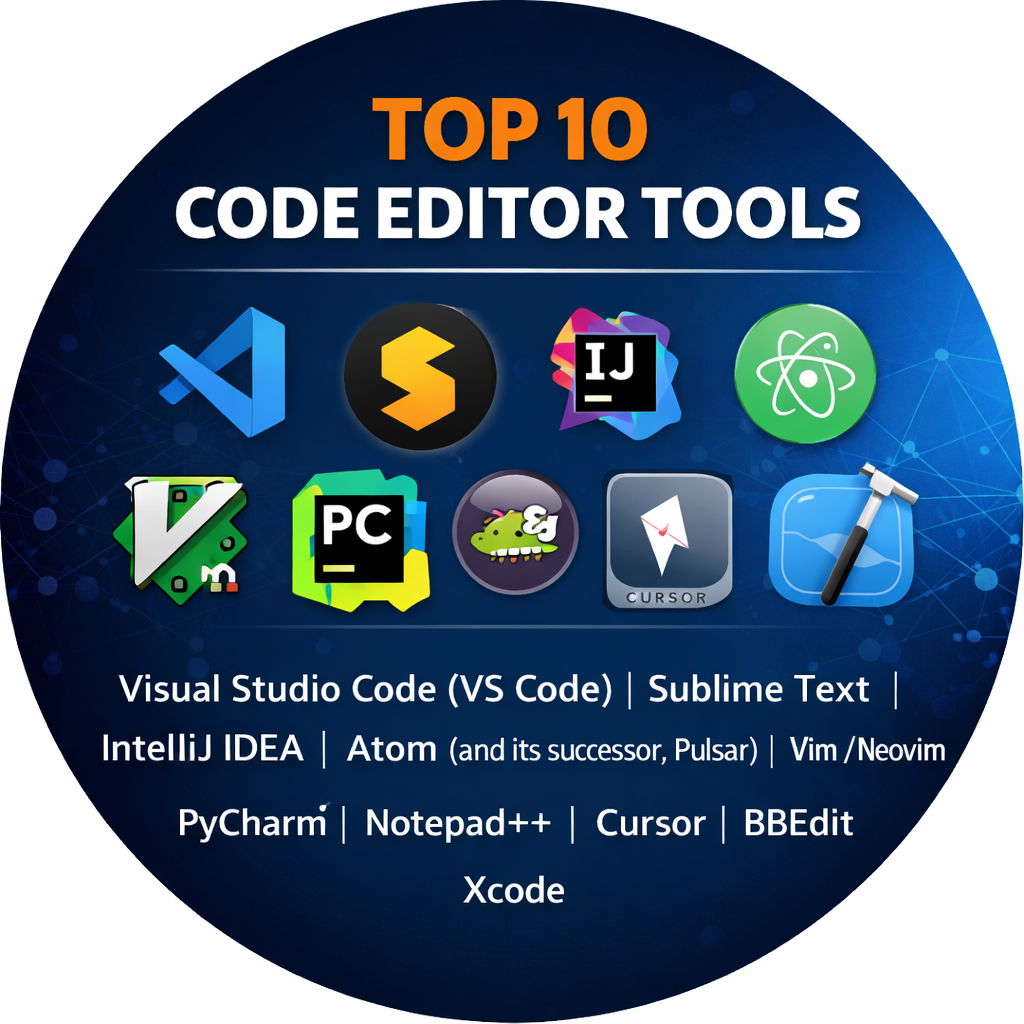
Introduction
A code editor is a specialized text editor designed specifically for writing and editing programming code. Unlike basic text editors like Notepad, code editors are packed with features that help programmers work more efficiently. They highlight syntax with different colors, suggest completions as you type, and help you find errors before you even run your program.
The importance of a high-quality code editor lies in its ability to handle the “heavy lifting” of development. Real-world use cases include building mobile applications, managing cloud infrastructure, data analysis, and web design. When choosing an editor, developers should look at performance (how fast it opens and handles large files), extensibility (the availability of plugins), language support, and integration with other tools like version control systems.
While some editors are lightweight and fast, others are more like “Integrated Development Environments” (IDEs) that include everything from testing tools to database managers. The right choice depends on your specific project and personal style.
- Best for: Software developers, web designers, data scientists, and students. It is essential for anyone from a hobbyist building a personal blog to engineers at global tech firms.
- Not ideal for: People who only need to write simple documents or essays (use a word processor like Word) or system administrators who only need to make one-line changes to a server (a basic terminal editor is often faster).
Top 10 Code Editors Tools
1 — Visual Studio Code (VS Code)
Created by Microsoft, VS Code has become the most popular code editor in the world. It strikes a perfect balance between being a lightweight editor and a powerful development environment. It is designed for everyone from beginners to seasoned professionals.
- Key Features:
- IntelliSense: Provides smart completions based on variable types and functions.
- Built-in Git: Stage, commit, and push code directly from the editor.
- Massive Extension Marketplace: Thousands of plugins for any language or tool.
- Integrated Terminal: Run commands without switching windows.
- Remote Development: Edit code directly on a server or in a container.
- Live Share: Collaborate with other developers in real-time on the same file.
- Pros:
- Highly customizable—you can make it look and behave exactly how you want.
- Regular updates and a huge community mean bugs are fixed quickly.
- Cons:
- Can consume a lot of memory (RAM) when many extensions are installed.
- The vast amount of settings can be overwhelming for total beginners.
- Security & compliance: SOC 2, ISO 27001, and GDPR compliant; features encrypted credential storage and secure extension sandboxing.
- Support & community: One of the largest developer communities in existence; world-class documentation and troubleshooting guides.
2 — Sublime Text
Sublime Text is famous for being incredibly fast and sleek. It is a “native” application, meaning it is built to use very little computer power while handling massive files that would crash other editors. It is designed for developers who value speed and a distraction-free environment.
- Key Features:
- Goto Anything: Quickly jump to files, symbols, or specific lines.
- Multiple Selections: Edit ten lines at the same time.
- Hardware Acceleration: Uses the GPU for a fluid user interface.
- Split Editing: View multiple files or different parts of the same file side-by-side.
- Context-Aware Autocomplete: Suggestions based on the existing code in your project.
- Pros:
- Unmatched performance; it opens instantly and never lags.
- Simple, clean interface that keeps you focused on the code.
- Cons:
- It is not free (requires a license for continued use).
- The package manager is not as intuitive to set up as VS Code’s marketplace.
- Security & compliance: Standard local application security; GDPR compliant; no cloud-based tracking of your source code.
- Support & community: Very active community-driven forum; high-quality documentation.
3 — IntelliJ IDEA
IntelliJ IDEA, developed by JetBrains, is often considered the gold standard for Java development, though it supports many other languages. It is more of a full IDE than a simple editor, focusing heavily on “understanding” your code to provide deep insights.
- Key Features:
- Deep Code Analysis: Finds bugs and suggests improvements as you type.
- Smart Refactoring: Safely rename variables or move files across the whole project.
- Built-in Database Tool: Manage SQL databases without leaving the editor.
- Framework Support: First-class support for Spring, JavaEE, and Micronaut.
- Integrated Debugger: Top-tier tools for finding and fixing code errors.
- Pros:
- Incredible productivity features that write chunks of code for you.
- Extremely stable and reliable for massive, enterprise-scale projects.
- Cons:
- Very heavy on system resources; requires a powerful computer.
- The professional version has a significant yearly subscription cost.
- Security & compliance: SOC 2 Type II compliant; features audit logs and secure code analysis tools.
- Support & community: Professional 24/7 support for paid users; extensive video tutorials and documentation.
4 — Atom (and its successor, Pulsar)
Atom was the original “hackable text editor” built by GitHub. While official support for Atom ended, the community has kept it alive through the Pulsar project. It is designed for people who want total control over the look and feel of their editor.
- Key Features:
- Teletype: Allows developers to collaborate on code in real-time.
- Cross-Platform Editing: Works identically on Windows, Mac, and Linux.
- Built-in Package Manager: Easily search for and install new features.
- File System Browser: Navigate files and projects in a simple tree view.
- Highly Hackable: You can edit the editor’s CSS and JS to change its design.
- Pros:
- Completely free and open-source.
- Very friendly user interface that feels modern and approachable.
- Cons:
- Can be slower than native editors like Sublime Text.
- Pulsar is still in development, so some features may feel “work in progress.”
- Security & compliance: Varies; as an open-source project, it relies on community audits and local security.
- Support & community: Strong community of loyal users; documentation is largely community-maintained.
5 — Vim / Neovim
Vim is a legend in the programming world. It is a text-based editor that runs in your terminal. It is unique because it doesn’t use a mouse; everything is done with keyboard shortcuts. Neovim is a modern version that adds more powerful features and better performance.
- Key Features:
- Modal Editing: Different modes for inserting text vs. navigating code.
- Infinite Extensibility: Use Lua or VimScript to build your own features.
- Lightweight: Uses almost zero memory and can run on any server.
- Keyboard Centric: Designed so your hands never have to leave the “home row.”
- SSH Ready: Perfect for editing files directly on a remote server.
- Pros:
- Once learned, it is arguably the fastest way to write and edit text.
- It is available on almost every computer or server in the world by default.
- Cons:
- Extremely steep learning curve; beginners often struggle to even close the app.
- Requires a lot of time to “configure” before it feels like a modern editor.
- Security & compliance: Varies / N/A; depends on the host system security.
- Support & community: Massive, passionate community; thousands of free tutorials and “cheat sheets.”
6 — PyCharm
Another JetBrains product, PyCharm is a specialized environment for Python developers. It is used by data scientists and web developers who want an editor that truly understands the Python language and its unique quirks.
- Key Features:
- Scientific Tools: Integrated support for Jupyter Notebooks and Anaconda.
- Web Development: Support for Django, Flask, and FastAPI frameworks.
- Smart Navigation: Jump to any class, file, or symbol instantly.
- VCS Support: Visual interface for Git, SVN, and Mercurial.
- Remote Interpreters: Run your code on a remote server or Docker container.
- Pros:
- The best tool available for Python-specific development.
- The “Community Edition” is free and very powerful for most users.
- Cons:
- Can be “overkill” for simple Python scripts.
- Large footprint on your hard drive and memory.
- Security & compliance: SOC 2 compliant; includes features for secure coding and dependency checking.
- Support & community: Excellent JetBrains support; massive user base in the data science community.
7 — Notepad++
Notepad++ is a classic, lightweight editor for Windows users. It is an “old reliable” tool that is much more powerful than the default Windows Notepad but much simpler than VS Code.
- Key Features:
- Tabbed Interface: Open dozens of files at once without clutter.
- Syntax Highlighting: Supports over 80 programming languages.
- Macro Recording: Record a sequence of actions and play it back.
- Auto-completion: Basic word and function completion.
- Plugin System: Add features like an FTP client or hex editor.
- Pros:
- Extremely fast and never crashes, even with huge log files.
- Completely free and takes up almost no space on your computer.
- Cons:
- The interface looks very dated (like Windows XP).
- Only available for Windows users.
- Security & compliance: N/A; open-source GPL license; local application only.
- Support & community: Decades of community forum history; very easy-to-read documentation.
8 — Cursor
Cursor is a newer editor that is taking the world by storm because it is built from the ground up with Artificial Intelligence (AI). It is actually a “fork” of VS Code, so it looks familiar but behaves much differently.
- Key Features:
- AI Chat: Ask questions about your entire codebase in a side panel.
- Auto-Code: The AI can write whole functions based on your comments.
- Smart Edits: The AI can find and fix bugs across multiple files.
- VS Code Compatibility: Works with all your existing VS Code extensions.
- Privacy Mode: Ensures your code is not used to train AI models.
- Pros:
- Drastically increases speed for developers who use AI to help them code.
- Very low learning curve if you are already used to VS Code.
- Cons:
- The best AI features require a monthly subscription.
- Relies on an internet connection for the AI features to work.
- Security & compliance: GDPR compliant; features a “Privacy Mode” for sensitive enterprise code.
- Support & community: Rapidly growing community; active Discord for support.
9 — BBEdit
For Mac users, BBEdit is a legendary tool that has been around for over 30 years. It is a professional-strength code and text editor that is built specifically to follow macOS design principles.
- Key Features:
- Pattern Matching: Powerful “Grep” searching across thousands of files.
- Text Transformation: Clean up messy data with built-in tools.
- Project Management: Organize files into logical groups easily.
- HTML Tools: Specialized features for building and validating websites.
- AppleScript Support: Automate the editor using Mac-specific tools.
- Pros:
- Incredible reliability; it is famous for never losing a single character of work.
- Feels like a “true” Mac app, supporting all the standard macOS shortcuts.
- Cons:
- Only works on macOS.
- The free version is limited; the full version is a bit expensive.
- Security & compliance: HIPAA and GDPR compliant; focused on privacy and local data.
- Support & community: Professional email support; long history of detailed manuals.
10 — Xcode
If you want to build apps for iPhones, iPads, or Macs, Xcode is your primary tool. It is a massive, all-in-one suite provided by Apple.
- Key Features:
- Interface Builder: Design your app’s look by dragging and dropping elements.
- Simulators: Run a virtual iPhone on your Mac screen to test your app.
- SwiftUI Support: Real-time preview of your code changes.
- Instruments: Advanced tools to see how much battery or memory your app uses.
- App Store Connect: Upload your finished app directly to the App Store.
- Pros:
- The only way to build native apps for the Apple ecosystem.
- Completely free for Mac users.
- Cons:
- Incredibly large file size (requires a lot of disk space).
- Can be very slow and buggy compared to lightweight editors.
- Security & compliance: Backed by Apple’s strict security standards; ISO and GDPR compliant.
- Support & community: Official Apple developer forums; massive amount of documentation.
Comparison Table
| Tool Name | Best For | Platform(s) | Standout Feature | Rating (Gartner/True) |
| VS Code | General Purpose | Win, Mac, Linux | Extension Ecosystem | 4.7 / 5 |
| Sublime Text | Speed/Performance | Win, Mac, Linux | Extreme Speed | 4.5 / 5 |
| IntelliJ IDEA | Java/Enterprise | Win, Mac, Linux | Deep Code Analysis | 4.8 / 5 |
| Atom/Pulsar | Customization | Win, Mac, Linux | Total Hackability | N/A |
| Vim/Neovim | Terminal Pros | Terminal | Keyboard-only usage | N/A |
| PyCharm | Python/Data Science | Win, Mac, Linux | Python Intelligence | 4.7 / 5 |
| Notepad++ | Quick Edits | Windows | Lightweight | 4.6 / 5 |
| Cursor | AI Integration | Win, Mac, Linux | Built-in AI Chat | 4.8 / 5 |
| BBEdit | Mac Power Users | Mac | Text Manipulation | 4.5 / 5 |
| Xcode | Apple Developers | Mac | App Simulators | 4.1 / 5 |
Evaluation & Scoring of Code Editors
The following scores represent an average assessment based on a typical professional development workflow.
| Category | Weight | Evaluation Criteria |
| Core Features | 25% | Syntax highlighting, autocomplete, and file management. |
| Ease of Use | 15% | Intuitiveness of the interface and setup process. |
| Integrations | 15% | How well it talks to Git, Databases, and the Cloud. |
| Security | 10% | Data privacy, extension safety, and compliance. |
| Performance | 10% | Speed of opening, typing, and handling large files. |
| Community | 10% | Availability of help, tutorials, and third-party plugins. |
| Price / Value | 15% | Quality of features provided relative to the cost. |
Which Code Editor Tool Is Right for You?
Choosing an editor is a personal journey, but these guidelines can help you find a starting point:
Solo Users vs. SMBs vs. Enterprises
- Solo Users: VS Code is usually the best start. It’s free and grows with you. If you want a boost from AI, try Cursor.
- Small Businesses (SMBs): VS Code or Sublime Text are great because they don’t require expensive hardware.
- Enterprises: Companies doing heavy Java or Python work often invest in IntelliJ IDEA or PyCharm because the built-in security and refactoring tools save a lot of money in the long run.
Budget-Conscious vs. Premium
- Free: VS Code, Notepad++, and Vim are all top-tier and cost nothing.
- Premium: Sublime Text and JetBrains (IntelliJ) tools require payment but offer superior performance and specialized intelligence that many pros find worth the price.
Feature Depth vs. Ease of Use
If you want something that just works without any setup, Notepad++ or BBEdit are great. If you are willing to spend time learning to be a “coding ninja,” Vim offers the most depth. For a balance of both, VS Code is the industry standard.
Frequently Asked Questions (FAQs)
1. What is the difference between a Code Editor and an IDE?
A code editor is lightweight and focuses on writing text. An IDE (Integrated Development Environment) is a “toolbox” that includes a compiler, debugger, and project management tools all in one.
2. Is VS Code better than IntelliJ?
Not necessarily. VS Code is more flexible and faster for web development. IntelliJ is much more powerful for complex Java or backend systems where the editor needs to “understand” the whole project.
3. Do I need a powerful computer for these tools?
For Sublime Text, Notepad++, or Vim, no. For IntelliJ, Xcode, or PyCharm, you will generally need at least 16GB of RAM and a modern processor.
4. Can I use these editors for any language?
Most can handle any language with the right plugin. However, specialized tools like PyCharm (Python) or Xcode (Swift) offer a much better experience for those specific languages.
5. How do I make my editor look like the ones in movies?
Most editors allow you to install “Themes.” Popular ones include “Dracula,” “One Dark,” and “Monokai.” You can change colors, fonts, and icons.
6. Is Vim still worth learning?
Yes. Even if you don’t use it as your main editor, knowing basic Vim commands allows you to edit files on almost any server in the world, which is a vital skill for developers.
7. Are AI editors like Cursor safe for my company’s code?
Most have a “Privacy Mode” or “Enterprise” tier that ensures your code is not sent to the cloud or used to train public models. Always check your company’s policy first.
8. Why is my editor so slow?
This usually happens if you have too many extensions or plugins installed. Try disabling the ones you don’t use daily to speed things up.
9. Can I use these editors to build websites?
Yes! VS Code is currently the most popular tool for web development because it has excellent support for HTML, CSS, and JavaScript.
10. What is the best editor for a total beginner?
VS Code is the best choice because it has the most tutorials online. If you want something even simpler, Notepad++ is a great “no-distractions” start.
Conclusion
The “best” code editor is the one that allows you to think about your code rather than your tools. For the vast majority of people today, Visual Studio Code is the right answer because of its balance of power and ease of use. However, if you crave speed, Sublime Text is unbeatable. If you want the future of coding today, Cursor and its AI features are a must-try.
The most important thing is to pick one, learn its shortcuts, and start building. Your editor will eventually become an extension of your own mind.