Introduction
A Git Client is a software application—typically a Graphical User Interface (GUI)—that allows developers to interact with Git repositories without needing to memorize complex terminal commands. These tools provide a visual representation of a project’s history, branch structures, and code changes, making it significantly easier to perform tasks like committing, merging, and rebasing.
The importance of Git clients lies in their ability to reduce human error and increase productivity. By visualizing the “commit graph,” developers can quickly understand where a project stands, identify where bugs might have been introduced, and resolve “merge conflicts” with side-by-side file comparisons. Key real-world use cases include managing complex “Gitflow” workflows in large teams, performing “interactive rebases” to clean up commit history, and onboarding junior developers who may not yet be comfortable with the terminal.
When evaluating a Git client, users should look for performance (speed in large repositories), ease of use (intuitive UI), integration (connection to services like GitHub, GitLab, or Bitbucket), and advanced features (built-in merge tools or AI-assisted commit messages).
- Best for: Software developers of all levels, UI/UX designers working with code, and DevOps engineers managing multi-repo environments. They are particularly beneficial for mid-to-large teams where visualizing branch complexity is a daily necessity.
- Not ideal for: “Command-line purists” who prefer absolute control and minimal resource usage, or server administrators performing quick fixes on remote machines where a GUI cannot be installed.
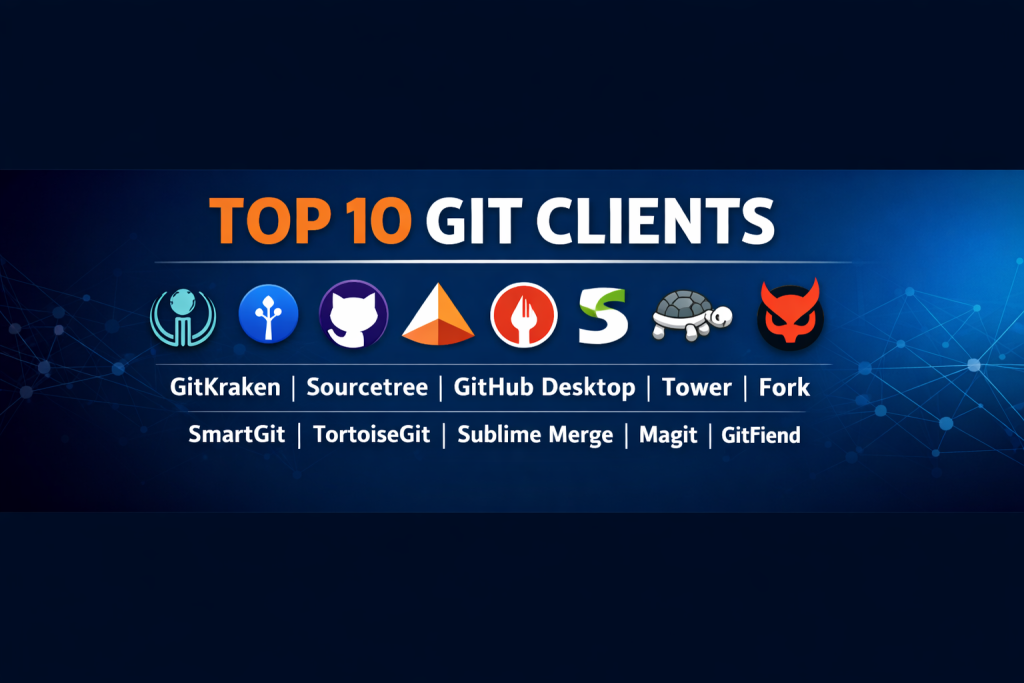
Top 10 Git Clients Tools
1 — GitKraken
GitKraken is widely considered the “gold standard” of Git GUIs. Known for its beautiful, futuristic interface and cross-platform consistency, it is designed to make Git highly visual and collaborative.
- Key Features:
- Visual Commit Graph: An interactive, color-coded map of branches and commits.
- Built-in Merge Conflict Editor: A dedicated tool for resolving code clashes safely.
- Workspaces: Group related repositories together for easier multi-project management.
- AI-Powered Commit Messages: 2026 update includes AI suggestions to describe changes.
- GitLens Integration: Seamlessly works with the popular VS Code extension.
- Cloud Sync: Syncs profiles, shortcuts, and preferences across different machines.
- Pros:
- Exceptional user interface that makes complex Git actions feel intuitive.
- One of the few clients that looks and behaves exactly the same on Windows, Mac, and Linux.
- Cons:
- The free version is limited to public repositories; private repos require a subscription.
- Can be resource-intensive (Electron-based) on older hardware.
- Security & compliance: SOC 2 compliant, supports SAML SSO, and features encrypted credential storage.
- Support & community: Top-tier documentation, active Slack community, and dedicated enterprise support.
2 — Sourcetree
Developed by Atlassian, Sourcetree is a free, high-powered Git client that has been a staple in the industry for years. It is particularly popular among teams already using Jira or Bitbucket.
- Key Features:
- Full Git & Mercurial Support: One of the few clients to support both version control systems.
- Detailed Branch Diagrams: Visualize progress and see what needs to be pulled or pushed.
- Git-flow Support: One-click initialization of standard development workflows.
- Large File Support (Git LFS): Efficiently manages huge binary assets like images or videos.
- Custom Actions: Ability to script and add your own context-menu commands.
- Pros:
- Completely free for both personal and commercial use.
- Deeply integrated with the Atlassian ecosystem (Bitbucket/Jira).
- Cons:
- Not available for Linux users (Windows and macOS only).
- Occasional performance lag in very large repositories.
- Security & compliance: GDPR compliant; supports Atlassian’s enterprise-grade SSO and 2FA via Bitbucket.
- Support & community: Large user base and extensive community forums; professional support via Atlassian.
3 — GitHub Desktop
GitHub Desktop is the official client from GitHub. It is built with a “minimalist” philosophy, focusing on the most common tasks that developers perform daily, making it arguably the easiest tool for beginners.
- Key Features:
- Simplified Workflow: Focuses on staging, committing, and pushing with zero friction.
- Pull Request Integration: View and comment on PRs without leaving the app.
- Co-authoring: Easily add multiple authors to a single commit for pair programming.
- Syntax Highlighting: High-quality diff views for dozens of programming languages.
- Dark Mode: A clean, modern interface that is easy on the eyes.
- Pros:
- The best “first client” for anyone starting their coding journey.
- Open-source and receives regular, high-quality updates from GitHub.
- Cons:
- Lacks “power user” features like interactive rebase or detailed commit graphing.
- Functionality is heavily skewed toward GitHub-hosted repositories.
- Security & compliance: Inherits GitHub’s robust security standards; supports SSO and 2FA.
- Support & community: Massive community; documentation is part of the standard GitHub Docs.
4 — Tower
Tower is often called “the most powerful Git client,” particularly by macOS users. It is designed for professionals who need a high-performance tool that can handle complex repository management with ease.
- Key Features:
- Undo Everything: Unique feature to undo any Git action (commits, merges, etc.).
- Drag-and-Drop: Drag a branch onto another to merge, or a commit to cherry-pick.
- Powerful Search: Find commits by author, message, or file content instantly.
- Multiple Window Support: Work on different repositories in separate windows.
- Clone & Create from UI: Integrates with GitHub, GitLab, and Azure DevOps for easy setup.
- Pros:
- Extremely stable and fast, even with repos containing hundreds of thousands of commits.
- Premium features like “Quick Actions” save significant time for advanced users.
- Cons:
- One of the more expensive options (subscription-based).
- No Linux version; primarily focused on macOS (with a Windows port).
- Security & compliance: Enterprise-ready with support for SSH, GPG signing, and SSO.
- Support & community: Excellent direct customer support and a dedicated “Git Tower” learning portal.
5 — Fork
Fork has quickly become a developer favorite due to its speed and “no-nonsense” approach. It is a lightweight client that doesn’t sacrifice power for its small footprint.
- Key Features:
- Visual Interactive Rebase: The best rebase tool in the market; move and squash commits visually.
- Conflict Helper: Highlights exactly where conflicts are in a file and provides quick fixes.
- Image Diffs: See visual changes in common image formats side-by-side.
- Repository Manager: Quickly switch between dozens of open repositories.
- Internal Diff Viewer: Fast, native diffing that doesn’t rely on external tools.
- Pros:
- Incredibly fast; it feels significantly snappier than Electron-based clients.
- Very fair pricing model (one-time purchase for a lifetime license).
- Cons:
- Interface is very “functional” and may not be as pretty as GitKraken.
- No official Linux support.
- Security & compliance: Standard Git security; local credential management.
- Support & community: Very responsive developers; updates are frequent based on user feedback.
6 — SmartGit
SmartGit is the tool of choice for professionals who work across different version control systems. It is a “power user” tool that provides advanced configuration options for every step of the Git process.
- Key Features:
- Multi-VCS Support: Works with Git, Mercurial, and Subversion (SVN).
- Three-Window Interface: Optimized for comparing local, index, and remote states.
- Log Graph Customization: Tailor exactly how you see your commit history.
- SSH Client Built-in: Manage your keys and connections directly in the app.
- Git-Flow & Feature-Flow: Supports multiple branching models natively.
- Pros:
- Excellent for legacy projects that still use SVN but want a Git-like feel.
- Runs on Windows, macOS, and Linux with the exact same feature set.
- Cons:
- Steep learning curve for beginners due to the dense interface.
- Non-commercial users can use it for free, but commercial licenses are strictly enforced.
- Security & compliance: Supports GPG signing, SSL certificates, and enterprise SSO.
- Support & community: Professional email support for paying customers; detailed technical manual.
7 — TortoiseGit
For long-time Windows users, TortoiseGit is a legend. Unlike other tools on this list, it isn’t a standalone application—it integrates directly into the Windows File Explorer.
- Key Features:
- Shell Integration: Right-click any folder to access Git commands.
- Overlay Icons: See the status of your files (modified, synced) directly on the icons.
- TortoiseGitMerge: A powerful, classic diff and merge tool.
- Spell Checker: Built-in spelling help for commit messages.
- Context-Sensitive Menu: Only shows the Git commands that make sense for the selected file.
- Pros:
- Zero-cost and open-source.
- The “least intrusive” client; it doesn’t require a separate window to manage files.
- Cons:
- Windows only; there is no equivalent for Mac or Linux.
- Doesn’t provide the high-level “branch visualization” that modern GUIs offer.
- Security & compliance: Varies / N/A (Relies on local Windows security and Pageant/SSH).
- Support & community: Decades of community support; very stable but rarely receives major UI updates.
8 — Sublime Merge
From the creators of Sublime Text comes Sublime Merge. It follows the same philosophy: it is blindingly fast, keyboard-centric, and features a syntax highlighting engine that is second to none.
- Key Features:
- Unmatched Speed: Uses a custom high-performance Git reading library.
- Command Palette: Perform almost any Git action using just your keyboard.
- Line-by-Line Staging: Stage single lines or even parts of a line with precision.
- Integrated Search: Use a powerful, Regex-capable search for commit messages.
- Side-by-Side Diffs: Beautifully rendered code changes with full syntax coloring.
- Pros:
- The best choice for developers who value performance and keyboard shortcuts.
- Available on Windows, macOS, and Linux.
- Cons:
- The “free” version has a persistent popup (nagware); full license is a bit pricey.
- No built-in “visual branch graph” as comprehensive as GitKraken’s.
- Security & compliance: Standard Git security; local credential storage.
- Support & community: Strong community on Discord and forums; high-quality documentation.
9 — Magit
Magit is unique: it is a text-based Git interface that runs inside the Emacs text editor. While it technically isn’t a “GUI” in the traditional sense, it is often cited as the most efficient way to use Git ever created.
- Key Features:
- Textual Dashboard: A status screen that shows you everything at a glance.
- Mnemonic Keys: Use single-key presses to perform complex Git operations.
- Contextual Actions: Magit knows what you want to do based on what you’ve selected.
- Interactive History: Edit, squash, and fix commits by interacting with the text log.
- Forge Integration: Manage GitHub/GitLab pull requests directly from Emacs.
- Pros:
- Arguably the fastest way to use Git for those who never want to touch a mouse.
- Deeply integrated with the developer’s editing environment.
- Cons:
- Requires you to use Emacs, which has its own massive learning curve.
- No “graphical” visualizations (no trees, just text).
- Security & compliance: Varies (depends on Emacs configuration); supports GPG and SSH.
- Support & community: Fiercely loyal community; vast amount of community-written tutorials.
10 — GitFiend
GitFiend is a modern, lightweight Git client that focuses on simplicity and a beautiful design. It is perfect for developers who want more than GitHub Desktop but find GitKraken too overwhelming.
- Key Features:
- Visual Commit Map: A clean, simplified view of the repository history.
- Quick Compare: Instantly see the difference between any two branches.
- Auto-Fetch: Keeps your local state updated without you having to press “Pull.”
- Lightweight Performance: Fast startup and low memory usage.
- Cross-Platform: Native-feeling apps for Windows, Mac, and Linux.
- Pros:
- Completely free and very easy to learn.
- Provides a “best of both worlds” between simplicity and visual power.
- Cons:
- Fewer advanced features compared to industry giants like Tower.
- Smaller community and less frequent updates.
- Security & compliance: N/A (Standard local Git security).
- Support & community: Small but growing GitHub-based community.
Comparison Table
| Tool Name | Best For | Platform(s) Supported | Standout Feature | Rating (Gartner/True) |
| GitKraken | Team Collaboration | Win, Mac, Linux | Visual Branch Graph | 4.6 / 5 |
| Sourcetree | Bitbucket/Jira Users | Win, Mac | Mercurial Support | 4.3 / 5 |
| GitHub Desktop | Beginners | Win, Mac | GitHub Integration | 4.5 / 5 |
| Tower | Power Users (Mac) | Win, Mac | “Undo” Git Actions | 4.8 / 5 |
| Fork | Speed & Rebasing | Win, Mac | Interactive Rebase UI | 4.7 / 5 |
| SmartGit | Multi-VCS Projects | Win, Mac, Linux | SVN Integration | 4.4 / 5 |
| TortoiseGit | Explorer Users | Windows | Shell Integration | N/A |
| Sublime Merge | Performance Junkies | Win, Mac, Linux | Unmatched Speed | 4.6 / 5 |
| Magit | Emacs Users | Win, Mac, Linux | Keyboard Efficiency | N/A |
| GitFiend | Minimalists | Win, Mac, Linux | Simple Visual Maps | N/A |
Evaluation & Scoring of Git Clients
To provide a fair comparison, we have scored these tools based on a weighted rubric reflecting the needs of a modern development team.
| Category | Weight | Evaluation Criteria |
| Core Features | 25% | Ability to perform branching, merging, and interactive rebasing. |
| Ease of Use | 15% | Intuitiveness of the UI and the learning curve for new users. |
| Integrations | 15% | Support for GitHub, GitLab, Bitbucket, and Jira. |
| Security | 10% | Support for SSH, GPG, SSO, and compliance certifications. |
| Performance | 10% | Startup speed and stability in repositories with 10k+ commits. |
| Community | 10% | Quality of documentation and availability of community help. |
| Price / Value | 15% | Cost relative to the professional features provided. |
Which Git Client Tool Is Right for You?
Choosing the “right” Git client depends entirely on your specific workflow and your environment.
Solo Users vs. SMBs
For solo users, GitHub Desktop is the perfect place to start. It handles 90% of what you need for free. Small-to-Medium Businesses (SMBs) should look at Fork; its one-time fee and high performance offer the best long-term value for growing teams.
Mid-Market vs. Enterprise
Enterprises need security and collaboration features above all else. GitKraken and Tower are the winners here. Their support for SSO, custom security protocols, and shared team settings make managing hundreds of developers much safer.
Budget-Conscious vs. Premium
If budget is your primary concern, Sourcetree and TortoiseGit provide professional-grade power for zero cost. However, if you are willing to pay for speed, Sublime Merge or Fork will pay for themselves in time saved by your engineering team.
Feature Depth vs. Ease of Use
If you want every possible feature and don’t mind a complex screen, SmartGit is your tool. If you want a tool that stays out of your way and lets you focus on code, GitHub Desktop or GitFiend are the clear choices.
Frequently Asked Questions (FAQs)
1. Is a Git client better than the Command Line?
Neither is “better.” The CLI offers total control and is essential for scripts, while a Git Client is better for visualizing branches and resolving complex merge conflicts.
2. Can I use more than one Git client at once?
Yes. You can have your repository open in both GitHub Desktop and the terminal. They all interact with the same .git folder, so changes in one will show up in the other.
3. Do Git clients work with private repositories?
Most do, but some (like GitKraken) require a paid subscription to access private repos hosted on services like GitHub.
4. What is the fastest Git client available?
Sublime Merge and Fork are widely considered the fastest because they are built as native applications rather than using web technologies (like Electron).
5. How do I resolve a merge conflict in a Git client?
Most clients provide a “Conflict Helper” or a “3-way merge tool.” It shows your changes, their changes, and the original code side-by-side, allowing you to click which lines to keep.
6. Is GitKraken really worth the price?
For teams that deal with dozens of branches and need to visualize complex histories daily, yes. The time saved in preventing bad merges often justifies the cost.
7. Can I use a Git client on a server?
Generally, no. Servers are usually “headless” (no screen), so you must use the command line. Git clients are intended for your local development computer.
8. What is “Interactive Rebase,” and why should I care?
It allows you to “rewrite” your history by combining, renaming, or deleting old commits before you share them. Tools like Fork make this very easy to do visually.
9. Does Sourcetree work with Linux?
Unfortunately, no. Atlassian has stated they have no plans to bring Sourcetree to Linux. Linux users should look at GitKraken, SmartGit, or Sublime Merge.
10. What is a typical mistake when using a Git client?
Relying too much on the UI and not understanding what Git is doing underneath. It is always a good idea to learn the basic terminal commands so you aren’t stuck if the UI fails.
Conclusion
Selecting a Git Client is a personal decision that can significantly impact your daily coding experience. the market is split between visual powerhouses like GitKraken, high-performance native apps like Fork, and minimalist essentials like GitHub Desktop.
Remember that the “best” tool is the one that makes your specific workflow faster and safer. If you are just starting, go with GitHub Desktop. If you are a professional Mac developer, Tower is hard to beat. And if you want the absolute fastest performance, Sublime Merge should be your first choice.