Introduction
Task Management Tools are digital platforms that help individuals and teams organize, track, and finish their work. They go beyond a simple checklist. These tools allow you to set deadlines, assign tasks to coworkers, attach files, and see your progress through charts and calendars. They turn a giant, scary project into small, manageable steps.
This technology is important because it stops “work about work”—the time we waste searching for files or asking “Who is doing what?” Real-world uses include a marketing team launching a new ad campaign, a student tracking their homework, or a software company building a new app. When looking for a tool, you should look for an interface that feels comfortable, a good mobile app, and the ability to connect with your email and calendar.
Best for: Freelancers, project managers, remote teams, and growing businesses in any industry. It is ideal for anyone who needs to coordinate with others or keep track of more than five different tasks at once.
Not ideal for: Someone who only has one or two things to do a day, or very small teams that sit in the same room and prefer talking over typing. If a simple notebook is working for you, a complex digital tool might just slow you down.
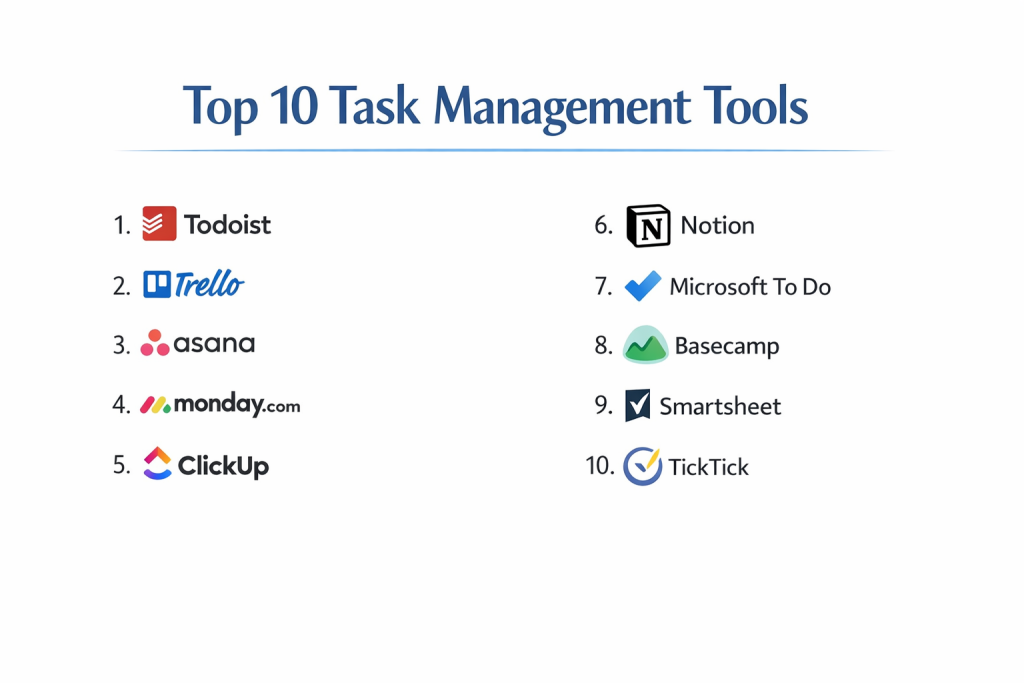
Top 10 Task Management Tools
1 — ClickUp
ClickUp is known as the “one app to replace them all.” It is designed for teams that want everything—tasks, docs, goals, and even whiteboards—in a single place rather than switching between multiple programs.
- Key features:
- Multiple Views: Switch between a List, Board (Kanban), Calendar, or a Map view.
- Custom Statuses: Create specific stages for your work, like “Writing,” “Editing,” and “Published.”
- Hierarchy System: Organize work into Spaces, Folders, and Lists to keep big companies tidy.
- Built-in Documents: Write long guides or meeting notes directly inside the task area.
- Time Tracking: A native timer to see exactly how long each task takes.
- Automation: Set up rules so that when a task is finished, the next one is created automatically.
- Pros:
- It is incredibly flexible; you can customize almost every button and color.
- The free version is very generous, offering more features than most paid tools.
- Cons:
- Because it has so many features, it can be overwhelming and confusing for beginners.
- The mobile app can sometimes feel a bit slow compared to the desktop version.
- Security & compliance: SOC 2 Type II certified, GDPR compliant, and uses 256-bit AES encryption for data.
- Support & community: Extensive “ClickUp University” for training, 24/7 customer support, and a very active Facebook user group.
2 — Asana
Asana is one of the most popular tools for professional teams. It focuses on “clarity,” making it very easy to see who is doing what and by when without any extra clutter.
- Key features:
- Timeline View: A Gantt-style chart that shows how tasks overlap over weeks or months.
- Workload Tracking: See if one team member has too much work compared to others.
- Forms: Create a link where people can submit requests that turn into tasks.
- Milestones: Mark big goals in a project to keep the team motivated.
- Project Briefs: A central place to explain the “why” behind a project.
- Proofing: Leave comments directly on images or PDFs attached to a task.
- Pros:
- It has a very clean, “pretty” interface that people actually enjoy using.
- It is great for big teams because it focuses on high-level goals and tracking.
- Cons:
- You cannot assign a single task to multiple people, which some teams find annoying.
- Many of the best features, like the Timeline, are only available in the expensive paid plans.
- Security & compliance: SOC 2 Type II, HIPAA (on Enterprise plans), GDPR, and ISO 27001 certified.
- Support & community: High-quality documentation, a dedicated community forum, and “Asana Ambassadors” worldwide.
3 — Monday.com
Monday.com describes itself as a “Work OS.” It is famous for its bright colors and its “Lego-style” building blocks that let you create a system for anything from sales to construction.
- Key features:
- Color-Coded Boards: Uses bright labels that make it easy to see the status of work at a glance.
- Columns Galore: Add columns for numbers, people, dates, ratings, and even world clocks.
- Dashboards: Create a “command center” that pulls data from many different boards.
- Apps Marketplace: Download extra tools made by other companies to add to your board.
- Integrations: Very easy to connect with Slack, Gmail, and Zoom.
- Automations: “If this happens, then do that” recipes that save hours of manual work.
- Pros:
- It is probably the most visually intuitive tool; children could almost use it.
- It is highly adaptable to non-office work like warehouse tracking or video production.
- Cons:
- The pricing is based on “seats” (groups of users), so you might have to pay for 5 people even if you only have 3.
- The mobile version doesn’t let you see the full complexity of the desktop boards.
- Security & compliance: ISO 27001, ISO 27018, SOC 1/2/3, GDPR, and HIPAA compliant.
- Support & community: 24/7 support with a very fast response time and a massive library of video tutorials.
4 — Trello
Trello is the king of the “Kanban” style. It uses digital “cards” on a board, just like moving sticky notes across a whiteboard. It is perfect for people who think visually.
- Key features:
- Drag-and-Drop Cards: Move tasks from “To Do” to “Doing” to “Done” with your mouse.
- Power-Ups: Add extra features like calendars or map views to your board.
- Butler Automation: A built-in robot that learns your habits and suggests shortcuts.
- Checklists: Add sub-tasks inside a card with a progress bar.
- Templates: Thousands of pre-made boards for everything from weddings to office hiring.
- Card Aging: Cards that haven’t been touched in a while start to fade away.
- Pros:
- It is so simple that you can start using it in less than one minute.
- It is excellent for simple, linear processes where work moves through stages.
- Cons:
- It is not built for very large, complex projects with hundreds of steps.
- It lacks built-in reporting or “workload” views found in Asana or ClickUp.
- Security & compliance: SOC 2 Type II, ISO 27001, and GDPR compliant (managed by Atlassian).
- Support & community: Large user community and solid documentation, though direct human support can be slow for free users.
5 — Todoist
While the tools above are for teams, Todoist is the gold standard for individuals. It is a powerful, clean list that follows you everywhere—on your watch, phone, and computer.
- Key features:
- Natural Language Input: Type “Buy milk every Friday at 5pm” and it sets the reminder for you.
- Karma Points: A “game” system that gives you points for finishing your tasks on time.
- Priority Levels: Color-code your tasks from P1 (Urgent) to P4 (Nice to do).
- Filters: Create custom views like “Work tasks due today that are high priority.”
- Productivity Trends: Weekly charts that show when you are most productive.
- Shared Projects: You can invite a friend or spouse to a specific list.
- Pros:
- It is extremely fast and lightweight; it never feels like a “chore” to open.
- The natural language typing is the best in the industry.
- Cons:
- It doesn’t have “big project” features like Gantt charts or file storage.
- Reminders (the most important feature) are locked behind the paid version.
- Security & compliance: GDPR compliant, uses SSL/TLS encryption; SOC 2 and ISO are N/A (consumer focus).
- Support & community: Great help articles and a loyal “cult” following on Reddit and Twitter.
6 — Microsoft Planner
If your company uses Microsoft Teams and Outlook, Planner is already there. It is a simple board system that integrates perfectly with the Microsoft world.
- Key features:
- Teams Integration: View your boards directly inside a chat window in Teams.
- Bucket Organization: Group tasks into columns called “Buckets.”
- Charts View: A simple page showing how many tasks are late or in progress.
- To-Do Sync: Tasks in Planner show up in your personal “Microsoft To-Do” app.
- Email Notifications: Get an email the moment someone assigns a task to you.
- File Attachment: Link documents from your OneDrive or SharePoint easily.
- Pros:
- If you already pay for Office 365, this tool is basically “free.”
- There is nothing new to learn if you are used to the Microsoft layout.
- Cons:
- It is very basic; it doesn’t have the “power” features of ClickUp or Monday.com.
- It is hard to use for people outside of your company.
- Security & compliance: Follows all Microsoft 365 standards including HIPAA, GDPR, and ISO 27001.
- Support & community: Massive global support and community forums because it is a Microsoft product.
7 — Notion
Notion is a “blank canvas.” It is a mix between a task manager, a document writer, and a database. It is very popular with creative people and “techy” users.
- Key features:
- Block Building: Everything is a “block” that you can move—text, images, or task lists.
- Databases: Turn a simple list into a board, a table, or a gallery view instantly.
- Linked Pages: Create a “wiki” for your company where every page connects to another.
- Templates: A massive community of users who sell or give away their layouts.
- AI Writing: A helper that can summarize your meeting notes or fix your spelling.
- Properties: Add “tags” to tasks like “Energy Level Needed” or “Estimated Time.”
- Pros:
- You can build a system that looks and works exactly like your own brain.
- It is the best tool for keeping “knowledge” (notes) and “tasks” in the same place.
- Cons:
- It has a very steep learning curve; it can take days to build a layout you like.
- The mobile app can be clunky because it tries to show too much information at once.
- Security & compliance: SOC 2 Type 2 compliant, GDPR ready, and uses TLS 1.2 encryption.
- Support & community: Huge community on YouTube and Reddit; customer support is mostly through email and chat.
8 — Smartsheet
Smartsheet looks like a regular spreadsheet (like Excel) but has the power of a project manager. It is for people who love rows and columns but need them to “do more.”
- Key features:
- Grid View: A powerful spreadsheet that can handle thousands of rows of data.
- Critical Path: Highlights the most important tasks that must be done on time to meet a deadline.
- Resource Management: Track who in the company is busy and who can take on more work.
- WorkApps: Turn your sheet into a simple mobile app for your field workers.
- Proofing: Manage the review and approval of creative assets.
- Automation Bridge: Connects to big business tools like Salesforce and SAP.
- Pros:
- If you are an “Excel person,” this will feel like home.
- It is very strong for construction, engineering, and manufacturing.
- Cons:
- It feels very “corporate” and boring compared to Monday.com or Notion.
- It is quite expensive for small teams or solo users.
- Security & compliance: ISO 27001, SOC 2, HIPAA, and GDPR compliant.
- Support & community: Professional-grade support and an extensive “Learning Center.”
9 — Wrike
Wrike is an enterprise-grade tool. It is built for very large companies that need to manage hundreds of people across different departments like marketing and IT.
- Key features:
- Request Forms: Automatically turn incoming work requests into organized tasks.
- Gantt Charts: Professional, interactive timelines for long-term planning.
- Time Tracking: Built-in timers and timesheets for billing clients.
- Custom Blueprints: Save a successful project layout to use again later.
- AI Work Intelligence: Warns you if a project is likely to miss its deadline.
- External Collaborators: Invite clients to see the progress without giving them full access.
- Pros:
- It is very powerful and stable; it almost never crashes or slows down.
- It allows for very “deep” organization for teams with a lot of sub-departments.
- Cons:
- The interface can feel a bit cold and “stiff.”
- It is overkill for small teams who just need a simple list.
- Security & compliance: ISO 27001, SOC 2 Type II, GDPR, and HIPAA compliant.
- Support & community: Dedicated account managers for big clients and 24/7 technical help.
10 — TickTick
TickTick is like a “super-powered” Todoist. It is a simple list app that adds a calendar, a habit tracker, and a “focus timer” all in one.
- Key features:
- Calendar View: See your tasks on a full month or week view on your phone.
- Pomodoro Timer: A built-in clock that helps you work for 25 minutes and then take a break.
- Habit Tracker: Track things like “Drink Water” or “Exercise” alongside your tasks.
- Voice Input: Speak to your phone to add a task while driving.
- Kanban Boards: You can turn any list into a simple Trello-style board.
- White Noise: Play sounds like “Rain” or “Forest” inside the app to help you focus.
- Pros:
- It has more “productivity tools” (like the timer and habits) than any other app.
- The premium version is very affordable (around $3 a month).
- Cons:
- The company is smaller than Microsoft or Asana, which makes some business users nervous.
- It is more of a “personal” tool and isn’t great for a team of 50 people.
- Security & compliance: SSL/TLS encryption, GDPR compliant; ISO/SOC N/A.
- Support & community: Helpful blog and email support, though the community is smaller than Notion’s.
Comparison Table
| Tool Name | Best For | Platform(s) Supported | Standout Feature | Rating (Gartner) |
| ClickUp | Teams wanting everything in one | Web, Mac, PC, iOS, Android | “All-in-one” customization | 4.7 / 5 |
| Asana | Professional project tracking | Web, iOS, Android | Clean Timeline & Clarity | 4.5 / 5 |
| Monday.com | Visual & creative teams | Web, iOS, Android | Colorful, Lego-like building | 4.6 / 5 |
| Trello | Simple, visual workflows | Web, iOS, Android | Easy Kanban boards | 4.4 / 5 |
| Todoist | Personal productivity | All (including Watch) | Natural Language input | 4.6 / 5 |
| MS Planner | Microsoft Office users | Web, Teams, Mobile | Native Office integration | 4.2 / 5 |
| Notion | Notes + Tasks together | Web, Mac, PC, Mobile | Infinite flexibility | 4.7 / 5 |
| Smartsheet | Spreadsheet fans | Web, iOS, Android | Data-heavy project power | 4.5 / 5 |
| Wrike | Large corporations | Web, Mac, PC, Mobile | Enterprise-grade stability | 4.2 / 5 |
| TickTick | Focus & Habit building | All (including Watch) | Pomodoro Timer + Habits | N/A |
Evaluation & Scoring of Task Management Tools
When we score these tools, we don’t just look at how they look. We use a “weighted” system to see which one gives the most value for the money.
| Category | Weight | Evaluation Criteria |
| Core features | 25% | Can it handle deadlines, assignments, and file storage? |
| Ease of use | 15% | Can a new employee learn it in 30 minutes? |
| Integrations | 15% | Does it talk to Gmail, Slack, and Zoom? |
| Security & compliance | 10% | Is the data safe from hackers and compliant with laws? |
| Performance | 10% | Does the app load quickly and sync between devices? |
| Support & community | 10% | Is there a manual and a help desk to call? |
| Price / value | 15% | Is the cost worth the time saved? |
Which Task Management Tool Is Right for You?
Choosing a tool is like choosing a pair of shoes; it has to fit your specific “size” and “style.”
Solo Users vs SMB vs Mid-market vs Enterprise
If you are a solo user (freelancer or student), Todoist or TickTick are the best because they stay out of your way. Small Businesses (SMB) should look at Trello or Monday.com because they are easy to teach to a new team. Mid-market companies (50-200 people) usually thrive on Asana or ClickUp. Enterprises (500+ people) almost always need Wrike or Smartsheet for their heavy security and reporting.
Budget-conscious vs Premium Solutions
If you have zero dollars, ClickUp and Trello have the best free versions. If you are willing to pay for the “best of the best” experience, Asana and Monday.com offer the most polished “premium” feel.
Feature Depth vs Ease of Use
If you want a tool that “just works” and is very simple, go with Trello. If you want a tool that can do literally everything including building your own databases, go with Notion or ClickUp.
Integration and Scalability Needs
If your life is in Microsoft Office, don’t fight it—use Microsoft Planner. If you need to connect to 20 different apps, Monday.com and ClickUp have the most “plugs” to talk to other software.
Frequently Asked Questions (FAQs)
1. Is Task Management different from Project Management?
Yes. Task management is about the “doing”—your daily to-do list. Project management is about the “planning”—looking at big timelines, budgets, and resources for a group.
2. Can I use these tools offline?
Some can. Todoist and TickTick work well offline. Most “team” tools like Monday.com or Asana need an internet connection to sync with your coworkers.
3. Do I need a credit card to try them?
Most offer a “Free Forever” version or a 14-day trial that doesn’t require a card. Always try the free version before you buy.
4. Can I see my work on my Apple Watch?
Todoist and TickTick are the leaders in watch apps. The bigger tools like Asana might show you a notification, but you can’t really manage work from your wrist.
5. How much do they cost?
The “Personal” versions are usually free. “Team” versions usually cost between $8 and $15 per person, per month.
6. Is my data safe if the company goes out of business?
Most of these are billion-dollar companies. However, you should always pick a tool that lets you “export” your tasks to an Excel file just in case.
7. Can these tools help with my “Habits” too?
TickTick is the only one on the list with a dedicated habit tracker. For the others, you would have to create a task that repeats every day.
8. Which one is best for students?
Notion is very popular for students because you can keep your class notes and your homework tasks in the same folder.
9. What is a “Kanban Board”?
It is a layout where tasks are “cards” in columns. When you finish a step, you drag the card from the “In Progress” column to the “Done” column.
10. What is the most common mistake people make?
Picking a tool that is too complicated. If you spend more time “organizing” the tool than actually doing your work, you have the wrong tool.
Conclusion
At the end of the day, the “best” task management tool is the one you will actually use. If a tool feels like a chore to open, it doesn’t matter how many features it has. If you want a tool that is visually beautiful, go with Monday.com. If you want a tool that does everything, go with ClickUp. And if you just want a clean list, Todoist is your winner.
Start by picking one tool and using it for just one project. See how it feels to check those boxes. Once you find the right fit, you will wonder how you ever managed your life with just sticky notes and memory.