Introduction
Vector Illustration Tools are software applications used to create graphics based on mathematical paths, curves, and shapes instead of pixels. Because vectors rely on equations rather than fixed-resolution grids, designs created using vector tools can be resized infinitely without losing quality. This makes vector illustration essential for logos, branding assets, icons, UI elements, typography, technical diagrams, and print materials.
Vector illustration plays a critical role in modern design workflows. Brands need visuals that look sharp on mobile screens, websites, posters, packaging, and billboards. Digital products require icons and UI elements that adapt to multiple screen sizes. Marketing teams reuse the same artwork across platforms while maintaining consistency. Vector tools provide the flexibility, precision, and scalability required for these demands.
In real-world scenarios, vector illustration tools are used for logo creation, brand identity systems, product packaging, UI and UX design, iconography, infographics, book illustrations, advertising campaigns, and large-format printing. These tools are widely adopted across creative agencies, startups, enterprises, publishing companies, and product design teams.
When choosing a vector illustration tool, users should consider drawing precision, path control, typography support, performance, export formats, compatibility with other tools, collaboration features, and pricing. Ease of use, learning curve, and long-term ecosystem support also play an important role.
Best for:
Vector illustration tools are ideal for graphic designers, illustrators, UI/UX designers, brand managers, marketers, publishers, product designers, freelancers, creative agencies, SMBs, and enterprises across industries such as advertising, technology, media, fashion, and manufacturing.
Not ideal for:
Users focused mainly on photo retouching or pixel-based image editing may find raster image editors more suitable than vector illustration tools.
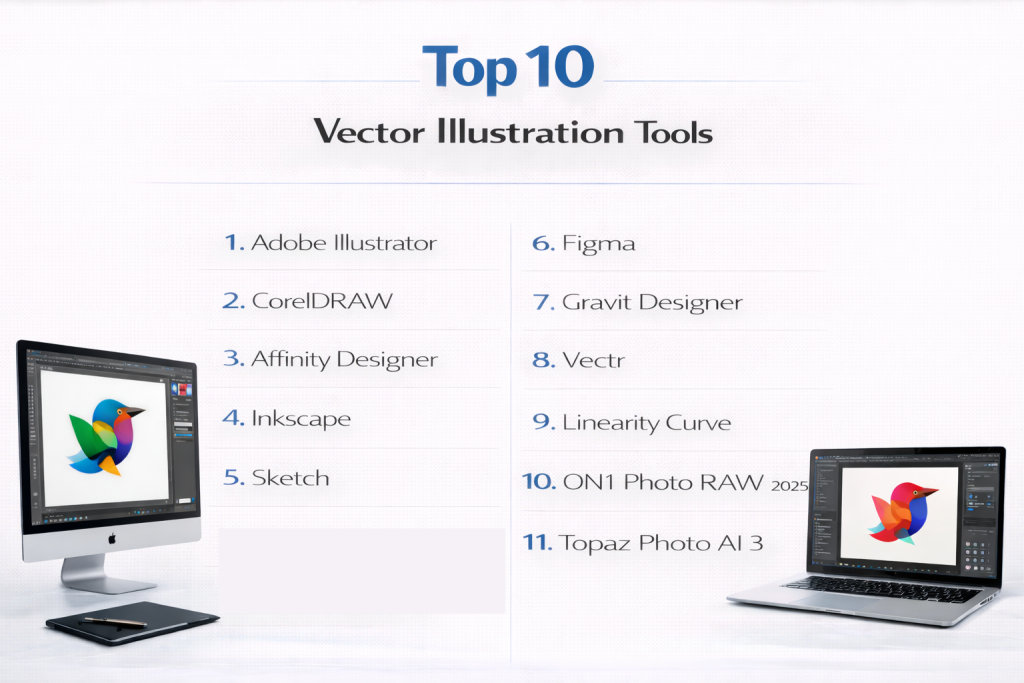
Top 10 Vector Illustration Tools
1 — Adobe Illustrator
Adobe Illustrator is a professional-grade vector illustration software widely recognized as the industry standard for vector design. It is built for designers who need complete control over shapes, paths, typography, and color systems. Illustrator supports highly complex artwork, making it suitable for everything from simple icons to intricate illustrations and large-scale branding systems.
In professional workflows, Illustrator is often used as the central tool for logo design, brand identity creation, packaging design, and illustration work that must scale across print and digital platforms. Its deep toolset allows designers to fine-tune anchor points, curves, strokes, and gradients with extreme precision. While the learning curve can be steep, it rewards users with unmatched flexibility and creative control.
Key features:
- Advanced vector drawing and path tools
- Precision anchor point control
- Typography and font management
- Multiple artboards for large projects
- Gradient meshes and advanced color tools
- Extensive export and file compatibility
Pros:
- Industry-standard professional tool
- Extremely powerful and flexible
- Trusted across creative industries
Cons:
- Subscription-based pricing
- Steep learning curve for beginners
- Resource-intensive on older systems
Security & compliance:
Encryption in transit, GDPR compliance, enterprise access controls available
Support & community:
Extensive documentation, tutorials, certifications, enterprise support, and a massive global user community.
2 — CorelDRAW
CorelDRAW is a comprehensive vector illustration and graphic design software that has long been popular in print-focused and commercial design environments. It offers a balanced mix of powerful vector tools and a relatively approachable interface, making it appealing to professionals who work on branding, signage, marketing materials, and print layouts.
CorelDRAW is frequently chosen by designers who need strong color management, multi-page document support, and print-ready output. It integrates illustration and layout tools into a single environment, reducing the need to switch between applications. While it may not dominate digital UI workflows, it remains a strong choice for print-heavy industries.
Key features:
- Vector illustration and page layout tools
- Advanced typography controls
- Color management for print workflows
- Multi-page document handling
- Non-destructive editing features
- Broad file format support
Pros:
- Excellent for print design
- Easier learning curve than some competitors
- Flexible licensing options
Cons:
- Smaller ecosystem compared to competitors
- Interface may feel dated to some users
- Limited cloud collaboration
Security & compliance:
Varies / N/A
Support & community:
Good documentation, customer support, and an established professional user base.
3 — Affinity Designer
Affinity Designer is a modern vector illustration tool designed for professionals who want high-end capabilities without ongoing subscription costs. It is especially popular among freelancers, independent designers, and small studios that need speed, precision, and affordability in a single package.
One of Affinity Designer’s strengths is its dual workflow, allowing users to switch between vector and raster modes seamlessly. This makes it useful for illustration, branding, and digital design tasks that require both clean vectors and pixel-level detailing. Its performance is optimized for speed, making it a strong option for designers working on complex files.
Key features:
- Vector and raster design modes
- High-performance rendering engine
- Precision snapping and alignment tools
- Advanced shape and pen tools
- Non-destructive effects
- One-time purchase pricing
Pros:
- Excellent value for money
- Fast and lightweight
- Professional-quality tools
Cons:
- Smaller plugin ecosystem
- Limited collaboration features
- Fewer enterprise-level tools
Security & compliance:
Varies / N/A
Support & community:
Strong documentation, active forums, and a growing global community.
4 — Inkscape
Inkscape is a free and open-source vector illustration tool that provides powerful drawing capabilities without licensing costs. It is widely used by students, educators, hobbyists, and professionals who prefer open-source software or need a cost-effective alternative to commercial tools.
Inkscape supports a wide range of vector operations and is particularly strong in SVG-based workflows. While its interface and performance may feel less polished compared to commercial tools, it remains highly capable for logo design, illustrations, diagrams, and technical graphics when used efficiently.
Key features:
- Advanced path and node editing
- SVG-native workflow
- Typography and text-on-path tools
- Extensions and plugin support
- Cross-platform compatibility
Pros:
- Completely free
- Strong core vector capabilities
- Open-source flexibility
Cons:
- Slower performance on large files
- Interface feels outdated
- Limited professional support
Security & compliance:
Varies / N/A
Support & community:
Community-driven documentation, forums, and tutorials.
5 — Sketch
Sketch is a vector-based design tool primarily focused on UI and UX design rather than traditional illustration. It is widely used by digital product designers to create interfaces, icons, and design systems for web and mobile applications.
Sketch emphasizes reusable components, symbols, and consistency, making it ideal for teams building scalable digital products. While it lacks advanced illustration features for complex artwork, it excels in interface layout, icon creation, and design system management.
Key features:
- Vector-based UI design tools
- Symbols and reusable components
- Artboards and layout grids
- Prototyping support
- Plugin ecosystem
Pros:
- Excellent for UI workflows
- Clean and intuitive interface
- Strong component system
Cons:
- macOS only
- Limited illustration depth
- Subscription pricing
Security & compliance:
SSO support, GDPR compliance
Support & community:
Strong documentation, active plugin ecosystem, and professional user community.
6 — Figma
Figma is a cloud-based vector design tool built around real-time collaboration. It allows multiple designers, developers, and stakeholders to work on the same file simultaneously, making it highly effective for team-based design workflows.
Although Figma is primarily known for UI and product design, it also supports vector illustration tasks such as icon design and scalable assets. Its browser-based nature removes installation barriers and improves accessibility, especially for distributed teams.
Key features:
- Cloud-based vector editing
- Real-time collaboration
- Version history and commenting
- Components and design systems
- Cross-platform access
Pros:
- Outstanding collaboration features
- Easy access across devices
- Strong developer handoff
Cons:
- Internet dependency
- Limited advanced illustration tools
- Performance tied to browser
Security & compliance:
Encryption, SSO, audit logs, GDPR, SOC 2
Support & community:
Extensive documentation, tutorials, community resources, and enterprise support.
7 — Gravit Designer
Gravit Designer is a flexible vector illustration tool designed for users who want cross-platform access and cloud-based workflows. It supports general-purpose vector design, including branding, illustration, and UI assets.
Gravit Designer appeals to designers who need accessibility across devices and operating systems. While it may not match high-end professional tools in depth, it offers a balanced feature set for everyday vector design tasks.
Key features:
- Cross-platform compatibility
- Vector drawing and layout tools
- Cloud and offline modes
- Style and symbol management
- Web and print export options
Pros:
- Accessible from multiple devices
- Clean interface
- Suitable for general design needs
Cons:
- Advanced features require paid plans
- Smaller ecosystem
- Limited enterprise tools
Security & compliance:
Varies / N/A
Support & community:
Documentation, tutorials, and moderate community engagement.
8 — Vectr
Vectr is a beginner-friendly vector illustration tool focused on simplicity and accessibility. It is designed for users who are new to vector design or need to create simple graphics quickly without learning complex software.
Vectr is often used for basic logos, icons, and simple illustrations. While it lacks advanced tools required for professional projects, it serves as an easy entry point into vector design.
Key features:
- Basic vector drawing tools
- Web-based access
- Real-time collaboration
- Simple interface
- Common export formats
Pros:
- Very easy to learn
- Free version available
- Good for simple projects
Cons:
- Limited advanced features
- Not suitable for complex designs
- Performance constraints
Security & compliance:
Varies / N/A
Support & community:
Basic documentation and small user community.
9 — Linearity Curve
Linearity Curve is a modern vector illustration tool focused on speed, smooth performance, and creative workflows. It is designed for illustrators and designers who prefer an intuitive interface and responsive tools for drawing and shaping vectors.
The tool is well-suited for illustration work, icon creation, and digital artwork where smooth curves and visual refinement matter. While its ecosystem is smaller, it offers a polished experience for creative users.
Key features:
- Precision vector drawing
- Intuitive interface
- Fast performance
- Typography tools
- Digital export support
Pros:
- Smooth and responsive workflow
- Modern design approach
- Good for illustration-focused work
Cons:
- Limited automation tools
- Smaller ecosystem
- Fewer enterprise features
Security & compliance:
Varies / N/A
Support & community:
Growing documentation and user community.
10 — Boxy SVG
Boxy SVG is a lightweight vector illustration tool focused specifically on SVG-based design. It is designed for designers and developers who work with scalable vector graphics for web and interface projects.
Boxy SVG emphasizes clean SVG output, precision, and simplicity. While it is not intended for complex illustration or print workflows, it is highly effective for web-focused vector design tasks.
Key features:
- SVG-centric design workflow
- Precision drawing tools
- Clean and simple interface
- Cross-platform access
- Web-friendly exports
Pros:
- Excellent SVG control
- Lightweight and fast
- Developer-friendly
Cons:
- Limited illustration depth
- Not suitable for print-heavy work
- Smaller feature set
Security & compliance:
Varies / N/A
Support & community:
Documentation and a niche professional community.
Comparison Table
| Tool Name | Best For | Platform(s) | Standout Feature | Rating |
|---|---|---|---|---|
| Adobe Illustrator | Professionals | Windows, macOS | Industry standard | N/A |
| CorelDRAW | Print designers | Windows, macOS | Print workflows | N/A |
| Affinity Designer | Freelancers | Windows, macOS, iPad | One-time purchase | N/A |
| Inkscape | Open-source users | Windows, macOS, Linux | Free & open source | N/A |
| Sketch | UI designers | macOS | Symbols system | N/A |
| Figma | Teams | Web, Desktop | Real-time collaboration | N/A |
| Gravit Designer | Cross-platform users | Web, Desktop | Cloud flexibility | N/A |
| Vectr | Beginners | Web, Desktop | Simplicity | N/A |
| Linearity Curve | Illustrators | macOS, iPad | Smooth performance | N/A |
| Boxy SVG | SVG designers | Web, Desktop | SVG focus | N/A |
Evaluation & Scoring of Vector Illustration Tools
| Criteria | Weight |
|---|---|
| Core features | 25% |
| Ease of use | 15% |
| Integrations & ecosystem | 15% |
| Security & compliance | 10% |
| Performance & reliability | 10% |
| Support & community | 10% |
| Price / value | 15% |
Which Vector Illustration Tools Tool Is Right for You?
Solo designers should prioritize ease of use and affordability. SMBs benefit from tools that balance power and cost. Mid-market teams need collaboration and scalability. Enterprises should focus on security, ecosystem integration, and long-term vendor support. The right tool depends on workflow complexity, collaboration needs, and budget.
Frequently Asked Questions (FAQs)
- What are vector illustration tools used for?
They are used to create scalable graphics such as logos, icons, and illustrations. - Are vector tools better than raster tools?
They are better for scalability and precision but not for photo editing. - Can beginners use vector illustration tools?
Yes, many tools offer beginner-friendly interfaces. - Are free vector tools reliable?
Yes, but they may lack advanced features. - Do vector tools support print design?
Many tools support professional print workflows. - Are vector tools used in UI design?
Yes, especially for icons and layouts. - Do vector tools support collaboration?
Some tools offer real-time collaboration. - Is subscription pricing mandatory?
No, some tools use one-time purchase models. - Can vector files be exported to multiple formats?
Yes, most tools support multiple export formats. - Which vector tool is best for beginners?
Beginner-friendly tools focus on simplicity and ease of use.
Conclusion
Vector illustration tools are essential for creating scalable, professional-quality visuals across digital and print platforms. They provide precision, flexibility, and consistency that modern design demands.
There is no single best vector illustration tool for everyone. The ideal choice depends on your experience level, design goals, collaboration needs, and budget. By understanding your requirements and evaluating tools carefully, you can select a vector illustration solution that delivers long-term creative value and efficiency.