Introduction
Image editing software refers to digital applications designed to manipulate, enhance, and transform photographs or digital graphics. These tools operate on a spectrum ranging from raster-based pixel manipulation to vector-based design and non-destructive RAW processing. The primary goal of these applications is to improve the quality of an image—by adjusting exposure, removing unwanted objects, or applying artistic filters—to meet specific professional or personal standards.
In a commercial context, image editing is critical for branding, e-commerce product listings, and digital advertising. Choosing the right tool requires a clear understanding of your specific needs. Key evaluation criteria typically include the depth of the feature set (AI vs. manual), the learning curve, system performance, and the licensing model (subscription vs. perpetual). As we move into 2026, integration with generative AI and the ability to handle high-resolution files without lag have become the new benchmarks for excellence.
Best for: Professional photographers, graphic designers, marketing agencies, social media influencers, and e-commerce businesses requiring high-quality visual assets.
Not ideal for: Users who only need basic viewing capabilities or automated mobile filters that do not require precise control or professional-grade output.
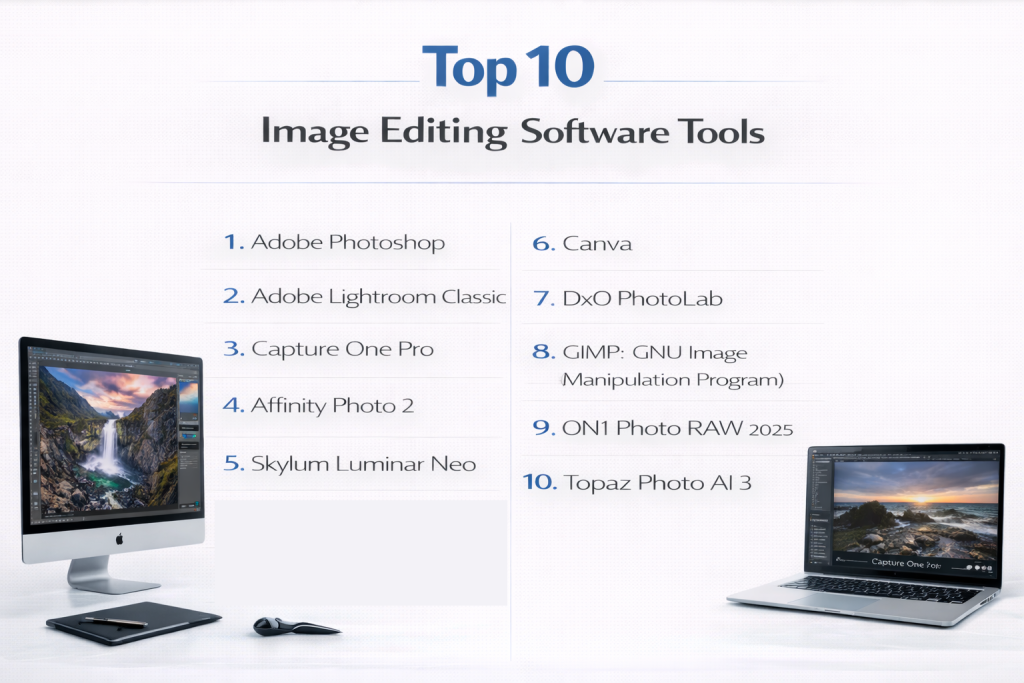
Top 10 Image Editing Software Tools
1 — Adobe Photoshop
Adobe Photoshop remains the undisputed industry standard for pixel-level manipulation and complex graphic design. Designed for high-end professionals, it offers an exhaustive toolkit for everything from detailed skin retouching to creating entirely fictional digital environments.
- Key Features:
- Generative Fill: AI-powered background and object creation using Adobe Firefly.
- Layer-Based Editing: Sophisticated stacking system for non-destructive design.
- Advanced Masking: Precise selection tools including “Select Subject” and “Sky Replacement.”
- Neural Filters: One-click AI adjustments for facial expressions, skin smoothing, and color transfer.
- Extensive Plugin Ecosystem: Support for thousands of third-party brushes, textures, and filters.
- Cross-Platform Sync: Seamless movement of files between desktop, iPad, and web versions.
- Pros:
- Unmatched power and versatility for creative professionals.
- Industry-leading AI features that significantly speed up repetitive tasks.
- Cons:
- High learning curve for beginners.
- Requires a recurring monthly Creative Cloud subscription.
- Security & Compliance: SSO, enterprise-level encryption (AES-256), SOC 2 compliance, and GDPR alignment through Adobe Creative Cloud for Enterprise.
- Support & Community: World-class documentation, active Adobe Support Community, and millions of tutorials available globally.
2 — Adobe Lightroom Classic
Lightroom Classic is the gold standard for photographers who need to manage and process large volumes of RAW images. It prioritizes workflow efficiency, focusing on color grading and asset management rather than pixel-level compositing.
- Key Features:
- Non-Destructive RAW Processing: Edits are stored as metadata without altering the original file.
- AI Masking: Automatic detection of subjects, skies, and backgrounds for targeted edits.
- Cataloging System: Powerful keyword, rating, and filtering tools for massive libraries.
- Lens Corrections: Automatic removal of distortion and vignetting based on lens profiles.
- Tethered Shooting: Direct import of photos from camera to computer in real-time.
- HDR & Panorama Merge: Effortless stitching of multiple exposures and frames.
- Pros:
- Exceptional workflow speed for event and portrait photographers.
- Robust organizational tools that make finding specific images instant.
- Cons:
- Limited capabilities for graphic design or text-based work.
- Database-centric structure can be confusing for new users.
- Security & Compliance: HIPAA-ready configurations (for healthcare use cases), SSO, and encrypted cloud storage options.
- Support & Community: Extensive in-app tutorials, professional webinars, and a massive community of photography enthusiasts.
3 — Capture One Pro
Capture One Pro is the primary rival to Lightroom, widely regarded as the superior choice for studio and commercial photographers due to its exceptional color science and industry-leading tethering.
- Key Features:
- Superior Color Editor: Granular control over specific color ranges and skin tones.
- Speed Edit: Keyboard shortcuts that allow editing without touching the UI sliders.
- Smart Adjustments: AI-driven normalization of exposure and white balance across a shoot.
- Sessions Workflow: Self-contained project folders ideal for client-based work.
- Customizable Interface: Fully modular UI that can be tailored to any workflow.
- Live Collaboration: Capture One Live allows clients to view and rate shots remotely in real-time.
- Pros:
- The most reliable tethering experience in the industry.
- Exceptional RAW conversion quality that often outperforms Adobe.
- Cons:
- One of the most expensive options on the market.
- Steeper learning curve compared to Lightroom.
- Security & Compliance: Secure cloud sharing with password protection and audit logs for collaborative sessions.
- Support & Community: High-quality technical support and a dedicated “Learning Hub” for professional certification.
4 — Affinity Photo 2
Affinity Photo 2 has gained massive popularity as the premier “Photoshop alternative” for users who prefer a one-time purchase over a monthly subscription without sacrificing professional power.
- Key Features:
- Live Filter Layers: Apply blurs, lighting, and distortions non-destructively in real-time.
- RAW Development Persona: Dedicated workspace for initial RAW file processing.
- Focus Merging: Advanced stacking for macro and landscape photography.
- Frequency Separation: Built-in tools for professional-grade skin retouching.
- Full PSD Support: Seamlessly open and edit Photoshop files with layers intact.
- 32-bit Workflow: Professional support for HDR and high-dynamic-range imagery.
- Pros:
- One-time payment model provides excellent long-term value.
- Incredibly fast performance on modern hardware (macOS and Windows).
- Cons:
- Lacks the deep generative AI features found in Photoshop.
- No built-in image cataloging/DAM (Digital Asset Management) system.
- Security & Compliance: Local processing ensures high data privacy; no forced cloud storage.
- Support & Community: Active user forums and a comprehensive suite of “workbook” style documentation.
5 — Skylum Luminar Neo
Luminar Neo is designed for users who want to achieve dramatic, high-quality results using AI-powered automation. It focuses on “creative” editing rather than technical precision.
- Key Features:
- Sky AI: One-click sky replacement with automatic relighting of the scene.
- Relight AI: Creates a 3D depth map to independently light foreground and background.
- GenErase: AI-powered object removal that intelligently fills the gap.
- Portrait Background Removal: Instantly isolate subjects from complex backgrounds.
- Enhance AI: A single slider that analyzes and improves over a dozen image parameters.
- Extensions: Modular tools for noise reduction, upscaling, and focus stacking.
- Pros:
- The fastest way to achieve complex artistic edits for hobbyists.
- Very intuitive interface that requires zero prior editing knowledge.
- Cons:
- Can be resource-heavy and prone to lag on older computers.
- Lacks professional manual control for surgical retouching.
- Security & Compliance: Varies; primarily consumer-focused with standard data protection.
- Support & Community: Robust video tutorial library and a large “Skylum Insiders” community.
6 — Canva
While traditionally a design tool, Canva’s photo editing suite has become a powerhouse for marketers and small business owners who need “good enough” results at lightning speed.
- Key Features:
- Magic Edit: Swap out elements of an image (e.g., changing a shirt color) with AI.
- Background Remover: Industry-leading one-click isolation of products or people.
- Magic Expand: AI-driven expansion of image borders.
- Integrated Design Ecosystem: Instantly place edited photos into social media templates.
- Collaborative Editing: Multiple team members can edit a design simultaneously.
- Brand Kits: Store organizational logos, colors, and fonts for consistent editing.
- Pros:
- Extremely accessible via browser—no powerful hardware required.
- Perfect for rapid social media content creation.
- Cons:
- Not suitable for high-resolution RAW photo editing.
- Limited manual control over fine pixel details.
- Security & Compliance: SSO, SOC 2 Type II, ISO 27001, and GDPR compliant (Enterprise version).
- Support & Community: Massive global community, 24/7 support for Pro/Enterprise, and “Canva Design School.”
7 — DxO PhotoLab 8
DxO PhotoLab is the surgeon of image editors. It is built for photographers who obsess over optical perfection and image quality above all else.
- Key Features:
- DeepPRIME XD2s: World-class AI noise reduction that salvages high-ISO images.
- U Point Technology: Precision local adjustments without complex masking.
- Optical Modules: Lab-developed profiles for over 90,000 camera and lens combinations.
- ClearView Plus: Advanced haze removal and local contrast enhancement.
- Smart Lighting: Intelligent dynamic range optimization for high-contrast scenes.
- File Management: A light-weight browser for organizing files without a database.
- Pros:
- Produces the cleanest, sharpest RAW conversions in the industry.
- No subscription required; excellent technical correction tools.
- Cons:
- “Elite” version is quite expensive compared to competitors.
- Interface can feel clinical and less “creative” than other editors.
- Security & Compliance: Local data management; GDPR compliant privacy policy.
- Support & Community: Technical support and active user forums focused on gear and optics.
8 — GIMP (GNU Image Manipulation Program)
GIMP is the most powerful free, open-source image editor in existence. It is the go-to solution for budget-conscious users and those who value software freedom.
- Key Features:
- High-Bit Depth Support: Edit images with up to 32-bit per channel precision.
- Extensibility: Highly scriptable (Python, Perl) for custom automation.
- Hardware Support: Excellent compatibility with pressure-sensitive tablets.
- Advanced Transform Tools: Scaling, shearing, and perspective correction.
- Customizable Interface: Fully modular UI layouts and icon themes.
- Massive Plugin Library: Community-created tools for everything from G-MIC filters to RAW processing.
- Pros:
- Completely free forever with no hidden costs or subscriptions.
- Runs on Linux, macOS, and Windows.
- Cons:
- User interface is notoriously difficult for beginners to learn.
- Professional CMYK support is still not as seamless as Photoshop.
- Security & Compliance: Open-source transparency; no data tracking or telemetry by default.
- Support & Community: Volunteer-driven wiki documentation and a decades-old global community.
9 — ON1 Photo RAW 2026
ON1 Photo RAW attempts to be the only application a photographer ever needs, combining a file organizer, RAW processor, and layered editor into one high-speed package.
- Key Features:
- Keyword AI: Automatically identifies and tags objects within your photos.
- Brilliance AI: Instant, intelligent tonal balancing for raw captures.
- Built-in Effects: Over 100 stackable filters and textures.
- NoNoise AI: Integrated high-quality noise reduction.
- Portrait AI: Automatic skin, eye, and teeth enhancement with one click.
- Resize AI: Advanced upscaling for large-format printing.
- Pros:
- Integrated workflow saves time moving between different apps.
- Extremely fast browsing speeds for high-resolution file previews.
- Cons:
- Can feel cluttered due to the sheer number of integrated modules.
- AI features sometimes produce “over-processed” results if not dialed back.
- Security & Compliance: Optional cloud sync is encrypted; standard GDPR compliance.
- Support & Community: “ON1 Plus” membership offers professional training and creative assets.
10 — Topaz Photo AI 3
Topaz Photo AI is a specialized tool that uses “autopilot” technology to solve technical image problems (blur, noise, low resolution) using machine learning.
- Key Features:
- Autopilot: Automatically scans images to detect and fix specific flaws.
- Denoise AI: Removes heavy noise while preserving texture.
- Sharpen AI: Corrects motion blur and lens softness.
- Gigapixel AI: Upscales images by up to 600% with realistic detail.
- Face Recovery: Reconstructs low-quality or blurry faces in old photos.
- Lighting & Color AI: Automatically balances exposure and color temperature.
- Pros:
- The best tool for salvaging “unusable” or low-quality photographs.
- Can be used as a standalone app or as a plugin for Photoshop/Lightroom.
- Cons:
- Not a full-featured creative editor; limited manual tools.
- Very high system requirements (requires a modern GPU).
- Security & Compliance: N/A (Standard consumer software terms).
- Support & Community: Fast email support and a very active “Topaz Community” forum.
Comparison Table
| Tool Name | Best For | Platform(s) Supported | Standout Feature | Rating (Expert Consensus) |
| Adobe Photoshop | Professional Compositing | Win, Mac, iPad | Generative Fill AI | 4.8 / 5 |
| Adobe Lightroom | High-Volume Photography | Win, Mac, iOS, Web | Cataloging & Workflow | 4.7 / 5 |
| Capture One Pro | Studio/Commercial Pro | Win, Mac, iOS | Pro Tethering | 4.6 / 5 |
| Affinity Photo 2 | Budget Professionals | Win, Mac, iPad | One-time Payment | 4.5 / 5 |
| Luminar Neo | Creative AI Edits | Win, Mac | Sky Replacement AI | 4.3 / 5 |
| Canva | Social Media/Marketing | Web, iOS, Android | Design Templates | 4.7 / 5 |
| DxO PhotoLab 8 | Technical RAW Quality | Win, Mac | DeepPRIME Denoising | 4.5 / 5 |
| GIMP | Open Source Enthusiasts | Win, Mac, Linux | Fully Free & Open | 4.0 / 5 |
| ON1 Photo RAW | All-in-One Workflow | Win, Mac | Keyword AI | 4.2 / 5 |
| Topaz Photo AI | Image Restoration | Win, Mac | Autopilot Fixes | 4.6 / 5 |
Evaluation & Scoring of Image Editing Software
Choosing the right tool is subjective, but our scoring rubric breaks down the essential pillars of a professional image editing environment.
| Evaluation Category | Weight | Top Performer | Category Description |
| Core Features | 25% | Photoshop | Depth of toolset, AI integration, and file support. |
| Ease of Use | 15% | Canva | Intuitive UI and speed of the learning curve. |
| Integrations | 15% | Lightroom | How well it fits into a larger ecosystem. |
| Security/Compliance | 10% | Adobe (Ent.) | SSO, encryption, and organizational oversight. |
| Performance | 10% | Affinity Photo | Stability and speed of large file processing. |
| Support/Community | 10% | Photoshop | Documentation, forums, and customer support. |
| Price / Value | 15% | GIMP / Affinity | Cost relative to the professional utility provided. |
Which Image Editing Software Tool Is Right for You?
The “perfect” software depends entirely on your operational scale and professional goals.
1. Solo Creators & Hobbyists
If you are just starting out and want your photos to look “professional” without learning complex math, Luminar Neo is the best choice. For those who want to learn the craft without a subscription, Affinity Photo 2 offers the best professional value.
2. Small to Mid-Sized Businesses (SMBs)
Marketing teams often don’t have time for pixel-level work. Canva is the definitive choice for small teams needing quick social graphics. If your business focuses on product photography, Lightroom combined with Photoshop provides the necessary depth for branding consistency.
3. Professional Photographers & Studios
For the high-volume event or wedding photographer, Adobe Lightroom is non-negotiable for its batch-processing speed. However, if you work in a high-end commercial studio, Capture One Pro is the preferred choice for its superior color science and tethered shooting reliability.
4. Enterprise & Large Marketing Agencies
Enterprises require Adobe Creative Cloud. The ability to manage licenses via SSO, ensure security compliance (SOC 2), and collaborate via a shared Creative Cloud library makes it the only viable choice for teams of 50+.
Frequently Asked Questions (FAQs)
1. Is a subscription-based model better than a one-time purchase?
Subscription models (like Adobe) offer constant updates and cloud features, but they are more expensive long-term. One-time purchases (like Affinity) are cheaper but may require you to pay for the next major version.
2. Do I need a powerful computer for image editing?
For basic editing, any modern laptop works. For AI-driven tools (Topaz, Photoshop) or 4K RAW files, you will need at least 16GB of RAM and a dedicated GPU for a smooth experience.
3. What is the difference between “Destructive” and “Non-Destructive” editing?
Destructive editing overwrites the original pixels. Non-destructive editing (Lightroom, Capture One) saves your changes in a separate file, allowing you to undo any edit at any time without quality loss.
4. Can I edit professional photos on a tablet?
Yes. Affinity Photo and Lightroom have very powerful iPad versions that are nearly identical to their desktop counterparts. However, for complex work, a mouse and keyboard are still more efficient.
5. Is GIMP really as good as Photoshop?
GIMP can perform about 85% of what Photoshop does, but its interface is less intuitive and it lacks the advanced “Generative AI” features that make modern Photoshop so fast.
6. Which software is best for removing unwanted objects from photos?
Photoshop’s Generative Fill is currently the world leader for object removal, followed closely by Luminar Neo’s GenErase and Lightroom’s Generative Remove.
7. Is cloud storage necessary for photo editing?
Not necessary, but highly beneficial. It allows you to sync edits between your phone and computer and acts as a secondary backup for your creative projects.
8. What is a “RAW” file and why should I use it?
A RAW file contains all the data captured by the camera sensor without processing. Editing RAW files allows you to recover shadows and highlights that would be lost in a standard JPEG.
9. Can I use these tools for graphic design?
Photoshop, Affinity Photo, and Canva are excellent for design. Tools like Lightroom and DxO are strictly for photo processing and are not intended for layout or typography.
10. How secure is my data in these applications?
Offline tools like DxO and Affinity are the most secure as they don’t require the cloud. Professional enterprise suites like Adobe offer high-end encryption and compliance certifications for sensitive data.
Conclusion
The image editing software market has reached a point of unprecedented diversity. There is no longer a “one size fits all” winner; instead, there is a specialized tool for every niche. Adobe Photoshop continues to lead the professional pack, while Canva has redefined efficiency for the casual user.