Introduction
Screen recording software is a digital tool that captures activity on your computer screen, often including audio from microphones, system sounds, or webcams, and saves it as a video file. It ranges from simple free apps for quick captures to advanced suites with editing capabilities, allowing users to record tutorials, demos, gameplay, or meetings effortlessly. In today’s remote work and content creation era, these tools have become indispensable for sharing knowledge visually without needing physical presence.
The importance of screen recording software lies in its ability to enhance communication, boost productivity, and facilitate learning. It bridges gaps in asynchronous teams, helps educators create engaging lessons, and enables gamers or marketers to showcase products dynamically. Key real-world use cases include creating software tutorials for training, recording webinars for on-demand viewing, capturing bug reports for developers, documenting gameplay for reviews, and producing demo videos for sales pitches.
When choosing screen recording software, users should evaluate based on core needs like recording quality (up to 4K), editing features (trimming, annotations), ease of sharing (links or exports), platform compatibility (Windows, Mac, Linux), performance impact on system resources, integration with tools like Slack or Google Drive, and pricing models (free, one-time, or subscription). Additional considerations include audio options, webcam overlay support, and customization for annotations or effects to match specific workflows.
Best for: Content creators, educators, remote teams, customer support agents, gamers, and marketers benefit most from screen recording software. It suits solo freelancers, small businesses (SMBs) for quick demos, mid-market companies for training materials, and enterprises in industries like tech, education, gaming, and sales where visual explanations streamline processes.
Not ideal for: Those needing only static screenshots might prefer basic image tools. If your focus is purely on live streaming without recording, dedicated platforms could be better. Beginners overwhelmed by features may start with built-in OS recorders before upgrading to full software.
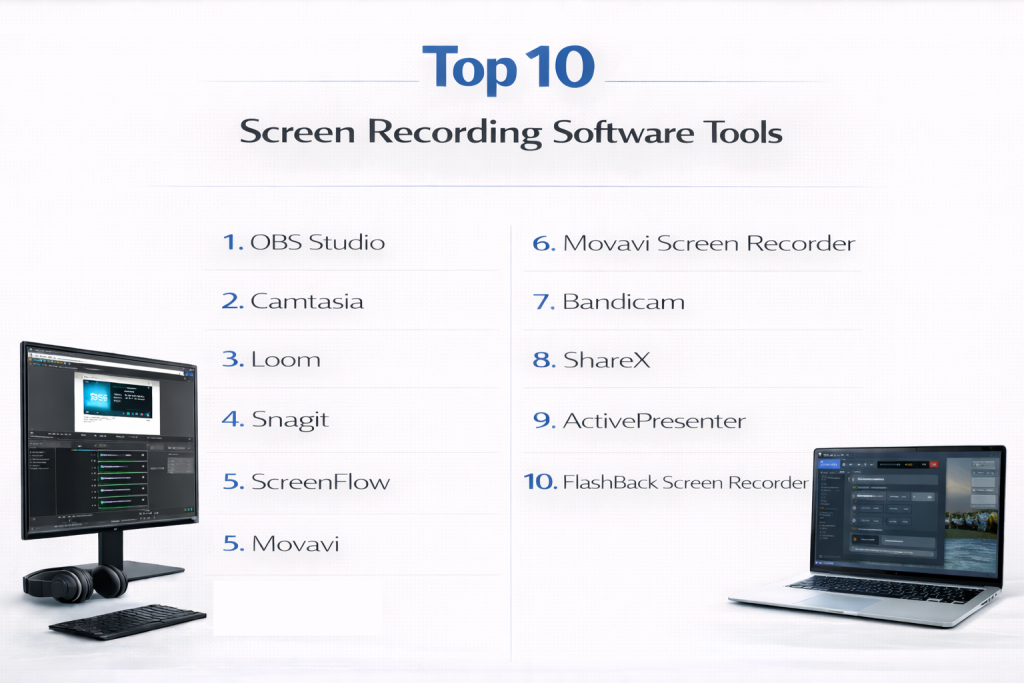
Top 10 Screen Recording Software Tools
1 — OBS Studio
OBS Studio is a free, open-source screen recording and streaming software designed for gamers, content creators, and professionals needing customizable captures. It excels in blending multiple sources for complex setups, making it ideal for live broadcasts or detailed recordings without watermarks or time limits.
Key features:
- Real-time video and audio mixing with unlimited scenes and sources.
- Advanced audio mixer with noise suppression and filters.
- Support for plugins to extend functionality like virtual cameras.
- High-performance capturing with minimal FPS impact.
- Modular UI with dockable elements for personalized layouts.
- Integration with streaming platforms like Twitch and YouTube.
- Custom transitions and overlays for professional looks.
Pros:
- Completely free with no restrictions, appealing to budget-conscious users.
- Highly customizable, allowing experts to tailor it to specific needs.
- Strong community support with frequent updates and plugins.
Cons:
- Steep learning curve for beginners due to complex interface.
- Lacks built-in video editing tools, requiring separate software.
- Can be resource-intensive on lower-end hardware.
Security & compliance: N/A – Open-source with user-managed security; no enterprise certifications like SOC 2 or GDPR built-in.
Support & community: Excellent documentation with tutorials and wikis; active forums and Reddit communities; no official enterprise support but vast user-driven resources.
2 — Camtasia
Camtasia is a premium all-in-one screen recording and video editing tool from TechSmith, targeted at educators, marketers, and professionals creating polished content. It combines high-quality captures with advanced editing, making it suitable for tutorials, presentations, and marketing videos.
Key features:
- Multi-track timeline for layering screen, webcam, and audio.
- Built-in effects like animations, transitions, and cursor highlights.
- Interactive elements such as quizzes and hotspots.
- Royalty-free asset library for music and graphics.
- Green screen removal and noise reduction tools.
- Export in multiple formats including 4K resolution.
- Templates for quick project starts.
Pros:
- Intuitive interface that simplifies professional video production.
- Comprehensive editing saves time by avoiding multiple tools.
- Regular updates enhance features based on user feedback.
Cons:
- Higher price point may deter casual users.
- Resource-heavy, potentially slow on older computers.
- Overkill for simple, quick recordings.
Security & compliance: Supports SSO for enterprise; encryption for exports; complies with GDPR and SOC 2 in pro versions.
Support & community: Detailed onboarding videos and guides; 24/7 chat and phone support; active user forums.
3 — Loom
Loom is a user-friendly screen recording tool focused on quick video messages for teams, with instant sharing via links. It’s designed for remote workers, sales reps, and educators needing fast, asynchronous communication without complex setups.
Key features:
- One-click recording of screen, webcam, and audio.
- Viewer analytics to track engagement.
- Basic editing for trimming and annotations.
- Integrations with Slack, Gmail, and Jira.
- Team libraries for organized video storage.
- Drawing tools and mouse emphasis during recording.
- Mobile app for on-the-go captures.
Pros:
- Extremely fast workflow from record to share.
- Free tier sufficient for basic needs.
- Enhances team collaboration with easy feedback.
Cons:
- Limited advanced editing in free version.
- Requires internet for sharing and storage.
- Watermarks on free recordings.
Security & compliance: Encryption for videos; GDPR compliant; SSO available in business plans.
Support & community: Good documentation and video tutorials; email support; growing user community on forums.
4 — Snagit
Snagit is TechSmith’s lightweight tool for screen captures and short recordings, aimed at professionals needing quick visuals for documentation or guides. It blends image editing with video recording for efficient content creation.
Key features:
- Scrolling and panoramic screen captures.
- Annotation tools like callouts and stamps.
- Video trimming and basic edits.
- Grab text from images for easy copying.
- Pre-built templates for consistency.
- Integration with cloud services like Drive.
- Cursor animation for emphasis.
Pros:
- Simple and fast for everyday use.
- Affordable compared to full suites.
- Seamless sharing options boost productivity.
Cons:
- Limited to short videos without advanced editing.
- Not ideal for long-form content.
- Overlaps with OS built-ins for basics.
Security & compliance: N/A – Basic file protection; no formal enterprise compliance.
Support & community: Tutorials and knowledge base; responsive support tickets; user groups.
5 — ScreenFlow
ScreenFlow is a Mac-exclusive screen recording and editing software for creators seeking high-quality outputs. It’s tailored for podcasters, educators, and video producers on Apple devices, offering native performance.
Key features:
- Retina display recording with multi-track editing.
- Stock media library with over 500,000 assets.
- Motion graphics and animations.
- Touch callouts for mobile app demos.
- Audio mixing and filters.
- Export optimizations for various platforms.
- Timeline-based editing for precision.
Pros:
- Optimized for Mac with excellent quality.
- Intuitive for Apple users.
- Robust features for polished videos.
Cons:
- Mac-only, limiting cross-platform use.
- Additional costs for media library.
- Updates require payment for major versions.
Security & compliance: N/A – Local app with basic encryption.
Support & community: Guides and videos; email support; Mac-focused forums.
6 — Movavi Screen Recorder
Movavi Screen Recorder is an accessible tool for beginners and pros, focusing on straightforward captures with basic edits. It’s suited for webinars, tutorials, and personal use across Windows and Mac.
Key features:
- Scheduled recordings for automation.
- Mouse and keyboard visualization.
- SuperSpeed conversion for fast exports.
- Drawing tools for real-time annotations.
- Webcam and audio simultaneous capture.
- Trim and join clips post-recording.
- Share directly to YouTube or Drive.
Pros:
- User-friendly with low learning curve.
- Lightweight on system resources.
- Affordable one-time purchase.
Cons:
- Basic editing lacks depth.
- Free version has watermarks.
- Limited customization options.
Security & compliance: N/A – Desktop-focused with file encryption.
Support & community: Manuals and tutorials; ticket support; user forums.
7 — Bandicam
Bandicam is a high-compression screen recorder optimized for gaming and screen captures, with minimal performance impact. It’s designed for gamers, educators, and users needing long recordings without quality loss.
Key features:
- Game mode with FPS overlay and hardware acceleration.
- Device recording for webcams and HDMI.
- Real-time drawing and mouse effects.
- Scheduled and auto-stop functions.
- High compression for small files.
- 4K UHD support.
- Overlay text and logos.
Pros:
- Excellent for gaming with low FPS drop.
- High-quality compression saves storage.
- Simple interface for quick starts.
Cons:
- Dated UI feels outdated.
- Free version limited to 10 minutes with watermark.
- Limited editing built-in.
Security & compliance: N/A – Local software.
Support & community: FAQs and email; active user base.
8 — ShareX
ShareX is a free, open-source tool for screen captures and recordings, emphasizing automation and sharing. It’s ideal for developers, testers, and power users wanting customizable workflows without cost.
Key features:
- Region selection and scrolling captures.
- Workflow automation with hotkeys.
- Upload to over 80 destinations.
- Basic video editing and GIF creation.
- OCR for text extraction.
- Color picker and screen ruler.
- Plugin support for extensions.
Pros:
- Completely free and highly automated.
- Versatile for advanced users.
- No watermarks or limits.
Cons:
- Overwhelming for beginners.
- No advanced video editing.
- Windows-only.
Security & compliance: N/A – Open-source.
Support & community: GitHub issues; forums; community scripts.
9 — ActivePresenter
ActivePresenter is an eLearning-focused screen recorder with interactive editing, for trainers and educators creating quizzes and simulations. It balances recording with authoring tools.
Key features:
- Interactive quizzes and branching.
- HTML5 export for web content.
- Video editing with green screen.
- Annotation and spotlight effects.
- Audio normalization.
- Multi-language support.
- Responsive design for devices.
Pros:
- Great for educational content.
- Free version with core features.
- Comprehensive authoring tools.
Cons:
- Steeper curve for interactivity.
- Watermarks on free exports.
- Resource-intensive.
Security & compliance: Varies – Enterprise SSO and encryption.
Support & community: Tutorials; support tickets; forums.
10 — FlashBack Screen Recorder
FlashBack is a straightforward recorder with separate editing, for users needing precise control over captures. It’s suited for tutorials and demos with privacy features.
Key features:
- Frame-by-frame editing.
- Multiple audio tracks.
- Blurring for sensitive info.
- Scheduled recordings.
- Export to various formats.
- Webcam picture-in-picture.
- Text overlays and callouts.
Pros:
- Clean, low-impact recording.
- Strong privacy tools.
- One-time purchase model.
Cons:
- Separate apps for record/edit.
- Less modern interface.
- Limited free version.
Security & compliance: N/A – Basic blurring for privacy.
Support & community: Guides; email support; small community.
Comparison Table
| Tool Name | Best For | Platform(s) Supported | Standout Feature | Rating |
|---|---|---|---|---|
| OBS Studio | Gaming and streaming | Windows, Mac, Linux | Real-time mixing | N/A |
| Camtasia | Professional video editing | Windows, Mac | Multi-track timeline | N/A |
| Loom | Quick team communications | Windows, Mac, Browser | Instant sharing links | N/A |
| Snagit | Screenshots and short videos | Windows, Mac | Text grab from images | N/A |
| ScreenFlow | Mac-based content creation | Mac | Stock media library | N/A |
| Movavi Screen Recorder | Simple captures and webinars | Windows, Mac | Scheduled recordings | N/A |
| Bandicam | High-compression gaming | Windows | FPS overlay | N/A |
| ShareX | Automated workflows | Windows | Multiple upload destinations | N/A |
| ActivePresenter | eLearning and quizzes | Windows, Mac | Interactive branching | N/A |
| FlashBack | Precise editing with privacy | Windows | Frame-by-frame control | N/A |
Evaluation & Scoring of Screen Recording Software
Here’s a weighted scoring table based on industry reviews and expert consensus. Each tool is rated out of 10 per category, then weighted and summed for a total out of 10.
| Tool Name | Core Features (25%) | Ease of Use (15%) | Integrations & Ecosystem (15%) | Security & Compliance (10%) | Performance & Reliability (10%) | Support & Community (10%) | Price / Value (15%) | Total Score |
|---|---|---|---|---|---|---|---|---|
| OBS Studio | 9 (2.25) | 6 (0.9) | 9 (1.35) | 5 (0.5) | 9 (0.9) | 9 (0.9) | 10 (1.5) | 8.3 |
| Camtasia | 10 (2.5) | 8 (1.2) | 8 (1.2) | 8 (0.8) | 8 (0.8) | 9 (0.9) | 7 (1.05) | 8.45 |
| Loom | 8 (2.0) | 10 (1.5) | 9 (1.35) | 7 (0.7) | 9 (0.9) | 8 (0.8) | 8 (1.2) | 8.45 |
| Snagit | 8 (2.0) | 9 (1.35) | 8 (1.2) | 5 (0.5) | 9 (0.9) | 8 (0.8) | 9 (1.35) | 8.1 |
| ScreenFlow | 9 (2.25) | 8 (1.2) | 7 (1.05) | 5 (0.5) | 9 (0.9) | 7 (0.7) | 7 (1.05) | 7.65 |
| Movavi Screen Recorder | 7 (1.75) | 9 (1.35) | 7 (1.05) | 5 (0.5) | 8 (0.8) | 7 (0.7) | 9 (1.35) | 7.5 |
| Bandicam | 8 (2.0) | 8 (1.2) | 6 (0.9) | 5 (0.5) | 10 (1.0) | 6 (0.6) | 8 (1.2) | 7.4 |
| ShareX | 8 (2.0) | 7 (1.05) | 9 (1.35) | 5 (0.5) | 8 (0.8) | 8 (0.8) | 10 (1.5) | 8.0 |
| ActivePresenter | 9 (2.25) | 7 (1.05) | 7 (1.05) | 6 (0.6) | 8 (0.8) | 7 (0.7) | 8 (1.2) | 7.65 |
| FlashBack | 7 (1.75) | 8 (1.2) | 6 (0.9) | 6 (0.6) | 8 (0.8) | 6 (0.6) | 8 (1.2) | 7.05 |
Which Screen Recording Software Tool Is Right for You?
Selecting the right screen recording software hinges on your scale, budget, and priorities. For solo users, opt for free tools like OBS Studio or ShareX if you’re tech-savvy and need customization, or Loom for simple, quick videos without hassle. These allow individuals to create content efficiently without overhead.
SMBs benefit from affordable options like Movavi or Bandicam, which offer reliable recording for team demos or customer support without breaking the bank. They scale well for small groups sharing files internally.
Mid-market companies should consider Camtasia or ScreenFlow for deeper editing and integrations, supporting growing teams in training or marketing with polished outputs.
Enterprises favor tools like Vidyard (though not in top 10, similar to Descript) or Camtasia with enterprise support, ensuring compliance and analytics for large-scale use.
If you’re budget-conscious, prioritize free tiers from OBS Studio, Loom, or ShareX—these deliver core functionality without costs, though with potential limits on features. For premium solutions, invest in Camtasia or ScreenFlow if you need advanced editing and high-quality exports, justifying the price with productivity gains.
Balance feature depth (OBS Studio for mixing, ActivePresenter for interactivity) against ease of use (Loom or Snagit for quick starts)—power users want depth, while casuals prefer simplicity to avoid frustration.
For integration and scalability, look at tools with API or app connections like Loom (Slack) or OBS (plugins); they grow with your needs, from solo to team workflows.
Finally, security and compliance requirements matter for regulated industries—choose Camtasia or enterprise-focused options with SSO and GDPR support; most consumer tools are N/A here, so assess risks for sensitive data.
Test free trials to match your workflow, and consider genre—like gaming for Bandicam or education for ActivePresenter—to ensure the tool enhances your output.
Frequently Asked Questions (FAQs)
What is screen recording software and why use it? It’s a tool to capture screen activity as video, often with audio. Use it for tutorials, demos, or meetings to communicate visually, saving time over written explanations.
How much does screen recording software cost? Ranges from free (OBS Studio, ShareX) to $300+ one-time (Camtasia) or $10-50/month subscriptions. Free versions often have limits like watermarks.
Is screen recording software secure? Most offer basic file encryption; enterprise tools like Camtasia include SSO and GDPR. Always avoid recording sensitive info without checks.
Can it handle high-quality recordings? Yes, many support 4K/60fps, but ensure your hardware matches—tools like Bandicam optimize for performance without lag.
What alternatives to dedicated software exist? Built-in OS tools like Windows Game Bar or Mac QuickTime suffice for basics; browser extensions like Screencastify for quick web captures.
How do I implement screen recording in my workflow? Install, set hotkeys for quick starts, record test clips, edit if needed, and share via links or files. Start small to learn features.
Does it scale for team use? Yes, with cloud sharing (Loom) or libraries (Camtasia); enterprises need analytics and permissions for larger groups.
Common mistake: Ignoring audio quality? Yes, poor mic setup ruins videos—test audio levels and use noise reduction; best practice: Record in quiet spaces with external mics.
How important are integrations? Very for efficiency—Slack or Drive links speed sharing; choose based on your stack to avoid manual exports.
Can beginners use advanced tools? Start with simple ones like Loom; common pitfall is overwhelming interfaces—follow tutorials and practice basic captures first.
Conclusion
This overview of top screen recording software reveals a diverse landscape, from free powerhouses like OBS Studio to premium editors like Camtasia, each addressing specific needs in quality, ease, and features. Key insights include the rise of AI-assisted tools for summarization and the emphasis on seamless sharing in remote environments.
What matters most is aligning the tool with your use case—priorize performance for gaming, editing for education, or simplicity for quick comms. Ultimately, the “best” depends on your budget, platform, and scale; no one-size-fits-all exists. Experiment to find what boosts your productivity and creativity.