Introduction
Video editing software is the foundational digital toolkit for manipulating video and audio footage to create a cohesive final product. It moves far beyond simple cutting and splicing, providing an integrated workspace to trim clips, arrange sequences on a timeline, add transitions and visual effects, mix audio, apply color correction, and export in various formats. These tools transform raw footage into a polished story, whether a social media clip, a documentary, or a feature film.
This technology is vital in our digital-first world because video has become the predominant medium for communication, marketing, and storytelling. Professional editing elevates content quality, enhances audience engagement, and ensures a clear, compelling message. It allows creators of all levels to produce work that stands out in a crowded digital landscape.
Real-world applications are everywhere:
- Content Creation & Social Media: Producing engaging videos for YouTube, TikTok, Instagram, and other platforms.
- Marketing & Corporate Communications: Creating product demos, brand stories, advertisements, and training materials.
- Film & Television: The complete post-production workflow for movies, TV shows, documentaries, and commercials.
- Education & Personal Projects: Developing tutorials, course material, vlogs, and family videos.
When choosing software, key criteria include the user’s skill level, the complexity of intended projects, required features (e.g., multi-cam editing, advanced color grading), computer system compatibility, collaboration needs, and the overall budget and pricing model.
Best for: Video editing software is essential for a wide range of users, including professional filmmakers and editors, content creators and YouTubers, marketing teams, social media managers, educators, and corporate communications departments. It benefits everyone from solo freelancers and small businesses to large media studios and enterprises across industries like entertainment, advertising, education, and technology.
Not ideal for: A dedicated, full-featured editor is often unnecessary for users who only require occasional, very basic trimming or merging of clips. Individuals or teams with no ongoing video needs or those who work exclusively with text or static images may find built-in operating system tools or ultra-simple mobile apps perfectly sufficient.
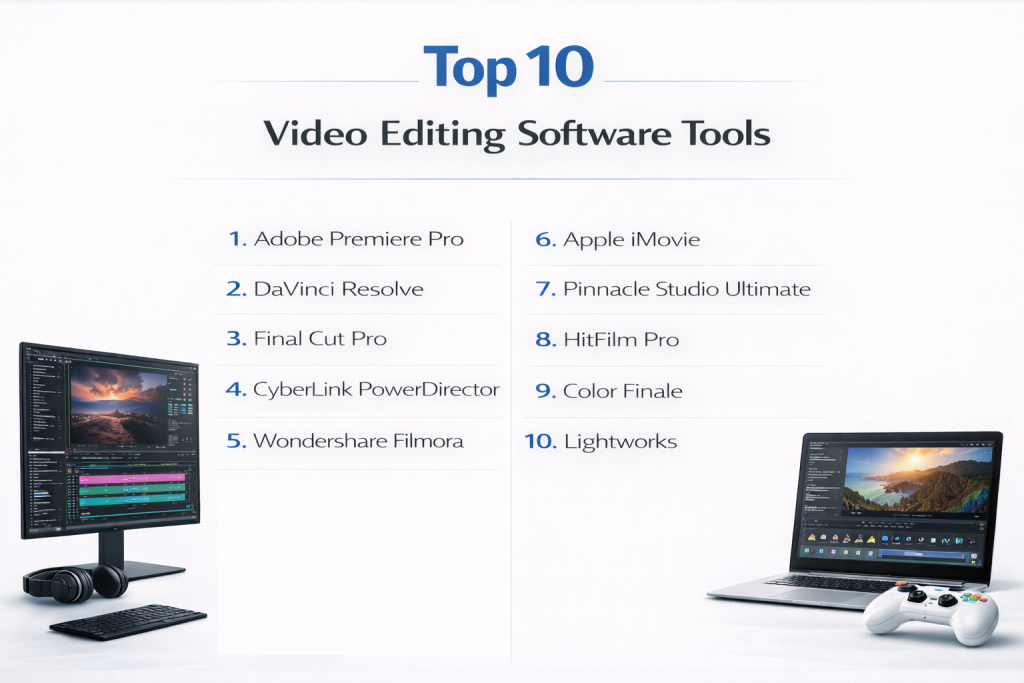
Top 10 Video Editing Software Tools
1 — Adobe Premiere Pro
Short description: The industry-standard professional non-linear video editor. Used globally for everything from online content to Hollywood films, it offers an unparalleled combination of power, precision, and integration.
Key features:
- Professional multi-track timeline editing with limitless video tracks.
- Seamless integration with the Adobe Creative Cloud (After Effects, Photoshop, Audition).
- Advanced AI-powered tools like text-based editing, Generative Extend to add frames, and Media Intelligence for searching footage.
- Comprehensive color grading with Lumetri Color tools.
- Robust collaboration features, including shared projects and Frame.io integration.
- Supports a vast array of formats, including 4K, 8K, 360 VR, and raw footage from most professional cameras.
- Highly customizable and flexible user interface.
Pros:
- Unmatched ecosystem and professional workflow due to deep Creative Cloud integration.
- Continuous innovation with frequent updates introducing powerful, time-saving AI and performance features.
Cons:
- Subscription-only pricing model, which can be costly over the long term.
- Steep learning curve for beginners; the interface and depth can be overwhelming.
Security & compliance: Offers enterprise-grade security practices, encrypted cloud storage, and GDPR-aligned workflows. Business plans add enhanced controls.
Support & community: Extensive official documentation and tutorials, a massive global user community, and professional enterprise support plans are available.
2 — DaVinci Resolve
Short description: A unique, all-in-one professional solution that combines editing, color correction, visual effects (Fusion), and professional audio post-production (Fairlight) in a single, free application.
Key features:
- Hollywood-grade color grading on a dedicated Color page, considered the industry benchmark.
- All-in-one workflow with dedicated “pages” for editing, color, effects (Fusion), audio (Fairlight), and delivery.
- Powerful free version with almost no restrictions, suitable for professional work.
- Advanced multi-user collaboration tools via Blackmagic Cloud for real-time teamwork.
- Built-in Fairlight digital audio workstation for comprehensive sound design.
- AI tools for facial recognition, object detection, and automatic audio mixing.
Pros:
- Astounding value with a truly professional, unrestricted free version.
- Unified workflow eliminates the need to switch between multiple applications for different tasks.
Cons:
- Exceptionally high learning curve due to its vast, node-based toolset across multiple disciplines.
- Very hardware-intensive; requires a powerful computer for smooth performance.
Security & compliance: The developer states the app does not collect user data. Studio versions offer project encryption and enterprise controls for teams.
Support & community: Strong community forums, detailed official training from Blackmagic Design, and professional support for paid Studio users.
3 — Final Cut Pro
Short description: Apple’s high-performance professional video editor, optimized for macOS and iPadOS. Known for its innovative Magnetic Timeline and efficient, streamlined workflow.
Key features:
- Magnetic Timeline where clips avoid collisions and automatically ripple, simplifying complex edits.
- Exceptional performance and rendering speed, optimized for Apple silicon (M-series) chips.
- Advanced organization with libraries, keywords, and robust metadata tagging.
- Strong multicam editing and powerful masking tools.
- One-time purchase includes a lifetime of free updates.
Pros:
- Superior performance and stability on Mac hardware, offering a fluid editing experience.
- Cost-effective for professionals with its single, perpetual license fee and no ongoing subscription.
Cons:
- Exclusively for Apple ecosystems (macOS/iPadOS), locking out Windows and Android users.
- Fewer built-in collaboration and AI features compared to rivals like Premiere Pro.
Security & compliance: Relies on local file-based and macOS system-level security and encryption.
Support & community: Backed by Apple’s official documentation and a dedicated professional user base. Lacks the massive third-party community of some competitors.
4 — CyberLink PowerDirector
Short description: A consumer-friendly yet powerful editor that brilliantly balances professional-grade features with an accessible design. It’s a top choice for enthusiasts, prosumers, and professionals seeking speed.
Key features:
- Extremely fast rendering and timeline performance, often noted as best-in-class.
- A rich suite of AI-powered tools for object detection, motion tracking, and style transfers.
- User-friendly interface with multiple simplified modes for beginners.
- Comprehensive feature set including multi-cam editing, 360-degree video support, and screen recording.
- Available as a one-time purchase or a subscription (PowerDirector 365).
Pros:
- Excellent balance of power and usability, making advanced techniques accessible.
- Outstanding performance and value, offering high-end features at a competitive price.
Cons:
- The wealth of options and interface density can sometimes feel overwhelming or cluttered.
- The Mac version is subscription-only, lacking the perpetual license option available on Windows.
Security & compliance: Follows standard consumer-grade software security practices.
Support & community: Good official documentation, active user forums, and responsive customer support.
5 — Wondershare Filmora
Short description: Designed with beginners and content creators in mind, Filmora offers an intuitive, drag-and-drop interface packed with templates, effects, and creative tools to produce polished videos quickly.
Key features:
- Simplified, intuitive interface with drag-and-drop functionality.
- Vast library of pre-built templates, effects, transitions, and royalty-free music.
- Built-in screen recording and basic audio editing tools.
- One-click export presets optimized for YouTube, TikTok, and other social platforms.
- Affordable pricing with a perpetual license option.
Pros:
- Extremely easy to learn, allowing complete beginners to start creating videos almost immediately.
- Massively accelerates content creation with its template-driven approach.
Cons:
- Limited advanced controls and precision for fine-tuning, which can frustrate growing editors.
- The free version adds a prominent watermark to exports.
Security & compliance: Adheres to basic data security standards, which can vary by region.
Support & community: Offers good tutorials and responsive customer support, with a growing global user community.
6 — Apple iMovie
Short description: Apple’s free, entry-level video editing application for macOS, iOS, and iPadOS. It provides core editing tools in a simple, clean package, perfect for basic projects and learning the fundamentals.
Key features:
- Completely free with no watermarks or trial limitations.
- Extremely simple, intuitive drag-and-drop timeline.
- Seamless integration with the Apple ecosystem (Photos, Music, iPhone videos).
- Includes pre-designed themes and movie trailers with shot guidance.
- Good basic tools for trimming, titles, simple color correction, and audio.
Pros:
- The easiest entry point for Mac/iOS users, with zero financial risk.
- Perfectly handles videos shot on iPhone, including unique features like Cinematic mode.
Cons:
- Very limited professional utility; lacks multi-cam, motion tracking, and more than two video tracks.
- Not suitable for complex projects or growth beyond casual editing.
Security & compliance: Dependent on the local security settings of your Apple device.
Support & community: Supported by Apple’s official documentation and a large base of casual users.
7 — Pinnacle Studio Ultimate
Short description: A feature-packed, subscription-free video editor for Windows that targets enthusiasts and semi-professionals who want pro-level control without a monthly fee.
Key features:
- Perpetual license model with a one-time purchase price.
- Robust set of prosumer features: multi-cam editing, motion tracking, and keyframing.
- Includes a capable audio editor and a wide array of creative effects.
- Intuitive interface with helpful in-app tutorials.
Pros:
- Strong value for money with advanced features available in a single purchase.
- Lower long-term cost compared to subscription-based professional tools.
Cons:
- Windows-only, with no macOS version available.
- Can suffer from occasional glitches and slower import performance.
Security & compliance: Information not specifically highlighted in search results. Varies / N/A.
Support & community: Supported by tutorials, user forums, and customer support.
8 — HitFilm Pro
Short description: A unique hybrid tool that combines video editing with a built-in, compositing-based visual effects (VFX) engine. It’s ideal for indie filmmakers and creators who want to add cinematic VFX without learning separate software.
Key features:
- Integrated VFX and compositing workspace with a node-based workflow.
- Extensive library of VFX presets, particle systems, and 3D models.
- Advanced motion tracking and stabilization tools.
- Combines a traditional editing timeline with powerful post-production effects.
Pros:
- Exceptional value for VFX, providing high-end compositing capabilities at a fraction of the cost of separate tools.
- Lower barrier to entry for learning compositing compared to standalone VFX applications.
Cons:
- Performance can vary on less powerful systems, especially with complex effects.
- The learning curve for the VFX and node-based tools is significant.
Security & compliance: Information not specifically highlighted in search results. Varies / N/A.
Support & community: Boasts an active creator community and a wealth of online tutorials focused on visual effects.
9 — Shotcut
Short description: A free, open-source, and cross-platform video editor. It offers a surprising depth of features and format support for users who value customization and want to avoid licensing costs entirely.
Key features:
- Completely free and open-source, with no watermarks or hidden costs.
- Wide support for video and audio formats and codecs without the need for import transcoding.
- Cross-platform compatibility (Windows, macOS, Linux).
- Offers a range of audio and video filters and effects.
Pros:
- True financial freedom with zero cost for both personal and commercial use.
- Highly transparent and customizable due to its open-source nature.
Cons:
- The interface is less polished and intuitive than commercial alternatives.
- Limited professional support; relies on community forums for troubleshooting.
Security & compliance: As an open-source application, it offers transparency. Security depends on user implementation and local storage.
Support & community: Reliant on community-driven forums, wikis, and documentation.
10 — Lightworks
Short description: A professional-grade non-linear editor with a long history in the film industry. It offers a robust free version and a paid Pro version, known for its precision editing tools and real-time performance.
Key features:
- Used in professional film production, offering a robust timeline and trimming tools.
- Real-time effects and multi-camera editing support.
- Available in a feature-limited free version and a fully-featured paid Pro version.
- Cross-platform support (Windows, macOS, Linux).
Pros:
- Proven reliability for professional editing workflows.
- Fast performance with efficient proxy workflows for high-resolution footage.
Cons:
- Steep learning curve with a unique interface that can be challenging to master.
- The free version has significant export limitations (resolution and format).
Security & compliance: Information not specifically highlighted in search results. Varies / N/A.
Support & community: Offers professional documentation, user forums, and paid support options for Pro users.
Comparison Table
| Tool Name | Best For (Target User or Scenario) | Platform(s) Supported | Standout Feature | Rating |
|---|---|---|---|---|
| Adobe Premiere Pro | Professional editors & collaborative teams | Windows, macOS | Industry Standard & AI Ecosystem | N/A |
| DaVinci Resolve | Colorists, all-in-one workflow seekers, budget-conscious pros | Windows, macOS, Linux | Professional Color Grading & Free Version | N/A |
| Final Cut Pro | Mac-based professionals & enthusiasts | macOS, iPadOS | Magnetic Timeline & Apple Performance | N/A |
| CyberLink PowerDirector | Enthusiasts & prosumers seeking speed & value | Windows, macOS | AI Tools & Rendering Performance | N/A |
| Wondershare Filmora | Beginners, students, & fast social content creation | Windows, macOS | Ease of Use & Template Library | N/A |
| Apple iMovie | Casual Mac/iOS users & first-time editors | macOS, iOS, iPadOS | Simplicity & Free Access | N/A |
| Pinnacle Studio Ultimate | Windows users wanting pro features without a subscription | Windows | Perpetual License & Feature Depth | N/A |
| HitFilm Pro | Indie filmmakers & creators focused on VFX | Windows, macOS | Integrated VFX & Compositing | N/A |
| Shotcut | Open-source advocates & budget-restricted users | Windows, macOS, Linux | Free & Open-Source | N/A |
| Lightworks | Editors familiar with traditional film workflows | Windows, macOS, Linux | Professional Precision Editing | N/A |
Evaluation & Scoring of Video Editing Software
| Criteria | Weight | Explanation & What to Look For |
|---|---|---|
| Core Features | 25% | Depth of editing, effects, color correction, audio tools, and support for advanced workflows (multi-cam, proxy, HDR). Does it have the specific tools your projects demand? |
| Ease of Use | 15% | Learning curve and interface intuitiveness. Quality of in-app guidance, templates, and workflow design. Can your team become productive quickly? |
| Integrations & Ecosystem | 15% | Compatibility with other software (motion graphics, audio apps, asset libraries) and availability of plugins/templates. Does it fit into your existing creative pipeline? |
| Security & Compliance | 10% | Data encryption, access controls, audit logs, and adherence to standards (GDPR). Critical for enterprise teams and handling sensitive footage. |
| Performance & Reliability | 10% | Stability, rendering speed, and efficiency with high-resolution media. Does it crash under load or slow down with complex timelines? |
| Support & Community | 10% | Quality of official documentation, tutorials, responsiveness of support, and the size/activity of the user community for peer help. |
| Price / Value | 15% | Total cost of ownership (subscription, perpetual license, upgrade fees) relative to the features, performance, and productivity gains delivered. |
Which Video Editing Software Tool Is Right for You?
- Solo Users, Students, & Hobbyists: Prioritize low cost and a gentle learning curve. iMovie (for Apple users) and Shotcut (cross-platform) are excellent free starts. Filmora is the top choice for an affordable, easy-to-use editor with creative flair. PowerDirector is ideal if you want to grow into more advanced features.
- Small to Medium-Sized Businesses (SMBs) & Content Creators: Look for a balance of professional output, fair pricing, and efficiency. PowerDirector offers great power for the price. Filmora excels at rapid, branded social content. DaVinci Resolve (Free) is a phenomenal professional option if you can handle its learning curve.
- Mid-Market & Professional Creative Teams: Consider collaboration, advanced features, and pipeline integration. Adobe Premiere Pro is the default for teams integrated with Adobe Cloud. DaVinci Resolve (Studio) is perfect for teams that prioritize color grading and want a unified post-production tool. Final Cut Pro is a high-performance choice for all-Mac studios.
- Large Enterprises & Media Studios: Focus on security, scalability, robust collaboration, and industry-standard workflows. Adobe Premiere Pro (with Enterprise plans) and DaVinci Resolve Studio (with Blackmagic Cloud) are the primary contenders, chosen based on existing pipeline and specialist needs (e.g., heavy color grading favors Resolve).
Additional Decision Drivers:
- Budget vs. Premium: Free/open-source tools (Shotcut, DaVinci Resolve Free) exist, but premium software (Premiere Pro, Final Cut Pro) offers unmatched support, reliability, and deep integration. Mid-tier options like PowerDirector and Filmora offer exceptional value.
- Features vs. Ease of Use: You often trade one for the other. Filmora and iMovie are easy but lack pro features. DaVinci Resolve and Premiere Pro are incredibly powerful but complex. PowerDirector and Final Cut Pro strive to strike an effective balance.
- Integration & Scalability Needs: If your workflow involves After Effects, Photoshop, and Illustrator, Premiere Pro is seamless. For growth, cloud collaboration tools in Premiere Pro (Team Projects) and DaVinci Resolve (Blackmagic Cloud) are essential.
- Security & Compliance: For enterprises in regulated fields or handling sensitive content, the administrative controls, secure storage, and compliance features of Adobe’s Business/Enterprise plans or managed deployments of DaVinci Resolve Studio are necessary considerations.
Frequently Asked Questions (FAQs)
1. Is free video editing software like DaVinci Resolve good enough for professional work?
Yes, absolutely. DaVinci Resolve’s free version is a fully professional tool used on major films and shows. The limitations versus its paid Studio version are minor for many users. Other free tools like Shotcut are capable but better suited for intermediate projects.
2. What is the best video editing software for a complete beginner?
For absolute beginners, Apple iMovie (if on Mac/iOS) or Wondershare Filmora are the top recommendations. They prioritize intuitive, template-driven editing that helps you create polished videos without needing to learn complex technical concepts first.
3. Can I switch video editing software later without losing my projects?
Switching is possible but can be challenging. While you can export your final video, native project files (like .prproj or .drp) are not transferable. You would need to re-edit or use intermediate formats, which may not carry over all effects and adjustments. It’s best to choose wisely from the start.
4. Do I need a powerful computer for video editing?
Yes, especially for higher-resolution footage (4K/8K), complex effects, and smooth playback. Key components are a fast multi-core processor (CPU), a dedicated graphics card (GPU), and ample RAM (16GB minimum, 32GB+ recommended). Tools like DaVinci Resolve are particularly hardware-intensive.
5. What’s the difference between a subscription and a perpetual license?
A subscription (e.g., Adobe Premiere Pro) requires a monthly or annual fee to keep using the software and receive updates. A perpetual license (e.g., Final Cut Pro, one-time purchase of PowerDirector) is a single payment to own that version forever, though major upgrades may cost extra later.
6. Which software is best for editing videos for YouTube or TikTok?
Most modern editors have social media presets. Filmora and PowerDirector are particularly streamlined for this with easy export options. Premiere Pro and DaVinci Resolve offer more control for branded, high-quality channel content.
7. What does “color grading” mean, and why is it important?
Color grading is the process of enhancing and altering the color of your footage to create a specific visual style or mood. It’s crucial for giving your video a professional, cinematic look. DaVinci Resolve is famous for its industry-leading color grading tools.
8. What is the biggest mistake people make when choosing editing software?
Choosing an overly complex “industry-standard” tool like Premiere Pro or DaVinci Resolve when they are a beginner. This leads to frustration and wasted money. It’s better to start with a tool matched to your skill level and upgrade as your needs grow.
9. Are there good video editors for iPad or other mobile devices?
Yes. LumaFusion is considered the professional standard for iPad video editing. DaVinci Resolve also has a powerful, full-featured iPad version, and Adobe Premiere Pro has a companion app for iPhone.
10. Can these tools handle collaborative editing with a remote team?
Yes, but this is a feature of higher-end professional tools. Adobe Premiere Pro (with Team Projects) and DaVinci Resolve Studio (with Blackmagic Cloud) offer robust, real-time collaborative editing features that allow multiple editors to work on the same project simultaneously.
Conclusion
The world of video editing software in 2026 offers a powerful, specialized tool for every creator and budget. From the accessible, template-driven simplicity of Filmora to the all-in-one professional powerhouse of DaVinci Resolve, and from the Mac-optimized efficiency of Final Cut Pro to the ubiquitous industry standard of Adobe Premiere Pro, the right choice can fundamentally transform your creative process and output quality.
Remember, the “best” software is not a universal title. It is the tool that best aligns with your specific skill level, project types, hardware, budget, and creative workflow. Prioritize a solution that not only has the features you need today but also possesses the scalability, support, and ecosystem to grow with you into the future.
Investing time in a thorough evaluation—using the criteria and guidance provided here—is an investment in your creative productivity and success. In the digital age, your video editing software is more than just a program; it is the essential partner that brings your vision to life, one clip at a time.