Introduction
Screen Capture Tools are software applications that allow users to record or capture visual content displayed on their computer or device screens. These tools support full-screen recording, selected window capture, area capture, webcam overlays, and system or microphone audio recording. Some tools also include editing, annotation, and sharing capabilities, making them essential for modern digital communication.
The importance of screen capture tools has increased significantly with the rise of remote work, online education, digital marketing, and distributed teams. Visual explanations are far more effective than long text-based instructions. Screen recordings help reduce misunderstandings, speed up learning, and improve collaboration across teams and audiences.
In real-world use cases, screen capture tools are used to create video tutorials, product demos, software walkthroughs, bug reports, training modules, onboarding videos, webinars, sales presentations, and customer support documentation. They are widely used in education, IT services, SaaS companies, marketing agencies, software development teams, and enterprises.
When selecting a screen capture tool, users should evaluate recording quality, audio support, ease of use, editing features, export formats, performance impact, collaboration capabilities, security controls, and pricing. Scalability, integration options, and long-term reliability also play a critical role in tool selection.
Best for:
Screen capture tools are ideal for educators, trainers, developers, QA testers, product managers, marketers, content creators, customer support teams, startups, SMBs, and large enterprises that rely on visual communication.
Not ideal for:
Users who only need occasional screenshots or very basic image captures may not require advanced screen capture tools. Built-in operating system features may be sufficient for minimal use cases.
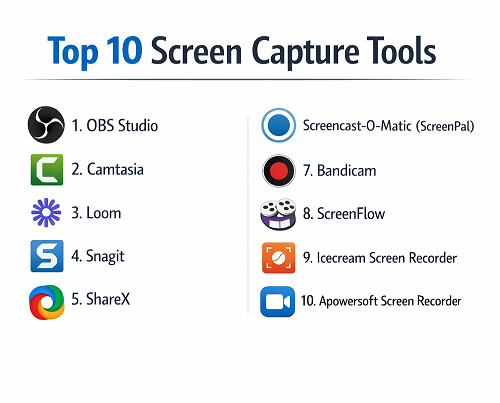
Top 10 Screen Capture Tools
1 — OBS Studio
OBS Studio is a powerful open-source screen capture and recording software built for users who need full control over recording quality and layout. It allows users to capture screens, applications, webcams, and multiple audio sources simultaneously while organizing them into customizable scenes. OBS Studio is widely used by educators, developers, enterprises, and professionals who require high-quality recordings without licensing costs. Although it requires setup and learning, it delivers exceptional flexibility and professional-grade output.
Key features:
- High-quality screen and window recording
- Multiple source and scene management
- Advanced audio mixing and filters
- Live streaming support
- Hardware acceleration
- Custom transitions and layouts
- Cross-platform compatibility
Pros:
- Free and open source
- Extremely flexible and powerful
- Professional-level recording quality
Cons:
- Steep learning curve
- No built-in video editor
- Requires manual configuration
Security & compliance:
Varies / N/A (local desktop application)
Support & community:
Extensive documentation, tutorials, forums, and a large global community.
2 — Camtasia
Camtasia is an all-in-one screen capture and video editing solution designed for users who want polished results without technical complexity. It combines screen recording with a powerful built-in editor, allowing users to create professional training videos, tutorials, and presentations in one workflow. Camtasia is widely used by educators, corporate trainers, marketers, and business professionals who value speed, quality, and ease of use.
Key features:
- Screen and audio recording
- Integrated video editor
- Annotations, callouts, and captions
- Cursor effects and transitions
- Template-based editing
- Multiple export formats
Pros:
- Easy to learn and use
- Strong editing capabilities
- Professional-quality output
Cons:
- Paid license
- Resource-intensive on older systems
- Limited advanced customization
Security & compliance:
Varies / N/A
Support & community:
High-quality documentation, tutorials, onboarding guides, and customer support.
3 — Loom
Loom is a cloud-based screen capture tool focused on fast communication and effortless sharing. It allows users to quickly record their screen, webcam, and voice, then instantly share the recording with teams or clients. Loom is heavily used by remote teams, product managers, customer support professionals, and sales teams to explain ideas, provide feedback, and reduce unnecessary meetings.
Key features:
- Screen and webcam recording
- Instant cloud-based sharing
- Viewer analytics
- Comments and reactions
- Team workspaces
- Browser and desktop apps
Pros:
- Extremely fast and simple workflow
- Ideal for team communication
- No complex setup
Cons:
- Limited editing features
- Requires internet connectivity
- Storage limits on free plans
Security & compliance:
Encryption in transit, GDPR compliance, SSO for enterprise plans
Support & community:
Clear documentation, onboarding guides, and an active user base.
4 — Snagit
Snagit is a screen capture tool primarily focused on screenshots and short screen recordings rather than long videos. It excels at capturing scrolling pages, annotating visuals, and creating clear documentation. Snagit is widely used by technical writers, support teams, trainers, and educators who need to explain concepts visually with precision and clarity.
Key features:
- Screenshot and short video capture
- Scrolling screen capture
- Image annotation and markup
- Text extraction
- Lightweight editing tools
- Quick sharing options
Pros:
- Excellent for documentation
- Very easy to use
- Strong annotation capabilities
Cons:
- Limited video editing
- Not suitable for long recordings
- Paid license required
Security & compliance:
Varies / N/A
Support & community:
Well-structured documentation, tutorials, and responsive support.
5 — ShareX
ShareX is an advanced open-source screen capture tool designed for power users who want automation and customization. It supports screenshots, screen recordings, workflows, and automated sharing actions. ShareX is favored by developers, IT professionals, and technical users who prefer speed, efficiency, and control over simplicity.
Key features:
- Screenshot and screen recording
- Automated capture workflows
- Annotation and editing tools
- Keyboard shortcuts
- Format conversion
- Lightweight performance
Pros:
- Free and feature-rich
- Highly customizable
- Fast capture workflows
Cons:
- Windows-only
- Interface can feel complex
- Limited official support
Security & compliance:
Varies / N/A
Support & community:
Strong community-driven documentation and forums.
6 — Screencast-O-Matic (ScreenPal)
Screencast-O-Matic is a user-friendly screen capture tool designed for educators, trainers, and small businesses. It enables easy screen and webcam recording with basic editing features, making it suitable for instructional videos and online learning content. The tool is valued for its simplicity and accessibility.
Key features:
- Screen and webcam recording
- Basic video editing tools
- Captions and narration
- Cloud hosting options
- Interactive elements
Pros:
- Beginner-friendly interface
- Affordable pricing
- Strong use in education
Cons:
- Limited advanced editing
- Branding on free version
- Performance constraints
Security & compliance:
GDPR compliance, basic encryption
Support & community:
Tutorials, help center, and email support.
7 — Bandicam
Bandicam is a lightweight screen recording tool optimized for high-performance capture. It is commonly used for recording software demonstrations, tutorials, and gameplay with minimal system impact. Bandicam is popular among users who need high frame rates and smooth recordings without heavy resource usage.
Key features:
- High-performance screen recording
- Game capture mode
- Hardware acceleration
- Webcam overlay
- Scheduled recording
Pros:
- Low system resource usage
- High-quality recordings
- Good for gaming and demos
Cons:
- Windows-only
- Watermark on free version
- Limited editing tools
Security & compliance:
Varies / N/A
Support & community:
Documentation, FAQs, and customer support.
8 — ScreenFlow
ScreenFlow is a professional screen capture and video editing tool designed exclusively for macOS users. It combines high-quality screen recording with advanced editing features, making it ideal for professional tutorials, product demos, and training content. ScreenFlow is commonly used by content creators and businesses that demand polished and visually refined output.
Key features:
- High-quality screen recording
- Advanced video editing
- Motion graphics and animations
- Multi-track timeline
- Audio enhancement tools
Pros:
- Professional-grade editing
- Optimized for macOS
- Excellent output quality
Cons:
- macOS only
- Higher pricing
- Learning curve for advanced editing
Security & compliance:
Varies / N/A
Support & community:
Professional documentation, tutorials, and dedicated support.
9 — Icecream Screen Recorder
Icecream Screen Recorder is a simple and user-friendly screen capture tool designed for casual users and small teams. It supports basic screen recording, webcam capture, and annotations, making it suitable for quick demos, short tutorials, and everyday recording needs.
Key features:
- Screen and area recording
- Webcam recording
- Annotation tools
- Scheduled recording
- Multiple export formats
Pros:
- Easy to use
- Lightweight application
- Affordable pricing
Cons:
- Limited editing features
- Watermark on free plan
- Fewer integrations
Security & compliance:
Varies / N/A
Support & community:
Basic documentation and email support.
10 — Apowersoft Screen Recorder
Apowersoft Screen Recorder is a versatile screen capture solution offering both desktop and web-based recording options. It is designed for users who want flexibility in how and where they record screens. The tool is often used for presentations, online demos, training videos, and quick instructional recordings.
Key features:
- Screen and webcam recording
- Desktop and web-based options
- Audio capture
- Real-time annotations
- Scheduled recording
Pros:
- Flexible recording methods
- Easy to operate
- Suitable for quick demos
Cons:
- Subscription-based pricing
- Limited advanced editing
- Performance varies by plan
Security & compliance:
GDPR compliance, encryption in transit
Support & community:
Help center, tutorials, and customer support.
Comparison Table
| Tool Name | Best For | Platform(s) | Standout Feature | Rating |
|---|---|---|---|---|
| OBS Studio | Professionals | Windows, macOS, Linux | Full control | N/A |
| Camtasia | Trainers | Windows, macOS | Built-in editor | N/A |
| Loom | Teams | Web, Desktop | Instant sharing | N/A |
| Snagit | Documentation | Windows, macOS | Annotations | N/A |
| ShareX | Power users | Windows | Automation | N/A |
| ScreenPal | Educators | Web, Desktop | Simplicity | N/A |
| Bandicam | Gamers | Windows | Performance | N/A |
| ScreenFlow | macOS users | macOS | Pro editing | N/A |
| Icecream Recorder | Casual users | Windows, macOS | Ease of use | N/A |
| Apowersoft | Quick demos | Web, Desktop | Flexibility | N/A |
Evaluation & Scoring of Screen Capture Tools
| Criteria | Weight |
|---|---|
| Core features | 25% |
| Ease of use | 15% |
| Integrations & ecosystem | 15% |
| Security & compliance | 10% |
| Performance & reliability | 10% |
| Support & community | 10% |
| Price / value | 15% |
Which Screen Capture Tools Tool Is Right for You?
Solo users should focus on ease of use and affordability. SMBs benefit from tools that combine recording and basic editing. Mid-market teams require collaboration and scalability. Enterprises should prioritize security, compliance, and integration with existing systems. The right tool depends on workflow complexity, team size, and long-term requirements.
Frequently Asked Questions (FAQs)
- What are screen capture tools used for?
They are used to record screens, create tutorials, demos, and documentation. - Are free screen capture tools reliable?
Yes, many free tools offer strong core functionality. - Can these tools record audio?
Most tools support microphone and system audio recording. - Are screen capture tools good for training videos?
Yes, they are widely used for training and onboarding. - Do screen capture tools affect system performance?
Some tools may impact performance depending on settings. - Can recordings be edited inside these tools?
Many tools include built-in editing features. - Are screen capture tools secure?
Security varies by tool and deployment model. - Can recordings be shared easily?
Most tools support quick export or sharing. - Are these tools suitable for enterprises?
Some tools offer enterprise-grade security and support. - Can I switch tools later?
Yes, recordings can be exported and reused across platforms.
Conclusion
Screen capture tools have become essential for modern communication, training, and digital content creation. They help explain complex ideas visually, improve collaboration, and save valuable time.
There is no single best screen capture tool for everyone. The right choice depends on your goals, experience level, budget, and security requirements. By carefully evaluating your needs and comparing features, you can select a tool that delivers clarity, efficiency, and long-term value.