Introduction
Form Builder Tools are digital software applications that allow anyone to create professional forms, surveys, and questionnaires without needing to know how to write computer code. In the past, if you wanted a form on your website to collect names or feedback, you would have to hire a developer to build it for you. Today, these tools offer a simple “drag and drop” interface where you can pick the type of question you want—like a multiple-choice bubble or a text box—and place it exactly where you need it. These tools act as the bridge between a business and its audience, making it easy for people to provide information and for businesses to organize that data into a useful format.
The importance of these tools lies in their ability to save time and reduce errors. When a company uses a well-designed form, the data is collected cleanly and can be sent automatically to a spreadsheet or a database. This removes the need for someone to manually type in information from paper or messy emails. Furthermore, modern form builders make the experience much better for the person filling it out. By using “smart logic,” a form can skip questions that aren’t relevant to a specific user, which keeps the process short and helps ensure that people actually finish the form. In a world where every bit of customer feedback is valuable, having a tool that makes it easy to ask questions is essential for growth.
Key Real-World Use Cases
- Customer Feedback: Gathering opinions after a purchase or a service call to see what the company can do better.
- Event Registration: Collecting names, meal preferences, and contact details for a conference or a local party.
- Lead Generation: Creating a “Contact Us” page on a website where potential clients can leave their details to get a quote.
- Online Orders: Setting up a simple shop where customers can pick items and pay for them directly through the form.
- Job Applications: Allowing candidates to upload their resumes and answer basic questions about their work history.
What to Look For
When evaluating these tools, the first thing to consider is how easy the builder is to use. You want a tool that feels natural and doesn’t require a manual to understand. Next, look at the “logic” features; can the form change based on a user’s previous answer? Integration is also vital, as you likely want your form to talk to other software you use, like your email list or your CRM. Finally, check the design options to ensure the final form looks professional and matches your brand, and always verify that the security settings are strong enough to protect the private data you are collecting.
Best for: These tools are perfect for marketing teams, HR professionals, and small business owners who need to gather data quickly. They are also highly beneficial for non-profit organizations that need to sign up volunteers or collect donations without spending a lot of money on custom software. Large corporations also use them to create internal surveys for their thousands of employees to track happiness and productivity.
Not ideal for: A form builder might not be the right choice if you are building a highly complex, custom software application that requires deep data processing beyond simple inputs. It is also not ideal for people who have no internet access, as these are primarily web-based tools. If you only need to collect information from one person once a month, a simple email might be more efficient than setting up a whole new tool.
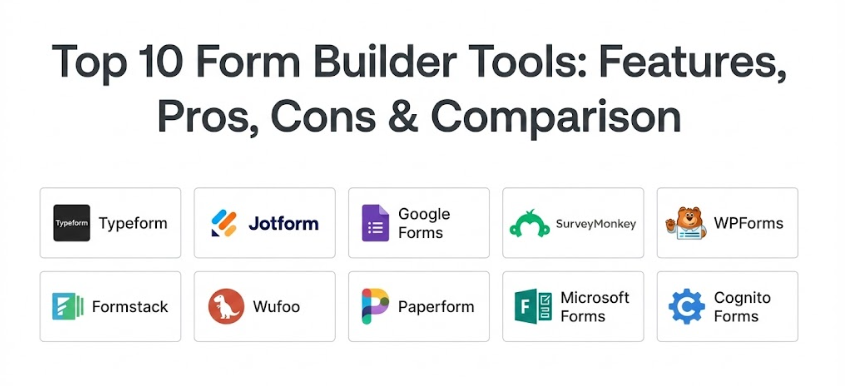
Top 10 Form Builder Tools
1 — Typeform
Typeform is a tool that completely changed how online forms look and feel. Instead of a long, boring list of questions, Typeform shows the user just one question at a time. This makes the experience feel more like a conversation and less like an interrogation. It is designed for businesses that care deeply about design and want to give their customers a high-quality, modern experience. Because it is so beautiful and easy to interact with, companies often find that more people actually finish their forms when using this tool compared to traditional ones.
Key Features
- One-Question-at-a-Time: Focuses the user’s attention on a single task to reduce overwhelm.
- Logic Jump: Allows the form to skip ahead or change path based on how someone answers.
- Video and Images: You can easily add high-quality pictures and videos into the questions.
- Professional Templates: Offers a wide library of designs that look like they were made by a pro.
- Calculator Tool: Can add up scores or prices in real-time as the user fills out the form.
- Mobile Friendly: The forms look and work perfectly on smartphones and tablets.
Pros
- It has one of the highest completion rates because the forms are fun to fill out.
- The design is very clean and makes any brand look sophisticated.
Cons
- It can be more expensive than other tools that offer more basic layouts.
- If you have a very long form with 50 questions, the “one at a time” style might feel slow.
Security & compliance: This tool provides secure data handling with encryption and is fully compliant with GDPR rules for European users.
Support & community: They have a very large help center and an active community where users share design tips and creative ways to use the tool.
2 — Jotform
Jotform is widely considered the most feature-rich form builder on the market. It offers more templates and more integrations than almost any other competitor. It is designed for users who want to be able to do everything—from collecting signatures to taking payments to creating PDF reports—all in one place. It is a very powerful tool that can be used for very simple tasks or extremely complex business workflows. It even has a mobile app that allows you to collect data while you are offline, which is a rare and useful feature for field workers.
Key Features
- Huge Template Library: Thousands of pre-made forms for every industry imaginable.
- Payment Integrations: Connects to dozens of payment processors to sell products directly.
- E-Signatures: Allows you to collect legally binding signatures on your forms.
- PDF Editor: Automatically turns form submissions into professional-looking PDF documents.
- Offline Mode: Collect data on your phone without an internet connection and sync it later.
- Report Builder: Turns your data into visual charts and graphs automatically.
Pros
- You can build almost any type of form you can imagine because it has so many features.
- The free version is very generous and allows you to test almost all the features.
Cons
- Because it has so many buttons and options, the interface can feel a bit cluttered at first.
- Some of the older templates look a bit dated and might need some manual design work.
Security & compliance: Highly secure with options for HIPAA compliance (for healthcare) and SOC 2, alongside standard GDPR protection.
Support & community: Offers 24/7 customer support and has a massive user forum where you can find answers to almost any question.
3 — Google Forms
Google Forms is the go-to choice for anyone who needs a simple, reliable, and completely free tool. It is part of the Google Workspace family, meaning if you have a Google account, you already have this tool. It is perfect for personal use, school projects, or small business surveys where you don’t need fancy design or complex logic. While it doesn’t have the advanced features of a paid tool, its simplicity is its greatest strength. It is fast, works on every device, and sends all your data directly into a Google Sheet for easy viewing.
Key Features
- Completely Free: No hidden costs or limits on how many forms you can create.
- Google Sheets Integration: Data is automatically organized into a spreadsheet in real-time.
- Collaboration: Multiple people can edit the form at the same time, just like a Google Doc.
- Automatic Summaries: Provides instant charts to show you how people are answering.
- File Uploads: Allows users to attach files or photos to their form submissions.
- Simple Logic: Basic “go to section” rules based on how a user answers a question.
Pros
- It is the easiest tool to learn; most people can build a form in under five minutes.
- Since it’s a Google product, it is extremely reliable and rarely has technical issues.
Cons
- The design options are very limited; all Google Forms tend to look the same.
- It lacks advanced features like payment processing or complex skip logic.
Security & compliance: Backed by Google’s world-class security infrastructure and is compliant with standard data privacy regulations.
Support & community: There isn’t a dedicated support team to call, but there are millions of tutorials and help articles online.
4 — SurveyMonkey
SurveyMonkey is one of the oldest and most trusted names in the world of online research. While it can be used for simple forms, it is truly built for professional surveys and deep data analysis. It is used by scientists, market researchers, and big companies that need to get statistically accurate results from their questions. It has a very smart “AI” feature that can actually help you write better questions to make sure your data isn’t biased. If you need to send a survey to a specific group of people you don’t know, SurveyMonkey can even help you find an audience to answer your questions.
Key Features
- Question Bank: Thousands of professionally written questions you can use for your own survey.
- Genius AI: A built-in assistant that checks your form for errors and suggests improvements.
- Advanced Analysis: Powerful tools to filter and compare data from different groups of people.
- Benchmarking: See how your results compare to other companies in your industry.
- Team Collaboration: Shared folders so a whole team can work on research together.
- Multilingual Support: Easily translate your survey into many different languages.
Pros
- The data analysis tools are much more powerful than a standard form builder.
- It is the gold standard for professional research and looks very credible to respondents.
Cons
- The pricing can be quite high if you only need basic form features.
- The interface is more focused on surveys than on “contact” or “registration” forms.
Security & compliance: Very high level of security with ISO certifications and full GDPR compliance.
Support & community: Offers excellent enterprise-level support and a deep library of research best practices.
5 — WPForms
WPForms is a tool built specifically for people who use WordPress to run their websites. It is designed to be the “friendliest” form builder for WordPress users, offering a simple drag-and-drop experience that lives directly inside your website’s dashboard. It is perfect for business owners who want to add a contact form, a newsletter signup, or a payment form to their site without ever leaving their WordPress settings. It is built for speed and ease of use, ensuring that your forms don’t slow down your website.
Key Features
- Drag-and-Drop Builder: A very simple way to build forms visually on your website.
- Form Templates: Hundreds of templates specifically for common website needs.
- Entry Management: See all your form submissions directly inside your WordPress dashboard.
- Spam Protection: Built-in tools to stop robots from filling out your forms with junk.
- Instant Notifications: Get an email the second someone fills out a form on your site.
- Survey & Polls: Add-ons that turn your simple forms into interactive surveys.
Pros
- If you use WordPress, this is the most seamless experience you can get.
- It is very fast and won’t make your website take longer to load for visitors.
Cons
- It only works on WordPress sites, so you can’t use it as a standalone tool.
- You have to pay for a higher-tier plan to get access to payments and advanced logic.
Security & compliance: Uses secure data handling and integrates with common WordPress security plugins to keep data safe.
Support & community: Offers great customer support and has a huge community of WordPress users who share tips.
6 — Formstack
Formstack is a tool designed for serious business processes. It is more than just a form builder; it is a system for managing how information moves through a company. It is very popular in industries like healthcare and finance where data security is the most important factor. Formstack allows you to take the information from a form and automatically generate documents or start a sequence of approvals. It is built for organizations that want to automate their paperwork and ensure that every piece of data is handled according to strict legal rules.
Key Features
- Workflow Automation: Send form data to different people for approval or review.
- Document Generation: Automatically creates a professional Word or PDF file from form data.
- Digital Signatures: Integrated e-signing to finish contracts and agreements.
- A/B Testing: Test two different versions of a form to see which one performs better.
- Section Prefill: Save users time by filling out parts of the form with data you already have.
- Advanced Security: Specialized tools to keep data extra safe for legal and medical use.
Pros
- It is one of the best tools for automating complex business tasks that involve forms.
- Excellent security features that satisfy the needs of large legal and medical teams.
Cons
- The interface is more professional and “utilitarian” than “fun” or “conversational.”
- It is one of the more expensive tools because of its focus on business automation.
Security & compliance: Top-tier compliance including HIPAA, SOC 2, GDPR, and high-level data encryption.
Support & community: Offers dedicated account managers for large clients and very professional technical support.
7 — Wufoo
Wufoo is one of the original form builders and has been a favorite for many years because of its fun and straightforward approach. It is designed to be a tool that anyone can use to build a functional form in just a few minutes. While its design might look a bit older compared to Typeform, it is incredibly reliable and very easy to understand. It is a great choice for people who want a “no-nonsense” tool that just works. It focuses on the basics—collecting data, taking payments, and sending notifications—and it does them very well.
Key Features
- Easy Form Creator: A classic drag-and-drop system that is very hard to get wrong.
- Theme Designer: Allows you to pick colors and fonts to match your company’s look.
- Payment Integration: Simple setup for taking payments via tools like PayPal or Stripe.
- File Attachments: Easily let users upload photos or documents to their entries.
- Rule Builder: Simple skip logic to make your forms more relevant to users.
- Instant Analytics: A basic report of your entries is created as soon as people start answering.
Pros
- It is very stable and has been around so long that almost all the “bugs” are gone.
- Great for people who find modern, complex software a bit overwhelming.
Cons
- The visual design of the forms can feel a bit dated for some modern brands.
- It lacks some of the deep “workflow” and “AI” features of newer competitors.
Security & compliance: Uses secure SSL encryption and is compliant with standard privacy laws like GDPR.
Support & community: Provides solid documentation and a helpful support team that has years of experience.
8 — Paperform
Paperform is a unique tool that feels more like a blog post or a landing page than a traditional form. Instead of just adding fields to a page, you can write text, add images, and format the whole page like a document. This makes it perfect for “selling” an idea or an event while also collecting information. It is designed for creative people and small businesses that want their forms to feel like a natural part of their website’s content. It is very flexible and allows for a lot of storytelling alongside the data collection.
Key Features
- Document-Style Editor: Write text and place form fields anywhere on the page, just like a Word doc.
- Beautiful Media Support: Easily embed high-quality videos and photos for a rich experience.
- Product Selling: Built-in tools for managing inventory and taking payments.
- Scheduling: Let users book appointments directly through the form.
- Calculations: Create complex pricing or scoring models based on user input.
- Custom Branding: Deep control over every pixel of how the form looks.
Pros
- It is the best tool for creating forms that need to “tell a story” or provide a lot of information.
- The editor is very flexible and doesn’t feel like a rigid “grid.”
Cons
- It might be a bit too much design work if you just need a simple 2-field contact form.
- There is a slight learning curve because the editor is different from most other form builders.
Security & compliance: Provides secure data storage and follows modern privacy standards to keep information safe.
Support & community: Offers great personal support and has a very helpful set of guides for creative users.
9 — Microsoft Forms
Microsoft Forms is the equivalent of Google Forms for people who live in the world of Microsoft Office. If your company uses Outlook, Excel, and Teams, this is the natural choice for you. It is designed to be fast and simple, allowing you to whip up a survey or a quiz in minutes. It integrates perfectly with Excel, meaning your data can be analyzed using all the powerful tools you already know. It is especially popular in schools for making quick quizzes and in offices for internal polls.
Key Features
- Office 365 Integration: Works perfectly with Excel, Teams, and SharePoint.
- Quick Quiz Mode: Includes features like points and automatic grading for students or employees.
- Theme Options: Simple backgrounds and colors to make your form look presentable.
- Mobile View: Forms are automatically optimized to work well on phones.
- Branching Logic: Simple rules to send users to different questions based on their answers.
- Real-Time Results: Watch as the charts update automatically the second someone clicks submit.
Pros
- It is often “free” because it is included in the Microsoft subscription you already pay for.
- It is extremely secure and meets the high standards required by large corporate IT teams.
Cons
- It is very basic and lacks the advanced design and payment features of tools like Jotform.
- The “logic” features are limited compared to more specialized builders.
Security & compliance: Benefits from Microsoft’s global security certifications and is very safe for sensitive data.
Support & community: Backed by Microsoft’s massive support system and a huge library of official documentation.
10 — Cognito Forms
Cognito Forms is a tool built for people who need to handle “hard” data and complex logic but don’t want to hire a programmer. It is famous for its ability to handle complex calculations—like calculating tax, adding up scores, or comparing different dates—directly inside the form. It is a very powerful tool for business owners who need to create things like quote generators or complex registration systems. While it might look a bit more “technical” than Typeform, it is much more capable when it comes to the “math” behind a form.
Key Features
- Advanced Calculations: Perform complex math based on what the user types into the form.
- Conditional Logic: Show or hide entire sections or change the price based on user choices.
- File Uploads: High limits for users to send you large documents or photos.
- Payment Processing: Securely take payments through several different providers.
- Entry Sharing: Allow users to come back and edit their form submission later.
- Lookup Fields: Pull data from one form into another to keep your records connected.
Pros
- It can handle complex business logic that most other form builders simply cannot do.
- The pricing is very fair for the amount of power and flexibility you get.
Cons
- The design interface is not as “pretty” or modern as some of the newer tools.
- It can be a bit intimidating for a beginner because there are so many technical options.
Security & compliance: Offers robust security features, including HIPAA compliance and secure data encryption for all users.
Support & community: Provides excellent technical guides and a responsive support team that understands complex use cases.
Comparison Table
| Tool Name | Best For | Platform(s) Supported | Standout Feature | Rating |
| Typeform | Customer Experience | Web, Mobile | One-question-at-a-time | 4.8 / 10 |
| Jotform | Feature Depth | Web, iOS, Android | Massive Template Library | 4.9 / 10 |
| Google Forms | Simple & Free | Web, Mobile | Completely Free | 4.5 / 10 |
| SurveyMonkey | Professional Research | Web, iOS, Android | AI-Powered Data Analysis | 4.7 / 10 |
| WPForms | WordPress Users | WordPress | Native Dashboard Builder | 4.8 / 10 |
| Formstack | Business Workflows | Web, Mobile | Document Generation | 4.6 / 10 |
| Wufoo | Simple Use Cases | Web, Mobile | Classic & Reliable | 4.3 / 10 |
| Paperform | Creative Designers | Web, Mobile | Document-like Editor | 4.7 / 10 |
| Microsoft Forms | Office 365 Teams | Web, Mobile | Office 365 Ecosystem | 4.4 / 10 |
| Cognito Forms | Complex Logic | Web, Mobile | Advanced Math & Calcs | 4.7 / 10 |
Evaluation & Scoring of Form Builder Tools
This table evaluates the tools based on a weighted scoring system to help you see where each category of tool shines.
| Category | Weight | Score (out of 10) | Evaluation Notes |
| Core Features | 25% | 9 | Most top tools now include logic and file uploads as standard. |
| Ease of Use | 15% | 8 | Simplicity is high, but complex tools require a bit more learning. |
| Integrations | 15% | 9 | Connecting to sheets and email lists is very easy with these tools. |
| Security | 10% | 10 | All top-tier builders take data privacy extremely seriously. |
| Reliability | 10% | 9 | Downtime is rare; these are professionally managed cloud tools. |
| Support | 10% | 8 | Most have great guides, though live help varies by plan. |
| Price / Value | 15% | 7 | Free tools offer great value, while paid tools are an investment. |
Which Form Builder Tool Is Right for You?
Choosing a tool is all about matching the features to your specific goals and your level of technical skill.
Solo Users and Very Small Businesses
If you are working alone or have a very small team, you probably want something that is either free or very cheap. Google Forms or Microsoft Forms are the perfect places to start because they don’t cost anything and get the job done. If you want your small business to look a bit more “premium” and modern, Typeform or Paperform are great choices because they help you look professional without needing a designer.
Medium-Sized Businesses and Marketing Teams
If you are running marketing campaigns and need to collect a lot of leads or feedback, you need a tool that can grow with you. Jotform is excellent because it has every feature you could ever need, and SurveyMonkey is best if you are doing a lot of deep research. For those who use WordPress for their company site, WPForms is almost always the best choice because it makes everything so much easier to manage.
Large Enterprises and Specialized Industries
For large companies that have strict rules about security and data, Formstack or Cognito Forms are the way to go. These tools allow you to build complex internal systems that are safe and compliant with the law. They are built for reliability and can handle thousands of form submissions every single day without slowing down.
Budget vs. Premium Solutions
If budget is your only concern, stick to the free versions of Google Forms or the free tier of Jotform. However, if you are looking for a “premium” feel that will impress your customers and get more people to finish your forms, it is worth paying for Typeform. The extra money you spend often pays for itself because you get more and better data from your customers.
Frequently Asked Questions (FAQs)
1. What is a “drag and drop” form builder?
It is a way to build a form by clicking on a field (like a text box) and moving it onto your form with your mouse. You don’t need to write any code to make it work.
2. Can I take payments through these forms?
Yes. Tools like Jotform, Typeform, and Cognito Forms allow you to connect to payment services like PayPal or Stripe so people can buy things directly.
3. What is “conditional logic” in a form?
It is a set of rules that tells the form what to do next. For example, “If the user says they are a vegetarian, skip the question about meat.”
4. Can I use these forms on my mobile phone?
Yes. Most modern form builders create forms that automatically adjust to look good on any screen size, including smartphones and tablets.
5. Is it safe to collect personal information like phone numbers?
Yes, but you must choose a secure tool. Look for features like encryption and GDPR compliance to make sure the data stays private.
6. Do I need a website to use a form builder?
No. Most tools provide a link to your form that you can share in an email, on social media, or in a text message. You don’t need your own website.
7. Can multiple people work on a form at the same time?
Some tools, like Google Forms and Microsoft Forms, allow “real-time” collaboration. Others might require you to take turns editing the form.
8. What happens to the data after someone fills out the form?
The data is usually stored in the tool’s “dashboard.” You can also set it up to send the data automatically to an email, a spreadsheet, or another software.
9. Can I get a notification when someone submits a form?
Yes. Almost every form builder allows you to turn on “email notifications” so you get an alert the moment someone finishes your form.
10. How much do these tools usually cost?
Many have a free version for basic use. Paid plans usually start around ten to twenty dollars a month and go up if you need more features or more form submissions.
Conclusion
Finding the right form builder tool is one of the smartest things you can do to organize your business and connect with your audience. These tools are much more than just a way to ask questions; they are powerful systems that can save you hours of manual work and help you make better decisions based on real data. Whether you need a simple contact form for a personal blog or a complex order system for a global business, there is a tool on this list that will make the job easy and even enjoyable.
It is important to remember that the “best” tool is simply the one that makes your life easier. If a tool feels too complicated, you probably don’t need all those extra features. Start with a simple, clear goal—like gathering ten customer reviews—and pick the tool that helps you reach that goal with the least amount of stress. A good form should be invisible to the user; it should feel like a natural part of their day and lead them from the first question to the “submit” button without any confusion.
Take your time to try out a few of these tools, as many of them offer a free trial or a free version. Once you find the one that feels right, you will be amazed at how much more information you can collect and how much better your company can understand its customers. A well-designed form is the first step toward a better relationship with your audience, and with the right tool, you can build that relationship one question at a time. The world of data collection is at your fingertips, and picking the right builder is the best way to start your journey toward a more organized and successful future.