Introduction
Email Spam Filtering Tools are software programs designed to act as a digital gatekeeper for your inbox. Their main job is to identify and block unwanted messages, commonly known as “spam,” before they ever reach your eyes. These tools use a combination of rules, lists, and smart technology to distinguish between a helpful message from a colleague and a dangerous or annoying message from a stranger.
In simple terms, a spam filter works like a mail clerk in a large office. Every day, thousands of letters arrive. Some are bills that need to be paid, some are letters from friends, and some are just junk flyers trying to sell things you don’t want. The mail clerk looks at the envelopes, checks who sent them, and throws the junk in the trash so you only receive the important mail on your desk. These digital tools do the same for your email, keeping your workspace clean and safe.
Why Email Spam Filtering is Important
Using a spam filter is about more than just avoiding annoying advertisements for vitamins or vacation deals. It is a vital part of your digital safety. Today, many “spam” emails are actually “phishing” attempts. This is when a criminal sends an email that looks like it is from your bank or a famous company, trying to trick you into giving away your password or credit card number.
Without a strong filter, your inbox can quickly become overwhelmed. This leads to “inbox fatigue,” where you might accidentally delete an important work email because it was buried under fifty pieces of junk. Furthermore, many spam emails contain “malware”—small, hidden computer programs that can lock your files or steal your private information if you click a bad link or open a strange attachment.
Key Real-World Use Cases
- Protecting Business Secrets: Stopping hackers from sending fake emails to employees to steal company secrets.
- Saving Time for Employees: Ensuring that workers don’t have to spend thirty minutes every morning manually deleting junk mail.
- Safe Online Shopping: Filtering out fake receipts or order confirmations that are actually trying to steal payment details.
- Protecting the Elderly: Helping people who may not be as familiar with technology avoid clicking on “lottery win” scams.
What Users Should Look For (Evaluation Criteria)
When you are looking for a tool to protect your inbox, you should focus on a few simple things. First, it must be accurate. You want it to catch almost all the spam, but you also don’t want it to accidentally block a message from your boss. Second, it should be easy to set up. You shouldn’t need to be a computer scientist to get it working. Third, it needs to work well with your existing email, whether you use Gmail, Outlook, or your own private server. Finally, you should look for a tool that offers clear reports so you can see what it has blocked.
Best for: Small and large businesses that want to keep their employees safe, IT managers who need to protect many email accounts at once, and anyone who feels overwhelmed by a messy, dangerous inbox.
Not ideal for: Individuals who only get one or two pieces of junk mail a week and are happy using the basic, free filters built into their free email accounts. It is also not necessary for those who do not use email for important work or private business.
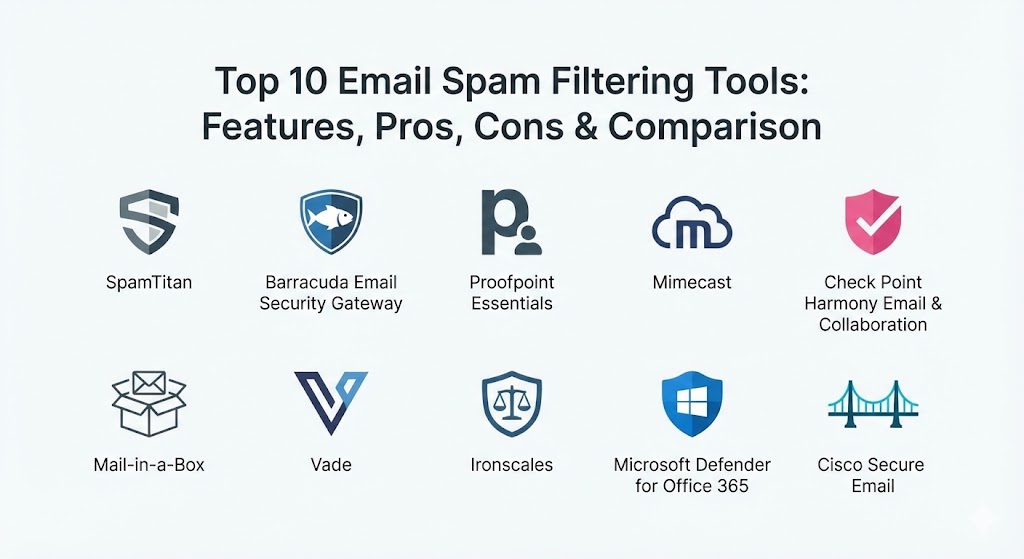
Top 10 Email Spam Filtering Tools
Below is a list of the best tools available to help you clean up your inbox and stay safe from digital threats.
1 — SpamTitan
SpamTitan is a very popular choice for businesses because it is powerful but easy for normal people to manage. It is designed to sit between the internet and your email server, checking every message before it lands.
- Key Features:
- Two different antivirus engines that scan every attachment for hidden bugs.
- A very high “catch rate” that stops over 99% of junk mail.
- “Sandboxing” which opens attachments in a safe, virtual room to see if they are dangerous.
- The ability to block mail from specific countries where most scams come from.
- Automatic reports sent to your inbox to show you what was blocked.
- Special checks for “whaling” attacks aimed at company bosses.
- Easy setup that works with both Office 365 and Google Workspace.
- Pros:
- It is very affordable compared to many other professional tools.
- The customer support team is known for being very helpful and fast.
- Cons:
- The main control screen can look a little bit old-fashioned.
- Setting up very specific, custom rules can take a little bit of time to learn.
- Security & compliance: Includes encryption for emails, audit logs to see who did what, and is compliant with GDPR rules.
- Support & community: Offers excellent online documentation, a helpful user forum, and 24/7 technical support for business users.
2 — Barracuda Email Security Gateway
Barracuda is a big name in the world of security. Their tool is like a heavy-duty shield for your email. It is great for companies that want a “set it and forget it” solution that handles everything from spam to large-scale attacks.
- Key Features:
- Protection against “Day Zero” attacks (new threats that no one has seen before).
- Large-scale storage so you can look back at old emails even if your server goes down.
- Link protection that checks every website link inside an email before you click it.
- Inbound and outbound filtering (it also stops your employees from accidentally sending spam).
- Automatic encryption for sensitive emails containing credit card numbers.
- A simple cloud-based dashboard for managing all your settings.
- Strong protection against “spoofing” (emails that pretend to be someone else).
- Pros:
- Extremely reliable and rarely makes mistakes with “good” mail.
- It is a complete package that protects you from almost every type of email threat.
- Cons:
- It can be more expensive than simpler filters.
- It is a large system that might be too complex for a very small shop.
- Security & compliance: SOC 2 certified, HIPAA compliant for healthcare, and uses high-level encryption for all data.
- Support & community: Very professional support network with dedicated experts and a massive library of help videos.
3 — Proofpoint Essentials
Proofpoint is often used by the world’s biggest companies, but their “Essentials” version is made specifically for small and medium-sized businesses. It focuses on identifying “people-centric” threats, meaning it looks at which employees are being targeted the most.
- Key Features:
- Advanced AI that learns how you talk so it can spot fake emails.
- A “URL Defense” feature that changes every link to a safe version.
- Emergency “Email Continuity” that lets you keep working if your main email stops.
- Social media protection to keep your company’s public accounts safe.
- Searchable archives that keep your emails safe for many years.
- Data loss prevention that stops people from sending private data out by mistake.
- Very simple “plug and play” setup for Microsoft 365.
- Pros:
- The technology is some of the smartest in the world at catching clever phishing.
- The “Continuity” feature is a lifesaver if your office loses power or internet.
- Cons:
- The pricing is based on how many people you have, which can get expensive as you grow.
- The setup process for very old email systems can be a little tricky.
- Security & compliance: ISO 27001 certified, GDPR compliant, and includes full audit logs for legal needs.
- Support & community: Excellent training materials for employees and a very fast technical help desk.
4 — Mimecast
Mimecast is more than just a spam filter; it is a “Cyber Resilience” platform. It is designed for businesses that cannot afford for their email to be down for even a single minute. It treats email safety as a vital part of staying in business.
- Key Features:
- Internal email protection that stops threats from spreading inside the office.
- “Impersonation Protection” that stops emails pretending to be your CEO.
- A very large and safe storage area for all company emails.
- Large file sharing that is much safer than using a public website.
- Education tools that teach your employees how to spot a scam themselves.
- Syncs with your company’s directory so new employees are protected automatically.
- Strong “Brand Exploit” protection that stops others from pretending to be your company.
- Pros:
- It is incredibly deep and covers things most other tools miss.
- The mobile app is great for checking your “blocked” mail while traveling.
- Cons:
- Because it does so much, the main control panel is very complicated.
- The initial setup usually requires a professional IT person.
- Security & compliance: HIPAA, SOC 2, and ISO 27001 compliant; includes “e-discovery” tools for legal cases.
- Support & community: Offers a dedicated “Success Manager” for larger accounts and a very active user community.
5 — Check Point Harmony Email & Collaboration (Formerly Avanan)
This tool is a bit different because it doesn’t just sit “in front” of your email. Instead, it lives inside your inbox using an API. This allows it to see threats that other filters might miss because it can see how people interact with the mail.
- Key Features:
- Protects not just email, but also Slack, Teams, and Google Drive.
- Installs in seconds without needing to change your MX records (mail settings).
- AI that looks at the “tone” of an email to see if it sounds like a scam.
- Automatically cleans up “bad” emails even after they have been delivered.
- Very simple user interface that is easy to understand.
- Protection against “Shadow IT” (people using unapproved apps).
- Great at catching “Gift Card” scams that ask employees to buy cards.
- Pros:
- It is probably the easiest tool on this list to install.
- It protects your whole office suite, not just your email.
- Cons:
- It works best for cloud email like Gmail and O365, not for private old servers.
- Some users find the automatic “clean up” can be a little too aggressive.
- Security & compliance: SOC 2 Type II certified and fully GDPR compliant with end-to-end encryption.
- Support & community: Very modern documentation and a fast, responsive chat-based support team.
6 — Mail-in-a-Box
This is the only “open source” option on our list. It is not a company that sells a service, but a project that gives you the code to build your own safe email server. It is perfect for people who want total control and privacy.
- Key Features:
- Completely free to use if you can set up your own server.
- Includes a full suite of spam-fighting tools like SpamAssassin.
- Automatically sets up safe “keys” (DKIM) so your mail isn’t seen as spam by others.
- Includes a simple webmail screen so you can check mail anywhere.
- Gives you total privacy because no big company is looking at your data.
- Automatically updates itself to keep your server safe.
- Includes a calendar and contact list that syncs with your phone.
- Pros:
- It costs zero dollars in software fees.
- You have 100% control over your data and your privacy.
- Cons:
- You must know how to set up a basic computer server.
- There is no “help desk” to call if you get stuck; you have to read the forums.
- Security & compliance: Varies; it is as safe as you make it, but it includes all the modern encryption standards.
- Support & community: A very dedicated community of volunteers and a helpful online forum.
7 — Vade
Vade (now part of Hornetsecurity) focuses on “Behavioral Analysis.” Instead of just looking at a list of bad senders, it looks at how an email behaves. It is great for catching very smart, personalized attacks that haven’t been seen before.
- Key Features:
- AI that scans images to see if they are fake logos.
- Integrated directly into Microsoft 365, so it feels like a native feature.
- “Auto-Remediation” that pulls an email out of the trash if it was a mistake.
- Focuses on the “User Experience,” making sure the filter doesn’t get in the way.
- Scans links at the moment a user clicks them, which is the safest time.
- Very simple dashboard that only shows you what you need to know.
- Great at detecting “look-alike” domains (like https://www.google.com/search?q=g00gle.com instead of https://www.google.com/search?q=google.com).
- Pros:
- It is very quiet and stays out of the way until there is a real problem.
- It is excellent at catching fake login pages for Microsoft 365.
- Cons:
- It is mostly built for Microsoft users, so others might feel left out.
- It doesn’t have as many “extra” features as a giant like Mimecast.
- Security & compliance: SOC 2 compliant and follows all major European privacy laws.
- Support & community: Good technical support and a simple, clear set of help guides.
8 — Ironscales
Ironscales is famous for using “Human and AI Collaboration.” It allows employees to report a suspicious email with one click, and then the AI checks that report against every other inbox in the company to see if anyone else got the same message.
- Key Features:
- A “Report Phish” button that sits inside every employee’s email app.
- A virtual assistant named “Themis” that helps you make decisions.
- Automatic “Phishing Simulation” that tests your employees to see if they click scams.
- Decentralized intelligence that learns from thousands of different companies.
- A very fast “Search and Destroy” feature for removing bad mail company-wide.
- Simple visual alerts that tell a user “This email looks unusual.”
- Works with both Microsoft and Google accounts effortlessly.
- Pros:
- It actually teaches your employees to be smarter while it protects them.
- The community-based “learning” means it catches new threats very fast.
- Cons:
- The “Alerts” can sometimes be annoying if they pop up too often.
- Setting up the training simulations takes a bit of planning.
- Security & compliance: SOC 2 Type II certified and compliant with modern data protection rules.
- Support & community: Offers “Gamified” training for users and a very active technical support team.
9 — Microsoft Defender for Office 365
If you already use Microsoft 365 for your work, this is the “native” choice. It is built by Microsoft to protect Microsoft. It is a solid choice for teams that want everything in one bill and one system.
- Key Features:
- “Safe Attachments” that scans files for hidden viruses.
- “Safe Links” that protects you from bad websites in real-time.
- Deep integration with all Microsoft apps (Word, Excel, Teams).
- Excellent reports that show exactly how an attack tried to work.
- Automated investigation that tries to fix problems by itself.
- Multi-layered filtering that checks the sender, the message, and the link.
- The ability to set different rules for different groups in your office.
- Pros:
- You don’t have to install anything new; you just turn it on.
- It works perfectly with all your existing Microsoft software.
- Cons:
- Some hackers focus specifically on trying to find ways around Microsoft’s own tools.
- The settings can be hidden inside many different “Admin” screens.
- Security & compliance: FedRAMP, HIPAA, SOC 1/2/3, and almost every other major certification.
- Support & community: Access to Microsoft’s massive global support network and documentation.
10 — Cisco Secure Email
Cisco is the king of networking hardware, and their email security tool is built on a massive amount of data. They see more internet traffic than almost anyone else, which helps them spot a new spam campaign the second it starts.
- Key Features:
- Talos Intelligence, which is one of the world’s largest threat-tracking teams.
- Strong protection against “Business Email Compromise” (CEO fraud).
- Graymail management that helps you sort “wanted” junk (like newsletters).
- High-level encryption that is very easy for the receiver to open.
- A “Secure Awareness” program to train your staff.
- Works as a cloud service, a physical box in your office, or a virtual program.
- Very detailed logs for teams that want to do their own research.
- Pros:
- The “Talos” data is incredibly accurate and catches things others miss.
- It is very flexible and can be set up in many different ways.
- Cons:
- It can be very expensive for small businesses.
- The user interface is very professional but also very technical and “dry.”
- Security & compliance: FIPS 140-2, ISO 27001, and fully compliant with international trade rules.
- Support & community: World-class enterprise support and a huge community of IT professionals.
Comparison Table
| Tool Name | Best For | Platform(s) Supported | Standout Feature | Rating |
| SpamTitan | SMBs & Schools | Cloud / On-prem | Very easy setup & support | 4.6 |
| Barracuda | Industrial Strength | Cloud / Hardware | Complete protection package | 4.5 |
| Proofpoint | Mid-size Business | Cloud / M365 | High-quality “People” data | 4.7 |
| Mimecast | 24/7 Reliability | Cloud / SaaS | Continuity & Archiving | 4.5 |
| Check Point | Cloud-only Teams | API (M365 / Google) | Protects Slack & Teams too | 4.8 |
| Mail-in-a-Box | DIY & Privacy | Linux Server | 100% free & private | N/A |
| Vade | Quiet Microsoft Users | API (M365) | Moment-of-click link scan | 4.4 |
| Ironscales | Training & Speed | Cloud / API | One-click human reporting | 4.7 |
| Microsoft Def. | M365 Power Users | Native M365 | Works inside all Office apps | 4.3 |
| Cisco Secure | Global Enterprises | Any / Hybrid | Talos global threat data | 4.5 |
Evaluation & Scoring of Email Spam Filtering Tools
We have evaluated these tools based on the things that matter most to real people and businesses. Use this table to see which categories were given the most importance.
| Category | Weight | What We Look For |
| Core Features | 25% | How well does it actually block spam and phishing? |
| Ease of Use | 15% | Can a normal person understand the dashboard? |
| Integrations | 15% | Does it connect easily with Outlook, Gmail, or Slack? |
| Security | 10% | Does it have SOC 2, ISO, and strong encryption? |
| Reliability | 10% | Is the system always up? Does it block “good” mail? |
| Support | 10% | Is the help desk fast and the manuals clear? |
| Price / Value | 15% | Is the cost fair for what the tool provides? |
Which Email Spam Filtering Tool Is Right for You?
Every person and business has different needs. Here is a simple guide to help you decide which one to pick.
For Solo Users and Very Small Businesses
If you are working by yourself or have a tiny team (under 5 people), you probably don’t need a huge corporate system. Check Point (Avanan) or Vade are great because they are simple and live right inside your inbox. If you are very technical and want to save money, Mail-in-a-Box is a fun project that gives you a professional system for free.
For Small to Medium Businesses (SMBs)
If you have 20 to 200 employees, you need something that is easy to manage but very safe. SpamTitan is the winner here because it is affordable and the support team will help you if you get stuck. Ironscales is also a fantastic choice because it helps you train your employees while it protects them.
For Large Enterprises
Large companies with thousands of workers need depth and reliability. Mimecast and Barracuda are the best choices because they offer things like long-term archives and emergency email systems. Cisco Secure Email is also top-tier because it uses the world’s biggest database of internet threats to keep you safe.
Budget-Conscious vs. Premium Solutions
If you want to spend as little as possible, SpamTitan offers the most “bang for your buck” among professional tools. If you have a larger budget and want the very best protection that money can buy, Proofpoint or Mimecast are the premium choices that the world’s biggest banks and hospitals use.
Frequently Asked Questions (FAQs)
1. Does a spam filter block my “good” mail too?
Sometimes, yes. This is called a “False Positive.” Most good tools have a “Quarantine” folder where you can go and “rescue” a message if it was blocked by mistake.
2. Is it hard to set these tools up?
Tools that use an “API” (like Check Point or Ironscales) are very easy—you just click a button to connect your account. Tools that use “MX Records” are a little harder and usually require a quick change to your website settings.
3. Do I need a spam filter if I already use Gmail or Outlook?
The basic filters built into Gmail are good for personal mail. However, for business, they often miss clever phishing attacks. A professional tool adds an extra, much stronger layer of safety.
4. What is “Phishing”?
Phishing is a type of spam that tries to trick you. Instead of trying to sell you something, it tries to steal your password by pretending to be a bank, a boss, or a delivery company.
5. How much do these tools cost?
Most professional tools cost between $1 and $4 per person per month. Some offer discounts if you have a lot of employees or if you pay for a whole year at once.
6. Can these tools see my private messages?
The software “scans” your messages for bad links or suspicious words. Most companies have strict privacy rules and don’t allow their human employees to read your mail unless you ask them for help.
7. Do I need to install software on every computer?
No. Most modern filters are “Cloud Based,” which means they work on the internet. Your email is cleaned before it ever reaches your computer, phone, or tablet.
8. What is “Sandboxing”?
It is a safety feature where the tool opens an attachment in a “virtual box” that is cut off from your computer. If the attachment is a virus, it “explodes” in the box and doesn’t hurt you.
9. Can a spam filter stop all scams?
No tool is 100% perfect. Hackers are always trying new tricks. That is why it is important to pick a tool that also trains your employees to be careful about what they click.
10. What happens if the spam filter service goes down?
If you pick a tool with “Continuity” (like Mimecast or Proofpoint), you will have an emergency inbox you can use to keep working until the main service is back.
Conclusion
Choosing the right email spam filter is one of the best things you can do for your digital peace of mind. A clean inbox isn’t just about being organized; it is about staying safe in a world where email is the main way that hackers try to cause trouble.
What matters most is choosing a tool that fits your life. If you are a small business, look for simplicity and support. If you are a large company, look for depth and reliability. No matter which one you choose from this list, you are taking a big step toward a cleaner, safer, and more human-friendly way of working. Remember, the best security is the one that you actually use every day.