Introduction
Document Redaction Tools are specialized software programs designed to permanently remove or hide sensitive information from digital files. Unlike simply drawing a black box over text in a standard image editor, these professional tools ensure that the underlying data is completely destroyed and cannot be recovered by tech-savvy individuals or specialized software. They are used to scrub private details such as social security numbers, bank account details, home addresses, and confidential trade secrets from documents before they are shared with the public or other third parties. Think of these tools as a high-tech version of a permanent marker, but one that actually deletes the digital “ink” underneath so it stays hidden forever.
The importance of these tools cannot be overstated in a world where data privacy is a top priority. When a document is shared without proper redaction, a company risks leaking private information that could lead to identity theft, legal lawsuits, or massive financial fines. Real-world use cases are everywhere: lawyers use them to protect witness identities in court filings, healthcare providers use them to share medical research without revealing patient names, and government agencies use them to release public records while keeping national secrets safe. Without a reliable redaction tool, a simple mistake like leaving a name in the “metadata” of a file could cause a major security breach.
When you are looking for a redaction tool, you should evaluate it based on how accurately it finds sensitive information and how easy it is to use. A good tool should offer “automatic” searching so you don’t have to read every single line yourself to find phone numbers or addresses. You should also look for high security standards, such as strong encryption and audit logs that show who changed what. Because time is valuable, the best tools allow you to process many documents at once—a feature often called “batch processing.” Finally, consider if the tool works with the types of files you use most, such as PDFs, Word documents, or scanned images.
Best for: Legal professionals, government agencies, healthcare administrators, and large corporate compliance teams benefit the most from these tools. They are essential for any organization that handles a high volume of sensitive paperwork and must follow strict privacy laws. Large companies with thousands of documents to share will find the automated features a huge time-saver.
Not ideal for: A student or a casual home user who only needs to hide one piece of information on a single document once a year might not need a professional tool. In those cases, very basic PDF editors or even manual methods might be enough. If the documents you are sharing do not contain any private or legal data, the cost and complexity of a professional redaction tool are likely unnecessary.
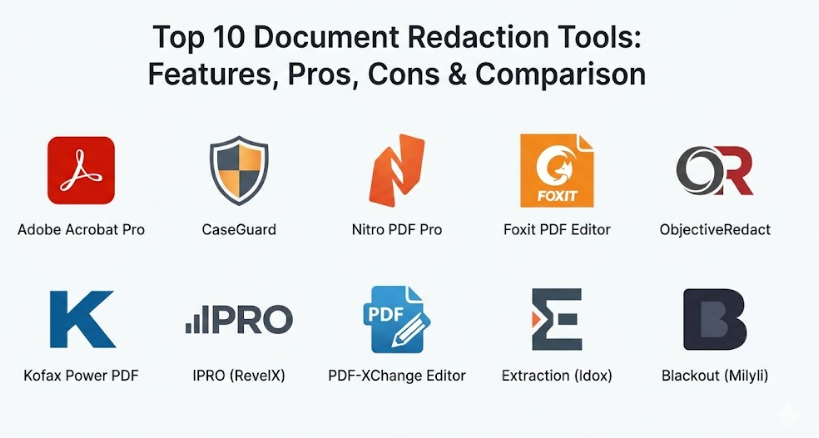
Top 10 Document Redaction Tools
1 — Adobe Acrobat Pro
Adobe Acrobat Pro is the world’s most famous tool for managing PDF files, and its redaction features are widely considered the industry standard. It is designed for professional users who need a reliable, all-in-one solution for creating, editing, and securing documents. The redaction tool in Acrobat is very thorough, allowing users to not only black out text and images but also remove hidden metadata and file attachments that might contain private info. It is a great choice for business offices that already use other Adobe software and want a tool that they know is trusted by legal and government bodies worldwide.
Key Features:
- Mark for Redaction tool that allows you to preview what will be hidden before applying it.
- Search and Redact feature to find specific words or phrases across a whole document.
- Remove Hidden Information tool that scrubs metadata, bookmarks, and overlapping objects.
- Redaction properties that allow you to change the color or add “exemption codes” over the boxes.
- Capability to sanitize a document, which removes all non-visible sensitive data in one click.
- High-quality optical character recognition (OCR) to find text inside scanned pictures.
- Easy integration with cloud storage like Google Drive and Microsoft OneDrive.
Pros:
- Extremely reliable and produces files that meet the highest legal and government standards.
- Very easy to find help and tutorials because so many people use the software.
- Provides a complete set of editing tools, so you don’t need other software for your PDFs.
Cons:
- Requires a monthly or yearly subscription, which can be expensive for some.
- The software is quite large and can sometimes run slowly on older computers.
- Some of the advanced security settings can be confusing for a brand-new user.
Security & Compliance: Offers password protection, digital signatures, and is used globally to meet GDPR and HIPAA requirements.
Support & Community: Massive online help center, community forums, and professional customer support through chat or phone.
2 — CaseGuard
CaseGuard is a powerful and specialized tool that goes beyond just documents to include video, audio, and image redaction. It is designed specifically for law enforcement, government agencies, and legal teams who deal with complex evidence and public records. The tool is very smart and uses advanced technology to automatically find and hide faces, license plates, and sensitive words in a matter of seconds. It is perfect for organizations that need to process a lot of different types of media and want to make sure they never miss a single piece of private data.
Key Features:
- Automatic document redaction that identifies patterns like social security numbers.
- Video and audio redaction capabilities alongside standard document scrubbing.
- Smart “find and redact” that learns from your actions to improve accuracy.
- Ability to redact information in many different languages automatically.
- Detailed audit trails that record every action taken within the software.
- Batch processing that can handle thousands of files at the same time.
- Translation features that help you understand documents before you redact them.
Pros:
- One of the few tools that handles video, audio, and documents in one place.
- The automation is incredibly fast and saves hours of manual work.
- Specifically built for high-security environments like police departments and courts.
Cons:
- It is a premium tool with a higher price point than basic PDF editors.
- Because it does so much, it can take some time to learn all the features.
- Requires a fairly modern computer to handle the advanced video processing.
Security & Compliance: Highly secure with local processing options, audit logs, and compliance with CJIS, HIPAA, and GDPR.
Support & Community: Offers dedicated training sessions, high-quality documentation, and direct expert support.
3 — Nitro PDF Pro
Nitro PDF Pro is a popular alternative to Adobe that offers a very clean and simple interface that feels like using a Microsoft Office program. It is designed for business users who want a fast, easy way to edit and secure their documents without a steep learning curve. The redaction tools are straightforward, allowing you to quickly mark and apply permanent changes to your files. It is an excellent choice for mid-sized companies that need professional features but prefer a tool that is lighter and easier to navigate than the bigger competitors.
Key Features:
- Simple “Mark for Redaction” button that works just like a highlighter.
- Ability to search for specific text and redact every mention in the file.
- Permanent data removal that ensures the information cannot be “undone.”
- Tools to remove metadata and other hidden layers from the document.
- Fast document conversion from Word or Excel into a secure PDF format.
- Electronic signature tools built right into the same dashboard.
- Batch processing to apply security settings to multiple files at once.
Pros:
- The interface is very familiar and easy to use for anyone who knows Word.
- Generally faster and “lighter” on your computer’s memory than Adobe.
- Offers a one-time purchase option for those who don’t want a subscription.
Cons:
- The search-and-redact feature is a bit less advanced than specialized tools.
- Only available for Windows and Mac, with fewer options for mobile users.
- Some very advanced “legal” redaction codes might not be included.
Security & Compliance: Supports SOC 2, HIPAA readiness, and provides strong encryption for all saved files.
Support & Community: Good online knowledge base, community forums, and email support for business users.
4 — Foxit PDF Editor
Foxit PDF Editor is known for being very fast and offering a wide range of features at a competitive price. It is designed for businesses of all sizes that need a professional tool for editing and securing their documents. Foxit provides very strong redaction capabilities, including a unique “whiteout” feature and the ability to redact entire pages or specific regions with ease. It is a favorite for IT managers because it is easy to set up for a whole company and offers great control over who can access certain security features.
Key Features:
- One-click redaction to quickly hide sensitive areas on a page.
- Search and Redact tool that finds patterns like credit card numbers.
- Ability to add “overlay text” to redaction boxes to explain why info is hidden.
- “Sanitize Document” tool to remove metadata, hidden text, and comments.
- Integration with enterprise document systems like SharePoint.
- Support for a wide variety of file formats beyond just PDF.
- Advanced security settings to prevent a document from being edited after redaction.
Pros:
- Very high performance and starts up much faster than many other tools.
- Great value for money with a lot of features included in the base version.
- Excellent customer support and regular updates to keep the tool secure.
Cons:
- The menu can sometimes feel a bit cluttered with too many buttons.
- The “free” version is very limited and will put watermarks on your work.
- Some users find the interface a bit less “modern” looking than Nitro or Adobe.
Security & Compliance: Offers ISO 27001 certification, GDPR compliance, and strong password security features.
Support & Community: Extensive library of video tutorials, user manuals, and a responsive help desk.
5 — ObjectiveRedact
ObjectiveRedact is a highly specialized tool built specifically for the “heavy lifting” of redaction in legal and government settings. It is designed for users who have to process massive amounts of paperwork and cannot afford to make a single mistake. The tool focuses purely on redaction, which means every feature is built to make that one task as fast and accurate as possible. It is particularly good at identifying and redacting information that might be spread across hundreds of different files, making it a top choice for major legal cases or freedom of information requests.
Key Features:
- Automated “Suggested Redactions” that find names, dates, and locations.
- Review workflow that allows a second person to check redactions before they are final.
- Ability to redact many different file types, including emails and spreadsheets.
- High-speed processing that handles thousands of pages per hour.
- Custom “Redaction Codes” to meet specific legal requirements.
- Detailed reports that show exactly what was redacted and why.
- Integration with major document management systems used by governments.
Pros:
- Specifically built for redaction, so it is much more powerful than a general PDF editor.
- The review workflow helps prevent human error in important legal documents.
- Can handle very complex file types that other tools might struggle with.
Cons:
- It is a professional-grade tool and is likely too expensive for small businesses.
- The interface is focused on power rather than “pretty” design.
- Requires some training to get the most out of the automated features.
Security & Compliance: Meets the strictest government security standards and provides full audit trails.
Support & Community: Dedicated enterprise support and specialized training for government and legal teams.
6 — Kofax Power PDF
Kofax Power PDF is a robust tool that is designed to be as easy to use as a standard office app but with the power of an enterprise security system. It is a great choice for companies that want to give their employees a tool that can do everything—from merging files to redacting sensitive data. Kofax is particularly well-regarded for its accuracy when it comes to finding text in images, which is very helpful if you are working with a lot of scanned paper documents. It is a solid, reliable choice for any business that needs to maintain high standards of privacy.
Key Features:
- Excellent OCR technology to find and redact text in scanned documents.
- Search and Redact functionality for keywords or specific patterns.
- Ability to remove all metadata and hidden information in one step.
- “Check for sensitive information” tool that scans the file for you.
- Integration with cloud services like Box, Dropbox, and Google Drive.
- Simple tools for adding notes or stamps to your redacted files.
- Capability to create secure, encrypted PDFs that are easy to share.
Pros:
- Very accurate at reading “messy” or older scanned documents.
- One-time purchase options make it a good long-term investment.
- Very similar to Microsoft Office, so most people can start using it immediately.
Cons:
- The software can be a bit heavy and might take up a lot of space on your drive.
- The mobile version is not as powerful as the desktop software.
- Some users have reported that the updates can be a bit slow to arrive.
Security & Compliance: Compliant with HIPAA, GDPR, and offers strong document encryption.
Support & Community: Good technical support and a wealth of online guides and webinars.
7 — IPRO (now part of RevelX)
IPRO is a major player in the world of “eDiscovery,” which is the process of finding and securing evidence for legal cases. Their redaction tools are built to handle the absolute largest data sets imaginable—millions of pages at a time. This tool is for the experts who work on massive corporate lawsuits or government investigations. It uses very advanced technology to group similar documents together and apply redactions across all of them at once. It is a highly technical tool that is built for speed, accuracy, and legal defensibility.
Key Features:
- High-speed automated redaction across millions of documents.
- Pattern-based searching that finds every mention of a person or company.
- Mass redaction tools that can hide the same area across thousands of pages.
- Workflow management to track the progress of large redaction projects.
- Ability to handle “native” files like Excel and PowerPoint without converting them.
- Detailed logging to prove in court how and why information was hidden.
- Advanced quality control tools to catch any missed redactions.
Pros:
- Unbeatable for massive projects where manual redaction would be impossible.
- Extremely reliable for high-stakes legal work where accuracy is vital.
- Works with a huge range of complex file types and databases.
Cons:
- Much too complex and expensive for a typical small business.
- Requires a lot of specialized training to use the system correctly.
- The interface is built for data experts and can be very intimidating for beginners.
Security & Compliance: Top-tier security with SOC 2 compliance and full legal audit trails.
Support & Community: Professional enterprise support with 24/7 availability for urgent cases.
8 — PDF-XChange Editor
PDF-XChange Editor is a smaller but very powerful tool that is a favorite among tech-savvy users and small businesses. It is known for being incredibly fast and having a massive list of features for a much lower price than the big-name brands. The redaction tool is very effective and easy to find within the menus. It is a great choice for someone who wants a professional tool that doesn’t slow down their computer and offers a lot of customization. It’s a “hidden gem” in the PDF world that provides enterprise-level redaction at a budget-friendly price.
Key Features:
- Fast and accurate “Mark for Redaction” and “Apply Redactions” tools.
- Advanced search that can look through multiple files at once for sensitive info.
- Ability to customize the look of redaction boxes with different colors and text.
- Tools to scrub metadata, attachments, and hidden layers from your PDFs.
- Very lightweight software that runs smoothly even on older PCs.
- Built-in OCR that is surprisingly good at reading scanned documents.
- A massive amount of settings for users who like to customize their tools.
Pros:
- One of the fastest PDF editors on the market today.
- Excellent value for money—you get a lot of power for a small price.
- Very responsive developers who frequently release updates and fixes.
Cons:
- The interface has a lot of icons and can look a bit messy at first.
- It is primarily for Windows, which leaves out Mac and Linux users.
- Some of the more advanced “legal” features are only in the Pro version.
Security & Compliance: Offers standard digital signatures and encryption, and is GDPR ready.
Support & Community: Very active user forum where developers often answer questions directly.
9 — Extraction (by Idox)
Extraction is a tool that focuses on “smart” redaction for public sector organizations and those dealing with freedom of information requests. It is designed to help teams quickly process piles of letters, emails, and reports. What makes it special is how it helps you categorize your redactions, making it easy to see if you are being consistent across all your documents. It is a very helpful tool for teams that need to stay organized and want to make sure they are following the rules every single time they hide information.
Key Features:
- Smart “Suggested Redactions” that highlight potential risks for you.
- Consistency checks to make sure you redacted the same name across all files.
- Simple workflow that guides you from “open” to “ready to share.”
- Ability to add official “Exemption Codes” to explain each redaction.
- Strong reporting tools to track how much work your team is getting done.
- Integration with standard office software for easy file moving.
- Clear, simple design that focuses on the task at hand.
Pros:
- Very good at keeping large teams organized and consistent.
- The “Exemption Code” feature is perfect for government and legal compliance.
- Much easier to learn than many other specialized redaction tools.
Cons:
- Focused mainly on the UK and European government markets.
- Not as many “general” PDF editing features as tools like Adobe or Nitro.
- Pricing is aimed at organizations rather than individual users.
Security & Compliance: High standards for data privacy and audit logging to meet public sector rules.
Support & Community: Strong professional support and training for government teams.
10 — Blackout (by Milyli)
Blackout is a unique tool because it is built to work inside another very famous legal platform called Relativity. It is the go-to choice for legal professionals who already use Relativity for their case work. Blackout is “automated” redaction at its finest, using smart technology to find and hide information across thousands of documents without a human ever having to click a button. It is designed to save legal teams hundreds of hours of manual work, making it an essential tool for modern law firms that deal with massive amounts of digital evidence.
Key Features:
- Fully automated redaction based on rules you set yourself.
- Ability to redact text, images, and even hidden data in Excel files.
- Works directly inside the Relativity platform for a seamless experience.
- Mass redaction capabilities that can handle entire “sets” of documents at once.
- Quality control tools that highlight where the software has applied redactions.
- Detailed reporting on every single redaction made across the whole case.
- Ability to “un-redact” during the draft phase if a mistake is made.
Pros:
- Saves an incredible amount of time for legal teams working on big cases.
- Highly accurate and built to meet the strictest legal standards.
- No need to move files between different programs since it lives inside Relativity.
Cons:
- You must be a Relativity user to take advantage of this tool.
- It is a very high-end tool with pricing to match.
- Requires a specialist to set up the rules and oversee the automation.
Security & Compliance: Inherits the top-tier security of the Relativity platform, including SOC 2 and ISO.
Support & Community: Excellent support for Relativity users and a very active legal tech community.
Comparison Table
| Tool Name | Best For | Platform(s) Supported | Standout Feature | Rating |
| Adobe Acrobat Pro | General Professionals | Windows, Mac, Cloud | Industry Standard | N/A |
| CaseGuard | Police & Public Records | Windows | Video/Audio Redaction | N/A |
| Nitro PDF Pro | Small to Mid-Sized Biz | Windows, Mac | Microsoft Office Look | N/A |
| Foxit PDF Editor | IT Managers & Enterprise | Windows, Mac, Cloud | High Performance | N/A |
| ObjectiveRedact | Heavy Legal Work | Windows | Review Workflows | N/A |
| Kofax Power PDF | Scanned Document Needs | Windows, Mac | OCR Accuracy | N/A |
| IPRO (RevelX) | Massive Legal Cases | Windows, Cloud | Multi-Million Page Speed | N/A |
| PDF-XChange Editor | Budget-Conscious Techs | Windows | Speed & Customization | N/A |
| Extraction (Idox) | Gov & Freedom of Info | Web, Cloud | Consistency Checks | N/A |
| Blackout (Milyli) | Relativity Users | Relativity Platform | Fully Automated Rules | N/A |
Evaluation & Scoring of Document Redaction Tools
To help you decide, we have evaluated these tools across several important categories. Each category has a “weight” to show how much it usually matters to a professional user.
| Evaluation Category | Weight | Description of What We Look For |
| Core Features | 25% | Does it accurately redact text, images, and hidden metadata? |
| Ease of Use | 15% | Is the interface clear and easy for a regular person to learn? |
| Integrations | 15% | Does it work with your existing cloud storage and business apps? |
| Security & Compliance | 10% | Does it meet legal standards and provide audit trails? |
| Performance | 10% | Is the software fast and able to handle large files easily? |
| Support & Community | 10% | Is there a helpful team or community to turn to for help? |
| Price / Value | 15% | Is the cost fair for the features and time savings provided? |
Which Document Redaction Tool Is Right for You?
Choosing the right tool is a big decision, but it becomes much easier once you look at your specific situation. Start by thinking about the size of your organization and the volume of documents you handle. If you are a solo user or a very small business, a tool like Nitro PDF Pro or PDF-XChange Editor is often the best choice because they are affordable and easy to start using right away. If you work in a large company with thousands of employees, a tool like Adobe Acrobat Pro or Foxit PDF Editor is better because it is easy for IT teams to manage and everyone is likely already familiar with the “look” of the software.
Budget is also a major factor. If you want to avoid monthly fees, look for tools like Kofax Power PDF or PDF-XChange Editor which offer one-time purchase options. On the other hand, if your work is high-stakes—such as legal cases or government records—you should prioritize features over price. In those cases, the automated power of CaseGuard or ObjectiveRedact is worth every penny because it prevents costly human errors that could lead to legal trouble.
Finally, consider what types of documents you are redacting. If you only work with simple PDFs, most of these tools will work great. However, if you need to redact faces in videos or names in audio recordings, CaseGuard is really your only choice. If you are a legal expert using Relativity, then Blackout is the natural winner. Always pick the tool that fits into your current way of working rather than trying to change your entire process to fit a new piece of software.
Frequently Asked Questions (FAQs)
What is document redaction?
It is the process of permanently removing or hiding sensitive information from a digital file. Professional tools make sure the data is actually deleted from the file’s code, so it cannot be found by anyone else later.
Can’t I just put a black box over the text in Word?
No! This is a common and dangerous mistake. If you just draw a box over text, the words are still there underneath and can be found by simply copying and pasting the text into another program. You must use a real redaction tool to destroy the data.
Is it easy to use these tools?
Most of the popular tools, like Adobe or Nitro, are very easy and feel like using a regular office program. Some of the highly specialized legal tools are more complex and might require a bit of training to master.
Do these tools remove hidden info like metadata?
Yes, professional tools will scrub “metadata,” which is hidden info like the author’s name, the date the file was made, and even the location where it was saved. This is a very important part of staying safe.
How much do these tools cost?
The price varies a lot. Some tools cost around $50 to $100 for a one-time purchase, while enterprise-grade legal tools can cost thousands of dollars per year. Most offer a free trial so you can test them out first.
Can I redact more than one document at a time?
Yes, most professional tools offer “batch processing.” This allows you to select hundreds of files and apply the same redaction or security settings to all of them at once, saving you a lot of time.
Are there free redaction tools?
There are some basic free tools online, but you should be very careful with them. Uploading sensitive documents to a free website can be a security risk. For professional work, it is always safer to use a trusted, paid tool that runs on your own computer.
Does redaction work on scanned paper?
Yes, but you need a tool with “OCR” (Optical Character Recognition). This allows the software to “read” the text inside the picture of the paper so it can find the words you want to hide.
Can I change the color of the redaction box?
Most tools let you choose the color. While black is the most common, some people use white so the document looks “clean,” or they add special codes to explain why the information was hidden.
What is the biggest mistake people make?
The biggest mistake is thinking that the info is hidden when it really isn’t. Always “apply” the redactions and then open the file in a different program to make sure the sensitive words are truly gone and cannot be searched or copied.
Conclusion
Choosing the right Document Redaction Tool is about more than just finding a piece of software; it’s about protecting your organization and the people whose data you handle. A good tool takes the stress out of sharing information by giving you the confidence that your secrets are truly safe. Whether you need a simple tool for daily office tasks or a powerful automated system for massive legal cases, there is a solution on this list that will fit your needs perfectly. By taking the time to pick the right one, you are making a smart investment in your security and your reputation.
Remember that the “best” tool is the one that fits your specific workflow and budget. If you are just starting out, don’t feel like you have to buy the most expensive option; often, a mid-range tool provides all the security you will ever need. The most important thing is to move away from “manual” or unsafe methods and start using a professional system that actually deletes the data you want to hide. When you have a reliable tool at your fingertips, you can focus on your work without worrying about accidental data leaks.
I hope this guide has helped you understand the different options available and which one might be the best match for you. Data privacy is more important than ever, and having the right tools is the first step in staying safe. Take your time, try out a few demos, and choose the tool that makes you feel the most secure. With the right technology in your office, you can share your documents with the world while keeping your private information exactly where it belongs—hidden for good.