Introduction
Directory Services, commonly known as LDAP or Active Directory, are essentially the “digital phonebooks” of an organization. In simple terms, they are central systems that store information about users, computers, and other devices on a network. Their main job is to manage identities—making sure that when you type in your username and password, the system knows exactly who you are and what files or applications you are allowed to access.
Without a directory service, a company would be a mess. Every time a new employee started, an IT person would have to manually create accounts for them in every single app, from email to the printer. With these tools, a manager can create one account in the central directory, and the employee instantly gets access to everything they need. It is the foundation of modern security and organization.
Why Directory Services are Important
They provide a “single source of truth.” Instead of having passwords scattered across twenty different websites, everything is kept in one secure place. This is vital for security because if an employee leaves the company, an administrator can disable their account in one spot, and they are immediately locked out of all company systems. This protects sensitive data and keeps the digital environment tidy.
Key Real-World Use Cases
- User Authentication: Checking passwords when employees log into their laptops or company portals.
- Resource Sharing: Managing who can use the office printer or access specific shared folders.
- Policy Enforcement: Forcing every computer in the office to have its screen lock after five minutes of inactivity.
- Application Access: Connecting your office login to tools like Slack, Zoom, or your HR software so you don’t need a separate password for each.
What to Look For When Choosing Tools
When picking a directory service, you should look for Compatibility—does it work with the computers you already have (Windows, Mac, or Linux)? You also need to check Reliability, as your whole business stops if the login system goes down. Finally, look at Security features like multi-factor authentication (MFA) and how easy it is for your IT team to manage daily.
Best for: Businesses with more than 10-15 employees, IT managers who need to secure many devices, and companies that want to follow strict safety rules for their data.
Not ideal for: Very small teams or freelancers who only use two or three apps. For them, simple password managers or the basic login features built into Google or Microsoft are usually enough.
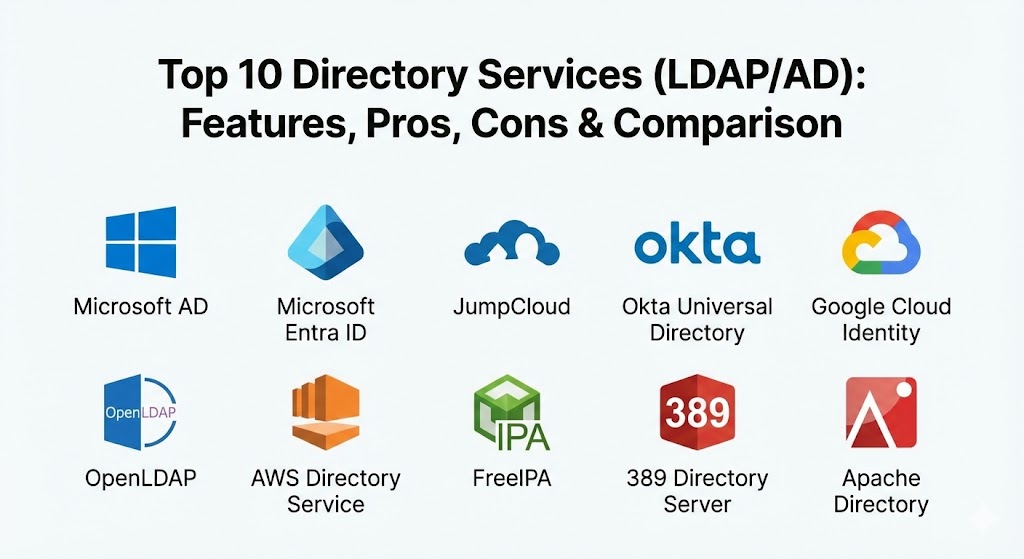
Top 10 Directory Services (LDAP/AD) Tools
1 — Microsoft Active Directory (AD)
Microsoft Active Directory is the most famous tool in this category. It has been the standard for decades for companies that use Windows computers. It is a powerful system that runs on your own office servers to manage every user and computer in the building.
- Key Features:
- Group Policy Objects (GPOs) to control settings on all Windows PCs at once.
- Domain Controllers that verify passwords across the whole network.
- Trust relationships that allow different offices to work together safely.
- Deep integration with Microsoft files and printers.
- Built-in security certificates to prove a computer is safe.
- Support for Kerberos and LDAP communication.
- Large ecosystem of third-party tools that work with it.
- Pros:
- If you use Windows, it is the most powerful tool you can get.
- Almost every IT professional in the world knows how to use it.
- Cons:
- It requires you to own and maintain your own physical servers.
- It is not naturally built for non-Windows devices like Macs or Linux.
- Security & compliance: Supports high-level encryption, SSO, and is the backbone for HIPAA and GDPR compliance in many offices.
- Support & community: Massive global community and professional support from Microsoft.
2 — Microsoft Entra ID (Formerly Azure AD)
This is Microsoft’s modern, cloud-based version of a directory. It is designed for the modern world where people work from home and use cloud apps like Office 365. It doesn’t require any servers in your office.
- Key Features:
- Native integration with Microsoft 365 and all cloud apps.
- Conditional Access rules (e.g., “only allow login from a known laptop”).
- Passwordless login options using fingerprints or face scans.
- Built-in Multi-Factor Authentication (MFA).
- Self-service password resets for employees.
- Ability to sync with your old office servers using “AD Connect.”
- Advanced identity protection that spots suspicious logins.
- Pros:
- No hardware to buy or fix; everything is managed by Microsoft.
- Excellent for companies with employees working remotely.
- Cons:
- It can get expensive as you add advanced security features.
- It works differently than the old version, so old software might need updating.
- Security & compliance: SOC 2, ISO, HIPAA, and GDPR compliant; uses cloud-grade encryption.
- Support & community: Extensive documentation and 24/7 technical help for business accounts.
3 — JumpCloud
JumpCloud is a modern “Directory-as-a-Service.” It is unique because it treats Windows, Mac, and Linux computers as equals. It is perfect for modern tech companies where employees choose their own type of laptop.
- Key Features:
- One dashboard to manage users on Windows, macOS, and Linux.
- Cloud-based LDAP and RADIUS (for secure Wi-Fi login).
- Mobile Device Management (MDM) built right into the directory.
- Zero Trust security that checks every device before letting it in.
- One-click provisioning for cloud apps like Slack and Zoom.
- Easy-to-use “Agents” that install on every computer.
- Automated onboarding and offboarding for new hires.
- Pros:
- The best choice for companies with a “mixed” fleet of computers.
- Very fast and simple to set up compared to traditional tools.
- Cons:
- Some of the most powerful features require a more expensive monthly plan.
- It is a newer company compared to Microsoft, though it is very stable.
- Security & compliance: SOC 2 Type II certified; supports encryption and detailed audit logs.
- Support & community: Responsive chat support and a very helpful community forum.
4 — Okta Universal Directory
Okta is famous for Single Sign-On (SSO), and their Universal Directory is the heart of it. It acts like a “super directory” that can pull information from many different places and combine them into one list of users.
- Key Features:
- Can connect to old Microsoft servers and modern cloud directories at the same time.
- Infinite “Custom Attributes” (like employee ID or shirt size).
- Group rules that automatically give access based on someone’s job title.
- Highly reliable cloud infrastructure that rarely goes down.
- Seamless integration with thousands of apps in the Okta Network.
- Real-time syncing so changes happen instantly across all apps.
- Support for “Passwordless” and “Biometric” logins.
- Pros:
- Extremely scalable—it works just as well for 50 people as it does for 50,000.
- The interface for both employees and admins is very modern and simple.
- Cons:
- It can be the most expensive option on this list.
- It focuses more on “Identity” and less on managing the physical computer settings.
- Security & compliance: FedRAMP, HIPAA, SOC 2, and ISO compliant; world-class encryption.
- Support & community: Dedicated enterprise support and a huge library of online training.
5 — Google Cloud Identity
If your company lives in Google Workspace (Gmail and Drive), you already have Google Cloud Identity. It is a simple but effective directory that makes sure your Google login works for other apps too.
- Key Features:
- Managed right inside the Google Admin console.
- Single Sign-On (SSO) for many common business apps.
- Basic management for mobile phones (wiping data if a phone is lost).
- Multi-Factor Authentication using the Google app.
- Simple reports on who is logging in and from where.
- Free version available for basic needs.
- Tight integration with Google’s security “BeyondCorp” model.
- Pros:
- If you already use Google, it’s basically free and already set up.
- Very familiar and easy for normal business owners to understand.
- Cons:
- It is not as powerful for managing Windows computer settings as Active Directory.
- It has fewer “knobs and dials” for complex IT needs.
- Security & compliance: Complies with major global standards; managed by Google’s security team.
- Support & community: Standard Google Workspace support and many online help articles.
6 — OpenLDAP
OpenLDAP is the “classic” open-source directory. It is not a company, but a project that anyone can use for free. It is favored by engineers and companies that use a lot of Linux servers.
- Key Features:
- Highly customizable—you can build it exactly how you want.
- Industry-standard LDAP protocol that works with almost everything.
- Extremely lightweight and fast.
- No licensing fees or monthly costs.
- Can run on almost any type of computer or server.
- Supports “Overlay” features to add extra functions.
- Very stable and has been trusted for decades.
- Pros:
- It costs zero dollars in software fees.
- You have 100% control over your data; no big company can see it.
- Cons:
- It is very technical and requires a lot of “coding” knowledge to set up.
- There is no central dashboard—you usually manage it through a command line.
- Security & compliance: Varies; you are responsible for making it secure, but it supports all standard encryption.
- Support & community: Community-led forums and mailing lists; no “official” help desk.
7 — AWS Directory Service
Amazon Web Services (AWS) offers a managed version of Active Directory. This is perfect for companies that want the power of Microsoft’s tool but want to run it in the cloud without managing the servers themselves.
- Key Features:
- Runs real Microsoft Active Directory software in the cloud.
- Automatically handles backups and server updates for you.
- Easy integration with Amazon’s other cloud tools.
- Can “bridge” your office network to the Amazon cloud.
- Supports SSO for the AWS Management Console.
- High availability—Amazon makes sure it stays running across different buildings.
- Simple setup process through the AWS website.
- Pros:
- You get the “real” Active Directory without the hardware headache.
- Scales up automatically as your company grows.
- Cons:
- You have to pay every month for the service.
- It is mostly useful if your business is already doing a lot of work in AWS.
- Security & compliance: HIPAA and PCI DSS ready; managed by Amazon’s security professionals.
- Support & community: Professional AWS support and detailed technical documentation.
8 — FreeIPA
FreeIPA is an open-source project primarily for Linux environments. It combines several tools (like LDAP and Kerberos) into one package to make managing Linux computers in a company much easier.
- Key Features:
- Built specifically for Linux (Red Hat, Fedora, Ubuntu).
- Centralized management of users, groups, and permissions.
- Built-in “Trust” with Microsoft Active Directory.
- Web-based dashboard that is much easier than raw OpenLDAP.
- Support for security “Policies” (like who can use sudo).
- Integrated “Host Based Access Control” (HBAC).
- Automatic management of security certificates.
- Pros:
- The best way to manage a company full of Linux workstations.
- Completely free to use and very powerful for technical teams.
- Cons:
- It does not support Windows computers natively.
- Requires a good understanding of Linux systems to keep it running.
- Security & compliance: High-level security using Kerberos; audit logs are available.
- Support & community: Strong community support from the FreeIPA and Red Hat teams.
9 — 389 Directory Server
This is another enterprise-grade open-source tool. It is the community version of a tool used by major companies to handle millions of users at once.
- Key Features:
- High-performance LDAP server that handles huge amounts of data.
- Multi-master replication (if one server breaks, others take over).
- Web-based management console.
- Support for “Dynamic” groups.
- Integration with advanced security tools like Ansible.
- Extremely stable for very busy networks.
- Detailed logging for auditing.
- Pros:
- Built to handle the needs of giant companies with millions of identities.
- Very reliable and rarely has bugs.
- Cons:
- Like most open-source tools, it is harder to learn than a cloud service.
- Not designed for managing Windows PC settings (GPOs).
- Security & compliance: Supports LDAPS and modern encryption; widely used in high-security government projects.
- Support & community: Good community documentation and professional support available through Red Hat.
10 — Apache Directory
Apache Directory is a unique project written in Java. It is designed to be a “directory for developers,” making it very easy to integrate identity into custom-built software.
- Key Features:
- Includes both an LDAP server and a Kerberos server.
- “Studio” dashboard that makes it easy to see your data visually.
- Can be “embedded” directly into a software application.
- Works on Windows, Mac, and Linux because it uses Java.
- Highly flexible and easy to extend with new features.
- Very standards-compliant.
- Great for testing new software before it goes live.
- Pros:
- The visual “Studio” tool is one of the best for managing any LDAP data.
- Great for software developers who need a directory for their apps.
- Cons:
- Not usually used as the “main” directory for an entire company’s laptops.
- Can be a bit “heavy” on computer memory because it uses Java.
- Security & compliance: Supports standard encryption and secure communication protocols.
- Support & community: Managed by the Apache Software Foundation with a strong volunteer community.
Comparison Table
| Tool Name | Best For | Platform(s) Supported | Standout Feature | Rating |
| Microsoft AD | Traditional Windows Offices | Windows Server | Group Policy Objects (GPO) | 4.8 |
| Entra ID | Remote/Cloud-First Teams | Cloud / Web | Modern MFA & Cloud Sync | 4.7 |
| JumpCloud | Mixed-OS Environments | Windows, Mac, Linux | Unified Device & ID Management | 4.6 |
| Okta Directory | Large Enterprise Identity | Cloud / SaaS | 7,000+ App Integrations | 4.8 |
| Google Cloud ID | Google Workspace Users | Cloud / Web | Built into Gmail/Admin | 4.4 |
| OpenLDAP | Technical/DIY Teams | Linux, Unix | Zero cost & total control | N/A |
| AWS Directory | AWS Users needing AD | AWS Cloud | Managed Microsoft AD code | 4.3 |
| FreeIPA | Linux-focused Offices | Linux | Linux-native management | N/A |
| 389 Directory | High-Volume Enterprise | Linux | Multi-master replication | N/A |
| Apache Directory | Software Developers | Java / Multi-platform | Embedded directory support | N/A |
Evaluation & Scoring of Directory Services
We have evaluated these tools using a weighted scoring system. This helps you see which tool is best for your specific needs by looking at how we ranked their core abilities.
| Category | Weight | What We Look For |
| Core Features | 25% | Managing users, devices, and passwords accurately. |
| Ease of Use | 15% | Is the dashboard simple for a human to manage? |
| Integrations | 15% | Does it connect with your email, Slack, and laptops? |
| Security | 10% | Encryption, MFA, and strong audit logs. |
| Reliability | 10% | Does the system stay up? Are there backups? |
| Support | 10% | Quality of the help manuals and the support team. |
| Price / Value | 15% | Is the cost fair for the benefits you receive? |
Which Directory Services (LDAP/AD) Tool Is Right for You?
Solo Users and Very Small Businesses
If you are just starting out, you likely don’t need a heavy tool. If you use Google for email, stick with Google Cloud Identity. If you use Microsoft, use the basic version of Entra ID. For a free and modern way to manage a few laptops, JumpCloud offers a free tier for up to 10 users that is excellent.
Small to Medium Businesses (SMBs)
As you grow, management becomes harder. JumpCloud is often the best choice for SMBs because it handles everything (Windows, Mac, and identity) in one simple web portal. If you are a 100% Windows shop, traditional Microsoft Active Directory is still a solid, reliable choice, though you will need to buy a server.
Large Enterprise and Corporations
Large companies need scale and expert security. Okta Universal Directory is the gold standard for connecting thousands of apps and users safely. If your company has been around for a long time and has many office buildings, a Hybrid setup—using traditional Active Directory in the office synced with Entra ID in the cloud—is the most common and powerful way to go.
Budget-Conscious vs. Premium
If you have a zero-dollar budget and a very smart IT team, OpenLDAP or FreeIPA are powerful tools that cost nothing. However, if you want a tool that “just works” and has a 24/7 help desk, paying for JumpCloud or Okta is worth the investment. It will save you time and protect you from expensive security mistakes.
Frequently Asked Questions (FAQs)
1. What is the difference between LDAP and Active Directory?
LDAP is a “language” (protocol) that many directories speak. Active Directory is a specific “software product” made by Microsoft that speaks that language, but it also does many other things like managing computer settings.
2. Can I use Active Directory on a Mac?
Technically yes, but it is not easy. Macs are not built to understand all of Microsoft’s rules. Tools like JumpCloud are much better if you have a lot of Macs in your office.
3. Do I really need a directory service?
If you have more than 10 people and you are worried about security or spending too much time resetting passwords, the answer is yes. It will make your life much easier and your data safer.
4. Is the cloud safer than a server in my office?
Usually, yes. Big companies like Google and Microsoft have thousands of experts watching their servers. A server in your office is only as safe as you make it, and it can be physically stolen or damaged by a fire.
5. What is Single Sign-On (SSO)?
It is a feature where an employee only has to log in once to their directory, and they are automatically logged into all their other apps like Zoom or Slack.
6. Can I switch from an old server to the cloud?
Yes, this is called “Migration.” Most modern tools like Entra ID or JumpCloud have special guides to help you move your users from your old office server to the cloud without losing any data.
7. How much do these services cost?
Cloud services usually cost between $2 and $9 per user per month. Open-source tools are free for the software, but you have to pay for the server and the time of the person managing it.
8. What happens if the internet goes down?
This is a big concern for cloud directories. Most modern cloud tools have “Offline” features that allow employees to still log into their laptops using their last known password even without the internet.
9. What is Multi-Factor Authentication (MFA)?
It is an extra layer of security where you have to prove who you are in two ways—usually your password plus a code sent to your phone or a fingerprint scan.
10. Do I need an IT expert to set this up?
For cloud tools like JumpCloud or Google, a tech-savvy business owner can often set it up. For traditional Active Directory or open-source tools, you definitely need a professional IT person.
Conclusion
Choosing the right Directory Service is like building a strong foundation for a house. It is the core of how your company stays organized and safe. There is no “perfect” tool for everyone; the best one for you depends on what kind of computers you use and how your team works.
If you are a modern, remote-friendly team, look at JumpCloud or Entra ID. If you are a large company that needs the ultimate in scalability, Okta is your best bet. And if you are a group of technical experts who want total control, OpenLDAP is a classic that still works perfectly. By picking the right tool today, you are making sure your company can grow smoothly and stay safe in the years to come.