Introduction
Room Scheduling Displays are small, digital touchscreens that are mounted on the wall right outside of meeting rooms, huddle spaces, or conference halls. These clever devices connect directly to your company’s digital calendar, such as Google Workspace or Microsoft Outlook, to show exactly what is happening inside that room at any given moment. In the simplest terms, they act as a digital signpost that tells passing employees whether a room is currently occupied, when the next meeting starts, and who has reserved the space. By placing this information right at the door, businesses can eliminate the confusion and awkwardness that often happens when someone accidentally walks into a private meeting or when two groups think they have booked the same spot.
These screens are becoming a vital part of the modern office because they solve the “empty room” mystery. We have all seen it: a room is booked on the calendar, but nobody shows up, leaving the space wasted while others struggle to find a place to chat. A good scheduling display allows people to “check in” to their meeting; if they do not show up, the screen automatically frees the room for others to use. This creates a much smoother flow throughout the workday and ensures that the expensive real estate of an office is actually being used effectively. It also gives employees the freedom to walk up to an empty room and book it on the spot with a simple tap, which is perfect for those quick, unplanned brainstorming sessions that happen throughout the week.
Key Real-World Use Cases
- Ad-hoc Meetings: Finding a free room instantly for a quick chat without needing to open a laptop or check a phone.
- Managing Hybrid Teams: Letting people who are visiting the office see at a glance where their colleagues are meeting.
- Eliminating Ghost Meetings: Automatically releasing a room back into the “available” pool if the person who booked it does not show up within ten minutes.
- Wayfinding: Helping visitors or new employees find the right room in a large, sprawling office complex.
- Professional Branding: Using the screens to display the company logo or welcome messages for important clients arriving for a presentation.
What to Look For
When you are looking at different screens, the first thing to consider is how they are powered. Some use batteries and stick to the wall with magnets, while others need to be wired into the building’s electricity. You should also check how clearly the lights show from a distance; many displays use bright red or green LED lights so you can see from down the hallway if a room is busy. Another big factor is how easily it talks to your existing calendar. The best tools are those that require zero extra training for your staff. Lastly, consider the “look” of the hardware—you want something that matches the professional style of your office walls.
Best for: These tools are perfect for medium to large-sized companies that have a lot of shared meeting spaces and a busy workforce. They are especially helpful in fast-moving industries like technology, marketing, and finance where schedules change quickly. Office managers and IT leads find these displays very helpful for keeping the workplace organized without having to manually manage room disputes every day.
Not ideal for: Very small offices with only one or two meeting rooms where everyone can easily see who is inside. If your team is entirely remote and rarely uses a physical office, these hardware-based tools will not provide much value. Also, if your budget is extremely tight, you might prefer using a simple shared digital calendar rather than investing in physical screens for every door.
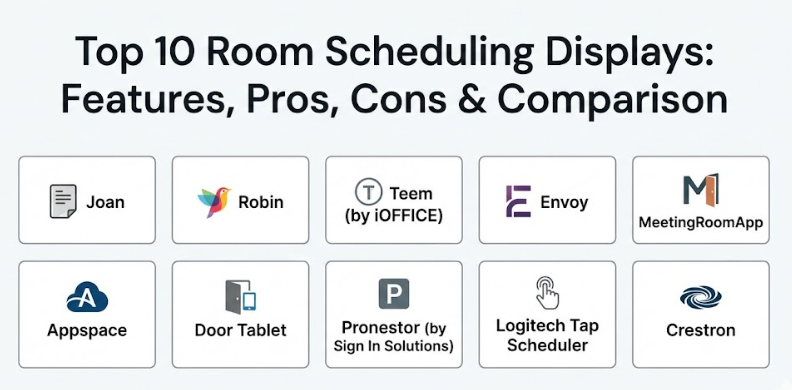
Top 10 Room Scheduling Displays
1 — Joan
Joan is a very unique tool in this category because it uses “e-ink” technology, which is the same kind of screen you find on an electronic book reader. This means the screen only uses power when the information on it changes, making it incredibly energy-efficient. Because it doesn’t need to be plugged in all the time, you can stick it to almost any surface—glass, wood, or brick—without needing to hire an electrician to run wires. It is a quiet, non-distracting device that looks very elegant and professional on any office wall.
Key Features
- Ultra-Low Power: The battery can last for several months on a single charge.
- Sustainable Design: Made from recyclable materials and uses very little electricity.
- Easy Installation: Sticks to walls with a simple magnetic mount, no drilling required.
- Real-Time Sync: Changes made on your office calendar show up on the screen in seconds.
- No Cables Needed: Entirely wireless setup that runs on your existing Wi-Fi.
- Custom Logos: You can put your company’s branding on the screen for a custom look.
Pros
- It is the easiest display to install because there are no wires or complicated mounting kits.
- The e-ink screen is very easy to read even in bright sunlight or under heavy office lights.
Cons
- The screen is black and white, so it doesn’t have the bright “red/green” glow of other tools.
- It refreshes a bit slower than a standard tablet or smartphone screen.
Security & compliance: Uses secure encryption for data and supports standard enterprise Wi-Fi security protocols to keep your network safe.
Support & community: They provide a very helpful online knowledge base and have a responsive team that helps with the initial setup process.
2 — Robin
Robin is widely known for being one of the most “human-friendly” tools for the modern office. It doesn’t just show a schedule on a door; it provides a full map of your office so employees can find where their friends are sitting and which rooms are open. The Robin display is designed to be bright, colorful, and very easy for anyone to understand at a glance. It is built for companies that want to make their office feel more modern and accessible for their employees.
Key Features
- Status Lights: Uses clear color-coding (Green for free, Red for busy) that can be seen from far away.
- Abandoned Meeting Protection: Automatically frees up the room if nobody checks in.
- Interactive Office Maps: Helps employees navigate large floors and find available desks.
- Mobile App Integration: Employees can book rooms from the screen or their own phones.
- Reporting Tools: Shows you which rooms are popular and which ones are rarely used.
- Instant Booking: Tap the screen to grab a room for a 15-minute or 30-minute chat.
Pros
- The interface is very colorful and inviting, which helps employees actually want to use it.
- Excellent at providing data to help you decide if you need more meeting rooms.
Cons
- It usually requires a tablet (like an iPad) to run, which can be expensive to buy for every door.
- The feature set might be a bit too much for a very small company that just wants a basic sign.
Security & compliance: Includes secure single sign-on (SSO) and keeps all calendar data encrypted during the syncing process.
Support & community: Offers a very active blog with office tips and a dedicated support team for enterprise customers.
3 — Teem (by iOFFICE)
Teem is a heavy-duty solution that focuses on making sure meetings actually happen as planned. It is famous for its “Zombie Meeting” killer, which is a clever way of saying it deletes bookings when people forget to show up. Teem is built for large organizations that need a reliable system that can handle hundreds of rooms across different buildings. It provides a lot of “behind the scenes” data for office managers to help them understand how the building is being used.
Key Features
- Check-in Function: Requires users to tap the screen when they arrive to keep their booking.
- Flightboard View: A large screen for the lobby that shows all upcoming meetings in the building.
- Detailed Analytics: Shows “recaptured time” from meetings that were canceled automatically.
- Work Request Integration: Employees can report a broken light or a messy room directly from the screen.
- Custom Backgrounds: Allows you to change the look of the display to match your office decor.
- Multi-Platform: Works well with iPads, Android tablets, and specialized hardware.
Pros
- Very good at saving money by making sure rooms aren’t sitting empty while others need them.
- The “Flightboard” feature is perfect for helping visitors find their way in a big office.
Cons
- The setup of the analytics dashboard can be a bit overwhelming for beginners.
- It can be one of the more expensive options once you add in all the features.
Security & compliance: Fully compliant with enterprise security standards, including GDPR and secure data handling.
Support & community: Provides extensive training for office admins and 24/7 support for large-scale deployments.
4 — Envoy
Envoy is a company that started by helping offices manage visitors, and they have brought that same simple, clean design to their room scheduling tool. The Envoy Room display is designed to be part of a larger “workplace” app. If your company already uses Envoy to check in guests, adding their room screens is a very natural choice. It is all about making the office a seamless experience where everything—from the front door to the conference room—is handled by one simple system.
Key Features
- Unified Experience: Works perfectly with Envoy’s visitor and desk booking tools.
- Health and Safety: Can be used to ensure rooms are cleaned between meetings.
- Slack Integration: Sends a message to your team when their room is ready or about to expire.
- Easy Analytics: Provides a clear picture of how often rooms are booked versus used.
- Modern Design: The screens look very sleek and use a simple, white-and-red color palette.
- Quick Release: Allows users to end a meeting early and free the room with one tap.
Pros
- If you already use Envoy, it is the easiest system to set up and manage.
- The mobile app is very highly rated and easy for employees to learn.
Cons
- It is most effective when you use their other tools, so it might feel limited as a standalone product.
- Fewer hardware options compared to some of the more specialized display companies.
Security & compliance: Very high focus on security, offering SOC 2 compliance and deep privacy controls for employee data.
Support & community: Known for having very friendly customer support and easy-to-read help articles.
5 — MeetingRoomApp
MeetingRoomApp is a software-focused solution that can turn almost any tablet into a professional room scheduler. It is very popular in Europe and is known for its high level of customization. If you have specific ideas about how you want your screens to look, this is likely the tool for you. It offers a very “high-tech” feel with bright colors and smooth animations that make the office feel very advanced and organized.
Key Features
- Custom Maps: Shows a 2D map of the floor directly on the screen outside the door.
- Brand Customization: Deep control over colors, fonts, and background images.
- Multiple Languages: Supports dozens of different languages for global offices.
- Error Reporting: Allows users to report issues with room equipment (like a broken projector).
- Booking Confirmation: Prevents “room squatting” by requiring a tap to start the meeting.
- Device Compatibility: Works on iPad, Android, and even specialized commercial screens.
Pros
- It looks incredibly modern and “high-end” once it is set up on the wall.
- Great for international companies that need different languages in different offices.
Cons
- Because it has so many options, it can take longer to configure than simpler tools.
- The software-only approach means you have to buy and manage the hardware yourself.
Security & compliance: Offers secure communication between the screen and your calendar, with support for modern encryption standards.
Support & community: Good documentation is available, along with a dedicated support team for technical questions.
6 — Appspace
Appspace is a massive platform that does much more than just room scheduling. It is a “digital signage” tool, which means you can use the same system to show company news on big TVs in the cafeteria and small scheduling screens outside the meeting rooms. This is the “all-in-one” choice for companies that want to control all of their office screens from one single place. It is very powerful and used by some of the biggest companies in the world.
Key Features
- Content Management: Use the screens to show company announcements when no meeting is happening.
- Wayfinding: Includes interactive maps to help people find their way around the building.
- Template Library: Choose from many pre-designed looks for your room displays.
- Employee Communication: Send urgent alerts to all screens in the building at once.
- Enterprise Scalability: Built to manage thousands of devices across different countries.
- Guest Check-in: Can also be used to welcome guests at the front desk.
Pros
- It is the best choice if you want to use your screens for more than just booking rooms.
- Very reliable hardware partnerships with companies like Crestron and LG.
Cons
- It is probably too complicated for a company that only has 5 or 10 meeting rooms.
- The pricing and setup process are geared toward large corporate environments.
Security & compliance: Highly secure, meeting the strict requirements of government and financial institutions.
Support & community: Offers enterprise-level support plans and a very comprehensive training portal.
7 — Door Tablet
Door Tablet is a professional-grade scheduling system that is built for reliability and deep functionality. It is a very “serious” tool that focuses on giving you every possible feature you might need to manage a complex building. From managing catering requests to controlling the lights in the room, Door Tablet is designed to be the central brain of your meeting spaces. It is very popular in professional services like law firms and medical centers where precision is key.
Key Features
- Catering Management: Order coffee or lunch for your meeting directly from the screen.
- Room Consolidation: Can manage groups of rooms that can be joined together for big events.
- Motion Sensors: Can detect if people are in the room even if they forgot to check in.
- Wide Hardware Support: Works on everything from tiny 5-inch screens to large 15-inch displays.
- LED Light Bars: Bright lights built into the side of the display for maximum visibility.
- Reporting & Logs: Keeps a detailed record of every single room interaction.
Pros
- Extremely robust and rarely crashes or has sync issues.
- The ability to manage catering and room setup is a huge bonus for event planners.
Cons
- The user interface looks a bit more “technical” and less “fun” than tools like Robin.
- It can take some time to learn all of the many buttons and settings.
Security & compliance: Provides very high levels of security, including on-premise installation options for extra privacy.
Support & community: Very strong technical support and clear guides for IT professionals.
8 — Pronestor (by Sign In Solutions)
Pronestor is a part of the “Sign In Solutions” family and is a leader in the European market. It is known for being extremely organized and following all the strict rules regarding data privacy. Pronestor is perfect for companies that want a very “clean” and logical way to manage their rooms. It integrates deeply with Microsoft Outlook, making it feel like a natural extension of the tools your employees are already using every single day.
Key Features
- Outlook Integration: Deeply connected to the Microsoft ecosystem for a seamless feel.
- Insights and Trends: Excellent graphs that show how your office space is being used.
- Visitor Management: Connects with the front desk to alert you when your guest arrives.
- Meeting Services: Manage everything from AV equipment to snacks from one place.
- Flexible Billing: Makes it easy to charge back room costs to different departments.
- Mobile Booking: A very clean mobile web app for booking on the move.
Pros
- Very high attention to detail and data privacy (perfect for European businesses).
- Makes the process of ordering food and equipment for a meeting very easy.
Cons
- Most effective for companies using Microsoft; it is less famous for Google users.
- The hardware options are professional but can be quite expensive.
Security & compliance: Fully GDPR compliant and offers very secure data handling practices.
Support & community: Provides excellent onboarding services to help large companies get started correctly.
9 — Logitech Tap Scheduler
Logitech is a household name for computer accessories, and their Tap Scheduler is a purpose-built piece of hardware for room booking. Unlike other companies that just make the software, Logitech makes the actual screen. It is designed to be a “set it and forget it” tool. It looks beautiful, feels very solid, and is built to withstand years of being tapped by thousands of different people. It is a very reliable choice for companies that want a name-brand solution they can trust.
Key Features
- Clean Cabling: Uses a single cable for both power and internet, making the wall look tidy.
- Built-in Lights: Bright LED bars on the sides change color to show room status.
- Multiple Mounting Options: Comes with everything you need to mount it on glass or drywall.
- Flat Design: It sits very close to the wall so it doesn’t get bumped or knocked.
- Partner Software: Can run software from Microsoft, Zoom, or Appspace directly on the device.
- Commercial Grade: Built to be “always on” and is much tougher than a standard home tablet.
Pros
- The hardware quality is exceptional and feels like a premium product.
- Very easy for IT teams to manage using the same tools they use for Logitech cameras.
Cons
- You are buying a specific piece of hardware, so it is less flexible if you want to switch screens later.
- It is a premium product with a price tag that reflects that quality.
Security & compliance: Built with enterprise-grade security and is compatible with major office management platforms.
Support & community: Benefits from Logitech’s global support network and long-term warranties.
10 — Crestron
Crestron is the “gold standard” for high-end office automation. Their room scheduling panels are part of a massive ecosystem of lighting, sound, and video tools. Crestron screens are often found in the boardrooms of the world’s most successful companies. They are designed to be “architectural grade,” meaning they look like a built-in part of the building rather than an add-on. If you want the absolute best in terms of luxury and deep office integration, Crestron is the answer.
Key Features
- Deep Automation: Can automatically turn on the lights and the TV when a meeting starts.
- Proximity Sensors: The screen wakes up when someone walks toward it.
- Custom Glass Mounting: Offers very clean ways to mount the screen on glass walls without seeing wires.
- High-Resolution Screens: Extremely sharp displays that can show fine details and logos.
- Enterprise Management: Manage thousands of screens across a global network from one desk.
- Beacon Technology: Can send information to an employee’s phone as they walk past the room.
Pros
- It is the most powerful and reliable system available for high-end offices.
- The level of integration with other room technology (like lights and shades) is unmatched.
Cons
- It is the most expensive option on the list and requires professional installation.
- Might be too “high-tech” for a simple office that just needs to see if a room is free.
Security & compliance: Meets the highest military and government security standards for data protection.
Support & community: Offers world-class support and a global network of certified installers.
Comparison Table
| Tool Name | Best For | Platform(s) Supported | Standout Feature | Rating |
| Joan | Easy Setup | iOS, Android, Web | E-ink Wireless Screen | 4.8 / 10 |
| Robin | Hybrid Culture | Web, iOS, Android | Interactive Office Maps | 4.7 / 10 |
| Teem | Large Offices | Web, iOS, Android | “Zombie Meeting” Killer | 4.6 / 10 |
| Envoy | All-in-one Workplace | iOS, Android, Web | Visitor & Desk Sync | 4.5 / 10 |
| MeetingRoomApp | Custom Looks | iOS, Android, Web | 2D Floor Plan View | 4.4 / 10 |
| Appspace | Company News | Web, iOS, Android | Digital Signage Mix | 4.5 / 10 |
| Door Tablet | Deep Features | Web, iOS, Android | Catering & Room Setup | 4.3 / 10 |
| Pronestor | Microsoft Users | Web, iOS, Android | Detailed Usage Data | 4.4 / 10 |
| Logitech Tap | Reliable Hardware | Specialized Hardware | High-end Build Quality | 4.8 / 10 |
| Crestron | Luxury Offices | Specialized Hardware | Deep Room Automation | 4.9 / 10 |
Evaluation & Scoring
This table shows how we judge the value of a room scheduling display. We look at everything from how it looks on the wall to how safe it keeps your company data.
| Category | Weight | Score | Evaluation Notes |
| Core Features | 25% | 9 | Most tools do the basic job of booking very well now. |
| Ease of Use | 15% | 8 | Simple screens that don’t need training score highest here. |
| Integrations | 15% | 8 | Being able to talk to Outlook and Google is essential. |
| Security | 10% | 10 | Enterprise-grade security is now a standard for these brands. |
| Reliability | 10% | 9 | Hardware must be “always on” to be useful for employees. |
| Support | 10% | 7 | Varies; some offer 24/7 help while others use email only. |
| Price / Value | 15% | 7 | High-end tools are expensive but can save time for staff. |
Which Room Scheduling Display Tool Is Right for You?
Choosing the right screen is mostly about understanding your company’s personality and how much you want to spend on the project.
Matching Your Office Size
If you are a small business with only five rooms, you should look for simplicity. A tool like Joan is perfect because you don’t need to hire workers to run wires through your walls. For a medium-sized company, a tool like Robin or Envoy is great because it helps with the “culture” of the office and makes the workplace feel modern. If you are a massive global enterprise, you need something like Appspace or Crestron that can be managed from a central headquarters and works in every country.
Budget and Installation
Think about the “hidden costs.” A cheap software app might look like a bargain, but once you buy iPads, mounting kits, and pay an electrician to bring power to the door, the price can jump up quickly. If you have a tight budget, stick with a tool that can run on inexpensive Android tablets. If you want a premium solution, go for a name like Logitech or Crestron where the hardware is built specifically for this job and will likely last much longer.
Feature Depth vs. Simplicity
Do you just want to see “Red or Green” on a door? Then a simple tool is best. But if you want to be able to order a coffee for your meeting or turn off the lights from the screen, you will need a more advanced system like Door Tablet. Most offices find that a “middle ground” tool—one that releases empty rooms and shows a clear schedule—is the best fit for most people.
Integration and Security
Finally, check your technical requirements. If your whole office runs on Microsoft 365, you want a tool that lives and breathes in that world, like Pronestor. If you are a very secure business, like a bank or a hospital, you must ensure the tool has all the right certifications to keep your office calendar private and safe from hackers.
Frequently Asked Questions (FAQs)
1. What is the main benefit of having a physical screen on the door?
It stops the confusion of people walking into active meetings. It also allows employees to see instantly if a room is free and book it without needing to walk back to their desk.
2. Do I have to buy expensive iPads for every room?
No. While some tools work on iPads, many companies offer their own specialized screens that are often tougher and cheaper in the long run. Some tools even work on simple Android tablets.
3. What happens if a person books a room but doesn’t show up?
The best scheduling displays have an “auto-release” feature. If no one taps the screen to “check in” within a few minutes, the meeting is canceled and the room becomes free for others.
4. Can these screens work with glass walls?
Yes. Most manufacturers offer special “glass mounts” that use strong tape or glue to hide the wires and keep the screen securely attached to the glass.
5. How are these displays powered?
Some are battery-powered and last for months. Others use a single “PoE” cable, which is a thin wire that provides both internet and electricity at the same time.
6. Is it possible to customize the screen with our own logo?
Yes. Almost all professional displays allow you to upload your company logo, change the background image, and pick colors that match your office brand.
7. Can I see all the meeting rooms on one big screen in the lobby?
Many systems offer a “Flightboard” or “Map” view. This is a large screen you can put in your reception area to help visitors find where their meeting is happening.
8. Is my company calendar data safe?
Yes. These companies use high-level encryption to talk to your calendar. They only “see” the meeting times and names, and they don’t store your private emails or files.
9. Can I use these screens to report a problem in the room?
Yes, some advanced tools like MeetingRoomApp or Door Tablet have a button to report a broken chair, a messy desk, or a projector that won’t turn on.
10. How much do these tools usually cost?
The price is usually a mix of a one-time cost for the screen and a monthly fee for the software. Prices can range from a few dollars per room to several hundred depending on the features.
Conclusion
In the end, choosing the right room scheduling display is about bringing order to the daily life of your office. These small screens do a lot of heavy lifting—they stop arguments over who booked the room, they help visitors find their way, and they ensure your office space is used to its full potential. By moving the information from a hidden digital calendar to a bright screen on the wall, you make the office a much more transparent and friendly place for everyone to work. It’s a simple change that can save your team hours of frustration every single week.
The most important thing to keep in mind is that the “best” tool is the one that fits into your team’s natural habits. If your employees are already using Slack or Microsoft Teams, pick a tool that sends them notifications there. If your building has a lot of glass walls, pick a tool that is easy to mount without ugly wires. The goal is to make booking a room as simple as possible so that people can spend less time fighting over space and more time doing their actual work.
Take a moment to talk to your team and see what their biggest office frustrations are. If they say they can never find a free room even though the office looks half-empty, it is time to invest in a scheduling system. Whether you choose a high-end luxury system or a simple wireless screen, the impact on your company’s productivity and culture will be felt immediately. A well-organized office is a happy office, and the right display is the perfect way to start that journey.